
[转载]构建高性能ASP.NET站点 第七章 如何解决内存的问题(前中篇)—托管资源优化—监测CLR性能

mikel阅读(816)

[转载]【原创】构建高性能ASP.NET站点 第七章 如何解决内存的问题(前中篇)—托管资源优化—监测CLR性能 – ASP.NET 架构 – 博客园.

CLR计数器的使用

我们使用系统自带的性能监测工具来跟踪和监测垃圾回收器。

下面,首先介绍几个常用的CLR性能监测计数器,我们一般查看.NET CLR Memory分类下的计数器:

Percent Time in GC 表明了从上次垃圾回收机制运行之后到现在这段时间内,运行垃圾回收机制所花的时间占总时间的百分比。不要超过10%
Gen 0 heap size 这个数值不是表明当前托管堆中Gen 0对象所占的大小,而是指:还可以分配的Gen 0对象的大小
Gen 1 heap size 表明当前Gen 1 对象所占的托管堆的空间大小
Gen 2 heap size 表明当前Gen 2 对象所占的托管堆的空间大小
Large Object Heap size 当前LOH的大小
# Byte in all Heaps 是上面Gen 0 heap sizeGen 1 heap sizeGen 2 heap sizeLarge Object Heap size所有的种和,也就是整个托管堆所占的空间大小
# Gen 0 Collections 从系统开启之后到现在,垃圾回收器回收Gen 0对象的次数
# Gen 1 Collections 从系统开启之后到现在,垃圾回收器回收Gen 1对象的次数
# Gen 2 Collections 从系统开启之后到现在,垃圾回收器回收Gen 2对象的次数

介绍完上面的一些计数器之后,大家可以运行perfmon命令,打开性能监测工具。

下面开始介绍CLR ProfilerCLR 透析器)

CLR Profiler

CLR Profiler是微软开发的一个工具,这个工具可以用来检测CLR所占用的内存详情。

大家可以去下面的链接去下载这个工具:

http://www.microsoft.com/downloads/details.aspx?familyid=a362781c-3870-43be-8926-862b40aa0cd0&displaylang=en

下面的链接详细的讲述这个工具的用法:

http://msdn.microsoft.com/zh-cn/magazine/ee309515.aspx#MtViewDropDownText

在这里,只是简单的介绍一下如何使用,至于详细的操作,还请大家去查看上面给出的链接。使用的步骤如下:

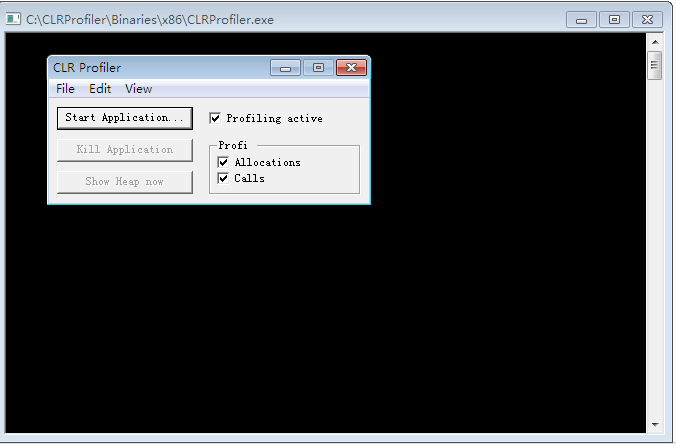
1. 运行CLR Proflier

2. 确保Profiling active, Allocations, Calls都勾选上。如下:

3. 选择File->Profile ASP.NET”.这个操作的背后会停止IIS的运行,然后插入一些指令,然后重启IIS,所以这个工具在生产环境中慎用。
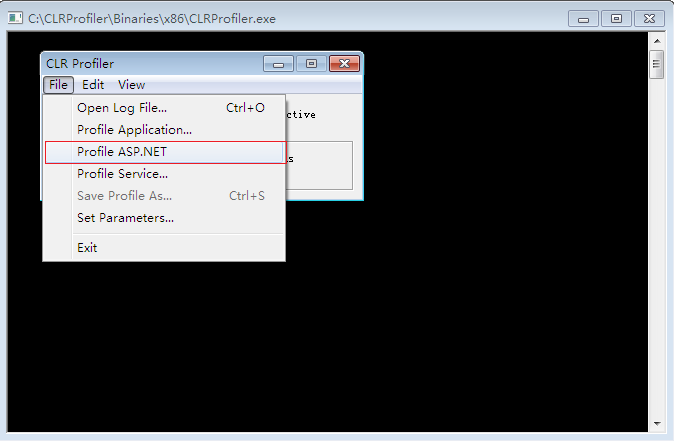
4. 然后我们可以在VSF5运行我们的网站(确保在创建网站的时候是以IIS方式来建立站点的,而不是选择文件系统的方式建立)

5. 在界面上面点击Kill ASP.NET”.这个操作的背后会移除之前加入到IIS中的一些监视指令。点击按钮之后,会出现一些界面。这个界面上面显示了Gen0, Gen1 Gen2 ,LOH所占的大小,如下:
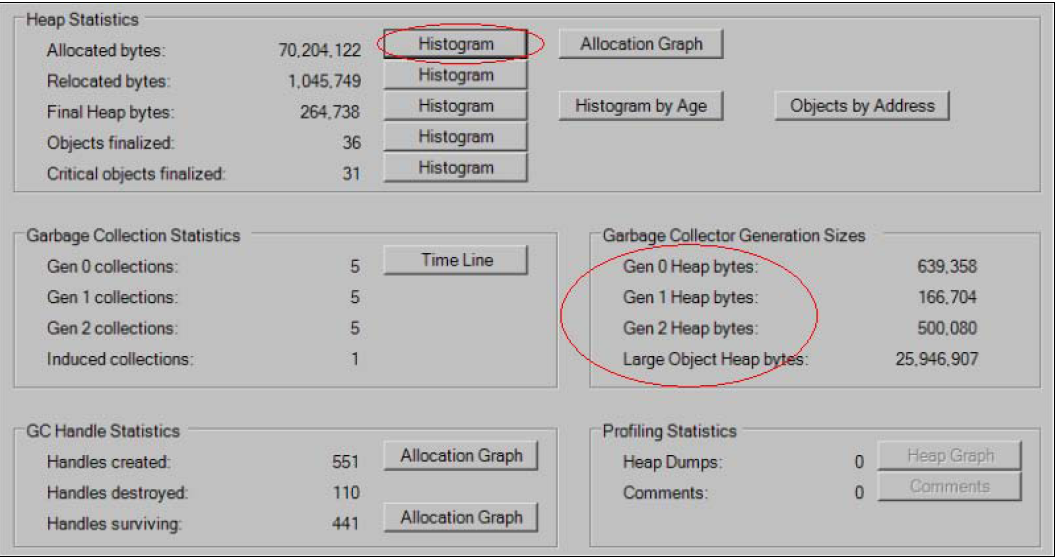
6. 我们还可以点击Histogram按钮。这个界面展示了不同大小以及不同类型的对象所占的比例。下面对看出,系统中有很多的string对象,也就说,系统中的string类型的对象占据了系统大部分的内存空间。
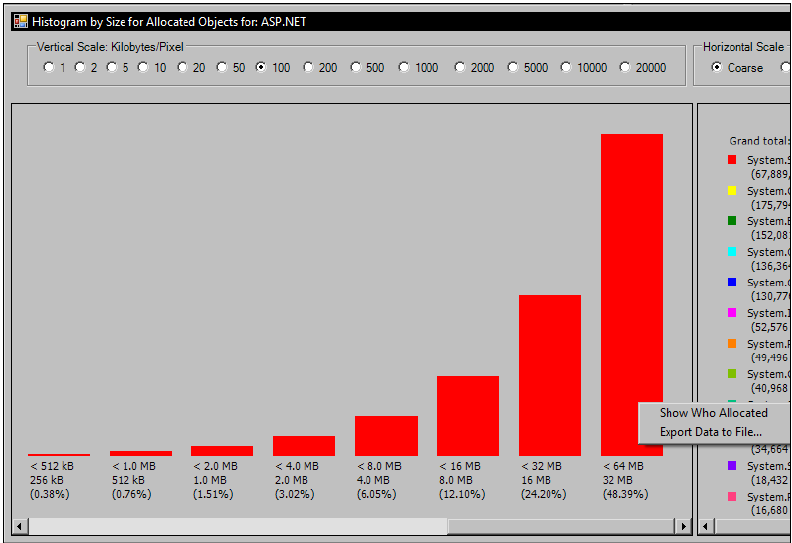
大家可以查看更多的信息,这里不再赘述了,下面我们来看看垃圾回收器的版本问题。

垃圾回收器版本

CLR中,垃圾回收器是有两个版本的:

1. 服务端版本。CLR中的这个垃圾回收器版本进行了一系列的内存,处理器优化,用来进一步的提高性能。

2. 工作组版本,这是相对服务端版本而言的,主要是用在桌面开发中,例如在WPFWinform中,就是采用的这个版本垃圾回收器。

ASP.NET中就是采用的CLR服务端版本的垃圾回收器。

OK,今天就暂时写到这里,下一篇讲述一些针对上述问题的一些优化措施。

[转载]GoogleReader用户登陆验证C#具体实现

mikel阅读(903)

[转载]GoogleReader用户登陆验证C#具体实现 – 编程点滴 – 博客园.

继前两篇文章

google reader api:http://www.cnblogs.com/mybear/archive/2011/02/18/1957704.html

GoogleReader用户登陆验证原理:http://www.cnblogs.com/mybear/archive/2011/02/18/1957769.html

相信大家对GoogleReader api已经有所认识,下面就讲下GoogleReader用户登陆验证C#具体实现

1.创建HttpWebRequest

private HttpWebRequest CreateRequest(string url) { HttpWebRequest webRequest = WebRequest.Create(url) as HttpWebRequest; IWebProxy defaultParoxy = HttpWebRequest.GetSystemWebProxy(); webRequest.Proxy = defaultParoxy; webRequest.UserAgent = "GoogleReader for Windows/"+Assembly.GetExecutingAssembly().GetName().Version; webRequest.CookieContainer = _CookieContainer; webRequest.ServicePoint.Expect100Continue = false; webRequest.Timeout = 20000; if (_isLoginIn) webRequest.Headers.Add("Authorization", "GoogleLogin auth=" + _LoginAuth[2].Split('=')[1]); return webRequest; }

2.使用HttpPost传递登陆参数

private string PostGoogleLogin(HttpWebRequest webRequest,string queryString) { string ResponseString = string.Empty; webRequest.ContentType = "application/x-www-form-urlencoded"; webRequest.Method = "POST"; byte[] QueryData = Encoding.UTF8.GetBytes(queryString); webRequest.ContentLength = QueryData.Length; try { using (Stream stream = webRequest.GetRequestStream()) { stream.Write(QueryData, 0, QueryData.Length); stream.Close(); ResponseString = GetResponseString(webRequest); } } catch (Exception ex) { LoginError += ex.ToString() + "\r\n"; } return ResponseString; }

3.传递用户名和密码实现登陆

public void GoogleLogin(string email,string password) { string SID_ID = string.Empty; string responseData = string.Empty; List<Parameter> queryParams = new List<Parameter>(); queryParams.Add(new Parameter("service", "reader")); queryParams.Add(new Parameter("Email", Uri.EscapeDataString(email))); queryParams.Add(new Parameter("Passwd", Uri.EscapeDataString(password))); queryParams.Add(new Parameter("source", "Mobile Newspaper/0.1")); queryParams.Add(new Parameter("continue", "http://www.google.com")); HttpWebRequest webRequest=CreateRequest("https://www.google.com/accounts/ClientLogin"); responseData = PostGoogleLogin(webRequest, HttpUtil.GetQueryParamters(queryParams)); string pattern="SID=(.*)"; Regex reg = new Regex(pattern, RegexOptions.IgnoreCase); if (reg.IsMatch(responseData)) { _isLoginIn = true; _LoginAuth = responseData.Split('\n'); SID_ID = reg.Match(responseData).Groups[1].Value; _CookieContainer.Add(new Cookie("SID",SID_ID,"/",".google.com")); } }

至此,google用户登陆验证完成了!我们可以根据googlereader提供的API打造一个属于自己的客户端RSS订阅器!

比如,我们要获得已阅读的20篇文章:可以用httpget的方法访问:http://www.google.com/reader/atom/user/[user ID]/state/com.google/read

[user ID]可以使用“-”来代表当前登陆的用户,返回的记录是XML数据格式:

[原创]Power Designer生成数据库表脚本时遇到sqlstate=37000错误,解决方案!

mikel阅读(1402)

因为设置脚本时,输入类型nvarchar(500 ,时少输入了右括号,导致数据库脚本提示“ 无法预定义语句” 因此不能创建表

同时未指定dbo用户时,也提示“不允许有扩展属性”错误,可以按照网上的解决办法解决,如下:

使用PowerDesigner 12 生成的SQL执行时,出现下面的错误:

execute sp_addextendedproperty ‘MS_Description’,
‘表名’,
‘user’, ‘’, ‘table’, ‘Groups’
go

服务器: 消息 15135,级别 16,状态 1,过程 sp_validatepropertyinputs,行 100. 对象无效。
不允许在 ‘.Groups’上使用扩展属性,或对象不存在。
google了半天终于找到了原因:原来是没有为表指定Owner而导致的错误。

execute sp_addextendedproperty ‘MS_Description’,
‘表名’,
‘user’, ‘dbo’, ‘table’, ‘Groups’
go

为表名指定所有这就行了:在PowerDesigner 中的表上单击右键,属性就会出来Owner先项,创建一个dbo即可

在生成扩展属性字段的注释的时候。生成了一个comment on column 在SQL server 中执行一直说commnet 关键字错误。查了一下原来SQL server  中没有这个。是甲骨文上的。

修改数据库的方式是:Tools–>Resources–>DBMS–>选择数据库就可以了。

[转载]用JavaScript实现表格数据管理

mikel阅读(907)

[转载]用js实现表格数据管理 – 学无止境 – 博客园.

用js实现了表格数据管理的以下几个功能:

    • 点击添加按钮可以添加一个空的可以修改的记录。
    • 点击表格单元格可以修改文本。
    • 修改后实现了保存的接口。
    • 如果添加了新的记录而未做任何修改值都为null,保存全部时将被忽略。
    • 保存全部时只保存修改过的值,原有的数据不再重复保存。
    • 刷新时如果数据未保存则提示保存。
    • 点击删除时如果是临时添加的无效数据则直接删除,如果保存过的记录则实现了记录删除的接口。

考虑到嵌套的比较多就没有使用form表单,用js直接解析dom来分离出了要传递的数据。

先看下运行的效果图:

js的代码如下,其中注释较多就不解释了:

var JCRUD=function(tb,colnum,saveAllBtn,add,ajaxSaver,allAjaxSaver,ajaxDeler){
var del = tb.getElementsByTagName('a');
var span = tb.getElementsByTagName('span');
var ctr=[];/* 保存修改的tr对象 */
var delEvent = function(){
var dder = this.parentNode.parentNode;
this.data=[];
for(var i=0; i<dder.children.length-1; i++)
this.data[i] = dder.children[i].children[0].firstChild.nodeValue;
var tag = 0;
for(var j=0; j<this.data.length; j++){
if(this.data[j]!=='null'){/* 如果修改了单元格的默认值,这里也做相应修改 */
tag=1;
break;
}
}
for(var k=0; k<ctr.length; k++) if(ctr[k]===dder) ctr.splice(k,1);
dder.parentNode.removeChild(dder);
if(tag==1) ajaxDeler.call(this);
};
var spanEvent = function(){/* 点击生成修改框 */
var value = this.firstChild.nodeValue;
var input = document.createElement('input');
input.value = value;
this.parentNode.appendChild(input);
this.parentNode.removeChild(this);
input.focus();
input.onblur = function(){/* 失去焦点移除修改框 */
var span = document.createElement('span');
span.appendChild(document.createTextNode(this.value?this.value:'null'));/* 如果修改了单元格的默认值,这里也做相应修改 */
span.onclick =spanEvent;
this.parentNode.appendChild(span);
this.parentNode.removeChild(this);
if(value!=this.value){/* 如果内容改变生成保存按钮 */
var tr = span.parentNode.parentNode
tds = tr.children;
btns = tds[colnum-1].getElementsByTagName('a');
for(var i=0; i<btns.length; i++){
if(btns[i].firstChild.nodeValue!='保存'){
var saver = document.createElement('a');
saver.href="JavaScript:;";
saver.appendChild(document.createTextNode('保存'));
}else{
var saver = btns[i];
}
}
tds[tds.length-1].appendChild(saver);
var tag=0;
for(var k=0; k<ctr.length; k++)
if(ctr[k]===tr) tag=1;
if(tag==-0) ctr.push(tr);
saver.onclick=function(){/* 添加保存处理事件 */
this.data = [];
for(var i=0; i<tds.length-1; i++)
this.data[i] = this.parentNode.parentNode.children[i].children[0].firstChild.nodeValue;
ajaxSaver.call(this);
for(var i=ctr.length-1; i>=0; i--){
if(this.parentNode.parentNode===ctr[i]){
ctr.splice(i,1);
}
}
this.parentNode.removeChild(this);
};
}
}
};
for(var i in del) del[i].onclick = delEvent;/* 给现在有元素添加事件 */
for(var j in span) span[j].onclick = spanEvent;
add.onclick = function(){
var tbody = tb.children[0];
var tr = document.createElement('tr');
for(var j=0; j<colnum; j++){
var td = document.createElement('td');
if(j==(colnum-1)){
var del = document.createElement('a');
del.href='JavaScript:;';
del.appendChild(document.createTextNode('删除'));
del.onclick = delEvent;/* 给新加元素添加事件 */
td.appendChild(del);
}else{
var span = document.createElement('span');
span.appendChild(document.createTextNode('null'));/* 如果在添加时修改默认值,在这里修改的 */
td.appendChild(span);
span.onclick =spanEvent;
}
tr.appendChild(td);
}
tbody.appendChild(tr);
};
var getAllData = function(){/* 保存全部的数据解析 */
var allData=[];
for(var i=0; i<ctr.length; i++){
allData[i]=[];
for(var j=0; j<ctr[i].children.length-1; j++)
allData[i].push(ctr[i].children[j].children[0].firstChild.nodeValue);
ctr[i].children[colnum-1].removeChild(ctr[i].children[colnum-1].children[1]);
}
ctr=[];
return allData;
};
saveAllBtn.onclick = function(){/* 添加保存全部数据保存事件 */
this.allData = getAllData();
if(this.allData.length){
allAjaxSaver.call(this);
}else{
alert('No data!');
}
};
window.onbeforeunload = function(){/* 刷新提示保存数据 */
if(ctr.length){
var y = confirm('数据还未保存,是否保存数据?')
if(y){
saveAllBtn.click();
}
}
};
};

调用时要传几个参数,有几个参数为函数,每个参数都有注释,调用代码如下:

var table = document.getElementById('tb'),/* 要操作的表格 */
colnum = 5,/* 这里修改表格的列数 */
saveAllBtn = document.getElementById('SaveAll'),/* 保存全部的按钮 */
addBtn = document.getElementById('Add'),/* 添加的按钮 */
saver = function(){
/* 此处可以加上ajax效果与数据库交互 data是个数组,需要可以改成JSON */
alert('要传的数据为data数据:"'+this.data+'"此处调用ajax实现后台保存!实现略……');
},
allSaver = function(){
/* 此处可以加上ajax效果与数据库交互 data是个数组,需要可以改成JSON */
alert('要传的数据为allDtat数组:"'+this.allData+'"此处调用ajax实现后台保存!实现略……');
},
deler = function(){
/* 此处可以加上ajax效果与数据库交互 data是个数组,需要可以改成JSON */
alert('要传的数据为data数据:"'+this.data+'"此处调用ajax实现后台删除!实现略……');
};
window.JCRUD(table,colnum,saveAllBtn,addBtn,saver,allSaver,deler);

可以看出saver、allSaver、deler都是需要自己实现的,这与后台的实现相关,与本例子也没有主要关系也就不实现了,只把要传的数据传过来供使用。

下面做了一个比较完整的例子,可以修改一下,实际看一下运行效果:


P.S.:转载请注明本文原始链接。

[转载]C#图片处理高级应用(裁剪,缩放,清晰度,水印)

mikel阅读(958)

[转载]C#图片处理高级应用(裁剪,缩放,清晰度,水印) – 吴剑-WEB应用 – 博客园.

C#图片处理高级应用(裁剪,缩放,清晰度,水印)

吴剑

http://wu-jian.cnblogs.com/

前言

需求源自项目中的一些应用,比如相册功能,通常用户上传相片后我们都会针对该相片再生成一张缩略图,用于其它页面上的列表显示。随便看一下,大部分 网站基本都是将原图等比缩放来生成缩略图。但完美主义者会发现一些问题,比如显示排版时想让相片缩略图列表非常统一、整齐、和美观,比如要求每张缩略图大 小固定为120 x 90且不拉伸变形怎么办?再比如用户头像如何让缩略图比原图更清晰?或是如何在上传的图片下加一个半透明的LOGO水印?

OK,本文根据自己的项目代码描述以上问题的解决方案,所谓C#图片处理高级应用,感觉有点标题党了,这些功能并无多大技术含量。全部基于.Net Framework类库完成,代码中包含了C#图片处理的一些基础知识,与大家分享,个人能力有限,不足之处还请及时指正。

提高缩略图清晰度

(原图200*200,12.3k)(处理后80*80,17.7k)

之前一直认为缩略图不可能比原图清晰,直到某天一位产品的同事给我看某网站的效果。于是开始寻找.NET下实现代码,仔细观察缩略图确实比原图更清 晰了一些,但代价是缩略图文件比原图更大,所以如果你想让一张占满显示器屏幕的超大图片更清晰,那么图片占用空间和网络流量就必需考虑了,如果是互联网应 用,建议缩略图在200像素以内的使用该方法。当然如果哪位有更好的代码即能让图片文件大小变化不大又让图片更清晰还请分享。

图片裁剪

(原图256*192)(裁剪要求100*100)

(原图256*192)(裁剪要求90*120)

(原图256*192)(裁剪要求120*90)

(原图146*256)(裁剪要求100*100)

(原图146*256)(裁剪要求90*120)

(原图146*256)(裁剪要求120*90)

算法:以原图中心作为裁剪中心,最大范围的对原图进行裁剪,然后对裁剪结果等比缩放。

图片水印

仅演示了效果,如需要变更字体、水印透明度、位置等可自行在代码或方法中扩展。

代码

封装了几个通用的方法,如发现有BUG或漏洞还请及时指正。

using System;
using System.Collections.Generic;
using System.Text;
using System.IO;
using System.Drawing;
using System.Drawing.Drawing2D;
using System.Drawing.Imaging;
namespace WuJian.Common
{
/// <summary>
/// 图片处理类
/// 吴剑 2008-07-02 创建
/// 吴剑 2011-01-21 修改
/// </summary>
public class PTImage
{
#region 正方型裁剪并缩放
/// <summary>
/// 正方型裁剪
/// 以图片中心为轴心,截取正方型,然后等比缩放
/// 用于头像处理
/// </summary>
/// <remarks>吴剑 2010-11-23</remarks>
/// <param name="postedFile">原图HttpPostedFile对象</param>
/// <param name="fileSaveUrl">缩略图存放地址</param>
/// <param name="side">指定的边长(正方型)</param>
/// <param name="quality">质量(范围0-100)</param>
public static void CutForSquare(System.Web.HttpPostedFile postedFile, string fileSaveUrl, int side, int quality)
{
//创建目录
string dir = Path.GetDirectoryName(fileSaveUrl);
if (!Directory.Exists(dir))
Directory.CreateDirectory(dir);
//原始图片(获取原始图片创建对象,并使用流中嵌入的颜色管理信息)
System.Drawing.Image initImage = System.Drawing.Image.FromStream(postedFile.InputStream, true);
//原图宽高均小于模版,不作处理,直接保存
if (initImage.Width <= side && initImage.Height <= side)
{
initImage.Save(fileSaveUrl, System.Drawing.Imaging.ImageFormat.Jpeg);
}
else
{
//原始图片的宽、高
int initWidth = initImage.Width;
int initHeight = initImage.Height;
//非正方型先裁剪为正方型
if (initWidth != initHeight)
{
//截图对象
System.Drawing.Image pickedImage = null;
System.Drawing.Graphics pickedG = null;
//宽大于高的横图
if (initWidth > initHeight)
{
//对象实例化
pickedImage = new System.Drawing.Bitmap(initHeight, initHeight);
pickedG = System.Drawing.Graphics.FromImage(pickedImage);
//设置质量
pickedG.InterpolationMode = System.Drawing.Drawing2D.InterpolationMode.HighQualityBicubic;
pickedG.SmoothingMode = System.Drawing.Drawing2D.SmoothingMode.HighQuality;
//定位
Rectangle fromR = new Rectangle((initWidth - initHeight) / 2, 0, initHeight, initHeight);
Rectangle toR = new Rectangle(0, 0, initHeight, initHeight);
//画图
pickedG.DrawImage(initImage, toR, fromR, System.Drawing.GraphicsUnit.Pixel);
//重置宽
initWidth = initHeight;
}
//高大于宽的竖图
else
{
//对象实例化
pickedImage = new System.Drawing.Bitmap(initWidth, initWidth);
pickedG = System.Drawing.Graphics.FromImage(pickedImage);
//设置质量
pickedG.InterpolationMode = System.Drawing.Drawing2D.InterpolationMode.HighQualityBicubic;
pickedG.SmoothingMode = System.Drawing.Drawing2D.SmoothingMode.HighQuality;
//定位
Rectangle fromR = new Rectangle(0, (initHeight - initWidth) / 2, initWidth, initWidth);
Rectangle toR = new Rectangle(0, 0, initWidth, initWidth);
//画图
pickedG.DrawImage(initImage, toR, fromR, System.Drawing.GraphicsUnit.Pixel);
//重置高
initHeight = initWidth;
}
//将截图对象赋给原图
initImage = (System.Drawing.Image)pickedImage.Clone();
//释放截图资源
pickedG.Dispose();
pickedImage.Dispose();
}
//缩略图对象
System.Drawing.Image resultImage = new System.Drawing.Bitmap(side, side);
System.Drawing.Graphics resultG = System.Drawing.Graphics.FromImage(resultImage);
//设置质量
resultG.InterpolationMode = System.Drawing.Drawing2D.InterpolationMode.HighQualityBicubic;
resultG.SmoothingMode = System.Drawing.Drawing2D.SmoothingMode.HighQuality;
//用指定背景色清空画布
resultG.Clear(Color.White);
//绘制缩略图
resultG.DrawImage(initImage, new System.Drawing.Rectangle(0, 0, side, side), new System.Drawing.Rectangle(0, 0, initWidth, initHeight), System.Drawing.GraphicsUnit.Pixel);
//关键质量控制
//获取系统编码类型数组,包含了jpeg,bmp,png,gif,tiff
ImageCodecInfo[] icis = ImageCodecInfo.GetImageEncoders();
ImageCodecInfo ici = null;
foreach (ImageCodecInfo i in icis)
{
if (i.MimeType == "image/jpeg" || i.MimeType == "image/bmp" || i.MimeType == "image/png" || i.MimeType == "image/gif")
{
ici = i;
}
}
EncoderParameters ep = new EncoderParameters(1);
ep.Param[0] = new EncoderParameter(System.Drawing.Imaging.Encoder.Quality, (long)quality);
//保存缩略图
resultImage.Save(fileSaveUrl, ici, ep);
//释放关键质量控制所用资源
ep.Dispose();
//释放缩略图资源
resultG.Dispose();
resultImage.Dispose();
//释放原始图片资源
initImage.Dispose();
}
}
/// <summary>
/// 正方型裁剪
/// 以图片中心为轴心,截取正方型,然后等比缩放
/// 用于头像处理
/// </summary>
/// <remarks>吴剑 2010-11-23</remarks>
/// <param name="postedFile">原图HttpPostedFile对象</param>
/// <param name="fileSaveUrl">缩略图存放地址</param>
/// <param name="side">指定的边长(正方型)</param>
/// <param name="quality">质量(范围0-100)</param>
public static void CutForSquare(System.IO.Stream fromFile, string fileSaveUrl, int side, int quality)
{
//创建目录
string dir = Path.GetDirectoryName(fileSaveUrl);
if (!Directory.Exists(dir))
Directory.CreateDirectory(dir);
//原始图片(获取原始图片创建对象,并使用流中嵌入的颜色管理信息)
System.Drawing.Image initImage = System.Drawing.Image.FromStream(fromFile, true);
//原图宽高均小于模版,不作处理,直接保存
if (initImage.Width <= side && initImage.Height <= side)
{
initImage.Save(fileSaveUrl, System.Drawing.Imaging.ImageFormat.Jpeg);
}
else
{
//原始图片的宽、高
int initWidth = initImage.Width;
int initHeight = initImage.Height;
//非正方型先裁剪为正方型
if (initWidth != initHeight)
{
//截图对象
System.Drawing.Image pickedImage = null;
System.Drawing.Graphics pickedG = null;
//宽大于高的横图
if (initWidth > initHeight)
{
//对象实例化
pickedImage = new System.Drawing.Bitmap(initHeight, initHeight);
pickedG = System.Drawing.Graphics.FromImage(pickedImage);
//设置质量
pickedG.InterpolationMode = System.Drawing.Drawing2D.InterpolationMode.HighQualityBicubic;
pickedG.SmoothingMode = System.Drawing.Drawing2D.SmoothingMode.HighQuality;
//定位
Rectangle fromR = new Rectangle((initWidth - initHeight) / 2, 0, initHeight, initHeight);
Rectangle toR = new Rectangle(0, 0, initHeight, initHeight);
//画图
pickedG.DrawImage(initImage, toR, fromR, System.Drawing.GraphicsUnit.Pixel);
//重置宽
initWidth = initHeight;
}
//高大于宽的竖图
else
{
//对象实例化
pickedImage = new System.Drawing.Bitmap(initWidth, initWidth);
pickedG = System.Drawing.Graphics.FromImage(pickedImage);
//设置质量
pickedG.InterpolationMode = System.Drawing.Drawing2D.InterpolationMode.HighQualityBicubic;
pickedG.SmoothingMode = System.Drawing.Drawing2D.SmoothingMode.HighQuality;
//定位
Rectangle fromR = new Rectangle(0, (initHeight - initWidth) / 2, initWidth, initWidth);
Rectangle toR = new Rectangle(0, 0, initWidth, initWidth);
//画图
pickedG.DrawImage(initImage, toR, fromR, System.Drawing.GraphicsUnit.Pixel);
//重置高
initHeight = initWidth;
}
//将截图对象赋给原图
initImage = (System.Drawing.Image)pickedImage.Clone();
//释放截图资源
pickedG.Dispose();
pickedImage.Dispose();
}
//缩略图对象
System.Drawing.Image resultImage = new System.Drawing.Bitmap(side, side);
System.Drawing.Graphics resultG = System.Drawing.Graphics.FromImage(resultImage);
//设置质量
resultG.InterpolationMode = System.Drawing.Drawing2D.InterpolationMode.HighQualityBicubic;
resultG.SmoothingMode = System.Drawing.Drawing2D.SmoothingMode.HighQuality;
//用指定背景色清空画布
resultG.Clear(Color.White);
//绘制缩略图
resultG.DrawImage(initImage, new System.Drawing.Rectangle(0, 0, side, side), new System.Drawing.Rectangle(0, 0, initWidth, initHeight), System.Drawing.GraphicsUnit.Pixel);
//关键质量控制
//获取系统编码类型数组,包含了jpeg,bmp,png,gif,tiff
ImageCodecInfo[] icis = ImageCodecInfo.GetImageEncoders();
ImageCodecInfo ici = null;
foreach (ImageCodecInfo i in icis)
{
if (i.MimeType == "image/jpeg" || i.MimeType == "image/bmp" || i.MimeType == "image/png" || i.MimeType == "image/gif")
{
ici = i;
}
}
EncoderParameters ep = new EncoderParameters(1);
ep.Param[0] = new EncoderParameter(System.Drawing.Imaging.Encoder.Quality, (long)quality);
//保存缩略图
resultImage.Save(fileSaveUrl, ici, ep);
//释放关键质量控制所用资源
ep.Dispose();
//释放缩略图资源
resultG.Dispose();
resultImage.Dispose();
//释放原始图片资源
initImage.Dispose();
}
}
#endregion
#region 固定模版裁剪并缩放
/// <summary>
/// 指定长宽裁剪
/// 按模版比例最大范围的裁剪图片并缩放至模版尺寸
/// </summary>
/// <remarks>吴剑 2010-11-15</remarks>
/// <param name="postedFile">原图HttpPostedFile对象</param>
/// <param name="fileSaveUrl">保存路径</param>
/// <param name="maxWidth">最大宽(单位:px)</param>
/// <param name="maxHeight">最大高(单位:px)</param>
/// <param name="quality">质量(范围0-100)</param>
public static void CutForCustom(System.Web.HttpPostedFile postedFile, string fileSaveUrl, int maxWidth, int maxHeight, int quality)
{
//从文件获取原始图片,并使用流中嵌入的颜色管理信息
System.Drawing.Image initImage = System.Drawing.Image.FromStream(postedFile.InputStream, true);
//原图宽高均小于模版,不作处理,直接保存
if (initImage.Width <= maxWidth && initImage.Height <= maxHeight)
{
initImage.Save(fileSaveUrl, System.Drawing.Imaging.ImageFormat.Jpeg);
}
else
{
//模版的宽高比例
double templateRate = (double)maxWidth / maxHeight;
//原图片的宽高比例
double initRate = (double)initImage.Width / initImage.Height;
//原图与模版比例相等,直接缩放
if (templateRate == initRate)
{
//按模版大小生成最终图片
System.Drawing.Image templateImage = new System.Drawing.Bitmap(maxWidth, maxHeight);
System.Drawing.Graphics templateG = System.Drawing.Graphics.FromImage(templateImage);
templateG.InterpolationMode = System.Drawing.Drawing2D.InterpolationMode.High;
templateG.SmoothingMode = System.Drawing.Drawing2D.SmoothingMode.HighQuality;
templateG.Clear(Color.White);
templateG.DrawImage(initImage, new System.Drawing.Rectangle(0, 0, maxWidth, maxHeight), new System.Drawing.Rectangle(0, 0, initImage.Width, initImage.Height), System.Drawing.GraphicsUnit.Pixel);
templateImage.Save(fileSaveUrl, System.Drawing.Imaging.ImageFormat.Jpeg);
}
//原图与模版比例不等,裁剪后缩放
else
{
//裁剪对象
System.Drawing.Image pickedImage = null;
System.Drawing.Graphics pickedG = null;
//定位
Rectangle fromR = new Rectangle(0, 0, 0, 0);//原图裁剪定位
Rectangle toR = new Rectangle(0, 0, 0, 0);//目标定位
//宽为标准进行裁剪
if (templateRate > initRate)
{
//裁剪对象实例化
pickedImage = new System.Drawing.Bitmap(initImage.Width, (int)Math.Floor(initImage.Width / templateRate));
pickedG = System.Drawing.Graphics.FromImage(pickedImage);
//裁剪源定位
fromR.X = 0;
fromR.Y = (int)Math.Floor((initImage.Height - initImage.Width / templateRate) / 2);
fromR.Width = initImage.Width;
fromR.Height = (int)Math.Floor(initImage.Width / templateRate);
//裁剪目标定位
toR.X = 0;
toR.Y = 0;
toR.Width = initImage.Width;
toR.Height = (int)Math.Floor(initImage.Width / templateRate);
}
//高为标准进行裁剪
else
{
pickedImage = new System.Drawing.Bitmap((int)Math.Floor(initImage.Height * templateRate), initImage.Height);
pickedG = System.Drawing.Graphics.FromImage(pickedImage);
fromR.X = (int)Math.Floor((initImage.Width - initImage.Height * templateRate) / 2);
fromR.Y = 0;
fromR.Width = (int)Math.Floor(initImage.Height * templateRate);
fromR.Height = initImage.Height;
toR.X = 0;
toR.Y = 0;
toR.Width = (int)Math.Floor(initImage.Height * templateRate);
toR.Height = initImage.Height;
}
//设置质量
pickedG.InterpolationMode = System.Drawing.Drawing2D.InterpolationMode.HighQualityBicubic;
pickedG.SmoothingMode = System.Drawing.Drawing2D.SmoothingMode.HighQuality;
//裁剪
pickedG.DrawImage(initImage, toR, fromR, System.Drawing.GraphicsUnit.Pixel);
//按模版大小生成最终图片
System.Drawing.Image templateImage = new System.Drawing.Bitmap(maxWidth, maxHeight);
System.Drawing.Graphics templateG = System.Drawing.Graphics.FromImage(templateImage);
templateG.InterpolationMode = System.Drawing.Drawing2D.InterpolationMode.High;
templateG.SmoothingMode = System.Drawing.Drawing2D.SmoothingMode.HighQuality;
templateG.Clear(Color.White);
templateG.DrawImage(pickedImage, new System.Drawing.Rectangle(0, 0, maxWidth, maxHeight), new System.Drawing.Rectangle(0, 0, pickedImage.Width, pickedImage.Height), System.Drawing.GraphicsUnit.Pixel);
//关键质量控制
//获取系统编码类型数组,包含了jpeg,bmp,png,gif,tiff
ImageCodecInfo[] icis = ImageCodecInfo.GetImageEncoders();
ImageCodecInfo ici = null;
foreach (ImageCodecInfo i in icis)
{
if (i.MimeType == "image/jpeg" || i.MimeType == "image/bmp" || i.MimeType == "image/png" || i.MimeType == "image/gif")
{
ici = i;
}
}
EncoderParameters ep = new EncoderParameters(1);
ep.Param[0] = new EncoderParameter(System.Drawing.Imaging.Encoder.Quality, (long)quality);
//保存缩略图
templateImage.Save(fileSaveUrl, ici, ep);
//templateImage.Save(fileSaveUrl, System.Drawing.Imaging.ImageFormat.Jpeg);
//释放资源
templateG.Dispose();
templateImage.Dispose();
pickedG.Dispose();
pickedImage.Dispose();
}
}
//释放资源
initImage.Dispose();
}
#endregion
#region 等比缩放
/// <summary>
/// 图片等比缩放
/// </summary>
/// <remarks>吴剑 2011-01-21</remarks>
/// <param name="postedFile">原图HttpPostedFile对象</param>
/// <param name="savePath">缩略图存放地址</param>
/// <param name="targetWidth">指定的最大宽度</param>
/// <param name="targetHeight">指定的最大高度</param>
/// <param name="watermarkText">水印文字(为""表示不使用水印)</param>
/// <param name="watermarkImage">水印图片路径(为""表示不使用水印)</param>
public static void ZoomAuto(System.Web.HttpPostedFile postedFile, string savePath, System.Double targetWidth, System.Double targetHeight, string watermarkText, string watermarkImage)
{
//创建目录
string dir = Path.GetDirectoryName(savePath);
if (!Directory.Exists(dir))
Directory.CreateDirectory(dir);
//原始图片(获取原始图片创建对象,并使用流中嵌入的颜色管理信息)
System.Drawing.Image initImage = System.Drawing.Image.FromStream(postedFile.InputStream, true);
//原图宽高均小于模版,不作处理,直接保存
if (initImage.Width <= targetWidth && initImage.Height <= targetHeight)
{
//文字水印
if (watermarkText != "")
{
using (System.Drawing.Graphics gWater = System.Drawing.Graphics.FromImage(initImage))
{
System.Drawing.Font fontWater = new Font("黑体", 10);
System.Drawing.Brush brushWater = new SolidBrush(Color.White);
gWater.DrawString(watermarkText, fontWater, brushWater, 10, 10);
gWater.Dispose();
}
}
//透明图片水印
if (watermarkImage != "")
{
if (File.Exists(watermarkImage))
{
//获取水印图片
using (System.Drawing.Image wrImage = System.Drawing.Image.FromFile(watermarkImage))
{
//水印绘制条件:原始图片宽高均大于或等于水印图片
if (initImage.Width >= wrImage.Width && initImage.Height >= wrImage.Height)
{
Graphics gWater = Graphics.FromImage(initImage);
//透明属性
ImageAttributes imgAttributes = new ImageAttributes();
ColorMap colorMap = new ColorMap();
colorMap.OldColor = Color.FromArgb(255, 0, 255, 0);
colorMap.NewColor = Color.FromArgb(0, 0, 0, 0);
ColorMap[] remapTable = { colorMap };
imgAttributes.SetRemapTable(remapTable, ColorAdjustType.Bitmap);
float[][] colorMatrixElements = {
new float[] {1.0f,  0.0f,  0.0f,  0.0f, 0.0f},
new float[] {0.0f,  1.0f,  0.0f,  0.0f, 0.0f},
new float[] {0.0f,  0.0f,  1.0f,  0.0f, 0.0f},
new float[] {0.0f,  0.0f,  0.0f,  0.5f, 0.0f},//透明度:0.5
new float[] {0.0f,  0.0f,  0.0f,  0.0f, 1.0f}
};
ColorMatrix wmColorMatrix = new ColorMatrix(colorMatrixElements);
imgAttributes.SetColorMatrix(wmColorMatrix, ColorMatrixFlag.Default, ColorAdjustType.Bitmap);
gWater.DrawImage(wrImage, new Rectangle(initImage.Width - wrImage.Width, initImage.Height - wrImage.Height, wrImage.Width, wrImage.Height), 0, 0, wrImage.Width, wrImage.Height, GraphicsUnit.Pixel, imgAttributes);
gWater.Dispose();
}
wrImage.Dispose();
}
}
}
//保存
initImage.Save(savePath, System.Drawing.Imaging.ImageFormat.Jpeg);
}
else
{
//缩略图宽、高计算
double newWidth = initImage.Width;
double newHeight = initImage.Height;
//宽大于高或宽等于高(横图或正方)
if (initImage.Width > initImage.Height || initImage.Width == initImage.Height)
{
//如果宽大于模版
if (initImage.Width > targetWidth)
{
//宽按模版,高按比例缩放
newWidth = targetWidth;
newHeight = initImage.Height * (targetWidth / initImage.Width);
}
}
//高大于宽(竖图)
else
{
//如果高大于模版
if (initImage.Height > targetHeight)
{
//高按模版,宽按比例缩放
newHeight = targetHeight;
newWidth = initImage.Width * (targetHeight / initImage.Height);
}
}
//生成新图
//新建一个bmp图片
System.Drawing.Image newImage = new System.Drawing.Bitmap((int)newWidth, (int)newHeight);
//新建一个画板
System.Drawing.Graphics newG = System.Drawing.Graphics.FromImage(newImage);
//设置质量
newG.InterpolationMode = System.Drawing.Drawing2D.InterpolationMode.HighQualityBicubic;
newG.SmoothingMode = System.Drawing.Drawing2D.SmoothingMode.HighQuality;
//置背景色
newG.Clear(Color.White);
//画图
newG.DrawImage(initImage, new System.Drawing.Rectangle(0, 0, newImage.Width, newImage.Height), new System.Drawing.Rectangle(0, 0, initImage.Width, initImage.Height), System.Drawing.GraphicsUnit.Pixel);
//文字水印
if (watermarkText != "")
{
using (System.Drawing.Graphics gWater = System.Drawing.Graphics.FromImage(newImage))
{
System.Drawing.Font fontWater = new Font("宋体", 10);
System.Drawing.Brush brushWater = new SolidBrush(Color.White);
gWater.DrawString(watermarkText, fontWater, brushWater, 10, 10);
gWater.Dispose();
}
}
//透明图片水印
if (watermarkImage != "")
{
if (File.Exists(watermarkImage))
{
//获取水印图片
using (System.Drawing.Image wrImage = System.Drawing.Image.FromFile(watermarkImage))
{
//水印绘制条件:原始图片宽高均大于或等于水印图片
if (newImage.Width >= wrImage.Width && newImage.Height >= wrImage.Height)
{
Graphics gWater = Graphics.FromImage(newImage);
//透明属性
ImageAttributes imgAttributes = new ImageAttributes();
ColorMap colorMap = new ColorMap();
colorMap.OldColor = Color.FromArgb(255, 0, 255, 0);
colorMap.NewColor = Color.FromArgb(0, 0, 0, 0);
ColorMap[] remapTable = { colorMap };
imgAttributes.SetRemapTable(remapTable, ColorAdjustType.Bitmap);
float[][] colorMatrixElements = {
new float[] {1.0f,  0.0f,  0.0f,  0.0f, 0.0f},
new float[] {0.0f,  1.0f,  0.0f,  0.0f, 0.0f},
new float[] {0.0f,  0.0f,  1.0f,  0.0f, 0.0f},
new float[] {0.0f,  0.0f,  0.0f,  0.5f, 0.0f},//透明度:0.5
new float[] {0.0f,  0.0f,  0.0f,  0.0f, 1.0f}
};
ColorMatrix wmColorMatrix = new ColorMatrix(colorMatrixElements);
imgAttributes.SetColorMatrix(wmColorMatrix, ColorMatrixFlag.Default, ColorAdjustType.Bitmap);
gWater.DrawImage(wrImage, new Rectangle(newImage.Width - wrImage.Width, newImage.Height - wrImage.Height, wrImage.Width, wrImage.Height), 0, 0, wrImage.Width, wrImage.Height, GraphicsUnit.Pixel, imgAttributes);
gWater.Dispose();
}
wrImage.Dispose();
}
}
}
//保存缩略图
newImage.Save(savePath, System.Drawing.Imaging.ImageFormat.Jpeg);
//释放资源
newG.Dispose();
newImage.Dispose();
initImage.Dispose();
}
}
#endregion
#region 其它
/// <summary>
/// 判断文件类型是否为WEB格式图片
/// (注:JPG,GIF,BMP,PNG)
/// </summary>
/// <param name="contentType">HttpPostedFile.ContentType</param>
/// <returns></returns>
public static bool IsWebImage(string contentType)
{
if (contentType == "image/pjpeg" || contentType == "image/jpeg" || contentType == "image/gif" || contentType == "image/bmp" || contentType == "image/png")
{
return true;
}
else
{
return false;
}
}
#endregion
}//end class

}

[转载]GoogleMap中扩展图形的画法

mikel阅读(1119)

[转载]GoogleMap中扩展图形的画法 – liongis – 博客园.

最近在帮一个朋友在GoogleMap上画扇形,GoogleMap本身不提供这种画法,所以需要自己去实现,无赖原来学过的数学也忘记的差不多了,只能求助网络。

国外有一个高手写了一个扩展,地址是:http://econym.org.uk/gmap/eshapes.htm

但里面没有扇形的画法,在此基础上自己增加了扇形的画法:

GPolyline扩展方法:

1 GPolyline.Sector = function(point, radius, sDegree, eDegree, colour, weight, opacity,opts) { 2 var points = []; 3 var step = ((eDegree - sDegree) / 10) || 10; 4 5 points.push(point); 6 for(var i=sDegree;i<eDegree + 0.001;i+=step){ 7 points.push(EOffsetBearing(point,radius,i)); 8 } 9 points.push(point); 10 11 return new GPolyline(points, colour, weight, opacity, opts); 12 }

GPolygon扩展方法:

1 GPolygon.Sector = function(point, radius, sDegree, eDegree, strokeColour, strokeWeight,Strokepacity, fillColour, fillOpacity, opts) { 2 var points = []; 3 var step = ((eDegree - sDegree) / 10) || 10; 4 5 points.push(point); 6 for(var i=sDegree;i<eDegree + 0.001;i+=step){ 7 points.push(EOffsetBearing(point,radius,i)); 8 } 9 points.push(point); 10 11 return new GPolygon(points, strokeColour, strokeWeight,Strokepacity, fillColour, fillOpacity, opts); 12 }

使用方法见Demo,下载地址是:http://files.cnblogs.com/liongis/eshapes.rar

[转载]ASP.NET MVC3 on Mono的折腾(二):Linux(openSUSE)下的部署

mikel阅读(1122)

[转载]ASP.NET MVC3 on Mono的折腾(二):Linux(openSUSE)下的部署 – 阿不 – 博客园.

上篇介 绍Mono在Window下的部署,对于我而言,相比于Windows平台下的部署,Linux平台下的部署挑战性会更大一点。从来没有Linux使用经 验的我,要在Linux下部署Mono,遇到的不仅仅是Mono部署的问题,还有各种Linux操作的问题。我是使用的从Mono官方下载的安全配置好的 虚拟机,安装方面的问题就可以暂时先跳过去,不过这里还是要先总结一下,先熟悉一下的几个常用的openSUSE操作。

1)配置网卡,进行文件管理都需要超级用户(su)密码,官方下载的虚拟机,su密码是:mono。刚开始不知道,还是小小的折腾了一会儿。其实,访问http://localhost 的默认首页就有这个用户密码的说明了。

2)apache的配置路径是在:/etc/apache2/。站点的默认目录是在:/srv/www/htdocs/,你会频繁在这两个目录做切换。

3)要修改配置你需要用超级用户的权限打开文件管理器,这个也是让我花了一些时间去查找。解决方案是创建一个命令行的快捷方式就可以了,看这个贴子

4)重启apache的命令行:/etc/init.d/apache2 restart

5)如果需要,最好去扫盲一下什么是,YaST,什么是安装源。Linux下,动不动就要下源码编译安装,吓都吓死人了。使用的VPC是之前下载的,装的是Mono 2.8,昨天就是利用YaST自动升级到Mono 2.10。

事后总结,在Linux下部署Mono ASP.NET,主要是没有像IIS那样可视化的操作,都是命令行,看起来就是恐怖,但其实并没有的想像中的那么复杂。我们要先把官方的几个文档(Mod_monoAutoHostingApache mod_mono configuration tool) 先熟悉一下,了解一下工作原理,再动手实施可能会少走一些弯路。另外一条教训就是,先部署低版本的,简单的,再尝试新版本刚支持的特性,比如先部署简单的 ASP.NET WebForm页面(简单的一个页面),再部署MVC站点;先部署MVC1.0,再部署最新的MVC3.0,这样即使出错也更利于我们排错。刚开始直接折 腾MVC3,那个杯具啊。

官方文档中介绍,在openSUSE+Apache有两种部署方式:自动Hosting和手工创建配置文件部署:

1.自动Hosting,只需做一次Apache配置,以后的部署Mono站点就只需要Xcopy到站点目录下就可以了,不需要再做额外部署。参考AutoHosting,主要步骤:

1)在/etc/apache2/httpd.conf添加:Include /etc/apache2/mod_mono.conf (这个文件在openSUSE 11.3的实际路径是Include /etc/apache2/con.d/mod_mono.conf),引入mod_mono的配置。

2)在mod_mono.conf文件中添加这一行:MonoAutoApplication enabled。 在官方文档中,还需要加入:MonoServerPath “/usr/bin/mod-mono-server2″,但实际上好像不需要。而且我改成:MonoServerPath “/usr/bin/mod-mono-server4″,它也不工作,不知道是什么问题。

3)如果是部署MVC站点,还需要在mod_mono.conf文件中加入这行:ForceType application/x-asp-net。但是对MVC站点,不推荐使用自动Hosting。

当我做了以上配置之后,我们在部署ASP.NET站点时,就只需要把目录拷贝到/srv/www/htdocs/就可以完成部署了。文件目录对应的就是站点的虚拟目录。

2.手工创建部署文件,看完善友兄的这篇文章在Mono 2.8上部署ASP.NET MVC 2,我有点晕。那个配置文件就足以让我头痛,之前这篇文档Apache mod_mono configuration tool一直都被我无视着。当我完整的看完几个官方文档之后,我才意识到这个工具的重要性。这个工具会根据我们希望部署的站点的情况,提供几个输入框让我们输入,之后我们就可以下载它生成的配置文件,直接将这些配置文件下载放到:/etc/apache2/conf.d/ 而不需要再做其它配置站点就可以正常工作。

3.最土的部署办法,就是看看内置的那几个站点是如何部署的,直接把它的几个配置文件拷贝一下,修修改改也一样可以。在刚开始,我没有按正常流程来的时候,实在搞不清楚了,我用这种办法也一样把站点部署成功了。而且还是直接部署MVC3站点。

总 结到这里,我发现在Linux下部署Mono ASP.NET也不是很难的事情嘛。只是一开始走的弯路有点多,心情有点急躁。不过,上篇中提到的MVC3的几个问题,在Linux下面也是同样存在的, 应该可以判断是Mono2.10存在的bug吧,不过这bug也太过低级吧,难道他们没有测试提交的情况?如果是这样,希望能尽快解决这些bug。

[转载]ASP.NET MVC3 on Mono的折腾(一):Windows下的部署

mikel阅读(1185)

[转载]ASP.NET MVC3 on Mono的折腾(一):Windows下的部署 – 阿不 – 博客园.

Mono 2.10支持MVC3和Razor的消息着实让我兴奋了好一会儿,因为支持MVC3后,我就有可能做Kooboo CMS3兼容Mono的相关测试工作。可是没一会儿,我就发现,离我的目标还是有一点距离。不晓得是Mono 2.10本身存在的bug,还是我的原因,我总是无法很完美的在Mono运行起MVC3的站点,即使是用默认的MVC3站点模板创建的非常简单的站点也是 一样。长期生活在微软Windows/.NET平台的滋润环境中,没有Linux平台的使用经验和基于配置文件的Web部署习惯,让我花了不少的时间来解 决原本很简单的问题的。从使用XSP失败,到折腾Windows下使用Nginx+FastCGI来Host ASP.NET MVC3站点,之后再花了半个周末如痴如醉的研究openSUSE下的Mono部署。虽然没有解决MVC3的运行问题,但是总算还是搞清楚了如何在 Mono部署ASP.NET站点,以及简单的linux平台(openSUSE)操作。下面就简单的记录一下这些艰难历程:

环境准备

在VS2010,用默认的MVC3站点模板创建一个简单MVC站点,有简单的首页和登录页面,并且在Bin下面要私有部署MVC3的相关依赖程序集除了Microsoft.Web.Infrastructure.dll。站点下载

1.使用Mono 2.10的XSP服务器失败

Mono 支持跨平台,当然包括Windows平台,而且在Windows平台下面,它也提供了一种非常简单的方式来让我们方便的通过Mono启动Web站点,就这 是XSP。在Mono安装成功之后,它会在目录的右键菜单中增加一个菜单项“XSP 2 Web Server Here 2.10”,而我们只需要简单的选择这个菜单项就可以将目录作为Web站点用Mono运行起来。而这里的XSP2,表示,我们使用的是ASP.NET 2.0,如果你需要用ASP.NET 4.0,那你可以通过修改注册表的方式再增加一个类似的菜单项,只是把执行的批处理由xsp2.bat改为xsp4.bat就行了。这原本是最为简单的测 试方案,而且我使用Mono2.8来启动MVC2站点也是没有任何问题。结果在Mono 2.10中,XSP的站点死活就是不响应,那个请求让他运行一万年,它也是在那边loading,也不timeout。问题通过各种努力,最终无力解决。

2.在Windows平台下使用Nginx+FastCGI-mono-server架起MVC3站点,但是表单提交后,ModelBinder无法正常绑定Action Model.

XSP行不通,只能想其它办法。在尝试了在Windows使用Apache失败之后,选择了Nginx+FastCGI来架构ASP.NET站点。在园子里面找到这篇介绍在Mono架设ASP.NET站点,不过根据这篇文章我始终没有搞明白具体如何配置,好像很复杂的样子,还要下载它提供的文件,尝试无果。幸好在Mono的官方站点找到Nginx的Mono配置文件,不过是Linux下面的配置。没关系,看那配置也就那几个步骤,应该很简单。期间也遇到过一些问题,不过都顺利解决,下面简单记录一下Nginx+Mono在Windows下部署ASP.NET站点的步骤:

1)从Nginx 的官方网站下载最新的Nginx软件,纯绿色,无需安装。下载之后,解压到某一目录,这里是:E:\Mono\nginx-0.9.4

2)为了方便,把你的ASP.NET站点,也拷到Nginx目录下面,我这边使用的目录名称是:Mono_MVC3

3)进入conf目录下,找到nginx.conf,找到location /{},我们把这段配置改为我们自己的值:

1 location / {
2 root Mono_MVC3;
3
4 fastcgi_pass 127.0.0.1:9000;
5 fastcgi_param  SCRIPT_FILENAME  $document_root/$fastcgi_script_name;
6 include fastcgi_params;
7 }

原本应该是还有一行fastcgi_index Default.aspx,用来设置默认页面; 但因为我这里是Host MVC站点,所以去掉这行配置。如果没有去掉这行,站点的根目录将会无法访问。

4)部署MVC站点,除了去掉默认首页设置之外,还需要在conf目录下找到fastcgi_params这个文件,在文件最后加上下面两行配置:

1 fastcgi_param  PATH_INFO          "";
2 fastcgi_param  SCRIPT_FILENAME    $document_root$fastcgi_script_name;

5)需要配置的部分都已经结束。下面就可以Mono FastCGI Server,这个命令行稍有差错,就会让我们的站点无法站点,结合了各方资料,我自己可以正常工作的命令行是:

1 D:\Program Files\Mono-2.10\bin>fastcgi-mono-server4 /socket=tcp:127.0.0.1:9000 /root="E:\Mono\nginx-0.9.4\Mono_MVC3" /applications=/:. /multiplex=True /port=8080

6)最后一步,运行:nginx.exe。注意,只需要双击运行就可以了,双击就会在后台执行,不用在命令行下面运行。

以上就是Nginx+Mono在Windows下面最详细的配置步骤了。正常情况下,这时候我们只要访问Http://localhost:8080,站点应该就可以正常工作了。但是,因为Mono 2.10和MVC3,我还是遇到问题了:

1)每次FastCGI-Mono-Server第一次解析站点,都会出错,只要你刷新一下页面就可以正常访问了。

Nginx-exception

2)当我们重定向到登录页,输入用户名密码之后提交,又会遇到另外一个问题,Action无法被执行:

Nginx-exception2

其实,在我最开始的尝试中(另一台机器),是不会抛出异常的,提交过程正常,但是会提示你没有输入用户名/密码,也就是LogOnModel的属性没有通过ModelBinder正确绑定。我目前也搞不清楚是不是在官方的下载中,提供了不同的编译版本。

在Windows下的部署,总算是有一个可以成功了,可是仍然还是存在运行不正确的问题。于是把目光投到Linux下面,看看Linux下面的部署会不会正确 ,毕竟Mono的主要部署场景还是在非Windows平台下。

[转载]Xml日志记录文件最优方案(附源代码)

mikel阅读(1113)

[转载]Xml日志记录文件最优方案(附源代码) – JasenKin – 博客园.

互联网日新月异,尤其是近一两年,各种前卫的技术开始频频出现在人们视野中,比如html5,css3,虽然规范仍旧在不断修订的草案中,但是已经不妨碍前卫的设计师或者前端工程师们的尝试了。企图利用这种变迁带给用户不一样的新奇体验。

其实稍微细心点看下,国外的对这两个新技术的使用已经很常见了,尤其是css3,各种圆角阴影甚至dom变换都开始用css3才完成,而在低版本的ie中采用优雅降级的处理方式。这是一个过渡阶段,总有一天,会完全过渡到那个闪耀着诱人光圈的时代。

所以,为了与时俱进,我也开始抽空余时间学习一下这两个更为强大的武器。并将陆续的将学习过程中的一些小实践分享给大家,仅仅起个抛砖引玉的作用。可能更多的是和html5相关的东东,如canvas,或者svg。因为本人是个视觉主义者,更喜欢一些有视觉冲击力的东东。

至于canvas的基本api,我就不详讲了,因为有人比我讲的更好,请参考http://dev.opera.com/articles/view/html-5-canvas-the-basics/ 或翻译版http://kb.operachina.com/node/190

为了使学习不那么无趣,我喜欢做一点点好玩的东西,哪怕是很简单的东东。

【以下demo请使用新版本的现代浏览器如firefox3.0+,chrome8.0+,等等查看,ie9未经测试, 看不到效果的请拷代码本地运行】

源码就不贴了,demo比较简单,就用到了canvas的几个基本的函数,如fillRect,translate,beginPath,moveTo,lineTo,stroke,rotate等等,具体使用方法见上面的参考文章地址。

[转载]html5全接触(一)

mikel阅读(1060)

[转载]html5全接触(一) – 叶落为重生每片落下的叶子都是为了下一次的涅槃…^_^ – 博客园.

互联网日新月异,尤其是近一两年,各种前卫的技术开始频频出现在人们视野中,比如html5,css3,虽然规范仍旧在不断修订的草案中,但是已经不妨碍前卫的设计师或者前端工程师们的尝试了。企图利用这种变迁带给用户不一样的新奇体验。

其实稍微细心点看下,国外的对这两个新技术的使用已经很常见了,尤其是css3,各种圆角阴影甚至dom变换都开始用css3才完成,而在低版本的ie中采用优雅降级的处理方式。这是一个过渡阶段,总有一天,会完全过渡到那个闪耀着诱人光圈的时代。

所以,为了与时俱进,我也开始抽空余时间学习一下这两个更为强大的武器。并将陆续的将学习过程中的一些小实践分享给大家,仅仅起个抛砖引玉的作用。可能更多的是和html5相关的东东,如canvas,或者svg。因为本人是个视觉主义者,更喜欢一些有视觉冲击力的东东。

至于canvas的基本api,我就不详讲了,因为有人比我讲的更好,请参考http://dev.opera.com/articles/view/html-5-canvas-the-basics/ 或翻译版http://kb.operachina.com/node/190

为了使学习不那么无趣,我喜欢做一点点好玩的东西,哪怕是很简单的东东。

【以下demo请使用新版本的现代浏览器如firefox3.0+,chrome8.0+,等等查看,ie9未经测试, 看不到效果的请拷代码本地运行】

源码就不贴了,demo比较简单,就用到了canvas的几个基本的函数,如fillRect,translate,beginPath,moveTo,lineTo,stroke,rotate等等,具体使用方法见上面的参考文章地址。