
[MVC]整合FCKEditor到Asp.Net MVC

mikel阅读(774)

Integrating FCKeditor in ASP.Net

Introduction

In Basic ASP.NET, FCKeditor can be easily integrated. Here is the link where I found that. http://docs.fckeditor.net/FCKeditor_2.x/Developers_Guide/Integration/ASP.NET

However, to integrate FCKeditor in ASP.NET MVC environment, we have to follow some tricky steps. Here I will show how to integrate using core JavaScript as well as using JQuery.

Using JavaScript:

Step 1

Download the FCKeditor from http://www.fckeditor.net/download.

Step 2

Unzip the package and put in your project content directory. I liked to make a directory “JavaScript” under “Content” directory and put “unzipped fckeditor” here. I have also put fckeditorapi.js in “Javascript” folder. You can get more information on FCKeditor API here

http://docs.fckeditor.net/FCKeditor_2.x/Developers_Guide/JavaScript_API

Step 3

I have added a MVC view file in Home folder and named it as “Fck.aspx”. To view this file, I included a method in HomeController, as follows.

/// <summary>
/// Show FCK Editor View Page
/// </summary>
public void Show()
{
RenderView("Fck");
}

Step 4

In Fck.aspx, include the fckeditor.js and fckeditorapi.js file:

<script type="text/javascript" src="../../Content/Javascript/fckeditor/fckeditor.js"></script>
<script type="text/javascript" src="../../Content/Javascript/fckeditorapi.js"></script>

Include the following to replace textarea (named ‘content’) by FCKeditor. Here I have included InsertContent(), ShowContent() and ClearContent() methods to perform some extra actions.

<script type="text/javascript">
window.onload = function()
{
var oFCKeditor = new FCKeditor( 'content' ) ;
oFCKeditor.BasePath = "/Content/Javascript/fckeditor/" ;
oFCKeditor.Height = 300;
oFCKeditor.ReplaceTextarea() ;
}
function InsertContent()
{
var oEditor = FCKeditorAPI.GetInstance('content') ;
var sample = document.getElementById("sample").value;
oEditor.InsertHtml(sample);
}
function ShowContent()
{
var oEditor = FCKeditorAPI.GetInstance('content') ;
alert(oEditor.GetHTML());
}
function ClearContent()
{
var oEditor = FCKeditorAPI.GetInstance('content');
oEditor.SetHTML("");
}
</script>

Here is the html content:

<div>
<input id="sample" type="text" />
<input id="cmdInsert" type="button" value="Insert Content" onclick="InsertContent()" />
<input id="cmdClear" type="button" value="Clear Content" onclick="ClearContent()" />
<br /> <br />
<textarea id="content" cols="30" rows="10"></textarea>
<br />
<input id="cmdShow" type="button" value="Show Content" onclick="ShowContent()" />
</div>

Step 5

Now build the application and run. Click the “FCK Editor” link and get the result.

FCKEditor in ASP.Net

Using JQuery

Step 1

Download jQuery from http://www.jquery.com. I have put jQuery-1.2.6.pack.js and jquery.FCKEditor.js in my “Javascript” folder”.

Step 2

I have added a MVC view file in Home folder and named it as “FckJquery.aspx”. To view this file, I included a method in HomeController, as follows.

/// <summary>
/// Show FCK Editor By JQuery
/// </summary>
public void View()
{
RenderView("FckJquery");
}

Step 3

In FckJquery.aspx, include the jquery-1.2.6.pack.js, fckeditor.js and jquery.FCKEditor.js file:

<script type="text/javascript" src="../../Content/Javascript/jquery-1.2.6.pack.js"></script>
<script type="text/javascript" src="../../Content/Javascript/fckeditor/fckeditor.js"></script>
<script type="text/javascript" src="../../Content/Javascript/jquery.FCKEditor.js"></script>

Include the following to replace textarea (named ‘content’) by FCKeditor. Here I have included InsertContent(), ShowContent() and ClearContent() methods to perform some extra actions.

<script type="text/javascript">
$(document).ready(function(){
$.fck.config = {path: '/Content/Javascript/fckeditor/', height: 300 };
$('textarea#content').fck();
});
function InsertContent()
{
var sample = document.getElementById("sample").value;
$.fck.insertHtml('fck1', sample);
}
function ShowContent()
{
alert($.fck.content('fck1', ''));
}
function ClearContent()
{
$.fck.clearHtml('fck1');
}
</script>

Here is the html content:

<div>
<input id="sample" type="text" />
<input id="cmdInsert" type="button" value="Insert Content" onclick="InsertContent()" />
<input id="cmdClear" type="button" value="Clear Content" onclick="ClearContent()" />
<br /> <br />
<textarea id="content" cols="30" rows="10"></textarea>
<br />
<input id="cmdShow" type="button" value="Show Content" onclick="ShowContent()" />
</div>

Step 4

In jquery.FCKEditor.js file, I have included two functions. Function insertHtml() inserts html content into fckeditor and clearHtml() clears the content.

// insert Html Content
insertHtml: function(i, v) {
try{
var x = FCKeditorAPI.GetInstance(i);
if(v) x.InsertHtml(v);
else return '';
}
catch(e) { return ''; };
},
// clear Html Content
clearHtml: function(i) {
try{
var x = FCKeditorAPI.GetInstance(i);
x.SetHTML('');
}
catch(e) { return ''; };
},

Step 5

Now build the application and run. Click the “FCK Editor By JQuery” link and get the result. Enjoy It!

Source Code

Here is the source code FCKeditorMvcDemo

References

http://docs.fckeditor.net

http://www.jquery.com

http://www.fyneworks.com/jquery/FCKEditor

Conclusion

Next I will try to give some demonstration on how to build plugins in FCKeditor. Till then bye.

[MVC]Asp.net MVC Fckeditor的扩展(支持PV3及自动绑定)

mikel阅读(729)

namespace System.Web.Mvc
{
    
using System;
    
using System.Globalization;
    
/// <summary>
    
/// Fckeditor的HTMLHelper
    
/// http://chsword.cnblogs.com/
    
/// </summary>
    static public class FckTextBoxExt
    {
        
/// <summary>
        
/// Fckeditor的HTMLHelper,可以与同名ViewData绑定
        
/// </summary>
        
/// <param name="u">HtmlHelper</param>
        
/// <param name="name">Html的NAME</param>
        
/// <returns></returns>
        public static string FckTextBox(this HtmlHelper u, string name)
        {
            
return u.FckTextBox(name, null);
        }
        
/// <summary>
        
/// Fckeditor的HTMLHelper
        
/// </summary>
        
/// <param name="u"></param>
        
/// <param name="name">Html name </param>
        
/// <param name="value">内容</param>
        
/// <returns></returns>
        public static string FckTextBox(this HtmlHelper u, string name, object value)
        {
            
return u.FckTextBox(name, value.ToString());
        }
        
/// <summary>
        
/// Fckeditor的HTMLHelper
        
/// </summary>
        
/// <param name="u"></param>
        
/// <param name="name">Html name</param>
        
/// <param name="value">内容</param>
        
/// <returns></returns>
        public static string FckTextBox(this HtmlHelper u, string name, string value)
        {
            
if (value == null)
            {
                value 
= Convert.ToString(u.ViewDataContainer.ViewData[name], CultureInfo.InvariantCulture);
            }
            
return string.Format(@"<textarea name=""{0}"" id=""{0}"" rows=""50"" cols=""80"" style=""width:100%; height: 600px"">{1}</textarea>
<script type=""text/JavaScript"">
    var oFCKeditor = new FCKeditor('{0}') ;
    //oFCKeditor.BasePath    = sBasePath ;
oFCKeditor.Height=400;
    oFCKeditor.ReplaceTextarea() ;
</script>
", name, value);
        }
    }
}

用法
View页写
<%=Html.FckTextBox("content")%>即可
Controller写
ViewData["content"]="<div>….</div>";
即可与之绑定
希望对大家自己扩展MVC的有帮助

[FCKEditor]FCKeditor2.2+ASP.NET2.0不完全攻略

mikel阅读(935)


作者:任搏软

Websitehttp://www.wrestsoft.com

技术Bloghttp://dsclub.cnblogs.com

My Spacehttp://www.myspace.com/dsclub

QQ9967030


前几天写了一篇关于基于ASP.NET2.0FCKeditor的使用心得,由于不少网友要求再写得详细些,今天再总结续写一些。本文所示用的FCKeditor版本是FCKeditor2.2,截至目前这个是最新版本。


FCKeditor相关资料简介:

官方网站http://www.fckeditor.net/

官方文档http://wiki.fckeditor.net/

下载地址http://www.fckeditor.net/download/default.html

官方演示http://www.fckeditor.net/demo/default.html


针对于ASP.NET开发者来说,你有两种选择:

1.        只使用FCKeditor,下载http://sourceforge.net/project/showfiles.php?group_id=75348&package_id=75845,然后自行配置其中的几个核心js文件。对此发开不作为本文所讨论的范畴。

2.        使用FCKeditor.Net,下载http://sourceforge.net/project/showfiles.php?group_id=75348&package_id=137125。需要声明的是,这个文件只是一个ASP.NET控件DLL文件,并不包括FCKeditor的编辑器内核。所以你还应该下载上一种方式中提到的文件包。


下面结合一个ASP.NET2.0的项目来具体看看FCKeditor的安装、配置。在开始之前请先下载FCKeditor文件包和FCKeditor.Net 服务器控件。启用VS2005新建一个C#WEB Site工程,取名FCKPro


FCKeditor安装:

所谓安装就是一个简单的拷贝过程。

把下载的FCKeditor_2.2.zip文件包直接解压缩到FCKPro的根目录下,这样根目录下就得到一个FCKeditor文件夹,里面富含所有FCKeditor的核心文件。

然后把下载的FCKeditor.Net_2.2.zip随便解压缩到你硬盘的一个空目录,里面是FCKeditor.Net的源代码(基于.NET1.1C#工程),你可以用VS2003来对它进行再度开发,本文尚不涉及本内容,我们只是直接使用FCKeditor.Net工程目录下的\bin\Release目录中的FredCK.FCKeditorV2.dll文件。

VS2005中添加对FredCK.FCKeditorV2.dll的引用:

1.        FCKPro工程浏览器上右键,选择添加引用(Add Reference…),找到浏览(Browse)标签,然后定位到你解压好的FredCK.FCKeditorV2.dll,确认就可以了。这时,FCKPro工程目录下就多了一个bin文件夹,里面包含FredCK.FCKeditorV2.dll文件。当然,你也可以完全人工方式的来做,把FredCK.FCKeditorV2.dll直接拷贝到FCKPro\bin\下面,VS2005在编译时会自动把它编译进去的。

2.        为了方便RAD开发,我们把FCKeditor控件也添加到VS的工具箱(Toolbox)上来,展开工具箱的常用标签组(General),右键选择组件(Choose Items…),在对话框上直接找到浏览按钮,定位FredCK.FCKeditorV2.dll,然后确认就可以了。这时工具箱呈现

我的经验告诉我,这样会省去很多在开发时使用FCKeditor控件时要添加的声明代码。


至此,你已经完成了FCKeditor的安装,并可以在你的项目中使用FCKeditor了,当然后面还有很多需要配置的东西。


FCKeditorASP.NET2.0 Web项目中的配置:

现在,我开始来把FCKeditor应用在我们的项目中。打开Default.aspx,切换到设计模式(Design),把FCKeditor控件从工具箱上拖动下来,在Default页上你就可以看到这个FCKeditor了,不过这时只能看到一个FCKeditor的站位框,不会看到运行时的效果,鼠标选中FCKeditor1后,在属性(Property)面板上可以设置这个FCKeditor对象的一些基本属性。比较重要的是BasePath属性,如果先前FCKeditor就定在了根目录的FCKeditor下,就设置成~/FCKeditor/,如果是别的目录名就换成相应的值(注意:控件默认值是/FCKeditor/,因为我们使用的是服务器控件设置了runat="server"属性所以要显式的声明BasePath="~/FCKeditor/")。把Default.aspx切换到源代码模式(Source),我们可以看到IDE自动生成的代码:

<%@ Register Assembly="FredCK.FCKeditorV2" Namespace="FredCK.FCKeditorV2" TagPrefix="FCKeditorV2" %>


<FCKeditorV2:FCKeditor ID="FCKeditor1" runat="server"></FCKeditorV2:FCKeditor>


如果当初没有把FCKeditor添加到工具箱上,那么应该在添加引用后自己手动来添加这些代码。

在源代码模式下,把鼠标点在FCKeditorV2:FCKeditor标签内容上,它会加粗显示,这时属性面板上显示出了FCKeditor服务器控件的全部属性,比在设计模式时多出了许多。

属性列表:

AutoDetectLanguage

BaseHref

BasePath

ContentLangDirection

CustomConfigurationsPath

Debug

DefaultLanguage

EditorAreaCSS

EnableSourceXHTML

EnableViewState

EnableXHTML

FillEmptyBlocks

FontColors

FontFormats

FontNames

FontSizes

ForcePasteAsPlainText

ForceSimpleAmpersand

FormatIndentator

FormatOutput

FormatSource

FullPage

GeckoUseSPAN

Height

ID

ImageBrowserURL

LinkBrowserURL

PluginsPath

runat

SkinPath

StartupFocus

StylesXMLPath

TabSpaces

ToolbarCanCollapse

ToolbarSet

ToolbarStartExpanded

UseBROnCarriageReturn

Value

Visible

Width

事件列表:

OnDataBinding

OnDisposed

OnInit

OnLoad

OnPreRender

OnUnload


以上属性和事件的使用在此不一一的赘述了,请先自行摸索一下,目前我也没找到相关资料,不过都不是很难,如果你有在asp下使用FCKeditor的经验,应该明白其中一些属性的意义,和fckconfig.js的设置项意义相同。以后有时间我会再把这部分整理好。需要说明的是FCKeditor2.2fckconfig.js2.0版本的有了较大改进,体积更小,配置方式也更加灵活,具体请自行下载比较。

针对这个示例我配置的代码如下:

<FCKeditorV2:FCKeditor

    ID="FCKeditor1"

    runat="server"

    AutoDetectLanguage="false"

    DefaultLanguage="zh-cn"

    BasePath="~/FCKeditor/">

</FCKeditorV2:FCKeditor>

好,现在运行一下这个页面,允许修改Web.Config(这样IDE会自动在工程下添加一个Web.Config文件)。看到效果了吧!

有人会问:怎么得到一个HTTP Error 404 – Not Found.的错误呢?得到这个错误一般是BasePath没有设置正确,参看上述提到的BasePath注意事项仔细检查!

到了这里,FCKeditor的配置并没有真正的完成,因为它里面的一个强大功能我们还没正确配置:文件上传。

Default.aspx的运行模式下,点FCKeditor的“插入/编辑图像”(又或者是Flash)功能,在弹出框点“浏览服务器”,又弹出一个对话框,此时随即出现的是一个错误提示框XML request error: Forbidden(403).

得到这样的错误有Web开发经验的都知道403应该是读写权限的问题。可是为什么呢?原因在于没有配置UserFiles路径。

我们在FCKPro根目录下,新建一个空目录Files。连同BasePath的设置通常的做法是这样的:

打开FCKPro工程的Web. Config文件,修改appSettings元素,配置如下:

<appSettings>

  <add key="FCKeditor:BasePath" value="~/FCKeditor/"/>

  <add key="FCKeditor:UserFilesPath" value="/FCKPro/Files" />

</appSettings>

设置了FCKeditor:BasePath后就不用再每次使用FCKeditor实例时指定BasePath属性了,FCKeditor:UserFilesPath则是制定我们所有上传的文件的所在目录。你也许会问为什么要设置成/FCKPro/Files这样而不是~/Files,因为FCKeditor使用这个值来返回你上传后的文件的相对路径到客户端,~/Files的形式是ASP.NET在服务可以编译解释的,但是在客户端的静态就不懂这是什么了。如果使用~/Files后,那么所有上传文件的返回路径都是~/Files形式的,你就会得到这样的链接http://~/Files/Image/logo.gif这样的链接解果就是路径为找到。所以才要我们上述那样设置,这是在开发阶段,如果在工程完成后发布时请记住把/FCKPro/Files改成/Files,道理不说大家也明白,开发阶段VS2005在运行项目时的URLhttp://localhost/项目名称/的形式,发布后在Server上建立站点,跟路径就是http://www.abc.com/的形式了,所以发布后一定要改过来。这些地方是在使用FCKeditor2.2+ASP.NET2.0时经常发错误而又莫名其所云的地方。

先不要高兴,这个上传的功能至此还差最关键的一步。在FCKeditor所在根目录下(FCKPro/FCKeditor/)找到fckconfig.js文件,用文本编辑器打开,在大概132行(大概是因为之前您也许参考其它资料更改过这个文件了)的地方找到:


var _FileBrowserLanguage    = 'asp' ;      // asp | aspx | cfm | lasso | perl | php | py

var _QuickUploadLanguage  = 'asp' ;      // asp | aspx | cfm | lasso | php


把这两行赋值代码的值由asp改成aspx,保存关闭这个文件。

好了,大功告成了!在此运行FCKPro项目,使用浏览服务器功能,OK了吧?


再提一下:

对于开发中使用文件上传功能遇到 XML request error: Internal Server Error(500) 错误的解决办法。

遇到500内部错误是怎么回事呢?

因为ASP.NET2.0新增了Theme功能,所以如果在你的工程中你对Web.config使用到了styleSheetThemetheme话那就要再多修改一下。

还是到FCKeditor所在的目录,分别打开\editor\filemanager\upload\aspx\upload.aspx\editor\filemanager\browser\default\connectors\aspx\connector.aspx两个aspx文件,在page标签中添加Theme=""StyleSheetTheme=""看你在工程使用的是什么就修改什么。修改后如下:

<%@ Page language="c#" Inherits="FredCK.FCKeditorV2.Uploader" AutoEventWireup="false" Theme="" %>

<%@ Page language="c#" Inherits="FredCK.FCKeditorV2.Uploader" AutoEventWireup="false" StylesheetTheme="" %>

这样就解决了500的内部错误。


有关对FCKeditor减肥的方法在此就不做说明了,网上很多资料都提到过,相信已经搞ASP.NET的你应该会正确使用Google的。


总之,对FCKeditor这样的好东西总应该好好研究一番的才OK,希望本文对你在实际开发中有所帮助。

[JQuery]JQuery插件

mikel阅读(779)

JQuery 是继 prototype 之后又一个优秀的 JavaScript 框架。其宗旨是—写更少的代码,做更多的事情。它是轻量级的 js 库(压缩后只有21k) ,这是其它的 js 库所不及 的,它兼容 CSS3,还兼容各种浏览器(IE 6.0+, FF 1.5+, Safari 2.0+, Opera 9.0+)。 JQuery 是一个快速的,简洁的 JavaScript 库,使用户能更方便地处理 HTML documents、events、实现动画效果,并且方便地为网站提供 AJAX 交互。 jQuery 还有一个比较大的优势是,它的文档说明很全,而且各种应用也说得很详细,同时还有许多成熟的插件可供选择。 jQuery 能够使用户的 html 页保持代码和 html 内容分离,也就是说,不用再在 html 里面插入一堆js来调用命令了,只需定义 id 即可。特推荐在Kollermedia.at上一篇jQuery插件列表的文章如下:

文件上传(File upload)

Ajax File Upload.

jQUploader.

Multiple File Upload plugin

jQuery File Style.

Styling an input type file.

Progress Bar Plugin.

表单验证(Form Validation)

jQuery Validation.

Auto Help.

Simple jQuery form validation.

jQuery XAV – form validations.

jQuery AlphaNumeric.

Masked Input.

TypeWatch Plugin.

Text limiter for form fields.

Ajax Username Check with jQuery.

表单-选取框(Form – Select Box stuff)

jQuery Combobox.

jQuery controlled dependent (or Cascadign) Select List.

Multiple Selects.

Select box manipulation.

Select Combo Plugin.

jQuery – LinkedSelect

Auto-populate multiple select boxes.

Choose Plugin (Select Replacement).

表单基本、输入框、选择框等(Form Basics, Input Fields, Checkboxes etc.)

jQuery Form Plugin.

jQuery-Form.

jLook Nice Forms.

jNice.

Ping Plugin.

Toggle Form Text.

ToggleVal.

jQuery Field Plugin.

jQuery Form’n Field plugin.

jQuery Checkbox manipulation.

jTagging.

jQuery labelcheck.

Overlabel.

3 state radio buttons.

ShiftCheckbox jQuery Plugin.

Watermark Input.

jQuery Checkbox (checkboxes with imags).

jQuery SpinButton Control.

jQuery Ajax Form Builder.

jQuery Focus Fields.

jQuery Time Entry.

时间、日期和颜色选取(Time, Date and Color Picker)

jQuery UI Datepicker.

jQuery date picker plugin.

jQuery Time Picker.

Time Picker.

ClickPick.

TimePicker.

Farbtastic jQuery Color Picker Plugin.

Color Picker by intelliance.fr.

投票插件(Rating Plugins)

jQuery Star Rating Plugin.

jQuery Star Rater.

Content rater with asp.net, ajax and jQuery.

Half-Star Rating Plugin.

搜索插件(Search Plugins)

jQuery Suggest.

jQuery Autocomplete.

jQuery Autocomplete Mod.

jQuery Autocomplete by AjaxDaddy.

jQuery Autocomplete Plugin with HTML formatting.

jQuery Autocompleter.

AutoCompleter (Tutorial with PHP&MySQL).

quick Search jQuery Plugin.

编辑器(Inline Edit & Editors)

jTagEditor.

WYMeditor.

jQuery jFrame.

Jeditable – edit in place plugin for jQuery.

jQuery editable.

jQuery Disable Text Select Plugin.

Edit in Place with Ajax using jQuery.

jQuery Plugin – Another In-Place Editor.

TableEditor.

tEditable – in place table editing for jQuery.

多媒体、视频、Flash等(Audio, Video, Flash, SVG, etc)

jMedia – accessible multi-media embedding.

JBEdit – Ajax online Video Editor.

jQuery MP3 Plugin.

jQuery Media Plugin.

jQuery Flash Plugin.

Embed QuickTime.

SVG Integration.

图片(Photos/Images/Galleries)

ThickBox.

jQuery lightBox plugin.

jQuery Image Strip.

jQuery slideViewer.

jQuery jqGalScroll 2.0.

jQuery – jqGalViewII.

jQuery – jqGalViewIII.

jQuery Photo Slider.

jQuery Thumbs – easily create thumbnails.

jQuery jQIR Image Replacement.

jCarousel Lite.

jQPanView.

jCarousel.

Interface Imagebox.

Image Gallery using jQuery, Interface & Reflactions.

simple jQuery Gallery.

jQuery Gallery Module.

EO Gallery.

jQuery ScrollShow.

jQuery Cycle Plugin.

jQuery Flickr.

jQuery Lazy Load Images Plugin.

Zoomi – Zoomable Thumbnails.

jQuery Crop – crop any image on the fly.

Image Reflection.

Google地图(Google Map)

jQuery Plugin googlemaps.

jMaps jQuery Maps Framework.

jQmaps.

jQuery & Google Maps.

jQuery Maps Interface forr Google and Yahoo maps.

jQuery J Maps – by Tane Piper.

游戏(Games)

Tetris with jQuery.

jQuery Chess.

Mad Libs Word Game.

jQuery Puzzle.

jQuery Solar System (not a game but awesome jQuery Stuff).

表格等(Tables, Grids etc.)

UI/Tablesorter.

jQuery ingrid.

jQuery Grid Plugin.

Table Filter – awesome!.

TableEditor.

jQuery Tree Tables.

Expandable “Detail” Table Rows.

Sortable Table ColdFusion Costum Tag with jQuery UI.

jQuery Bubble.

TableSorter.

Scrollable HTML Table.

jQuery column Manager Plugin.

jQuery tableHover Plugin.

jQuery columnHover Plugin.

jQuery Grid.

TableSorter plugin for jQuery.

tEditable – in place table editing for jQuery.

jQuery charToTable Plugin.

jQuery Grid Column Sizing.

jQuery Grid Row Sizing.

统计图(Charts, Presentation etc.)

jQuery Wizard Plugin .

jQuery Chart Plugin.

Bar Chart.

边框、圆角、背景(Border, Corners, Background)

jQuery Corner.

jQuery Curvy Corner.

Nifty jQuery Corner.

Transparent Corners.

jQuery Corner Gallery.

Gradient Plugin.

文字和超链接(Text and Links)

jQuery Spoiler plugin.

Text Highlighting.

Disable Text Select Plugin.

jQuery Newsticker.

Auto line-height Plugin.

Textgrad – a text gradient plugin.

LinkLook – a link thumbnail preview.

pager jQuery Plugin.

shortKeys jQuery Plugin.

jQuery Biggerlink.

jQuery Ajax Link Checker.

鼠标提示(Tooltips)

jQuery Plugin – Tooltip.

jTip – The jQuery Tool Tip.

clueTip.

BetterTip.

Flash Tooltips using jQuery.

ToolTip.

菜单和导航(Menus, Navigations)

jQuery Tabs Plugin – awesome! . [demo nested tabs.]

another jQuery nested Tab Set example (based on jQuery Tabs Plugin).

jQuery idTabs.

jdMenu – Hierarchical Menu Plugin for jQuery.

jQuery SuckerFish Style.

jQuery Plugin Treeview.

treeView Basic.

FastFind Menu.

Sliding Menu.

Lava Lamp jQuery Menu.

jQuery iconDock.

jVariations Control Panel.

ContextMenu plugin.

clickMenu.

CSS Dock Menu.

jQuery Pop-up Menu Tutorial.

Sliding Menu.

http://stilbuero.de/jquery/tabs_3/

幻灯、翻转等(Accordions, Slide and Toggle stuff)

jQuery Plugin Accordion.

jQuery Accordion Plugin Horizontal Way.

haccordion – a simple horizontal accordion plugin for jQuery.

Horizontal Accordion by portalzine.de.

HoverAccordion.

Accordion Example from fmarcia.info.

jQuery Accordion Example.

jQuery Demo – Expandable Sidebar Menu.

Sliding Panels for jQuery.

jQuery ToggleElements.

Coda Slider.

jCarousel.

Accesible News Slider Plugin.

Showing and Hiding code Examples.

jQuery Easing Plugin.

jQuery Portlets.

AutoScroll.

Innerfade.

拖放插件(Drag and Drop)

UI/Draggables.

EasyDrag jQuery Plugin.

jQuery Portlets.

jqDnR – drag, drop resize.

Drag Demos.

XML XSL JSON Feeds

XSLT Plugin.

jQuery Ajax call and result XML parsing.

xmlObjectifier – Converts XML DOM to JSON.

jQuery XSL Transform.

jQuery Taconite – multiple Dom updates.

RSS/ATOM Feed Parser Plugin.

jQuery Google Feed Plugin.

浏览器(Browserstuff)

Wresize – IE Resize event Fix Plugin.

jQuery ifixpng.

jQuery pngFix.

Link Scrubber – removes the dotted line onfocus from links.

jQuery Perciformes – the entire suckerfish familly under one roof.

Background Iframe.

QinIE – for proper display of Q tags in IE.

jQuery Accessibility Plugin.

jQuery MouseWheel Plugin.

对话框、确认窗口(Alert, Prompt, Confirm Windows)

jQuery Impromptu.

jQuery Confirm Plugin.

jqModal.

SimpleModal.

CSS

jQuery Style Switcher.

JSS – Javascript StyleSheets.

jQuery Rule – creation/manipulation of CSS Rules.

jPrintArea.

DOM、AJAX和其它JQuery插件(DOM, Ajax and other jQuery plugins)

FlyDOM.

jQuery Dimenion Plugin.

jQuery Loggin.

Metadata – extract metadata from classes, attributes, elements.

Super-tiny Client-Side Include Javascript jQuery Plugin.

Undo Made Easy with Ajax.

JHeartbeat – periodically poll the server.

Lazy Load Plugin.

Live Query.

jQuery Timers.

jQuery Share it – display social bookmarking icons.

jQuery serverCookieJar.

jQuery autoSave.

jQuery Puffer.

jQuery iFrame Plugin.

Cookie Plugin for jQuery.

jQuery Spy – awesome plugin.

Effect Delay Trick.

jQuick – a quick tag creator for jQuery.

Metaobjects.

elementReady.

英文:http://www.kollermedia.at/archive/2007/11/21/the-ultimate-jquery-plugin-list/

[Delphi]Delphi2009发布

mikel阅读(731)

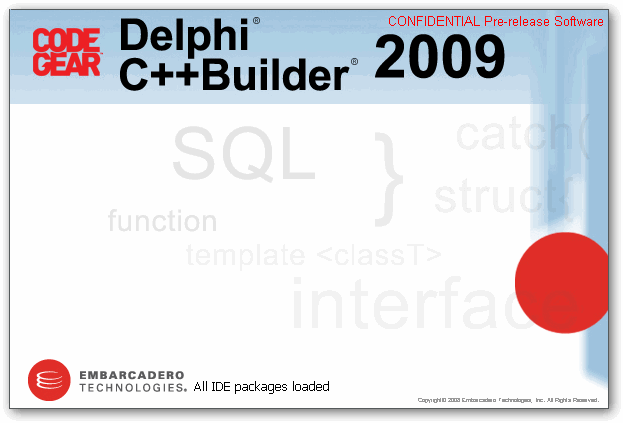
一、启动界面,相比Delphi2007来说相对要简单。大家可以看到以前的“CodeGear From Borland”已经没有了,取而代之的是易博龙的LogoDelphi2009启动时间比Delphi2007快,甚至还比Delphi7快,据说Delphi2009由于不提供for .net,过滤掉了很多加载项。

虽然D2009启动很快,但是还是没有VS2005启动速度快。让人感觉Delphi是在启动的时候把所有可能需要到的资源启动时都加载完成,而VS则是用到功能的时候才加载资源,比如说打开“工具箱”面板VS才把工具列表载入工具箱。


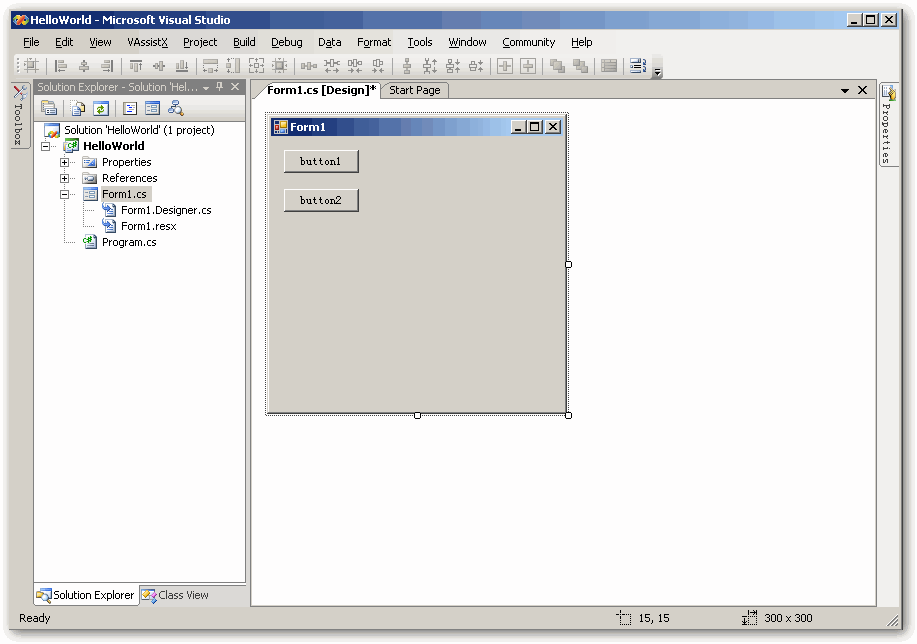
二、IDE主界面,基本和Delphi2007类似


VS2005 IDE主界面,Delphi从D2005开始IDE就慢慢向着VS2005靠齐了


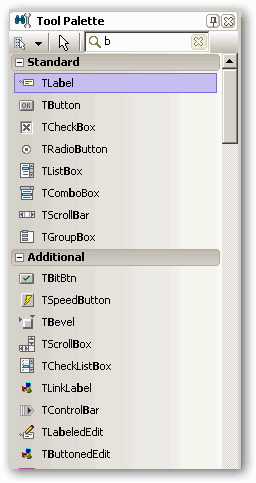
三、工具面板窗口,支持过滤器


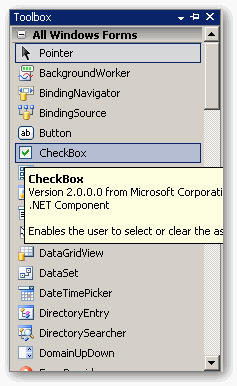
VS2005的工具箱面板,并不支持控件过滤器


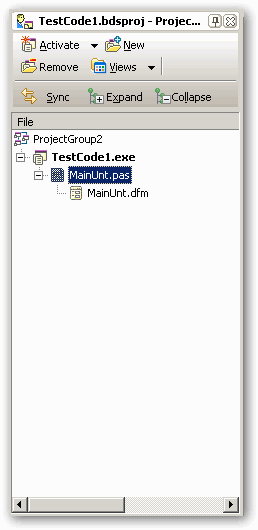
四、工程面板窗口,工具栏中的按钮为新增功能,“Activate”表示将工程设置为主项目,“Sync”表示同步,在这里起和文件夹同步(类似于刷新)的作用,“Expand”展开左右节点,“Collapse”关闭所有节点。


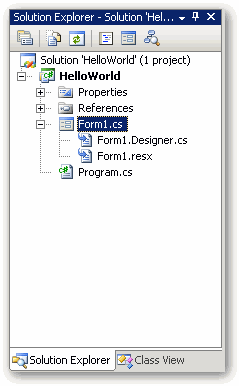
VS2005的解决方案管理器,工具栏功能比D2009更实用一些。D2009 pre-release版并没有提供类视图。 


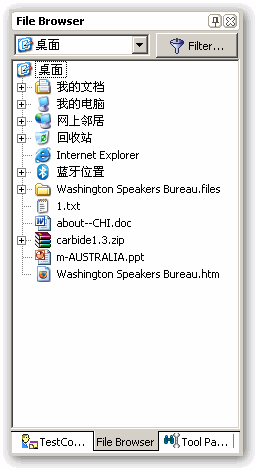
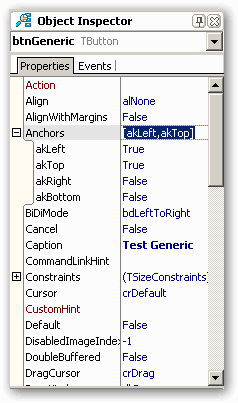
五、Delphi2007 就已经提供的文件浏览器面板


VS2005没有提供相关功能。


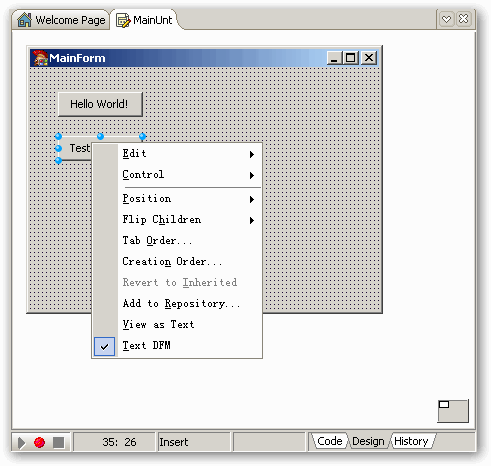
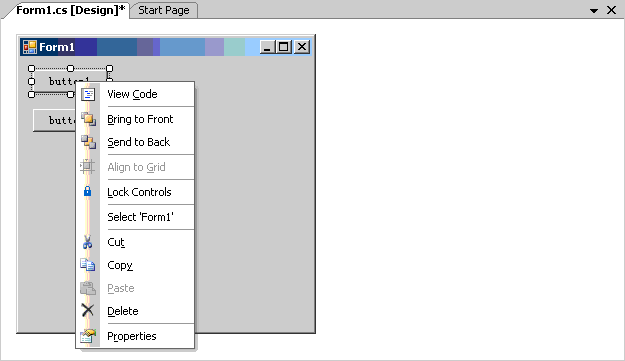
六、窗体设计器界面


由于Delphi在RAD方面一直是非常棒的,所以这点可以说VS2005是效仿了Delphi:


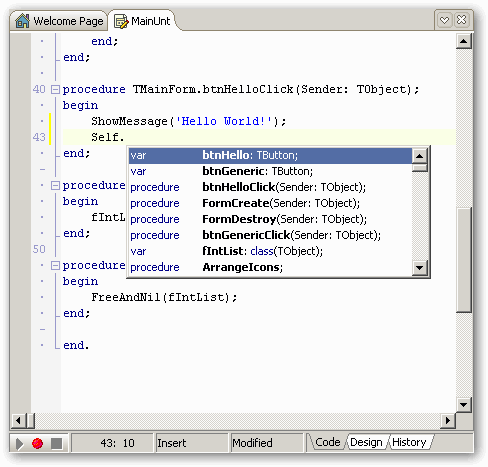
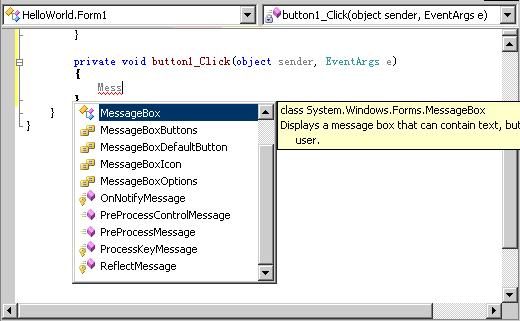
七、代码视图。IDE原生只支持对象成员的智能感知,但是装上了国人编写的第三方插件cnPack后,就能达到类似于VS2005一样的智能感知效果。


毫无疑问,VS2005在智能感知方面的体验原生支持是最出色的,目前我没有发现其它哪款IDE能超越过它:


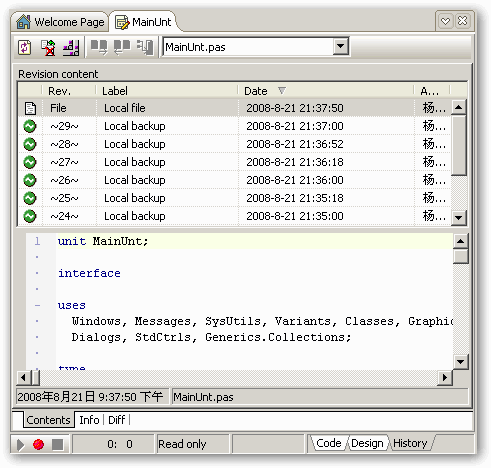
八、历史代码窗体。这个功能不常用,感觉是鸡肋,通常都把这个功能屏蔽掉。


VS2005没有类似的功能。


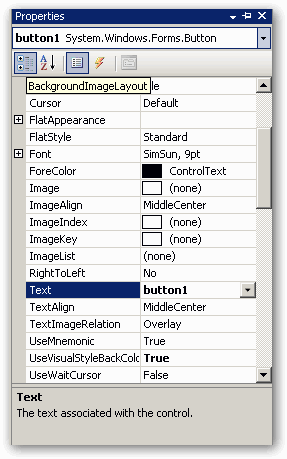
九、控件属性面板,这个面板从D2006开始用久了会出现一些重绘问题,在D2009 pre-release版仍然有这个问题。不知道在正式版是否已经解决。


VS2005的控件属性面板,对每个成员都有说明,这点小贴心功能Delphi没有提示,应该借鉴。但是.net中的说明是靠Attribute来实现的,在Delphi中没有提供相应的方法。

同时,VS2005的属性面板还提供工具栏,在D2009的属性面板中有右键菜单支持以上工具栏按钮的操作。


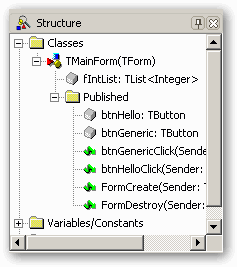
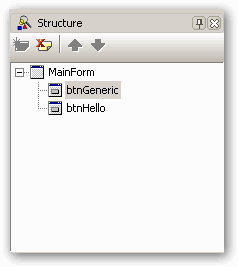
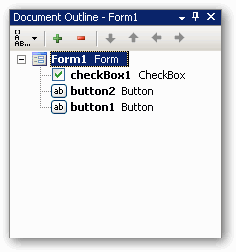
十、结构窗体,下面的截图分别表示代码界面下的结构和设计界面下的结构。


VS2005只提供设计界面结构面板,叫“Document Outline”,默认情况下没有打开:


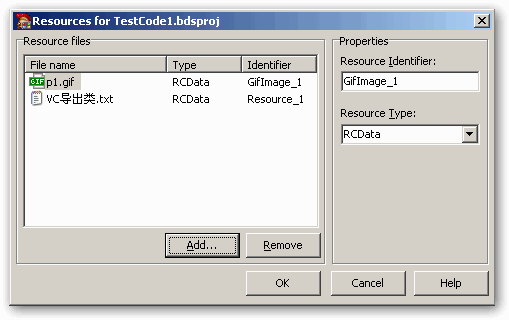
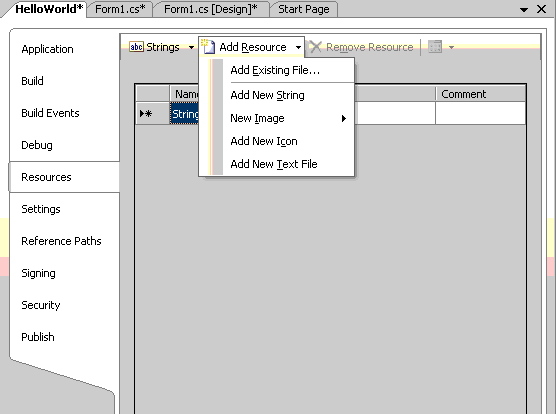
十一、Delphi2009终于提供了资源编辑器,简单且直观


在工程属性里有专门的地方添加和设置资源,这一点比D2009做得更加专业:


总体来说,Delphi2009 IDE相比Delphi2007而言做了很多细节上的改进,整个IDE反应速度很快,也非常之稳定。对语言进行了改进(支持泛型、匿名方法、增强Exit等)以后还能完全支持以前的项目,用了几天也IDE也没有出现以前Delphi2007经常出现的Application Exception之类的异常和卡死现象,感觉非常“轻便”。


相对于VS2005,个人感觉D2009在很多细节上(如界面颜色、界面布局、图标样式等)做得不如VS,且智能感知的原生支持还有待加强。但是,Delphi2009是在逆境中成长起来的,我们并不能要求太多,毕竟两家公司实力不同。

[JQuery]JQuery的CheckBox操作控制

mikel阅读(715)

<!DOCTYPE HTML PUBLIC "-//W3C//DTD HTML 4.0 Transitional//EN">
 2<HTML>
 3 <HEAD>
 4  <TITLE> New Document </TITLE>
 5  <meta http-equiv="Content-Type" content="text/html; charset=UTF-8" />
 6  <link href="css/ingrid.css" rel="stylesheet" type="text/css">
 7<script language="JavaScript" src="JQuery-1.2.3.pack.js" type="text/JavaScript"></script>
 8  <SCRIPT LANGUAGE="JavaScript">
 9  <!–
10      $("document").ready(function(){
11          
12       $("#btn1").click(function(){
13           
14          $("[name='checkbox']").attr("checked",'true');//全选
15        
16       }
)
17       $("#btn2").click(function(){
18           
19          $("[name='checkbox']").removeAttr("checked");//取消全选
20        
21       }
)
22       $("#btn3").click(function(){
23           
24          $("[name='checkbox']:even").attr("checked",'true');//选中所有奇数
25        
26       }
)
27       $("#btn4").click(function(){
28           
29          $("[name='checkbox']").each(function(){
30              
31            
32              if($(this).attr("checked"))
33            {
34                $(this).removeAttr("checked");
35                
36            }

37            else
38            {
39                $(this).attr("checked",'true');
40                
41            }

42            
43          }
)
44        
45       }
)
46        $("#btn5").click(function(){
47       var str="";
48          $("[name='checkbox'][checked]").each(function(){
49              str+=$(this).val()+"\r\n";
50          }
)
51         alert(str);
52       }
)
53      }
)
54  //–>
55  
</SCRIPT>
56  
57 </HEAD>
58
59 <BODY>
60 <form name="form1" method="post" action="">
61   <input type="button" id="btn1" value="全选">
62   <input type="button" id="btn2" value="取消全选">
63   <input type="button" id="btn3" value="选中所有奇数">
64   <input type="button" id="btn4" value="反选">
65   <input type="button" id="btn5" value="获得选中的所有值">
66   <br>
67   <input type="checkbox" name="checkbox" value="checkbox1">
68   checkbox1
69   <input type="checkbox" name="checkbox" value="checkbox2">
70   checkbox2
71   <input type="checkbox" name="checkbox" value="checkbox3">
72   checkbox3
73   <input type="checkbox" name="checkbox" value="checkbox4">
74   checkbox4
75   <input type="checkbox" name="checkbox" value="checkbox5">
76   checkbox5
77   <input type="checkbox" name="checkbox" value="checkbox6">
78   checkbox6
79   <input type="checkbox" name="checkbox" value="checkbox7">
80   checkbox7
81   <input type="checkbox" name="checkbox" value="checkbox8">
82 checkbox8
83 </form>
84
85 </BODY>
86</HTML>
87

[FLEX]Flex与ASP.NET通过Remoting方式进行通讯

mikel阅读(697)

前两天研究了一下Flex与.NET如何进行数据交互,并写了一个文档,后面叙述得还不是很详细,还可以再研 究深一点。本文是关于Flex与ASP.NET通过Remoting方式进行通讯的内容,过段时间有空还会把其它的通讯方式也描述一下,顺便也会把 Flex3与FluorineFx数据类型转换这方面的内容讲一下,都是通过在网上找资料和自己研究所总结出来的,应该说讲得还是很浅,毕竟学得还不深, 继续努力学习!

一、软件:

1Flex平台:Adobe Flex Builder 3

2.Net平台:Visual Studio .Net 2008

3Remoting网关:Fluorine

4、第三方组件:RemoteObjectAMF0


二、介绍:

1Fluorine是一种开源的AMF(ActionScript Messaging Formatter)网关,专门负责Flex3.0.Net交互时的数据类型转换。Fluorine现支持ActionScript 2.0ActionScript 3.0,所以Fluorine也可作为Flash.Net交互时的AMF网关。

2RemoteObjectAMF0组件是一种基于MXML的第三方组件,用于连接AMF网关。

3、好处:

1)交互时数据类型的自动转换。因为Flex.NET的数据类型是不同的,例如FlexDate.NET中的DateTime类型。这样就导致Flex.NET进行数据交互过程中必须进行数据类型的转换。这种数据类型的转换我们可以自己通过编写相关的代码来实现,例如在Flex.NET中编写一个实体类对其取得的数据进行类型转换。而利用Fluorine这种网关来实现数据交互的话,它能够实现.NETFlex中的数据类型的自动对应转换,这样从一定程度上就减轻了我们对其数据类型处理的烦恼。

2)交互效率的提高:利用网关进行数据交互的话,它使得Flex能够直接与.Net的数据处理类进行通信,而不必像再通过另一层中间数据交互层来实现,从一定程度上它的交互效率会提高很多。

3)这是一个开源的网关。


三、基本配置

1、服务器端的搭建:

1)安装FluorineFx,安装完后在目录中会有“Source”及“Samples”两个文件夹,“Samples”文件夹中包含了一些在VS.Net环境中使用Fluorine的例子。“Source”文件夹中包含了有关Fluorine的源代码。(代码未具体去研究)

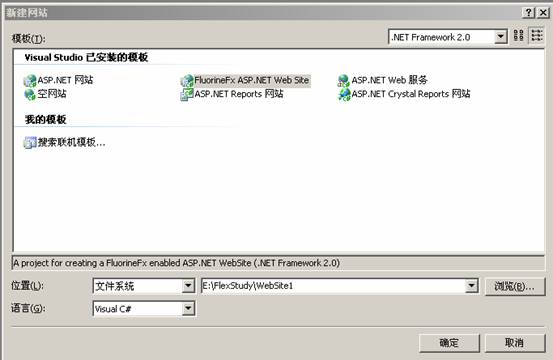
2)安装好Fluorine之后,系统自动在VS.Net 2008新建网站中增加一个模板:FluorineFx ASP.NET Web Application。选择该模板,创建一个.NET网站


                                                                               图3.1


a)打开Visual Studio 2008,分别选择 文件 -> 新建 -> 网站
    b)
选择已安装模板“FluorineFx ASP.NET Web Application”

c)运行项目,获取.NET自带服务器生成的端口,及网址,本项目中是 http://localhost:4166/FluorineTest/

3)利用VS的模板进行创建后,系统会自动加载一些引用,以及创建相关文件,并进行简单配置。创建完后的项目结构如图所示:


3.2

Bin”中的Dll就是用Fluorine的源文件所生成的程序集,“Templates”是一些模板。“WEB-INF/flex”中包含了XML都是些配置文件。“Gateway.aspx”是个空页面,其网页地址就是Fluorine的网关地址。

2、客户端的配置:

   客户端的配置有三种方法,一种是通过向导来设置参数,从而创建Flex;另一种是通过指定services-config.xml配置文件来设置;第三种是利用第三方组件RemoteObjectAMF0来连接,这种方式就不用再去配置services-config.xml。(推荐用第三种方法)

  1)向导设置方法:

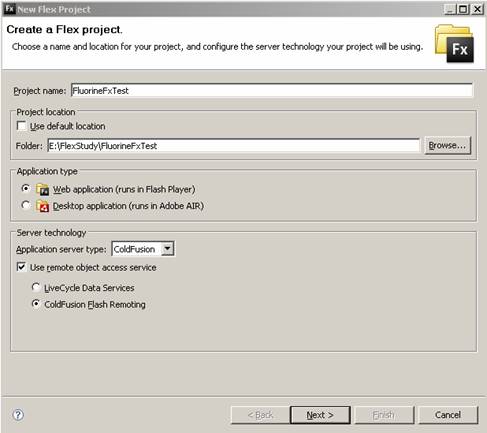
步骤1. 新建Flex工程。选择ColdFusion Flash Remoting。如图3.3

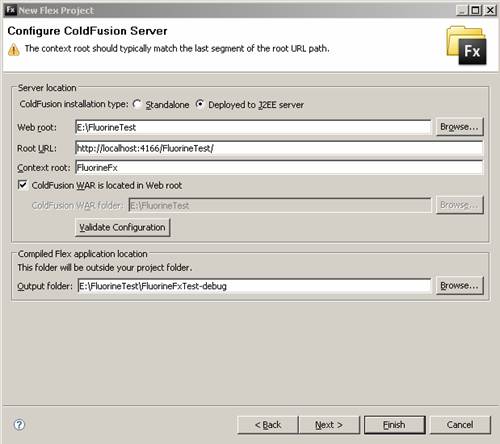
步骤2. 配置服务器。Deployed to J2EE server。如图3.4

2services-config.xml配置文件来设置

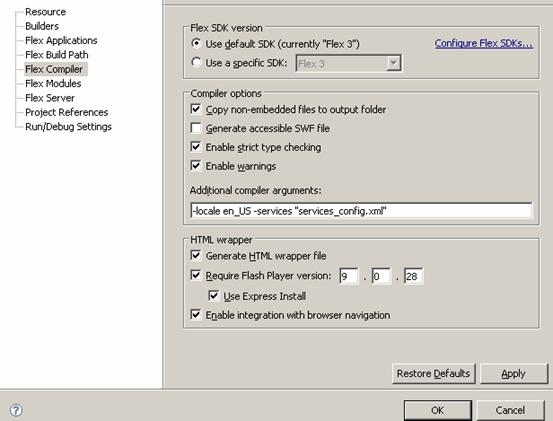
 修改工程的属性,如图3.5

修改“Additional compiler arguments”,设置services-config.xml配置文件的路径,可以指向刚才建立的VS.Net项目中的“WEB-INF/flex”中的services-config.xml路径。也可以将services-config.xml这个文件拷贝到调用文件的同级目录中,然后如上面所设。

 3)利用第三方组件RemoteObjectAMF0来连接,这种方法讲到时再进行介绍。


四、通信过程

1、在VS.Net中编写数据处理类HelloWorld.cs文件(可以新建一个FluorineFx ServiceLibrary类库文件,将所有的数据处理类放到库中上,然后在网站中调用此类库,这里就不创建了)。HelloWorld.cs文件的代码如下所示:

using System;

using System.Data;

using System.Configuration;

using System.Web;

using System.Web.Security;

using System.Web.UI;

using System.Web.UI.HtmlControls;

using System.Web.UI.WebControls;

using System.Web.UI.WebControls.WebParts;

using FluorineFx;


namespace FluorineHelloWorld

{

    /// <summary>

    ///HelloWorld 的摘要说明

    /// </summary>

    [RemotingService()]

    public class HelloWorld

    {

        public HelloWorld()

        {

            //

            //TODO: 在此处添加构造函数逻辑

            //

        }

        public string FromFluorine(string userName)

        {

            return "您好," + userName + "!此消息来自Fluorine Flash Remoting";

        }

    }

}


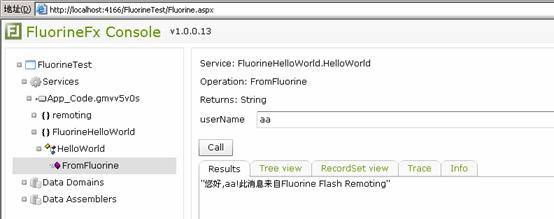
RemotingService属性并不是必需的,不过使用该属性,在配置了服务浏览器的Web应用上可以通过Console.aspx查看远程服务类文件,以及调用该服务的ActionScrip。例如可以在上页类文件中设置断点,然后将Console.aspx设置为起始页,启动项目。页面会跳转到Fluorine.aspx页面,当调用FromFluorine()函数时,就会中断。下图是对函数所进行的调用结果。

4.1

2、配置Flex工程中的services-config.xml。主要是设置这个endpoint属性。让其指向之前得到的网关地址,另外就是设置了“destination”。

<?xml version="1.0" encoding="UTF-8"?>

<services-config>

    <services>

        <service id="remoting-service"

                 class="flex.messaging.services.RemotingService"

                 messageTypes="flex.messaging.messages.RemotingMessage">

            <destination id="fluorine">

                <channels>

                    <channel ref="my-amf"/>

                </channels>

                <properties>

                    <source>*</source>

                </properties>

            </destination>

        </service>

    </services>

    <channels>

        <channel-definition id="my-amf" class="mx.messaging.channels.AMFChannel">

            <endpoint uri="http://localhost:4166/FluorineTest/Gateway.aspx"

              class="flex.messaging.endpoints.AMFEndpoint"/>

        </channel-definition>

    </channels>

</services-config>


3、如下创建一个MXML文件。

<?xml version="1.0" encoding="utf-8"?>

<mx:Application xmlns:mx="http://www.adobe.com/2006/mxml" layout="absolute">

    <mx:Script>

        <![CDATA[

            import mx.rpc.events.FaultEvent;

            import mx.rpc.events.ResultEvent;

            import mx.controls.Alert;


        public function clickBtnHelloWorld():void{

             sampleRemoteObject.FromFluorine(this.txtHelloWorld.text);

        }

            public function RemoteResult(re:ResultEvent):void

            {

                var str:String = re.result as String;

                Alert.show(str); 

            }


            public function RemoteFault(re:FaultEvent):void

            {

                Alert.show("Message:" + re.fault.faultString,"出错");

            }          

        ]]>

    </mx:Script>


    <!–这里Source 对应.NET类,前面是命名空间,后面是类名 source = 命名空间.类名–>

    <mx:RemoteObject

        id="sampleRemoteObject"

        destination="fluorine"

        source="FluorineHelloWorld.HelloWorld"

        showBusyCursor="true">


        <!–这里是.NET中的方法,name = 方法名 –>

        <mx:method name="FromFluorine" result="RemoteResult(event)" fault="RemoteFault(event)"/>       

    </mx:RemoteObject>

    <mx:Panel horizontalAlign="center" verticalAlign="middle" width="250" height="200" layout="absolute">

        <mx:TextInput x="35" y="10" id="txtHelloWorld" />

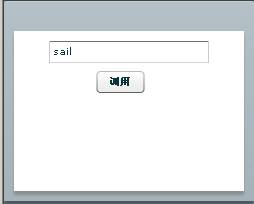
        <mx:Button x="82.5" y="40" label="调用" id="btnHelloWorld" click="clickBtnHelloWorld()"/>

    </mx:Panel>

</mx:Application>


这里创建了一个RemoteObject对象,并设置了其id属性,“destination”指向services-config.xml中的“destination”的idsource对应VS.Net类,前面FluorineHelloWorld是命名空间,后面HelloWorld是类名。“showBusyCursor”是指在交互时鼠标的状态是否为设置为繁忙。

RemoteObject中创建了一个method方法,“name”属性跟所要调用的VS.Net类中的函数名相同,“result”设置返回结果后的处理事件,“fault”设置交互过程中出错后的处理事件

4、运行Flex,结果如下:

4.2

4.3


五、使用RemoteObjectAMF0来连接fluorine网关

1、上面连接网关是利用了Flex自带的RemoteObject组件来实现,利用这个组件来实现的话,需要在创建项目时对项目进行配置,或者利用配置文档进行配置,这些在上面已经做了详细的介绍。现在介绍的是利用RemoteObjectAMF0组件来实现。这个组件是一种基于MXML的第三方组件,用于连接AMF网关,同时它是一个开源的组件。

2、下载RemoteObjectAMF0后解压,在“src”文件夹中就可以看到关于该组件的源代码,它基本上是对flex中的RemoteObject组件进行的重写。可以将“src”文件夹中的“com”文件夹全部拷贝到flex的工程中,也可以将其编译成库文件再引用到Flex工程中。

3、这时将“com”文件夹拷贝到了工程中。要使用该组件,默认情况下,要在MXML文件中的“Applications”标签中加入命名空间“xmlns:renaun="com.renaun.rpc.*"”。

4RomoteObjectAMF0组件的定义语法如下所示:

<renaun:RemoteObjectAMF0 endpoint="http://localhost:4166/FluorineTest/Gateway.aspx" id="sampleRemoteObject" source="FluorineHelloWorld.HelloWorld" showBusyCursor="true">

    <renaun:methods>

       <renaun:method name="FromFluorine" result="RemoteResult(event)" fault="RemoteFault(event)"/>

    </renaun:methods>

</renaun:RemoteObjectAMF0>


RemoteObjectAMF0组件的“endpoint”属性指明AMF网关地址,“source”属性指明类的名称空间,<名称空间:method>组件的name属性指向类中的方法,必须与类中的定义相同,result事件处理返回的数据。

5RemoteObjectAMF0的调用方法跟上面讲RemoteObject时差不多,比如都可以通过sampleRemoteObject.FromFluorine(this.txtHelloWorld.text);去调用.NET中的FromFluorine()方法。

[MVC]Asp.NetMvc无刷新上传

mikel阅读(815)

    先要说明一下,这篇文章有点“事发突然”和“滥竽充数”:)
    因为在老赵的不妨来做个尝试:UpdatePanel for ASP.NET MVC 正好谈到使用JQuery的ajax功能实现文件上传的问题,临时做起这个“简陋”的demo,本来是不打算把这个作为本系列的一部分的,不过既然要发一个文件上传的Demo上来,就暂且也把它算在MVC的一个“工具”,此谓“滥竽充数”。
    闲话少叙,因为老赵急着要看东西,先发上来,里面必要的地方已经做了写简要的说明,如有疑惑和建议希望大家提出来,我们一起探讨。
    ajax无刷新上传实例下载:http://files.cnblogs.com/szw/MVCTools_upload.rar

    PS:既然作为本系列的一部分,我把这个Demo做在了MVC项目中(WebForms项目中也一样可用),打开首页中的“文件上传”即可操作,上传文件默认保存在~/UploadFiles/文件夹中。

http://szw.cnblogs.com/
研究、探讨ASP.NET
转载请注明出处和作者,谢谢!

[JQuery]JQuery异步提交Form

mikel阅读(906)

最近研究JQuery,今天搞清楚了ajax要怎么实现,使用方法意外的简单。有兴趣的可以看我上次提到的手册,我这里演示一个简单的保存表单的例子。
提交表单的方法:
$.post(’JQuery.php?request=ajax’,$.getForms(’form1′),function (msg) {
alert(msg)
});
仅使用这么一句话就可以实现表单数据的静态提交了。 第一个参数是服务端的URL,第二个参数是表单的POST数据,第三个参数是执行成功后调用的方法.
$.getForms这个方法是自定义的,就是把表单中所有输入框值变成一个GET参数字符串形式.这个方法是我从xajax中 参考修改来的,本来JQuery.com上也有这样的插件但是当有name=aa[]这种形式的input时会出错,只能自己弄一个了。方法在 Forms.js文件中,这个文件中还有个$F函数从jQuery.com上得到的,是用jQuery实现了prototype.js中的同样功能,就是 取表单元素的值。
服务端就没什么特别的:
if ($_GET[’request’]==’ajax’) {
var_export($_POST);exit;
}
我们输出提交的信息作为测试,自己的应用自己处理就是了。
ajax始终用utf8编码传输的所以,如果你的项目不是utf8必须进行编码转换:
if ($_GET[’request’]==’ajax’) {
$_POST = charsetIconv($_POST);
}
function charsetIconv($vars) {
if (is_array($vars)) {
$result = array();
foreach ($vars as $key => $value) {
$result[$key] = charsetIconv($value);
}
} else {
$result = iconv(’utf-8′,’gbk’, $vars);
}
return $result;
}
这里是我在服务端编码的处理方式。
原来都在使用xajax现在准备完成使用 jQuery来替代,不仅有非常的JS扩展功能使用也很灵活。
DEMO地址  DEMO下载

[JQuery]JQuerey的ThickBox插件

mikel阅读(784)

ThickBox 是基于 JQueryJavaScript 编写的网页UI对话窗口小部件. 它可以用来展示单一图片, 若干图片, 内嵌的内容, iframed的内容, 或以 AJAX 的混合 modal 提供的内容.
查看实例演示
特性:

  • ThickBox 是用超轻量级的 JQuery 库 编写的. 压缩过 jQuery 库只15k, 未压缩过的有39k.
  • ThickBox 的 JavaScript 代码CSS 文件只占12k. 所以压缩过的 jQuery 代码和 ThickBox 总共只有27k.
  • ThickBox 能重新调整大于浏览器窗口的图片.
  • ThickBox 的多功能性包括(图片,iframed 的内容,内嵌的内容,AJAX 的内容).
    • 展示单一图片(single image)
    • 展示图片集(multiple images)
    • 展示内嵌内容(inline content)
    • 展示被iFrame的内容(iframed content)
    • 展示AJAX内容(AJAX content)
    • 其他:教程本身还自带了一个很酷的JS跳转脚本
  • ThickBox 能隐藏 Windows IE 6 里的元素.
  • ThickBox 能在使用者滚动页面或改变浏览器窗口大小的同时始终保持居中. 点击图片, 覆盖层, 或关闭链接能移除 ThickBox.
  • ThickBox 的创作者决定动画应该因人而异, 所以 ThickBox 不再使用动画了. 这是特性吗? 哦, 有人说是呀.

如何实现 ThickBox :
1. ThickBox 要求使用 jQuery JavaScript 库; 正因如此, 你需要外调 jquery.js 文件在你的网页的 head 元素内, 接着还要外调 thickbox.js 文件 (注意: jquery.js 必须放在调用资源的第一位). 例子如下:
<script type="text/javascript" src="path-to-file/jquery.js"></script> <script type="text/javascript" src="path-to-file/thickbox.js"></script>
一旦你外调了 .js 文件, 打开 thickbox.js 并寻找加载图片的名字 (loadingAnimation.gif). 找到后, 根据它在你服务器上的位置确定更改它的路径.
2. 在你的网页中外调 ThickBox CSS 文件. 例子如下:
<link rel="stylesheet" href="path-to-file/thickbox.css" type="text/css" media="screen" />

<style type="text/css" media="all">@import "path-to-file/thickbox.css";</style>
或, 打开 thickbox.css 文件并复制粘贴样式到你现有的样式表中.
3. 观看例子, 学习使用不同的方法调用 ThickBox 的功能.
支持的和经测试过的浏览器:
Windows IE 6.0, Windows FF 1.5.0.5, Windows Opera 9.0, Macintosh Safari 1.3.2 &amp; 2.0.3, Macintosh FF 1.5
MIT 许可
http://www.opensource.org/licenses/mit-license.php
许可特此批出, 免费, 给任何人提供此软件的拷贝和他相关文档中的("软件"), 使用此软件不受任何限制, 所不受的限制包括: 有权利使用, 拷贝, 修改, 合并, 出版, 分发, 颁发从属许可, 和/或买卖该软件的拷贝.
打包下载代码及教程