ios xcode如何修改应用的名称

mikel阅读(1037)

当你创建一个project时,会要求你输入product name & company identifier这两个property的值should和你在apple developer member center的“Provisioning Portal”的“App IDs”里创建的bundle identifier (NOT App ID)匹配!如果不匹配的话,push notification feature和cloud feature则不成功!!

例如,

当你创建的App ID时,设置的”Bundle Seed ID (App ID Prefix)“为”ABX453B”, “Bundle Identifier (App ID Suffix)“为”edu.cityu.MobileCap”,那么你的App ID为”ABX453B.edu.cityu.MobileCap”。

那么你创建project时,”company identifier”应该设置为”edu.cityu“,product name应该设置为”MobileCap“,也就是说

company identifier的值 + product name的值 = bundle identifier in App ID

当然即使你创建project时,上面2个属性的设置和bundle identifier不匹配,还是可以修改的:

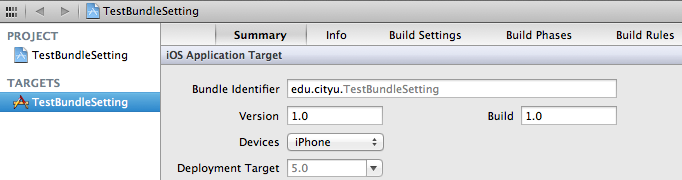
1. select project root node in the left navigation panel,在其旁边出现的panel里选择 “Targets” item。这时其旁边就会出现属性设置窗口

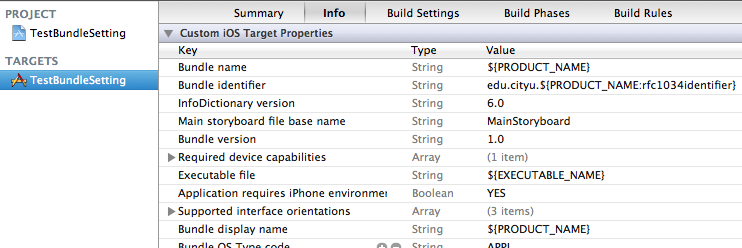
你会看到”Summary tab“的”bundle identifier“,它只可以修改前半部分,即你之前创建project时设置的”edu.cityu“部分,而后面的product name部分无法修改。因此我们不能在这个地方修改它,而要select “info” tab,见

你会看到”bundle identifier“的值为 edu.cityu.${PRODUCT_NAME: XXXX),原来是用了动态参数,难怪上面提到的bundle identifier只能修改一部分。而在这里则可以全部修改,例如我把它改为”edu.cityu.testApp”。

注意:你的app project的这个”bundle identifier”值必须和你之前创建的App ID的”bundle identifier”匹配

你还能看到”Bundle Name” and “Bundle display name“都设置为动态参数${PRODUCT_NAME}。

Bundle name – is folder name, where your app (including executable file and all resources) will be stored (Cool Program.app)。建议不要修改bundle name

Bundle display name – is what will be shown on iPhone screen,即当你安装该app到iPhone上显示的name。

注意:Bundle Display name must correspond to Bundle name,即bundle display name和bundle name不能相差太远。例如bundle name设置为 TheApplication, 而 bundle display name设置为“金瓶梅”,则apple会拒绝你的app。

当然,你也可以在info.plist file里修改这些属性。

XCode 为iPhone程序设置图标的方法

mikel阅读(1125)

之前自学时,一直不会给程序设定一个程序图标. 天天对着白板图标有时候还会影响心情呢.

后来才知道,方法很简单.

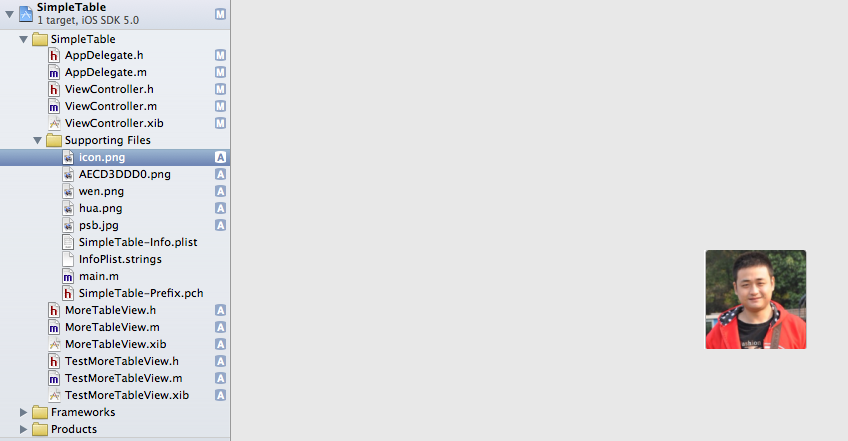
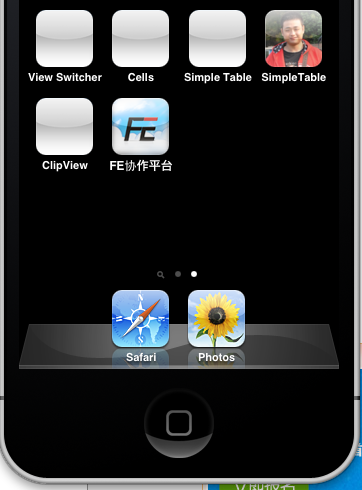
随便找一个PNG为后缀的图标, 把它重命名为 icon.png 就可以了.  再次启动 IPhone 模拟器. 就成功了.

及时尺寸不符合审核规范,也是可以显示出来的,供测试效果吧.

为iPhone设置启动画面只需要将图片名称命名为:Default.png 即可.

icon尺寸: 57*57  高清  114*114

Default尺寸: 320*480 高清 640:960

Date:2012-08-20 14:18

工程默认是会为App的图标加入高亮光泽效果,如果想去掉需要进行如下设置,如图:

Xcode4.2中 在Icon files (iOS 5) – Primary Icon中的 Icon already includes gloss effects  == YES;

即可

来源: http://www.cocoachina.com/bbs/read.php?tid=83097

icon图标的那些事: http://xyxdasnjss.iteye.com/blog/1517340

Xcode 提高效率的几个快捷键

mikel阅读(1022)

1、一次性修改一个scope里的变量名:

点击该变量,出现下划虚线,然后command+control+E激活所有相同变量,然后进行修改。

2、删除一个词:option+delete

删除一句话:command+delete

3、快捷搜索:

先点亮想要搜索的词,然后command+E将该次放入剪贴板,然后command+G来向下遍历该词,shift+command+G向上遍历。

4、新建tab:command+T

tab间切换:command+shift+[ 或 ]

前后两行交换:command+option+[ 或 ]

不同窗口间切换:command+`

5、快捷open:command+shift+O

然后option+shift+return切换出window布局选择界面

command+option+return:切换至双窗口

command+return:切换回单窗口

6、前进和后退:command+control+ → 或 ←

7、折叠代码块:command+option+ → 或 ←

8、Debug

下一行:F6

进入方法:F7

跳出方法:F8

全速执行:command+control+Y

clear Debug console:command+K

9、查看帮助:

option+鼠标左键单击  或者

command+control+shift+/  (即command+control+?)

IOS开发之界面生命周期——init,viewDidAppear,viewWill(dis)Appear,loadView,viewDid(un)Load,dealloc

mikel阅读(1059)

init

NSObject的类实现一个名为init方法。这是你需要发送到NSObject的实例初始化初始化消息。因为init是主要的(或在这种情况下,只有)NSObject的初始化方法,我们称之为the designated初始化。类可以有多个初始化,但每类中,有一个指定的初始化。指定初始化必须确保每个实例变量有一个有效的价值。只有这样,新创建的实例是有效的。 (“有效”有不同的含义,但在这方面的含义是,当您发送的消息后,对其进行初始化这个对象,你可以预测的结果会发生什么不好。”)通常情况下,指定的初始化是初始化方法与大多数参数。

loadView与viewDidLoad区别

这两个方法是iphone开发中不可缺少的,他们都用来初始化视图(而且都是在视图加载的时候调用),但是他们也是又区别的。

简单来说,就是当view的nib文件为nil时,手工创建视图界面时调用loadVIew;当view的nib文件存在的时候,初始化工作在viewDidLoad中实现。但是如果你的程序运行期间内存不足,视图控制器接到didReceiveMemoryWarning消息时,那么此时系统默认操作会检查当前视图控制器的view是否还在使用,假如此view不在当前正在使用的view hierarchy里面,且控制器实现了loadView方法,那么这个view将被release, loadView方法将被再次调用来创建一个新的view。

viewWillAppear:            视图即将可见时调用。默认情况下不执行任何操作

viewWillDisappear:         视图被驳回时调用,覆盖或以其他方式隐藏。默认情况下不执行任何操作

viewDidDisappear:          视图被驳回后调用,覆盖或以其他方式隐藏。默认情况下不执行任何操作

viewDidAppear:             视图已完全过渡到屏幕上时调用

viewDidLoad;               在视图加载后被调用,如果是在代码中创建的视图加载器,他将会在loadView方法后被调用,如果是从nib视图页面输出,他将会在视图设置好后后被调用。

viewDidUnload              当系统内存吃紧的时候调用viewDidUnload

XCode中调整字体大小

mikel阅读(1152)

参考:

http://blog.sina.com.cn/s/blog_5d2054d90100jk6l.html

1)调出Xcode的preference应该是 Command 键+ , 键

或者  点击顶部的 XCode -> Preference

2)选择 “Fonts and Colors”

3)选择一个Theme, 比如Sunret

4)选择该Theme下的的所有的item,如下图所示:

5)点击 T,弹出如下的对话框:

在Size栏下选择相应的字体大小即可(XCode默认的字体大小是11),

当然也可以选择自己喜欢的字体

UITableView的数据源(dataSource)和代理(delegate)

mikel阅读(1273)

UITableView的数据源(dataSource)和代理(delegate)

UITableView需要一个数据源(dataSource)来显示数据,UITableView会向数据源查询一共有多少行数据以及每一行显示什么数据等。没有设置数据源的UITableView只是个空壳。凡是遵守UITableViewDataSource协议的OC对象,都可以是UITableView的数据源。

通常都要为UITableView设置代理对象(delegate),以便在UITableView触发一下事件时做出相应的处理,比如选中了某一行。凡是遵守了UITableViewDelegate协议的OC对象,都可以是UITableView的代理对象。一般会让控制器充当UITableView的dataSource和delegate

UITableViewDataSource

@required

– (NSInteger)tableView:(UITableView *)tableView numberOfRowsInSection:(NSInteger)section;

第section分区一共有多少行

– (UITableViewCell *)tableView:(UITableView *)tableView cellForRowAtIndexPath:(NSIndexPath *)indexPath;

创建第section分区第row行的UITableViewCell对象(indexPath包含了section和row)

@optional

– (NSInteger)numberOfSectionsInTableView:(UITableView *)tableView;

一共有多少个分区

– (NSString *)tableView:(UITableView *)tableView titleForHeaderInSection:(NSInteger)section;

第section分区的头部标题

– (NSString *)tableView:(UITableView *)tableView titleForFooterInSection:(NSInteger)section;

第section分区的底部标题

– (BOOL)tableView:(UITableView *)tableView canEditRowAtIndexPath:(NSIndexPath *)indexPath;

某一行是否可以编辑(删除)

– (BOOL)tableView:(UITableView *)tableView canMoveRowAtIndexPath:(NSIndexPath *)indexPath;

某一行是否可以移动来进行重新排序

– (NSArray *)sectionIndexTitlesForTableView:(UITableView *)tableView;

UITableView右边的索引栏的内容

– (void)tableView:(UITableView *)tableView didSelectRowAtIndexPath:(NSIndexPath *)indexPath

选中了UITableView的某一行

– (CGFloat)tableView:(UITableView *)tableView heightForRowAtIndexPath:(NSIndexPath *)indexPath

某一行的高度

– (CGFloat)tableView:(UITableView *)tableView heightForHeaderInSection:(NSInteger)section

第section分区头部的高度

– (CGFloat)tableView:(UITableView *)tableView heightForFooterInSection:(NSInteger)section

第section分区尾部的高度

– (UIView *)tableView:(UITableView *)tableView viewForHeaderInSection:(NSInteger)section

第section分区头部显示的视图

– (UIView *)tableView:(UITableView *)tableView viewForFooterInSection:(NSInteger)section

第section分区尾部显示的视图

– (NSInteger)tableView:(UITableView *)tableView indentationLevelForRowAtIndexPath:(NSIndexPath *)indexPath

设置每一行的等级缩进(数字越小,等级越高)

UITableViewCell

UITableView的每一行都是一个UITableViewCell,通过dataSource的

tableView:cellForRowAtIndexPath:方法来初始化每一行

UITableViewCell是UIView的子类,内部有个默认的子视图:contentView。contentView是UITableViewCell所显示内容的父视图,并负责显示一些辅助指示视图。辅助指示视图的作用是显示一个表示动作的图标,可以通过设置UITableViewCell的accessoryType来显示,默认是UITableViewCellAccessoryNone(不显示辅助指示视图),其他值如下:

UITableViewCellAccessoryDisclosureIndicator

UITableViewCellAccessoryDetailDisclosureButton

UITableViewCellAccessoryCheckmark

UITableViewCell的contentView

contentView下默认有3个子视图,其中的2个是UILabel(通过UITableViewCell的textLabel和detailTextLabel属性访问),第3个是UIImageView(通过UITableViewCell的imageView属性访问)

UITableViewCell还有一个UITableViewCellStyle属性,用于决定使用contentView的哪些子视图,以及这些子视图在contentView中的位置

UITableViewCell对象的重用原理

iOS设备的内存有限,如果用UITableView显示成千上万条数据,就需要成千上万个UITableViewCell对象的话,那将会耗尽iOS设备的内存。要解决该问题,需要重用UITableViewCell对象

重用原理:当滚动列表时,部分UITableViewCell会移出窗口,UITableView会将窗口外的UITableViewCell放入一个对象池中,等待重用。当UITableView要求dataSource返回UITableViewCell时,dataSource会先查看这个对象池,如果池中有未使用的UITableViewCell,dataSource会用新的数据配置这个UITableViewCell,然后返回给UITableView,重新显示到窗口中,从而避免创建新对象

还有一个非常重要的问题:有时候需要自定义UITableViewCell(用一个子类继承UITableViewCell),而且每一行用的不一定是同一种UITableViewCell(如短信聊天布局),所以一个UITableView可能拥有不同类型的UITableViewCell,对象池中也会有很多不同类型的UITableViewCell,那么UITableView在重用UITableViewCell时可能会得到错误类型的UITableViewCell

解决方案:UITableViewCell有个NSString *reuseIdentifier属性,可以在初始化UITableViewCell的时候传入一个特定的字符串标识来设置reuseIdentifier(一般用UITableViewCell的类名)。当UITableView要求dataSource返回UITableViewCell时,先通过一个字符串标识到对象池中查找对应类型的UITableViewCell对象,如果有,就重用,如果没有,就传入这个字符串标识来初始化一个UITableViewCell对象

重用UITableViewCell对象

– (UITableViewCell *)tableView:(UITableView *)tableView cellForRowAtIndexPath:(NSIndexPath *)indexPath

{

    static NSString *identifier = @”UITableViewCell”;

    UITableViewCell *cell = [tableView dequeueReusableCellWithIdentifier:identifier];

    if (cell == nil) {

        cell = [[[UITableViewCell alloc] initWithStyle:UITableViewCellStyleDefault reuseIdentifier:identifier] autorelease];

     }

    cell.textLabel.text = [NSString stringWithFormat:@”Text %i”, indexPath.row];

    return cell;

}

UITableViewCell的常用属性

设置背景

backgroundView

设置被选中时的背景视图

selectedBackgroundView

selectionStyle属性可设置UITableViewCell被选中时的背景颜色:

UITableViewCellSelectionStyleNone  没有颜色

UITableViewCellSelectionStyleBlue  蓝色(默认)

UITableViewCellSelectionStyleGray  灰色

自定义UITableViewCell

一般有两种方式:

用一个xib文件来描述UITableViewCell的内容

通过代码往UITableViewCell的contentView中添加子视图,在初始化方法(比如init、initWithStyle:reuseIdentifier:)中添加子控件,在layoutSubviews方法中分配子控件的位置和大小

UITableView的编辑模式

UITableView有个editing属性,设置为YES时,可以进入编辑模式。在编辑模式下,可以管理表格中的行,比如改变行的排列顺序、增加行、删除行,但不能修改行的内容

多种方式开启编辑模式

@property(nonatomic,getter=isEditing) BOOL editing

– (void)setEditing:(BOOL)editing animated:(BOOL)animated

删除UITableView的行

首先要开启编辑模式

实现UITableViewDataSource的如下方法:

– (void)tableView:(UITableView *)tableView commitEditingStyle:(UITableViewCellEditingStyle)editingStyle forRowAtIndexPath:(NSIndexPath *)indexPath

{

    // 如果UITableView提交的是删除指令

    if (editingStyle == UITableViewCellEditingStyleDelete) {

        // 删除真实数据

         // [self.data removeObjectAtIndex:indexPath.row];

        // 删除UITableView中的某一行(带动画效果)

        [tableView deleteRowsAtIndexPaths:[NSArray arrayWithObject:indexPath] withRowAnimation:UITableViewRowAnimationLeft];

        // 如果不考虑动画效果,也可以直接[tableView reload];

    }

}

移动UITableView的行

首先要开启编辑模式

实现UITableViewDataSource的如下方法(如果没有实现此方法,将无法换行)

– (void)tableView:(UITableView *)tableView moveRowAtIndexPath:(NSIndexPath *)sourceIndexPath toIndexPath:(NSIndexPath *)destinationIndexPath

{

    int from = sourceIndexPath.row;

    int to = destinationIndexPath.row;

    if (from == to) return;

    // 交换数据

    // [self.data exchangeObjectAtIndex:from withObjectAtIndex:to];

}

选中UITableView的行

当某行被选中时会调用此方法(UITableViewDelegate的方法)

– (void)tableView:(UITableView *)tableView didSelectRowAtIndexPath:(NSIndexPath *)indexPath

{

    //取消选中某一行,让被选中行的高亮颜色消失(带动画效果)

    [tableView deselectRowAtIndexPath:indexPath animated:YES];

}

UITableView常用方法

– (id)initWithFrame:(CGRect)frame style:(UITableViewStyle)style

初始化一个UITableView,并且设置表格样式

– (void)reloadData   重新访问数据源,刷新界面

– (NSInteger)numberOfSections  分区的个数

– (NSInteger)numberOfRowsInSection:(NSInteger)section

第section分区的行数

– (UITableViewCell *)cellForRowAtIndexPath:(NSIndexPath *)indexPath

通过indexPath找到对应的UITableViewCell对象

– (void)setEditing:(BOOL)editing animated:(BOOL)animated

是否要开启编辑模式

– (void)deselectRowAtIndexPath:(NSIndexPath *)indexPath animated:(BOOL)animated

取消选中某一行,让被选中行的高亮颜色消失(带动画效果)

– (id)dequeueReusableCellWithIdentifier:(NSString *)identifier

通过identifier在(缓存)池中找到对应的UITableViewCell对象

– (void)deleteRowsAtIndexPaths:(NSArray *)indexPaths withRowAnimation:(UITableViewRowAnimation)animation

移除indexPaths范围内的所有行

@property(nonatomic,readonly) UITableViewStyle style 表格样式

@property(nonatomic,assign) id <UITableViewDataSource> dataSource

数据源

@property(nonatomic,assign) id <UITableViewDelegate> delegate 代理

@property(nonatomic,getter=isEditing) BOOL editing 是否为编辑模式

@property(nonatomic) UITableViewCellSeparatorStyle separatorStyle

设置分隔线的样式

@property(nonatomic,retain) UIColor *separatorColor

设置分隔线的颜色

@property(nonatomic,retain) UIView *tableHeaderView

表头显示的视图

@property(nonatomic,retain) UIView *tableFooterView

表尾显示的视图

@property(nonatomic) BOOL allowsSelection

是否允许选中行

@property(nonatomic) BOOL allowsSelectionDuringEditing

是否允许在编辑模式下选中行

@property(nonatomic) BOOL allowsMultipleSelection

是否允许选中多行

@property(nonatomic) BOOL allowsMultipleSelectionDuringEditing

是否允许在编辑模式下选中多行

UITableViewController

是UIViewController的子类,UITableViewController默认扮演了3种角色:视图控制器、UITableView的数据源和代理

UITableViewController的view是个UITablView,由UITableViewController负责设置和显示这个对象。UITableViewController对象被创建后,会将这个UITableView对象的dataSource和delegate指向UITableViewController自己

一、UITableView

1.数据展示的条件

1> UITableView的所有数据都是由数据源(dataSource)提供的,所以要想在UITableView展示数据,必须设置UITableView的dataSource数据源对象

2> 要想当UITableView的dataSource对象,必须遵守UITableViewDataSource协议,实现相应的数据源方法

3> 当UITableView想要展示数据的时候,就会给数据源发送消息(调用数据源方法),UITableView会根据方法返回值决定展示怎样的数据

2.数据展示的过程

1> 先调用数据源的

– (NSInteger)numberOfSectionsInTableView:(UITableView *)tableView

得知一共有多少组

2> 然后调用数据源的

– (NSInteger)tableView:(UITableView *)tableView numberOfRowsInSection:(NSInteger)section

得知第section组一共有多少行

3> 然后调用数据源的

– (UITableViewCell *)tableView:(UITableView *)tableView cellForRowAtIndexPath:(NSIndexPath *)indexPath

得知第indexPath.section组 第indexPath.row 行显示怎样的cell(显示什么内容)

3.常见数据源方法

1> 一共有多少组

– (NSInteger)numberOfSectionsInTableView:(UITableView *)tableView

2> 第section组一共有多少行

– (NSInteger)tableView:(UITableView *)tableView numberOfRowsInSection:(NSInteger)section

3> 第indexPath.section组 第indexPath.row行显示怎样的cell(显示什么内容)

– (UITableViewCell *)tableView:(UITableView *)tableView cellForRowAtIndexPath:(NSIndexPath *)indexPath

4> 第section组显示怎样的头部标题

– (NSString *)tableView:(UITableView *)tableView titleForHeaderInSection:(NSInteger)section;

5> 第section组显示怎样的尾部标题

– (NSString *)tableView:(UITableView *)tableView titleForFooterInSection:(NSInteger)section;

4.tableView刷新数据的方式

1> 修改模型数据

2> 刷新表格

* reloadData 整体刷新(每一行都会刷新)

* – (void)reloadRowsAtIndexPaths:(NSArray *)indexPaths withRowAnimation:(UITableViewRowAnimation)animation

局部刷新

5.性能优化

1> 定义一个循环利用标识

static NSString *ID = @”C1″;

2> 从缓存池中取出可循环利用的cell

UITableViewCell *cell = [tableView dequeueReusableCellWithIdentifier:ID];

3> 如果缓存池中没有可循环利用的cell

if (cell == nil)

{

    cell = [[UITableViewCell alloc] initWithStyle:UITableViewCellStyleDefault reuseIdentifier:ID];

}

4> 覆盖cell上面的数据

cell.textLabel.text = [NSString stringWithFormat:@”第%d行数据”, indexPath.row];

1.UITableView继承UIScrollView.

2.实例一城市列表思路:

步骤一:创建UITableView。UITableView样式为组

步骤二:设置UITableView的数据源方法。

步骤三:实现UITableView的数据源方法,此方法会自动调用。

  1. 返回有多少组
  2. 返回一组有多少行
  3. 返回每一行显示的UITableViewCell(继承UIView),initWithStyle使用这个方法调用。
  4. 注意UITableView的数据源的方法普遍都是以tableView开头。

步骤四:用数组管理数据。

步骤五:每个数组中都是一个字典,key:(header,footer,cityes).

3.扩展性好:指的是需求改了,代码不需要怎么改。

4.创建模型的时候,自定义一个工厂方法(类方法)接口给外界调用。

工厂方法好处:简化对象的实例化,快速创建对象。

5.UITableViewCell

UITableViewCellStyleDefault

UITableViewCellStyleValue1

UITableViewCellStyleSubtitle

UITableViewCellStyleValue2

6.UITableViewCell设置右边辅助视图accessoryType;

UITableViewCellAccessoryDisclosureIndicator

UITableViewCellAccessoryDetailDisclosureButton

UITableViewCellAccessoryCheckmark

7.快捷创建代码方法中<#   #>用法。

8.中文字前面不要加\,会把\后面的中文转义,正确描述:图书/音像

9.UIAlertView

UIAlertView *alert = [[UIAlertView alloc] initWithTitle:@”产品信息展示” message:@”哈哈哈哈哈” delegate:nil cancelButtonTitle:@”ABC” otherButtonTitles:@”123″,@”456″, nil];

// 弹出UIAlertView

[alert show];

UIAlertView *alert = [[UIAlertView alloc] initWithTitle:@”产品信息展示” message:@”哈哈哈哈哈” delegate:nil cancelButtonTitle:@”取消” otherButtonTitles:@”确定”, nil];

// 弹出UIAlertView

[alert show];

UIAlertView *alert = [[UIAlertView alloc] initWithTitle:@”产品信息展示” message:p.name delegate:nil cancelButtonTitle:@”取消” otherButtonTitles:@”确定”, nil];

alert.alertViewStyle = UIAlertViewStyleLoginAndPasswordInput;

// 弹出UIAlertView

[alert show];

UIAlertView *alert = [[UIAlertView alloc] initWithTitle:@”产品信息展示” message:p.name delegate:nil cancelButtonTitle:@”取消” otherButtonTitles:@”确定”, nil];

alert.alertViewStyle = UIAlertViewStylePlainTextInput;

// 弹出UIAlertView

[alert show];

UIAlertView *alert = [[UIAlertView alloc] initWithTitle:@”产品信息展示” message:p.name delegate:nil cancelButtonTitle:@”取消” otherButtonTitles:@”确定”, nil];

alert.alertViewStyle = UIAlertViewStyleSecureTextInput;

// 弹出UIAlertView

[alert show];

10.监听UIAlertView的事件.

步骤一:设置UIAlertView的代理

步骤二:遵守UIAlertView的协议

步骤三:实现UIAlertView的按钮点击协议方法。

11.按钮方法内部实现

步骤一: 取出文本框文字

注意UIAlertView中的文本框的角标是根据UIAlertView从上到下第几个文本框决定的。最上面的文本框角标为0.

步骤二:  修改模型数据

步骤三:  刷新表格

12.UITableView中的reloadData,会重新整个表格。

13.-(void)reloadRowsAtIndexPaths:(NSArray*)indexPaths withRowAnimation:(UITableViewRowAnimation)animation

// 指定刷新indexPaths数组里的行数。

注意indexPaths里存储的是NSIndexPath对象

14.UITableView的性能优化

UITableView默认只会加载出现在屏幕上面的cell,没当有一个cell移除屏幕,就会存储到缓存池里找。

性能优化步骤:

步骤一:定义cell的标识(不需要每次都创建cell标识,因此需要使用static,static标识只会在第一次创建,以后都不会创建了。)

步骤二:从缓存池里取cell

步骤三:判断取出cell是否为空,如果为空就手动创建cell。

iOS自动化编译

mikel阅读(958)

最近研究了一下iOS的自动化编译,目的是为了简化测试和开发的同学沟通协调的次数,实现测试同学可以随时从网页操作编译SVN最新源码并打包ipa进行测试。
具体思路是通过从配置文件读取需要编译的项目配置列表展示在网页上,测试同学选择需要编译的项目,确定后将选择项目的相关参数传入shell脚本运行,编译完成自动跳转至下载页面。
主要流程包括:

  1. Shell脚本的编写。通过xcodebuild和xcrun实现自动编译并打包。
  2. PHP调用脚本。开启OS X自带的Apache服务器,编写PHP来调用shell。

编写shell脚本

自动编译其实就是使用了xcodebuild的相关命令来实现编译功能,再使用xcrun来将app打包成ipa。
xcodebuild的官方文档见这里

用到的关键命令

  • 编译workspace
    xcodebuild -workspace workspacename -scheme schemename -configuration [-configuration configurationname] clean build SYMROOT=(SYMROOT)
  • 编译project
    xcodebuild -target targetname -configuration [-configuration configurationname] clean build SYMROOT=(SYMROOT)
  • 查看配置信息
    xcodebuild -list
  • xcrun打包ipa
    xcrun -sdk iphoneos PackageApplication -v projectName.app -o ipaName.ipa

完整的shell脚本稍长放在文章的最后,该脚本改自BashShell
需要注意,脚本中的路径最好使用绝对路径。

配置Apache和PHP

启动Apache

启动:sudo apachectl start
停止:sudo apachectl stop
重启:sudo apachectl restart

文件根目录系统级的根目录

http://localhosts/

对应的文件目录是:
/Library/WebServer/Documents/

系统级根目录默认没有开启目录列表,开启方法:
编辑 /etc/apache2/httpd.conf 文件
搜索找到 <Directory "/Library/WebServer/Documents">
Options Multiviews 修改为 Options Indexes Multiviews

用户级根目录

另一个 Web 根目录默认是 ~/Sites ,10.9 中你需要手动创建这个Sites目录。

检查这个目录下是否有 username.conf 文件
/etc/apache2/users/
如果没有,则需要新建一个,username 需要是你的账户名字,建议使用终端创建这个文件:

cd /etc/apache2/users
sudo vi username.conf

贴入以下内容,注意修改 username 为你的账户名字

<Directory "/Users/username/Sites/">
Options Indexes MultiViews FollowSymLinksAllowOverride AllOrder allow,denyAllow from allRequire all granted
</Directory>

这个文件的权限应该是:
-rw-r--r-- 1 root wheel 298 Jun 28 16:47 username.conf
如果不是,请修改
sudo chmod 644 username.conf
编辑 /etc/apache2/httpd.conf 文件,删除下列这些代码前的注释符号: #

Include /private/etc/apache2/extra/httpd-userdir.conf

LoadModule authz_core_module libexec/apache2/mod_authz_core.soLoadModule authz_host_module libexec/apache2/mod_authz_host.soLoadModule userdir_module libexec/apache2/mod_userdir.so

编辑 /etc/apache2/extra/httpd-userdir.conf 文件,删除下列这些代码前的注释符号: #

Include /private/etc/apache2/users/*.conf
重启 Apache
sudo apachectl restart
这时,这个网址应该已经可以用了:
http://localhost/~username/

PHP调用shell脚本

这里主要用到了PHP的system命令:system($cmd)
PHP调用shell的权限是比较低的,我们的shell里会需要创建文件及文件夹的权限,解决办法是通过命令行将PHP文件所在目录及目录下的所有文件都提升权限,否则脚本会报权限错误。具体步骤如下:

  1. 打开目录 /private/etc/apache2
  2. 打开文件 httpd.conf
    找到

    User _www 
    Group _www

    修改_www为你的登录用户名

    User <登录用户名>
  3. 从命令行重启Apache
    sudo apachectl restart
  4. 提升网站目录权限。因为我的网站根目录就是上文提到的用户的Sites文件,因此执行以下命令
    sudo chmod 775 ~/Sites
    sudo chmod 775 ~/Sites/*

好了,权限问题解决了。当满怀信心看到从网页调用脚本输出信息的时候,结果又报了无法找到证书的错误,OMG,但从终端调用脚本就可以成功,起初以为权限不够导致无法调用证书,绕了一大圈后发现这个问题只是因为钥匙串中的证书一般安装在登录下,只需要移动到系统下就行了。

移动证书

关于从SVN仓库获取源码的部分就不写了,既然都可以调用脚本了,这部分就也很简单了。
这个过程还是比较折腾的,希望这篇文章能够save your time 🙂

最后奉上相关文件的源码。


Shell脚本文件(buildtool.sh)

#!/bin/sh

export LC_ALL=zh_CN.GB2312;export LANG=zh_CN.GB2312

username=用户名
###############配置项目名称和路径等相关参数
projectName=$1 #项目所在目录的名称
isWorkSpace=$2  #判断是用的workspace还是直接project,workspace设置为true,否则设置为false
projectDir=/Users/${username}/workspace/projects/$3/ #项目所在目录的绝对路径
buildConfig=$4 #编译的方式,默认为Release,还有Debug等

###############配置下载的文件名称和路径等相关参数
wwwIPADir=/Users/${username}/Sites/$projectName #html,ipa,icon,plist最后所在的目录绝对路径
url="http://localhost/${projectName}" #下载路径

##########################################################################################
##############################以下部分为自动生产部分,不需要手动修改############################
##########################################################################################

####################### FUCTION  START #######################
replaceString(){
	local inputString=$1
	result=${inputString//(/}
	result=${result//)/}
	echo $result
}

date_Y_M_D_W_T()
{
    WEEKDAYS=(星期日 星期一 星期二 星期三 星期四 星期五 星期六)
    WEEKDAY=$(date +%w)
    DT="$(date +%Y年%m月%d日) ${WEEKDAYS[$WEEKDAY]} $(date "+%H:%M:%S")"
    echo "$DT"
}
####################### FUCTION  END #######################

###Log的路径,如果发现log里又乱码请在终端执行:export LC_ALL=zh_CN.GB2312;export LANG=zh_CN.GB2312
logDir=/Users/${username}/workspace/xcodebuild
mkdir -pv $logDir
logPath=$logDir/$projectName-$buildConfig.log
echo "~~~~~~~~~~~~~~~~~~~开始编译~~~~~~~~~~~~~~~~~~~" >>$logPath

loginInfo=`who am i`
loginUser=`echo $loginInfo |awk '{print $1}'`
echo "登陆用户:$loginUser" >>$logPath
loginDate=`echo $loginInfo |awk '{print $3,$4,$5}'`
echo "登陆时间:$loginDate" >>$logPath
loginServer=`echo $loginInfo |awk '{print $6}'`
if [ -n "$loginServer" ]; then
	echo "登陆用户IP:$(replaceString $loginServer)" >>$logPath
else
    echo "登陆用户IP:localhost(127.0.0.1)" >>$logPath
fi

if [ -d "$logDir" ]; then
	echo "${logDir}文件目录存在"
else 
	echo "${logDir}文件目录不存在,创建${logDir}目录成功"
	echo "创建${logDir}目录成功" >>$logPath
fi

echo "<br />"
###############检查html等文件放置目录是否存在,不存在就创建
echo "开始时间:$(date_Y_M_D_W_T)" >>$logPath
echo "项目名称:$projectName" >>$logPath
echo "编译模式:$buildConfig" >>$logPath
echo "开始目录检查........" >>$logPath

if [ -d "$wwwIPADir" ]; then
	echo "文件目录存在" >>$logPath
else 
	echo "文件目录不存在" >>$logPath
    mkdir -pv $wwwIPADir
	echo "创建${wwwIPADir}目录成功" >>$logPath
fi

###############进入项目目录

rm -rf ./build
buildAppToDir=/Users/${username}/workspace/build/$projectName #编译打包完成后.archive .ipa文件存放的目录

###############获取版本号,bundleID
infoPlist="${projectDir}${projectName}/$projectName-Info.plist"
bundleDisplayName=`/usr/libexec/PlistBuddy -c "Print CFBundleDisplayName" $infoPlist`
bundleVersion=`/usr/libexec/PlistBuddy -c "Print CFBundleShortVersionString" $infoPlist`
bundleIdentifier=`/usr/libexec/PlistBuddy -c "Print CFBundleIdentifier" $infoPlist`
bundleBuildVersion=`/usr/libexec/PlistBuddy -c "Print CFBundleVersion" $infoPlist`
###############在网页上显示的名字和bundleDisplayName一致
appName=$bundleDisplayName  

echo "$bundleDisplayName"

###############开始编译app
if $isWorkSpace ; then  #判断编译方式
    echo  "开始编译workspace...." >>$logPath
    echo "$projectDir$projectName.xcworkspace"
    xcodebuild -workspace ${projectDir}$projectName.xcworkspace -scheme $projectName -configuration $buildConfig clean build SYMROOT=$buildAppToDir
else
    echo  "开始编译target...." >>$logPath
    cd ${projectDir}
    xcodebuild -target $projectName -configuration $buildConfig clean build SYMROOT=$buildAppToDir
fi
#判断编译结果
if test $? -eq 0
then
echo "~~~~~~~~~~~~~~~~~~~编译成功~~~~~~~~~~~~~~~~~~~"
else
echo "~~~~~~~~~~~~~~~~~~~编译失败~~~~~~~~~~~~~~~~~~~" >>$logPath
echo "\n" >>$logPath
exit 1
fi

###############开始打包成.ipa
ipaName=`echo $projectName | tr "[:upper:]" "[:lower:]"` #将项目名转小写
appDir=$buildAppToDir/$buildConfig-iphoneos  #app所在路径
echo "开始打包$projectName.xcarchive成$projectName.ipa....." >>$logPath
xcrun -sdk iphoneos PackageApplication -v $appDir/$projectName.app -o $appDir/$ipaName.ipa #将app打包成ipa

###############开始拷贝到目标下载目录
iconName="icon.png" #icon名称
iconSize=100 #icon大小
#unzipAppDir=$appDir/$projectName.app
unzipAppDir=$projectDir
iconImages=($(find $unzipAppDir -path "$buildAppToDir" -prune -o -type f -size +1k -name "*[iI]con*.png" |xargs ls -lSar| grep ^-)) #查找带Icon或icon的图标,取最大的图片,忽略build目录,按大小排序输出
#iconImages=($(find $unzipAppDir -size +1k -name "*[iI]con*.png")) #查找带Icon或icon的图标,取最大的图片
iconImagesLength=${#iconImages[@]} #获取数组的count
cp -f -p ${iconImages[iconImagesLength-1]} $wwwIPADir/$iconName  #拷贝icon.png文件

#检查文件是否存在
if [ -f "$appDir/$ipaName.ipa" ]
then
echo "打包$ipaName.ipa成功." >>$logPath
else
echo "打包$ipaName.ipa失败." >>$logPath
exit 1
fi
cp -f -p $appDir/$ipaName.ipa $wwwIPADir/$ipaName.ipa   #拷贝ipa文件
echo "复制$ipaName.ipa到${wwwIPADir}成功" >>$logPath

###############计算文件大小和最后更新时间
fileSize=`stat $appDir/$ipaName.ipa |awk '{if($8!=4096){size=size+$8;}} END{print "文件大小:", size/1024/1024,"M"}'`
lastUpdateDate=`stat $appDir/$ipaName.ipa | awk '{print "最后更新时间:",$13,$14,$15,$16}'`
echo "$fileSize"  >>$logPath
echo "$lastUpdateDate" >>$logPath
 
plistDir=${wwwIPADir}/$ipaName.plist #plist文件的路径
htmlDir=${wwwIPADir}/index.html #html文件的路径

###############生成PLIST文件
cat << EOF > $plistDir
	<?xml version="1.0" encoding="UTF-8"?>
	<!DOCTYPE plist PUBLIC "-//Apple//DTD PLIST 1.0//EN" "http://www.apple.com/DTDs/PropertyList-1.0.dtd">
	<plist version="1.0">
	<dict>
		<key>items</key>
		<array>
			<dict>
				<key>assets</key>
				<array>
					<dict>
						<key>kind</key>
						<string>software-package</string>
						<key>url</key>
	          <string>$url/$ipaName.ipa</string>
					</dict>
				</array>
				<key>metadata</key>
				<dict>
					<key>bundle-identifier</key>
	        <string>$bundleIdentifier</string>
					<key>bundle-version</key>
					<string>$bundleVersion</string>
					<key>kind</key>
					<string>software</string>
					<key>title</key>
					<string>$appName</string>
				</dict>
			</dict>
		</array>
	</dict>
	</plist>
EOF

echo "生成plist文件到$plistDir成功"  >>$logPath

###############生成html下载页面
cat << EOF > $htmlDir
      <!DOCTYPE html PUBLIC "-//W3C//DTD XHTML 1.0 Transitional//EN" "http://www.w3.org/TR/xhtml1/DTD/xhtml1-transitional.dtd">
      <html xmlns="http://www.w3.org/1999/xhtml">
        <head>
          <meta http-equiv="Content-Type" content="text/html; charset=utf-8" />
          <meta id="viewport" name="viewport" content="width=device-width; height=device-height; initial-scale=1.0; "/>
          <title>安装$appName</title> 
          <style type="text/css">
          </style>
        </head> 
        <body> 
          <h2>$appName</h2>
          <img src="./$iconName" width=$iconSize height = $iconSize>
          <ul>    
            <li><h2><a href="itms-services://?action=download-manifest&amp;url=$url/$ipaName.plist">手机安装$appName(V$bundleVersion.$bundleBuildVersion)</a></h2></li>
            <li><h2><a href="$url/$ipaName.ipa">电脑下载IPA包</a></h2></li>
          </ul>
          <p>
            $fileSize
          <p>
            $lastUpdateDate
        </body>
      </html>
EOF

echo "生成html文件到$htmlDir成功"  >>$logPath
echo "结束时间:$(date_Y_M_D_W_T)" >>$logPath
echo "~~~~~~~~~~~~~~~~~~~结束编译~~~~~~~~~~~~~~~~~~~" >>$logPath
echo "~~~~~~~~~~~~~~~~~~~结束编译,处理成功~~~~~~~~~~~~~~~~~~~"
echo "\n" >>$logPath

echo "$url"

配置文件格式(data.json)

[
	{
		"name":"项目展示的名称1",
		"projectname":"项目名称1",
		"isworkspace":"是否是workspace",
		"foldername":"项目文件夹名1",
		"buildconfig":"Release/Debug/其他自定义编译名称"
	},
	{
		"name":"项目展示的名称2",
		"projectname":"项目名称2",
		"isworkspace":"是否是workspace",
		"foldername":"项目文件夹名2",
		"buildconfig":"Release/Debug/其他自定义编译名称"
	}
]

PHP文件(index.php)

<html>
	<head>
		<title>iOS应用打包</title>
		<meta http-equiv="Content-Type" content="text/html; charset=UTF-8"/>
	</head>
	<body style="text-align:center">
		<h1>请选择编译项目</h1>
		<form name="form1" method="post" action=""> 
		<?php
		$filename ='data.json';
		$jsonstring = file_get_contents($filename);
		$jsondecode = json_decode($jsonstring, true);

		for ($i= 0;$i< count($jsondecode); $i++) {
			$name = $jsondecode[$i]["name"];
			echo "<label> <input type='radio' name='radio' value='$i'> ${name} </label> <br />";
		}

		if($_POST) {
			$value = $_POST['radio'];

			$name = $jsondecode[$value]["name"];
			$projectname = $jsondecode[$value]["projectname"];
			$isworkspace = $jsondecode[$value]["isworkspace"];
			$foldername = $jsondecode[$value]["foldername"];
			$buildconfig = $jsondecode[$value]["buildconfig"];

			echo '<br />即将编译:',$name; 
			echo '<br />编译完成自动跳转至下载页面<br /><br /><br />';

			$cmd = "./buildtool.sh $projectname $isworkspace $foldername $buildconfig";
			$url = system($cmd);
			echo "<script language=\"javascript\">";
			echo "location.href=\"$url\"";
			echo "</script>";
		}
		?>
		<br />
		<input type="submit" name="Submit" value="提交" />
	</form> 
	</body>
</html>

Posted by Bryce Zhang
版权声明:自由转载-非商用-非衍生-保持署名 | Creative Commons BY-NC-ND 3.0

ThinkPHP 利用.htaccess文件的 Rewrite 规则隐藏URL中的 index.php

mikel阅读(623)

去掉 URL 中的 index.php

ThinkPHP 作为 PHP 框架,是单一入口的,那么其原始的 URL 便不是那么友好。但 ThinkPHP 提供了各种机制来定制需要的 URL 格式,配合 Apache .htaccess 文件,更是可以定制出人性化的更利于 SEO 的 URL 地址来。

.htaccess文件是 Apache 服务器中的一个配置文件,它负责相关目录下的网页配置。我们可以利用 .htaccess 文件的 Rewrite 规则来隐藏掉 ThinkPHP URL 中的 index.php 文件(即入口文件),这也是 ThinkPHP URL 伪静态的第一步。

例如原来的 URL 为:

http://127.0.0.1/index.php/Index/insert

去掉 index.php 之后变为:

http://127.0.0.1/Index/insert

如此一来,就变成了 http://服务器地址/应用模块名称/操作名称[/变量参数] 的常见 URL 格式。

更改 Apache httpd.conf 配置文件

提示:如果在虚拟主机商配置,请直接配置第三、四步,因为支持 .htaccess 的空间已经配置好了前面两步。

用编辑器打开 Apache 配置文件 httpd.conf(该文件位于 Apache 安装目录Apache2conf),并按如下步骤修改,。

一、加载了 mod_rewrite.so

确认加载了 mod_rewrite.so 模块(将如下配置前的 # 号去掉):

LoadModule rewrite_module modules/mod_rewrite.so

二、更改 AllowOverride 配置

更改需要读取 .htaccess 文件的目录,将原来的目录注释掉:

#<Directory "C:/Program Files/Apache Group/Apache2/htdocs">
<Directory E:/html/myapp>

更改 AllowOverride None 为 AllowOverride FileInfo Options ,更改后的配置如下所示:

#<Directory "C:/Program Files/Apache Group/Apache2/htdocs">
<Directory E:/html/myapp>
    AllowOverride FileInfo Options
</Directory>

.htaccess 是基于目录来控制的,<Directory E:/html/myapp> 该句即表示需要读取 .htaccess 文件的目录,要根据实际具体 Apache 的解析目录来配置。虚拟主机如果提供 .htaccess 控制,一般都已经配置好了。

三、添加 .htaccess 文件 Rewrite 规则

在需要隐藏 index.php 的目录下(本教程中为 E:/html/myapp,也即入口文件所在目录)创建 .htaccess 文件,并写入如下规则代码:

<IfModule mod_rewrite.c>
RewriteEngine on

#不显示index.php

RewriteCond %{REQUEST_FILENAME} !-d
RewriteCond %{REQUEST_FILENAME} !-f
RewriteRule ^(.*)$ index.php/$1 [QSA,PT,L]

</IfModule>

如果网站已经有 .htaccess 文件,在里面添加该段配置规则即可。如果不能创建该文件(Windows 平台不能创建),可以从本站下载该文件,但该文件仅配置了隐藏 index.php 的规则,点击此处下载

四、更改项目配置文件

编辑项目配置文件 Conf/config.php ,将 URL 模式配置为 2(Rewrite模式):

    'URL_MODEL'=>2,

至此,各个配置已经完成。保存各配置文件后,重启 Apache 服务器并删除 Runtime 目录下的项目缓存文件,在浏览器访问隐藏 index.php 后的地址测试是否成功:

http://127.0.0.1/html/myapp/Index/index

如果访问成功,那么利用 Apache .htaccess 文件的 Rewrite 规则隐藏 index.php 入口文件的配置就成功了。

未知的恐惧是最可怕的

mikel阅读(1314)

面对一个不熟悉的东西,人的第一反应就是恐惧,避而远之

面对一个从未遇到的问题,也是如此,于是很多人停滞不前。

人性的弱点就在于习惯自己知道到的,恐惧未知的东西,首先是自我保护意识排他的抵制了冒险的念头,然后就是别人的意见让人不敢做第一个吃螃蟹的人。

当人拥有的越多,就越害怕失去自己所拥有的。一旦失去就很难从阴霾中摆脱出来,甚至变得患得患失,产生幻觉以为自己还拥有很多,结果对自己定位不清,造成错位,生活的错位,社会关系的错位。

同样的问题是人们习惯默守陈规,忽略变化,以为自己的生活就是静止的,简单的三点一线就是生活的全部,然后习惯了这种生活,不想改变也懒得改变。当有一天突然发现自己被变化彻底夺走了仅有的一种生活方式的时候,才突然意识到世界是无时无刻不在变化的。就像《谁动了我的奶酪》里面浑然不觉拥有的奶酪在随着时间而变了味儿的小人儿。


转---NSDictionary类使用

mikel阅读(965)

字典:NSDictionary


字典就是关键字及其定义(描述)的集合。Cocoa中的实现字典的集合NSDictionary在给定的关键字(通常是一个NSString)下存储一个数值(可以是任何类型的对象)。然后你就可以用这个关键字来查找相应的数值。
不同于数组,字典(也被称为散列表或关联数组)使用的是键查询的优化存储方式。它可以立即找出要查询的数据,而不需要遍历整个数组进行查找。
可使用dictionaryWithObjectsAndKeys来创建字典
查询字典的值:objectForKey
NSMutableDictionary的dictionary方法可以创建一个可变字典,也可以使用dictionaryWithCapaticy:。
使用 setObject:forkey: 方法添加字典元素,如果关键字已存在,则用新植替换旧值。
类似的,NSMutableDictionary类允许随意添加或删除字典元素。
添加元素:setObject:forkey:
删除元素:removeObjectForKey:
Example:

1 //
2  // MyClass.h
3  // FoundationKit4
4  //
5  // Created by Elf Sundae on 10/22/10.
6 // Copyright 2010 Control-Strength. All rights reserved.
7 //
8
9 #import <Cocoa/Cocoa.h>
10
11
12 @interface MyClass : NSObject
13 {
14 NSString *firstName;
15 NSString *lastName;
16 }
17
18
19 – (void) setFirstName:(NSString *)m_firstName;
20 – (NSString *) firstName;
21
22 – (void) setLastName: (NSString *) m_lastName;
23 – (NSString *) lastName;
24
25
26 @end


1 //
2 // MyClass.m
3 // FoundationKit4
4 //
5 // Created by Elf Sundae on 10/22/10.
6 // Copyright 2010 Control-Strength. All rights reserved.
7 //
8
9 #import “MyClass.h”
10
11
12 @implementation MyClass
13
14 – (void) setFirstName:(NSString *)m_firstName{
15
16 firstName = m_firstName;
17 }
18 – (NSString *) firstName{
19 return firstName;
20 }
21
22 – (void) setLastName: (NSString *) m_lastName{
23 lastName = m_lastName;
24 }
25 – (NSString *) lastName{
26 return lastName;
27 }
28
29
30 – (NSString *) description
31 {
32 if (firstName == nil || lastName == nil) {
33 return @”No Name found.”;
34 } else {
35 return [NSString stringWithFormat:@”%@ %@”,
36 firstName,lastName];
37 }
38
39 }
40
41 @end


1 /*
2 * 示例字典(NSDictionary,NSMutableDictionary)操作
3 *
4 * Elf Sundae 10/22/2010
5 */
6
7 #import <Foundation/Foundation.h>
8 #import “MyClass.h”
9
10 int main (int argc, const char * argv[]) {
11 NSAutoreleasePool * pool = [[NSAutoreleasePool alloc] init];
12
13 // 创建字典:dictionaryWithObjectsAndKeys:
14 MyClass *my1 = [MyClass new];
15 MyClass *my2 = [MyClass new];
16 MyClass *my3 = [MyClass new];
17 MyClass *my4 = [MyClass new];
18
19 NSDictionary *myClassDict;
20 myClassDict = [NSDictionary dictionaryWithObjectsAndKeys:
21 my1, @”my1″,
22 my2, @”my2″,
23 my3, @”my3″,
24 my4, @”my4″, nil];
25 // 获取值 objectForKey
26 MyClass *sub = [myClassDict objectForKey: @”my3″];
27 if (sub == nil) {
28 exit(1);
29 }
30 [sub setFirstName:@”Elf”];
31 [sub setLastName:@”Sundae”];
32
33 NSLog(@”修改数据: %@”,sub);
34
35 // 遍历字典
36 NSLog(@”***遍历字典myClassDict如下:”);
37 for (id key in myClassDict)
38 {
39 NSLog(@”key: %@ ,value: %@”,key,[myClassDict objectForKey:key]);
40 }
41 NSLog(@”***遍历字典myClassDict结束。”);
42
43 // MARK: *** 添加新元素 ***
44 // NSDictionary无法添加或删除元素,可以使用NSMutableDictionary.
45 NSMutableDictionary *myNewDict = [NSMutableDictionary dictionary];
46 // 将原有字典添加到新字典的一对元素
47 //[myNewDict setObject:myClassDic forKey:@”旧的不可变字典myClassDic”];
48
49 // 遍历添加已有数据(原字典)
50 for (id key in myClassDict)
51 {
52 [myNewDict setObject: [myClassDict objectForKey:key]
53 forKey:key];
54 }
55
56 NSString *newkey = @”newKey”;
57 NSString *newValue = @”This is a new Value.”;
58 [myNewDict setObject:newValue forKey:newkey];
59
60 // 遍历myNewDict
61 NSLog(@”***遍历字典myNewDict如下:”);
62 for (id key in myNewDict)
63 {
64 NSLog(@”key: %@ ,value: %@”,key,[myNewDict objectForKey:key]);
65 }
66 NSLog(@”***遍历字典myNewDict结束。”);
67
68 // 删除元素
69 [myNewDict removeObjectForKey: @”newKey”];
70
71 // 遍历myNewDict
72 NSLog(@”***遍历字典myNewDict如下:”);
73 for (id key in myNewDict)
74 {
75 NSLog(@”key: %@ ,value: %@”,key,[myNewDict objectForKey:key]);
76 }
77 NSLog(@”***遍历字典myNewDict结束。”);
78
79 [pool drain];
80 return 0;
81 }


// 输出结果(省略日期 时间等信息)
修改数据: Elf Sundae
***遍历字典myClassDict如下:
key: my3 ,value: Elf Sundae
key: my4 ,value: No Name found.
key: my1 ,value: No Name found.
key: my2 ,value: No Name found.
***遍历字典myClassDict结束。
***遍历字典myNewDict如下:
key: newKey ,value: This is a new Value.
key: my3 ,value: Elf Sundae
key: my4 ,value: No Name found.
key: my1 ,value: No Name found.
key: my2 ,value: No Name found.
***遍历字典myNewDict结束。
***遍历字典myNewDict如下:
key: my3 ,value: Elf Sundae
key: my4 ,value: No Name found.
key: my1 ,value: No Name found.
key: my2 ,value: No Name found.
***遍历字典myNewDict结束。