
[IIS]IIS 7.0添加URL重写模块

mikel阅读(1006)

  1. Go to IIS Manager
  2. Select “Default Web Site”
  3. In the Feature View click “URL Rewrite Module“
  4. In the “Actions” pane on right hand side click on “Add rules…
  5. In the "Add Rules" dialog, select the "Blank Rule" and click "Ok"

Now you must define the actual rewrite rule. In the URL rewrite module, a rewrite rule is defined by specifying four required pieces of information:

  • Name of the rule;
  • Pattern to use for matching the URL string;
  • Optional set of conditions;
  • Action to perform if a pattern is matched and all conditions checks succeed.
Naming a rule

In the “Name” text box enter a name that will uniquely identify the rule, for example: ”Rewrite to article.aspx”.

Defining a pattern

In the “Pattern” text box enter the following string:

^article/([0-9]+)/([_0-9a-z-]+)

This string is a regular expression that specifies that the pattern will match any URL string that meets the following conditions:

  1. Starts with the sequence of characters “article/”.
  2. Contains one or more numeric characters after the first “/”.
  3. Contains one or more alphanumeric or “_” or “-” characters after the second “/”.

Notice that certain parts of the regular expression are within parentheses. These parentheses create capture groups, which can be later referenced in the rule by using back-references.

Defining an action

Since the rule that we are creating is supposed to rewrite the URL, choose the “Rewrite” action type that is listed in the “Action” group box. In the “Rewrite URL:” text box, enter the following string:

article.aspx?id={R:1}&title={R:2}

This string specifies the new value to which the input URL should be rewritten. Notice that for the values of the query string parameters we used {R:1} and {R:2}, which are back-references to the capture groups that were defined in the rule pattern by using parentheses.

Leave default values for all other settings. The "Edit Rule" property page should look like the following page:

Save the rule by clicking on “Apply” action on the right hand side.

Viewing the rewrite rule in configuration file

The rewrite rules are stored either in aplicationHost.config file or in web.config files. To check the configuration of the rule that we have just created, open a web.config file located in %SystemDrive%\inetput\wwwroot\. In this file you should see the <rewrite> section that contains this rule definition:

<rewrite>
  <rules>
    <rule name="Rewrite to article.aspx">
      <match url="^article/([0-9]+)/([_0-9a-z-]+)" />
      <action type="Rewrite" url="article.aspx?id={R:1}&amp;title={R:2}" />
    </rule>
  </rules>
</rewrite>

Testing the rule

To test that the rule correctly rewrites URL’s, open a Web browser and request the following URL:

http://localhost/article/234/some-title

You should see that the rewrite rule on web server has changed the original URL to article.aspx and it has passed “234” and “some-title” as values for query string parameters.

Creating a redirect rule

Now we will create a redirect rule that will redirect all URLs in the following format:

http://localhost/blog/some-other-title/543
will be redirected to:
http://localhost/article/543/some-other-title

To do this, open the URL Rewrite feature view UI in IIS Manager and then click "Add Rule…" and select "Blank Rule" template again.
Within the “Edit Rule” page, enter the following:

  • Name: "Redirect from blog" (this is a unique name for the rule)
  • Pattern: "^blog/([_0-9a-z-]+)/([0-9]+)" (This pattern will match the URL string that starts with “blog” and captures the second and third segments of the URL into back-references)
  • Action: "Redirect" (The redirect action will cause a redirect response to be sent back to the browser)
  • Redirect URL: "article/{R:2}/{R:1}" (this substitution string will be used as a redirect URL; notice that it uses back-references to preserve and re-arrange the original URL pieces captured during pattern match)

Leave default values for all other settings. The "Edit rule" property page should look like the following page:

save the rule by clicking on “Apply” action on the right hand side.

Testing the rule

To test that the rule redirects requests correctly, open a Web browser and request the following URL:

http://localhost/blog/some-other-title/323

You should see that the browser was redirected to http://localhost/article/323/some-other-title as a result of redirect rule execution and then the request was rewritten in accordance to the rewrite rule that you have created earlier:

Creating an access block rule

The third rule that we will create is used to block all requests made to Web site if those requests do not have the host header set. This type of rule is useful when you want to prevent hacking attempts that are made by issuing HTTP requests against the IP address of the server instead of using the host name.

We will create this rule without using IIS Manager. Open the Web.config file and locate the <rewrite> section. Insert the following rule:

<rule name="Fail bad requests">
      <match url=".*"/>
      <conditions>
        <add input="{HTTP_HOST}" pattern="localhost" negate="true" />
      </conditions>
      <action type="AbortRequest" />
</rule>

into the <rules> collection, so that it is a first rule in a collection. The <rewrite> section should look like the following code:

<rewrite>
  <rules>
    <rule name="Fail bad requests">
      <match url=".*"/>
      <conditions>
        <add input="{HTTP_HOST}" pattern="localhost" negate="true" />
      </conditions>
      <action type="AbortRequest" />
    </rule>
    <rule name="Redirect from blog">
      <match url="^blog/([_0-9a-z-]+)/([0-9]+)" />
      <action type="Redirect" url="article/{R:2}/{R:1}" redirectType="Found" />
    </rule>
    <rule name="Rewrite to article.aspx">
      <match url="^article/([0-9]+)/([_0-9a-z-]+)" />
      <action type="Rewrite" url="article.aspx?id={R:1}&amp;title={R:2}" />
    </rule>
  </rules>
</rewrite>

Let’s analyze the rule to understand what it does.

  • <match url=".*"/> – This element says that the rule will match any URL string
  • <add input="{HTTP_HOST}" pattern="localhost" negate="true" /> – This element adds a condition to the rule that retrieves the host header value by reading the server variable HTTP_HOST, matches it against the pattern “localhost” and then negates the result of matching. In other words, the condition verifies that the host header does not match “localhost”.
  • <action type="AbortRequest" /> – this element tells the URL rewrite module to end the HTTP request.
Testing the rule

To test this rule, open a Web browser and make a request to http://127.0.0.1/article/234/some-title. What you should see is a browser that does not receive any response from the server. However, if you request http://localhost/article/234/some-title, then the Web server will respond successfully.


相关地址:http://learn.iis.net/page.aspx/461/creating-rewrite-rules-for-the-url-rewrite-module/
[Flash]动画编程中关于Time Based和Frame Based运动

mikel阅读(728)

作者:Yang Zhou
日期:2008年11月

在Flash 3D编程探秘的第七篇里,我们提到关于基于时间的运动公式(只要我们知道了物体运动的速度,那么根据牛顿第一运动定律就可以得出物体在某个时间点的位移):

位移 = 时间 X 速度

不过在第一到第六几篇文章里的动画使用的都是基于祯的运动,然而基于祯的运动是不稳定的,它的公式是:

位移 = 执行次数 X 速度


基于祯的运动不管我们程序执行流逝了多少时间,只在function执行的时候给物体的x或者y加减一定的值。这种运动是不稳定的,所以我建议大家 使用基于时间的运动,下面的两个动画分别用两种运动模式做成,点击一下动画就会在function执行时执行大量的junk运算,这时你就会看到两种运动 的差异。而基于时间的运动中,当速度恒定时,物体会处在正确的位置;基于祯的运动,你就会看到物体运动慢下来很多, 并不能达到物体在某个时间点应该到达的位置。


对比基于时间和基于祯的运动


下载文中的Flash文件

[C#]项目管理实践【五】自动编译和发布网站【Using Visual Studio with So

mikel阅读(955)

在上一篇教程项目管理实践【三】每日构建【Daily Build Using CruiseControl.NET and MSBuild】 中,我们讲解了如何使用CCNET+MSBuild来自动编译项目,今天我们讲解一下怎么使用MSBuild+WebDeployment+Robocopy自动编译过和部署ASP.NET网站
首先安装下面的三个软件:

1.MSBuild.Community.Tasks下载:
http://msbuildtasks.tigris.org/files/documents/3383/28296/MSBuild.Community.Tasks.msi

源代码:
http://msbuildtasks.tigris.org/files/documents/3383/36642/MSBuild.Community.Tasks.v1.2.0.306.zip

 2.WebDeployment下载:
http://download.microsoft.com/download/c/c/b/ccb4877f-55f7-4478-8f16-e41886607a0e/WebDeploymentSetup.msi

 3.Utility Spotlight Robocopy GUI 下载:【下载后,解压后安装,Vista不用安装】
http://download.microsoft.com/download/f/d/0/fd05def7-68a1-4f71-8546-25c359cc0842/UtilitySpotlight2006_11.exe 

安装完成后,就开始今天的教程了。 

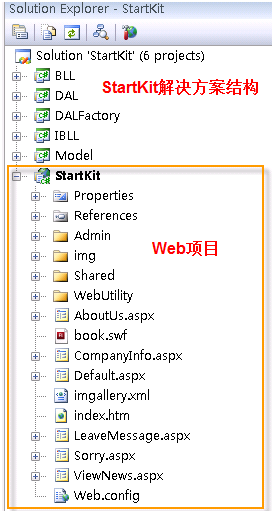
我们以前面教程中创建的StartKit解决方案为例子,结构如下: 


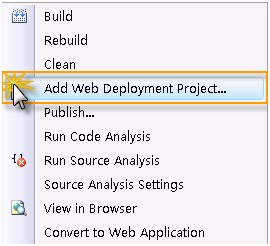
在上图所示的Web项目StartKit上右键点击,然后点击Add Web Deployment Project…,如下图:

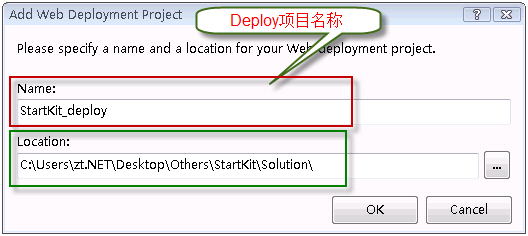
 弹出下面的窗体,分别输入部署项目名称和项目要放置的位置,如下图:

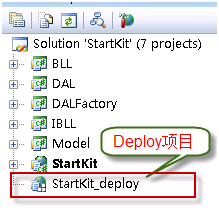
 点击OK按钮后,解决方案的结构如下图:

今天会讲到下面二个方法,上面的步骤一样,从这里开始,下面的步骤有区别。

方法一:使用WebDeployment创建虚拟目录

优点:使用简单

缺点:功能不够强大,只能部署到虚拟目录 

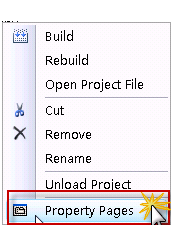
右键点击部署项目,点击菜单中的Property Pages,如下图:

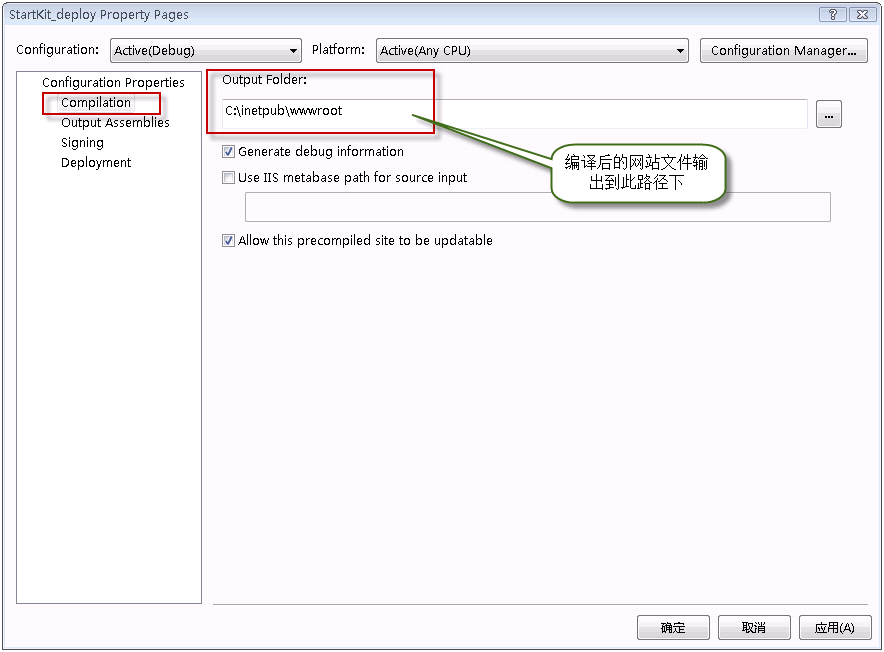
在下面的窗体中,点击左侧的Complication,在右侧的Output Folder下的文本框中输入编译后网站文件的输出路径:

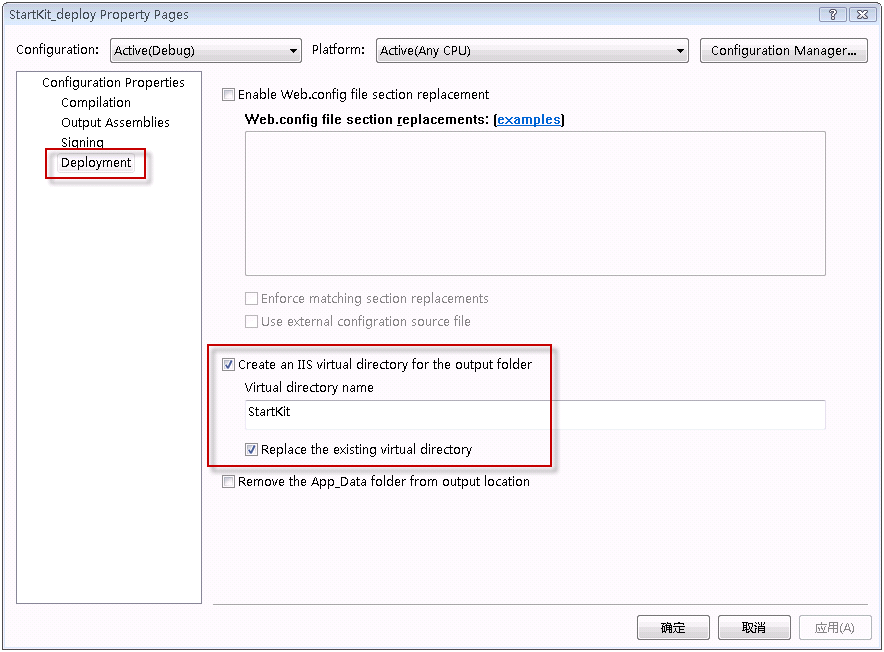
 然后,点击左侧的Deploment,在右侧选中Create an IIS virtual directory for the output folder前面的CheckBox,在下面的Virtual directory name下的文本框中输入虚拟目录的名字,Replace the existing virtual directory前面的CheckBox根据实际情况确定是否选中,如下图:

 点击确定按钮,编译部署项目StartKit.csproj_deploy,编译成功后,我们打开IIS,在默认网站下可以看到虚拟目录StartKit。OK,成功了! 

方法二:使用WebDeployment+MSBuild+Robocopy

优点:功能强大

缺点:配置有点麻烦 

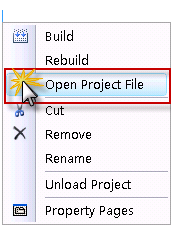
这个方法不用配置Property Pages,直接右键点击StartKit.csproj_deploy项目文件,在菜单中点击Open Project File打开部署项目文件:

修改部署项目文件为下面的内容:

<!–Microsoft Visual Studio 2008 Web Deployment Project http://go.microsoft.com/fwlink/?LinkID=104956–>

<Project ToolsVersion="3.5" DefaultTargets="Build" xmlns="http://schemas.microsoft.com/developer/msbuild/2003">
<PropertyGroup>
<Configuration Condition=" '$(Configuration)' == '' ">Debug</Configuration>
<Platform Condition=" '$(Platform)' == '' ">AnyCPU</Platform>
<ProductVersion>9.0.21022</ProductVersion>
<SchemaVersion>2.0</SchemaVersion>
<ProjectGuid>{00000000-0000-0000-0000-000000000000}</ProjectGuid>
<SourceWebPhysicalPath>..\StartKit</SourceWebPhysicalPath>
<SourceWebProject>{96E1A089-3FBB-4909-94F6-172665994449}|StartKit\StartKit.csproj</SourceWebProject>
<SourceWebVirtualPath>/StartKit.csproj</SourceWebVirtualPath>
<TargetFrameworkVersion>v3.5</TargetFrameworkVersion>
<ProjectName>StartKit</ProjectName>
<Major>1</Major>
<Minor>0</Minor>
<Revision>0</Revision>
<VSSName>ttzhang</VSSName>
<VSSPassword>123456</VSSPassword>
<FtpName>anonymous</FtpName>
<FtpPassword>anonymous</FtpPassword>
<SmtpServerName>smtp.163.com</SmtpServerName>
<FromAddress>ttzhang@163.com</FromAddress>
<ToAddress>zttc@163.com</ToAddress>
<MailPassword>testmail</MailPassword>
</PropertyGroup>
<PropertyGroup Condition=" '$(Configuration)|$(Platform)' == 'Debug|AnyCPU' ">
<DebugSymbols>true</DebugSymbols>
<OutputPath>.\Debug</OutputPath>
<EnableUpdateable>true</EnableUpdateable>
<UseMerge>true</UseMerge>
<SingleAssemblyName>StartKit_deploy</SingleAssemblyName>
</PropertyGroup>
<PropertyGroup Condition=" '$(Configuration)|$(Platform)' == 'Release|AnyCPU' ">
<DebugSymbols>false</DebugSymbols>
<OutputPath>.\Release</OutputPath>
<EnableUpdateable>true</EnableUpdateable>
<UseMerge>true</UseMerge>
<SingleAssemblyName>StartKit_deploy</SingleAssemblyName>
</PropertyGroup>
<ItemGroup>
</ItemGroup>
<!–下面的ItemGroup节点可选,这个和项目文件StartKit.csproj中的内容相同–>
<ItemGroup>
<ProjectReference Include="..\BLL\BLL.csproj">
<Project>{73A293A1-CDCC-4919-9B05-BA2531ADDB56}</Project>
<Name>BLL</Name>
</ProjectReference>
<ProjectReference Include="..\DAL\DAL.csproj">
<Project>{AFF6077D-DD2D-48A0-BFAD-051BD67A6953}</Project>
<Name>DAL</Name>
</ProjectReference>
<ProjectReference Include="..\IBLL\IBLL.csproj">
<Project>{620770BB-7A27-4585-9B97-44EEE349121D}</Project>
<Name>IBLL</Name>
</ProjectReference>
<ProjectReference Include="..\Model\Model.csproj">
<Project>{EA43EC2E-5890-4431-BD3E-5F6C090DEA3A}</Project>
<Name>Model</Name>
</ProjectReference>
</ItemGroup>
<!–引入MSBuildCommunityTasks–>
<Import Project="$(MSBuildExtensionsPath)\MSBuildCommunityTasks\MSBuild.Community.Tasks.Targets" />
<!–邮件发送–>
<!–<Target Name="EmailTest" >
<Message Text = " Mail sending…"></Message>
<Mail SmtpServer="$(SmtpServerName)"
Subject="Test"
Password="$(MailPassword)"
From ="$(FromAddress)"
To ="$(ToAddress)"
Body="This is a test of the mail task." />
</Target>–>
<!–备份文件到FTP–>
<!–<Target Name="Backup" DependsOnTargets="Zip" >
<FtpUpload UserName="$(FtpName)"
Password="$(FtpPassword)"
LocalFile="$(ZipFileName)"
RemoteUri="ftp://192.168.1.2/SourceBackup/$(ZipFileName)" />
<OnError ExecuteTargets="HandleErrorBackup" />
</Target>–>
<!–备份文件到FTP失败则发送邮件–>
<!–<Target Name="HandleErrorBackup">
<Message Text="Backup failed……………" />
<Mail SmtpServer="$(SmtpServerName)"
To="$(ToAddress)"
From="$(FromAddress)"
Subject="$(ProjectName) Build failed"
Body="Backup Failure: Could not finish Backup ." />
</Target>–>
<!–编译项目–>
<Target Name="BuildProjectReferences">
<MSBuild Projects="@(ProjectReference)" Targets="Build" />
</Target>
<!–生成压缩文件–>
<Target Name="Zip">
<!–时间格式–>
<Time Format="yyyyMMddHHmmss">
<Output TaskParameter="FormattedTime" PropertyName="buildDate"/>
</Time>
<Zip Files="@(ZipFiles)" ZipFileName="StartKit V$(Major)-$(Minor)-$(Revision)-$(buildDate).zip"/>
</Target>
<!–复制文件–>
<Target Name="Copy">
<!–停止IIS服务–>
<ServiceController ServiceName="w3svc" Action="Stop" />
<!–使用Robocopy复制编译后的文件到指定位置 /XD是要忽略的文件夹,/XF要忽略的文件类型–>
<Exec Command="Robocopy Debug c:\inetpub\StartKit /MIR /XD Fckeditor attachments .svn obj doc Test /XF *.zip *.wdproj *.user *.cs *.csproj" IgnoreExitCode="true" />
<!–启动IIS服务–>
<ServiceController ServiceName="w3svc" Action="Start" />
</Target>
<!–引入WebDeployment–>
<Import Project="$(MSBuildExtensionsPath)\Microsoft\WebDeployment\v9.0\Microsoft.WebDeployment.targets" />
<!– To modify your build process, add your task inside one of the targets below and uncomment it.
Other similar extension points exist, see Microsoft.WebDeployment.targets.–>
<Target Name="BeforeBuild"></Target>
<Target Name="BeforeMerge"></Target>
<Target Name="AfterMerge"></Target>
<Target Name="AfterBuild">
<!–编译成功后,执行下面的Targets–>
<!—不想生成ZIP文件,可以注释下面ZIPtarget–>
<CallTarget Targets="Zip"/>
<CallTarget Targets="Copy" />
<!–<CallTarget Targets="EmailTest"/>
<CallTarget Targets="Backup" />–>
</Target>
</Project>

编译部署项目成功后,打开C\inetpub\StartKit文件夹,看看是否成功复制过去了呢?好的,我去看看,哈哈,文件果然都在,OK,成功啦!

这时候,在IIS上创建一个虚拟目录或者网站,指向我们部署项目中指定的目录。上一篇我们已经将该项目添加到了CCNET中,所以以后我们每次提交代码后,MSBuild就会编译整个解决方案【当然也会编译部署项目】,如果编译成功,就会自动将最新的程序部署到我们网站上。这样就可以使网站和我们的开发实时保持同步,这只不是唯一的实现方法,其他还有很多可以实现这个功能的方法,大家可以在这里讨论和交流。

补充:
Microsoft Build Engine (MSBuild) Microsoft Visual Studio 的新的生成平台。MSBuild 在如何处理和生成软件方面是完全透明的,使开发人员能够在未安装 Visual Studio 的生成实验室环境中组织和生成产品。通过这几篇教程,我们可以看出,MSBuild的强大功能,如果希望理解更多关于MSBuild的信息,请查看这里http://msdn.microsoft.com/zh-cn/library/ms171451.aspx


作者:
ttzhangTechnology Life
出处:http://ttzhang.cnblogs.com/
本文版权归作者和博客园共有,欢迎转载,但未经作者同意必须保留此段声明,且在文章页面明显位置给出原文连接,否则保留追究法律责任的权利。

[Flash]Flash与3D编程探秘(七)- 3D物体框架

mikel阅读(668)

作者:Yang Zhou
日期:2008年11月

点此下载程序源文件


从这篇文章开始,我将开始介绍3D物体及其在空间中运动和交互。这里提到的物体是指单个的实体,比如银河系中的一颗恒星,那么空间就是银河系了。不过,所 有的一切都是相对的,当一个分子作为我们例子中的实体的时候,那么一个细胞也可以作为3D的空间来看待(一个细胞是由很多的分子组成),同理你可以知道细 胞相对于一个生物(空间)来说也是一个物体。有些说多了,不过我想让你明白,我们用程序模拟一只小狗,或者一个人作为一个整体,但是我们不可能完全真实的 模拟它。因为,人体由数不清的细胞组成,每一个细胞都是一个物体,做着自己的运动,除非我们使用计算机真实模拟着人体的每一个细胞以及它的运动,否则我们 永远不可能得到一个真实模拟的人。但是使用现代的计算机科技我们是不可能模拟组成人体的所有细胞,那就更不用说组成每个细胞的分子。

还是言归正传来看一个3D物体的例子,这也是第一个绘制一个3D物体的例子。这个程序里,我们要创建一个正方体并且让它围绕着正方体的对角线交点自转,不过这个正方体还是由8个好朋友小P组成,每个顶点站一个,由它们来勾勒这个正方体的框架。

一个小P组成的正方体


动画制作步骤

1. 首先在Flash IDE里绘制一个物体小P。

2. 开始设置还是和以前一样,原点,摄像机,焦距等等,另外不要忘记创建一个旋转角度object,存放物体在x,y和z轴的旋转角度变量。

// constants
var PI = 3.1415926535897932384626433832795;
// origin is the center of the view point in 3d space
// everything scale around this point
// these lines of code will shift 3d space origin to the center
var origin = new Object();
origin.x 
= stage.stageWidth/2;
origin.y 
= stage.stageHeight/2;
origin.z 
= 0;
// focal length of viewer's camera
var focal_length = 300;
// now create a scene object to hold the spinning box
var scene = new Sprite();
scene.x 
= origin.x;
scene.y 
= origin.y
this.addChild(scene);
var axis_rotation 
= new Object();
axis_rotation.x 
= 0;
axis_rotation.y 
= 0;
axis_rotation.z 
= 0;
var camera 
= new Object();
camera.x 
= 0;
camera.y 
= 0;
camera.z 
= 0;


3. 写一个函数,我们用它来创建空间中的一个点,scale_point代表这个点在投射到2D平面上后位置缩放的比率。

// this function construct a 3d vertex
function vertex3d(x, y, z, scale = 1):Object
{
    var point3d 
= new Object();
    point3d.x 
= x;
    point3d.y 
= y;
    point3d.z 
= z;
    point3d.scale_point 
= scale;
    
return point3d;
}


4. 下面发挥一下你的空间想象力,使用第3步的函数创建正方体的8个顶点,并且把它们添加到一个数组里。

// we calculate all the vertex
var len = 50;                    // half of the cube width
// now create the vertexes for the cube
var points = [
                
//        x        y        z
                vertex3d(len,    len,     len),            // rear upper left
                vertex3d(len,    len,     len),            // rear upper right
                vertex3d(len,    len,     len),            // front upper right
                vertex3d(len,    len,     len),            // front upper left
                
                vertex3d(
len,    len,     len),            // rear lower left
                vertex3d(len,    len,     len),            // rear lower right
                vertex3d(len,    len,     len),            // front lower right
                vertex3d(len,    len,     len),            // front lower left
            ];

5. 初始化8个小P,并且把它们放在8个顶点(映射到xy轴上的点)所在的x和y位置。

// init balls and put them on the screen
for (var i = 0; i < points.length; i++)
{
    var ball 
= new Sphere();
    ball.x 
= points[i].x;
    ball.y 
= points[i].y;
    ball.z 
= 0;
    scene.addChild(ball);
}


6. 这个函数你在摄像机空间旋转一篇文章中应该见过,函数的功能是把3D空间的点,映射到2D平面xy上。函数执行的步骤是这样的:
    a) 提前计算出x,y和z旋转角度的正余弦值。
    b) 使用for loop遍历物体所有的顶点。
    c) 使用计算出的正余弦和三角函数对三个轴的旋转分别进行计算,得出旋转后顶点的x,y和z。
    d) 然后计算出物体在2D平面上映射后的x和y值。
    e) 并且把这些2D点添加到一个新的数组里。

    f) 最后返回这个数组。

function project_pts(points)
{
    var projected 
= [];
    
// declare some variable for saving function call
    var sin_x = Math.sin(axis_rotation.x);
    var cos_x 
= Math.cos(axis_rotation.x);
    var sin_y 
= Math.sin(axis_rotation.y);
    var cos_y 
= Math.cos(axis_rotation.y);
    var sin_z 
= Math.sin(axis_rotation.z);
    var cos_z 
= Math.cos(axis_rotation.z);
    
    var x, y, z,                
// 3d x, y, z
        xy, xz,            // rotate about x axis
        yx, yz,            // rotate about y axis
        zx, zy,            // rotate about z axis
        scale;            // 2d scale transform
    
    
for (var i = 0; i < points.length; i++)
    {
        x 
= points[i].x;
        y 
= points[i].y;
        z 
= points[i].z;
        
        
// here is the theroy:
        
// suppose a is the current angle, based on given current_x, current_y on a plane
        
// (can be x, y plane, or y, z plane or z, x plane), rotate angle b
        
// then the new x would be radius*cos(a+b) and y would be  radius*sin(a+b)
        
// radius*cos(a+b) = radius*cos(a)*cos(b) – radius*sin(a)*sin(b)
        
// radius*sin(a+b) = radius*sin(a)*cos(b) + radius*cos(a)*sin(b)


        // rotate about x axis
        xy = cos_x* sin_x*z;
        xz 
= sin_x*+ cos_x*z;
        
// rotate about y axis
        yz = cos_y*xz  sin_y*x;
        yx 
= sin_y*xz + cos_y*x;
        
// rotate about z axis
        zx = cos_z*yx  sin_z*xy;
        zy 
= sin_z*yx + cos_z*xy;
        
// scale it
        scale = focal_length/(focal_length+yzcamera.z);
        x 
= zx*scale  camera.x;                // get x position in the view of camera
        y = zy*scale  camera.y;                // get x position in the view of camera
        
        projected[i] 
= vertex3d(x, y, yz, scale);
    }
    
return projected;
}


这样我们就得到一个数组,包含所有我们需要的2D数据。并不困难,你完全可以把这一段代码叫做这个程序的3D引擎,它负责了所有点的数据在空间里旋转计算和输出。


7. 下面是动画执行的循环函数。需要注意的一点,在以后的文章中我都将使用基于时间的运动。在这里你只要知道下面的公式就可以了:旋转角度=角速度X时间。使 用上面的公式,我们递增物体围绕y轴和x轴的旋转角度。然后使用第6步的函数计算所有的3D顶点旋转后的位置并且得到映射后的2D点。剩下你应该能想到, 就是把相应的小P定位到这些定点上,并且对小球进行缩放比率scale_point,最后不要忘记对小P进行z排序。

function move(e:Event):void
{
    
// well we use time based movement in this tutorial
    var current_time = new Date().getTime();                // sampe the current time
    
// increment the rotation around y axis
    axis_rotation.y += 0.0008*(current_timestart_time);
    
// increment the rotation around x axis
    axis_rotation.x += 0.0006*(current_timestart_time);
    start_time 
= current_time;                                // reset the start time
    
    var projected 
= project_pts(points);        // 3d ponts to 2d transformation         
    
    
// now we have all the data we need to position the balls
    for (var i = 0; i < scene.numChildren; i++)                // loop throught the scene
    {
        
// positioning the ball
        scene.getChildAt(i).x = projected[i].x;
        scene.getChildAt(i).y 
= projected[i].y;
        scene.getChildAt(i).z 
= projected[i].z;
        scene.getChildAt(i).scaleX 
= scene.getChildAt(i).scaleY = projected[i].scale_point;
    }
    
    swap_depth(scene);                
// sort out the depth 
}
// bubble sort algo
function swap_depth(container:Sprite)
{
    
for (var i = 0; i < container.numChildren  1; i++)
    {
        
for (var j = container.numChildren  1; j > 0; j)
        {
            
if (Object(container.getChildAt(j1)).z < Object(container.getChildAt(j)).z)
            {
                container.swapChildren(container.getChildAt(j
1), container.getChildAt(j));
            }
        }
    }
}
// now add the event listener and spin the box
this.addEventListener(Event.ENTER_FRAME, move);


注意

例子中物体沿着x和y轴旋转,但是并没有添加z轴旋转,你可以自己添加上,看看有什么不同。

注意

例子中我们使用了两个for loop,第一次遍历所有的顶点把3D点转化为2D点,第二个把相应的小P定位到这些2D点的位置。虽然这样看起来会降低执行速度,但是这样会使程序的流程一目了然。如果你已经非常熟练,你可以试着修改这两个函数提高执行速度。


使用Flash绘制API

上面的例子看起来不错,不过只有顶点有小球,我们看起来还不满意,那么接下来做一个动态绘制的正方体。这个例子里,基本的框架并没有什么变化,正方体所有的边都是用Flash的moveTo()和lineTo()来绘制。那么我就把需要更改代码的地方解释一下。

一个正方体的框架


制作步骤

1. 基本上的代码和前面是一样的,同样我们需要设置场景,创建正方体的顶点,注意不要再在舞台上添加小P。

2. 当我们把3D点映射到2D平面上后,我们使用黑线把正方体相邻的两个点连接起来。非常容易理解,不过注意我们有很多种办法连接这些点,你可以先连接正方体顶面的点,然后底面的点,最后连接顶面和底面。当然还有很多连接方法,你总能找到合适你思维方式的连接方式。

function move(e:Event):void
{
    
// well we use time based movement in this tutorial
    var current_time = new Date().getTime();                // sampe the current time
    
// increment the rotation around y axis
    axis_rotation.y += 0.0008*(current_timestart_time);
    
// increment the rotation around x axis
    axis_rotation.x += 0.0006*(current_timestart_time);
    start_time 
= current_time;                            // reset the start time
    
    var projected 
= project_pts(points);        // 3d ponts to 2d transformation         
    
    
// now we start drawing the cube
    with (scene.graphics)
    {
        clear();
        lineStyle(
0.50x0F6F9F1);
        
// top face
        moveTo(projected[0].x, projected[0].y);
        lineTo(projected[
1].x, projected[1].y);
        lineTo(projected[
2].x, projected[2].y);
        lineTo(projected[
3].x, projected[3].y);
        lineTo(projected[
0].x, projected[0].y);
        
// bottom face
        moveTo(projected[4].x, projected[4].y);
        lineTo(projected[
5].x, projected[5].y);
        lineTo(projected[
6].x, projected[6].y);
        lineTo(projected[
7].x, projected[7].y);
        lineTo(projected[
4].x, projected[4].y);
        
// vertical lines
        moveTo(projected[0].x, projected[0].y);
        lineTo(projected[
4].x, projected[4].y);
        moveTo(projected[
1].x, projected[1].y);
        lineTo(projected[
5].x, projected[5].y);
        moveTo(projected[
2].x, projected[2].y);
        lineTo(projected[
6].x, projected[6].y);
        moveTo(projected[
3].x, projected[3].y);
        lineTo(projected[
7].x, projected[7].y);
    }
}


3. 还有一个地方需要改动,因为我们不再对顶点的物体进行缩放,所以就必须要传递scale_point这个属性。

// this function construct a 3d vertex
function vertex3d(x, y, z):Object
{
    var point3d 
= new Object();
    point3d.x 
= x;
    point3d.y 
= y;
    point3d.z 
= z;
    
return point3d;
}


建议

试着把上面的两种框架构建方式结合在一起,制作一个旋转的物体被线连着,试一试制作下面的这个一条螺旋体的模型。如果你想增加难度的话,你还可以做一个DNA链。

一个螺旋体


那么到目前为止,你已经知道如何使用框架构建一个方体,不过现实中物体总是有纹理和填充色的。你也许会想,那么我们使用Flash的 beginFill()函数就可以给物体加上填充色了。Hum,很接近不过如果我们要给物体上色的话,还有很多工作要做,后面的文章中我们将重点开始介绍 着色筛选和相关内容。

关于Time Based和Frame Based运动

文章第一个例子中的制作步骤里,我们提到关于基于时间的运动公式(只要我们知道了物体运动的速度,那么根据牛顿第一运动定律就可以得出物体在某个时间点的位移):

位移 = 时间 X 速度


回想一下,我们前面的几篇文章里使用的都是基于祯的运动,然而基于祯的运动是不稳定的,它的公式是:

位移 = 执行次数 X 速度


基于祯的运动不管我们程序执行流逝了多少时间,只在function执行的时候给物体的x或者y加减一定的值。这种运动是不稳定的,所以我建议大家 使用基于时间的运动,下面的两个动画分别用两种运动模式做成,点击一下动画就会在function执行时执行大量的junk运算,这时你就会看到两种运动 的差异。而基于时间的运动中,当速度恒定时,物体会处在正确的位置;基于祯的运动,你就会看到物体运动慢下来很多, 并不能达到物体在某个时间点应该到达的位置。如果你的电脑CPU不是很快的话(不要忘记这个页面里还有另外3个使用大量CPU运算的动画),点击这里到另外一个文章里查看下面的两个动画,如果感觉动画还是不够连贯的话,那么你可以下载这两个动画到本机察看


对比基于时间和基于祯的运动


点此下载程序源文件

上一篇          目录          下一篇

作者:Yang Zhou
出处:http://yangzhou1030.cnblogs.com
感谢:Yunqing
本文版权归作者和博客园共有,转载未经作者同意必须保留此段声明。请在文章页面明显位置给出原文连接,作者保留追究法律责任的权利。

[Java]Java程序员ActionScript 3入门

mikel阅读(778)

Java程序员ActionScript 3入门

作者 Jack Herrington译者 张凯峰 发布于 2008年11月6日 上午3时21分

社区
Java
主题
RIA,
富客户端/桌面
标签
Flex

我 们还是勇敢面对吧:客户端对于Java程序员来说,一直都不是个友好的地方。Java在客户端的技术,包括applet、Swing和JavaFX到目前 为止只取得了有限的成绩。JavaScript除了它的名字外,几乎没有什么地方像Java语言。而Adobe Flash呢,它看起来的确像JavaScript,真的吗?也许在几年前说Flash就像JavaScript一样是可以理解的,但随着 ActionScript 3的出现,一切都改变了。而且我相信你会喜欢它的很多东西。

首先,ActionScript这门针对Adobe Flex和Flash的编程语言,现在是强类型的了。它也是一流的面向对象语言,包括有类和接口。它还拥有你在Java中找不到的东西——特别地,它包含属性的getset方法,以及一个叫做ECMAScript for XML(E4X)的语言扩展,可以将任何XML文档转换成对象,这样你就可以通过“.”操作符直接引用它们,就跟普通对象一样。

这篇文章会引领你浏览ActionScript的基础内容,以及展示它与你所熟悉的Java环境的不同。到最后,你就会放弃你对 ActionScript 的任何偏见,并开始有兴趣把玩它。关于Flex、Flash和ActionScript的最伟大的事情之一就是它们完全是免费的。只要下载了Adobe Flex Builder 3就可以开始了。Flex Builder是一个复杂的集成开发环境(IDE),而且不是免费的,但它用于构建Flash应用的Flex软件开发工具包(SDK)是完全免费的。

对阅读本文章的语言发烧友的一句忠告是:我并不是个语言教师,因此我可能忽略掉一些语言的细节。我也不会在这篇文章中演示ActionScript 3的所有内容。如果你的确需要这方面的内容,有很多非常棒的ActionScript 3的书籍。我能给予你的就是你对这门语言的初次的感觉。让我们开始吧。

类和接口

就和Java一样,在ActionScript 3中一切皆是对象。虽然有一些基本类型,比如integer,但除了这些,一切皆是对象。类似地,就像Java一样,ActionScript也有命名空间和包,比如com.jherrington.animals,其表示了company/jack herrington/animal下的类。你可以把类放到缺省的命名空间,但更好的方法是由你自己来控制自己的命名空间。

要定义一个类,你要使用class关键字,这也跟Java一样。请看示例:

package com.jherrington.animals
{
public class Animal
{
public function Animal()
{
}
}
}

在这个例子中,我定义了一个Animal类,以及什么也没干的构造函数。我还可以很容易地添加一些成员变量并完善这个构造函数,请看示例:

package com.jherrington.animals
{
public class Animal
{
public var name:String = "";
private var age:int = 0;
private function Animal( _name:String, _age:int = 30 )
{
name = _name;
age = _age;
}
}
}

这里,我给一个Animal对象定义了两个成员变量:name,一个公有的字符串,以及age,一个私有的整数。(很明显,小动物们对于它们的年龄 都很害羞。:) )构造函数可以接受一个或两个参数:要么是单独的name,要么name和age。你也可以在函数声明中为参数提供缺省的值。

你会注意到这里的类型定义是跟Java相反的。在Java中,类型在变量之前;而在ActionScript中,类型在变量之后。这是因为强类型定义是追加到ActionScript上的。所以为了支持旧的、没有定义类型的代码,类型就需要放在变量名的后面。

让我添加一些方法来扩展这个示例:

package com.jherrington.animals
{
import flash.geom.Point;
public class Animal
{
public var name:String = "";
private var age:int = 0;
private var location:Point = new Point(0,0);
public function Animal( _name:String, _age:int = 30 )
{
name = _name;
age = _age;
}
public function moveTo( x:int, y:int ) : void {
location.x = x;
location.y = y;
}
public function getLocation( ) : Point {
return location;
}
}
}

正如你所看到的,我又添加了一个私有成员变量location,类型是我从Flash的geometry包中引入的Point类型。而且我还添加了两个方法来操作location:moveTo,用来移动animalgetLocation,用来返回当前的位置。

到目前为止,这还是以Java的方式去get和set一个值。但ActionScript方式会清晰很多,请看示例:

package com.jherrington.animals
{
import flash.geom.Point;
public class Animal
{
public var name:String = "";
private var age:int = 0;
private var myLocation:Point = new Point(0,0);
public function Animal( _name:String, _age:int = 30 )
{
name = _name;
age = _age;
}
public function set location( pt:Point ) : void {
myLocation = pt;
}
public function get location( ) : Point {
return myLocation;
}
}
}

这里我使用getset函数,它们会在客户代码获取或设置成员变量location时被调用。对于客户代码来说,location变量看起来就像是个普通的成员变量。但事实上,你可以用你喜欢的任何代码来响应成员变量的设值,以及处理变量的获取。

如何来使用它呢?你可以添加一个事件,这个事件会在location发生改变时被触发。请看示例代码:

package com.jherrington.animals
{
import flash.events.Event;
import flash.events.EventDispatcher;
import flash.geom.Point;
public class Animal extends EventDispatcher
{
public var name:String = "";
private var age:int = 0;
private var myLocation:Point = new Point(0,0);
public function Animal( _name:String, _age:int = 30 )
name = _name;
age = _age;
}
public function set location ( pt:Point ) : void {
myLocation = pt;
dispatchEvent( new Event( Event.CHANGE ) );
}
public function get location( ) : Point {
return myLocation;
}
}
}

现在,我指定Animal类是一个事件分发者——也就是说,客户代码可以从这个对象监听到事件发生。接着,当location改变时,我发出了一个新的事件。

下面就是客户代码,它创建了一个animal对象,并开始监听事件是否发生,然后就改变了animallocation

	var a:Animal = new Animal();
a.addEventListener(Event.CHANGE, function( event:Event ) : void {
trace( "The animal has moved!" );
} );
a.location = new Point( 10, 20 );

这段代码在animal移动时会记录一条跟踪信息。在ActionScript中,你可以定义任何类型的消息。大多数的类都是EventDispatcher类,你可以为它们的事件添加监听器。

接口

就像Java一样,ActionScript 3语言也支持接口,并使用类来实现它们。下面的示例中,就是一个我们可以用Animal类来实现的接口:

package com.jherrington.animals
{
import flash.geom.Point;
public interface IAnimal
{
function get name() : String;
function set name( n:String ) : void;
function get location() : Point;
function set location( pt:Point ) : void;
}
}

在这个例子中,我为接口定义了两个可以set和get的成员变量。没错,你可以在ActionScript接口中定义方法和成员变量。是不是很酷?

为了实现这个接口,我对Animal类做了一点修改。请看示例:

package com.jherrington.animals
{
import flash.events.Event;
import flash.events.EventDispatcher;
import flash.geom.Point;
public class Animal extends EventDispatcher implements IAnimal
{
private var myName:String = "";
public function get name() : String
{
return myName;
}
public function set name( n:String ) : void
{
myName = n;
dispatchEvent( new Event( Event.CHANGE ) );
}
private var myLocation:Point = new Point(0,0);
public function set location ( pt:Point ) : void {
myLocation = pt;
dispatchEvent( new Event( Event.CHANGE ) );
}
public function get location( ) : Point {
return myLocation;
}
public function Animal( _name:String )
{
name = _name;
}
}
}

当然,我也可以为这个类添加特定的变量和方法,或者实现除了IAnimal接口之外的其他接口。但是和Java一样,我只能继承一个基类。

静态和常量

ActionScript 3支持常量和静态成员变量,以及静态方法。常量定义起来很方便,请看示例:

		public const MINIMUM_AGE:int = 0;
public const MAXIMUM_AGE:int = 2000;

常量可以是你期望的任何类型,但它们必须是在编译时定义。如果你愿意,你也可以把它们定义成受保护的或者是私有的作用域。

为了演示一下静态方法,我在Animal类中写了一个工厂方法:

		public static function buildAnimal( n:String ) : IAnimal {
return new Animal( n );
}

使用静态方法的另外一种方式是单例模式。下面就是一个针对Animal类的单例工厂类:

package com.jherrington.animals
{
public class AnimalFactory
{
private static var _factory:AnimalFactory = new AnimalFactory();
public static function get instance() : AnimalFactory {
return _factory;
}
public function build( n:String ) : Animal {
return new Animal( n );
}
}
}

我使用该单例工厂的instance成员变量来获得其对象,并调用它:

private var b:Animal = AnimalFactory.instance.build( "Russell" );

这句代码使用单例工厂对象创建了一个新的名叫Russell的animal对象。

继承

为了演示继承,我写了三个接口和类。第一个是之前的IAnimal接口,第二个是Animal类,第三个是名叫Dog的继承类,它覆写了一个方法。

接口IAnimal定义如下:

	public interface IAnimal
{
function get name() : String;
function set name( n:String ) : void;
function move( x:int, y:int ) : void;
}

我对它进行了简化,这样它只有一个name成员变量和一个move()方法。第一个实现这个接口的是Animal类:

public class Animal extends EventDispatcher implements IAnimal
{
private var myName:String = "";
public function get name() : String
{
return myName;
}
public function set name( n:String ) : void
{
myName = n;
dispatchEvent( new Event( Event.CHANGE ) );
}
public function Animal( _name:String )
{
name = _name;
}
public virtual  function move( x:int, y:int ) : void
{
}
}

然后,Dog类在Animal类的基础上构建起来,它具有自己的构造函数,并覆写了move()方法:

public class Dog extends Animal
{
public function Dog(_name:String)
{
super(_name);
}
public override function move( x:int, y:int ) : void
{
trace( 'Moving to '+x+', '+y );
}
}

这看起来非常像Java代码,所以你会感觉到用ActionScript来实现自己的面向对象设计会非常轻松。

操作符和条件语句

ActionScript中的操作符和你在Java中看到的完全一样。类似地,算术和布尔操作符也是一样的:

	var a:int = 5;
var b:int = 6;
var c:int = a * b;
c *= 10;
var d:Boolean = ( c > 10 );
var e:int = d ? 10 : 20;

这些实例演示了一些不同的操作符。在这些示例中,ActionScript和Java的唯一不同在于定义变量的语法不一样。

跟操作符一样,条件语句也是完全一样的,请看示例:

	if ( a > 10 ) {
trace( 'low' );
}
else if ( a > 20 ) {
trace( 'high' );
}
else {
threw new Exception( "Strange value" );
}

这里演示了条件语句的语法,以及如何抛出异常。异常处理和Java中的完全一样。你可以定义自己的异常类型,或者直接使用标准的Exception类。

下面是trycatchfinally语法的使用:

	try
{
location = new Point( -10, 10 );
}
catch( Exception e )
{
trace( e.toString() );
}
finally
{
location = null;
}

这段代码试图设置location,并在错误发生时跟踪错误信息。不管哪种情况,最终,location都会被设为null

迭代

ActionScript 3没有强类型的容器类,但数组和哈希表使用起来还是非常容易的。这里是一个使用for循环来迭代一个数组的例子:

	var values:Array = new [ 1, 2, 5 ];
for( var i:int = 0; i < values.length; i++ )
trace( values[i] );

但这并不是你在ActionScript中迭代数组应该使用的方式。最好的方式是使用for each语法,请看示例:

	var values:Array = new [ 1, 2, 5 ];
for each ( var i:int in values )
trace( i );

这段代码迭代访问数组中的每个元素,并把i的值设置为每个元素的值。

要创建一个哈希表,你可以使用ActionScript中基本的Object类型:

	var params:Object = { first:'Jack', last:'Herrington' };
for( var key:String in params )
trace( key+' = '+params[key] );

ActionScript起源于JavaScript意味着基础对象类型是基于插槽(slots-based)的容器,这样你可以轻而易举地把它作为哈希表来使用。

正则表达式

正则表达式是ActionScript中的基础语法。比如下面这段代码:

	if ( name.search( /jack/i ) )
{
trace('hello jack');
}

是对一个字符串的简单检查。

这段代码是使用正则表达式来执行分割操作:

	var values:String = "1,2,3";
for each( var val:String in values.split(/,/) ) {
trace( val );
}

你是否应该把正则表达式嵌在自己的核心代码里面,是值得商榷的。Java的架构师们显然认为这些表达式应该留在一个外部的库中。但我认为,它们非常有用,所以它们应该像在ActionScript中这样被集成。

E4X

XML应用得很广泛,以至于ActionScript直接把它构建在语言的语法里面以示支持。如果你是个XML爱好者,你会非常喜欢这个的。请看示例:

var myData:XML = <names>
<name>Jack</name>
<name>Oso</name>
<name>Sadie</name>
</names>;
for each ( var name:XML in myData..name ) {
trace( name.toString() );
}

这段代码定义了一个XML文档,然后对它进行搜索并打印出所有的标签

下面这段代码也是获取<name> 标签,但只获取那些type是dog的标签。

var myData:XML = <names>
<name type="person">Jack</name>
<name type="dog">Oso</name>
<name type="dog">Sadie</name>
</names>;
for each ( var name:XML in myData..name.(@type='dog') ) {
trace( name.toString() );
}

@语法有点类似于XPath和XSLT。它用来指定我们要查看的是属性而不是XML元素本身。

E4X是对这门语言的梦幻增强。它把XML解析从繁琐变成了轻松愉快的事情。Web services甚至也可以以E4X的格式返回以便于解析。

总结

Adobe对于ActionScript做了一些非凡的改进。它是一门比人们想象的成熟得多的语言。我认为你会最终发现Adobe所做的,就是吸取了Java的得失教训,并把它们合并进ActionScript 3语言的开发中。你会很乐意看到最后的结果。

获取更多的信息

  • 要获取更多关于ActionScript和Java语法的相似性,请阅读Yakov Fain的文章,"Comparing the syntax of Java 5 and ActionScript 3" (JDJ, 2006年11月12日)。
  • 可以从Open Source Flash下载到Java-to-ActionScript转换器,这样你就可以使用Java而不是ActionScript来创建Flash内容了。
  • 要寻找资源列表来帮助你在ActionScript、Flex、Java和JavaScript开发之间游走,请查看RIAdobe的比较列表。
  • Flex.org上有你想知道的关于Adobe Flex的一切。

[C#]BlogEngine.Net架构与源代码分析系列part6:开放API——MetaWeblo

mikel阅读(1162)

     一款优秀的 Blog系统少不了一些公开的API。BlogEngine.Net实现了标准的MetaWeblog API接口来允许用户通过客户端软件来发布自己的Blog,此外它还实现了将其它Blog系统中的文章(标准格式的BlogML或Rss)导入到 BlogEngine.Net中来的BlogImporter接口,在这篇文章里我将对这些开放部分进行详细的介绍,对于涉及到的一些相关知识点也给出链 接或做简单的描述。

MetaWeblog API使用标准的Http协议封装的XMLRPC实现(类似于WebService中的Soap协议)

1.首先让我们了解一下什么是MetaWeblog API

MetaWeblog API (MWA)是一套编程接口,允许外面的程序能取得和设置Blog文章的文本或属性。它是建立在XMLRPC接口之上,并且已经有了很多的实现。

2.MetaWeblog API有三个基本的函数规范:

metaWeblog.newPost (blogid, username, password, struct, publish) 返回一个字符串,可能是Blog的ID。
metaWeblog.editPost (postid, username, password, struct, publish) 返回一个Boolean值,代表是否修改成功。
metaWeblog.getPost (postid, username, password) 返回一个Struct。
其中blogid、username、password分别代表Blog的id(注释:如果你有两个Blog,blogid指定你需要编辑的blog)、用户名和密码。
由于篇幅有限,关于MetaWeblog API的更多信息请参考文末的链接部分。

3.BlogEngine.Net中的MetaWeblog API的实现分析

BlogEngine.Net的XMLRPC调用主要是由BlogEngine.Core.API.MetaWeblog命名空间下的几个类型来完成的。

首先客户端软件通过Http协议向MetaWeblogHandler提交了一个 标准的XML请求,MetaWeblogHandler是一个HttpHandler,之后MetaWeblogHandler执行 ProcessRequest来处理这个请求,最后将处理结果再封装为XML返回给客户端软件。

下面让我对这部分涉及到的几个类型做一个简单的介绍:
MetaWeblogHandler:不用说了,处理的主逻辑部分,ProcessRequest是处理的入口点,将一些具体处理的部分委托给一些私有成员,例如:

internal string NewPost(string blogID, string userName, string password, 

MWAPost sentPost, bool publish)

XMLRPCRequest:是对一个HttpRequest信息提取以后的封装,里面是一些解析XML提取信息的相关属性与方法,例如远程调用方法名,参数,文章信息等。
XMLRPCResponse:与XMLRPCRequest是对应的,它的Response方法会将执行结果生成XML并传递给HttpResponse之后返回给客户端。
还有一些类似于MWABlogInfo,例如MWAMediaObject,MWAPost等的结构是对于业务对象类型数据提取信息的封装,主要是为了交换信息而定义的。

从BlogEngine.Net的实现上看,它支持很多标准的协议,这些协议很多都是基于XML进行通信的,而BlogEngine.Net一般都是通过HttpHandler来处理这些标准的。

BlogEngine.Net的导入和导出Blog文章的实现分析

     BlogEngine.Net的导入支持Rss和BlogML两种格式,导出支持 BlogML格式(也具有Rss的请求链接,后续文章将讲解)。登录以后进入Settings我们发现在页面的最底部提供了导入和导出功能的两个按钮,查 看codebefore的代码我们看到这两个按钮的请求地址为:

<input type="button" value="<%=Resources.labels.import %>" 

onclick="location.href='http://dotnetblogengine.net/clickonce/blogimporter/

blog.importer.application?url=<%=Utils.AbsoluteWebRoot %>&username=<%=Page.User.Identity.Name %>'" />
<input type="button" value="<%=Resources.labels.export %>" 

onclick="location.href='blogml.axd'" />

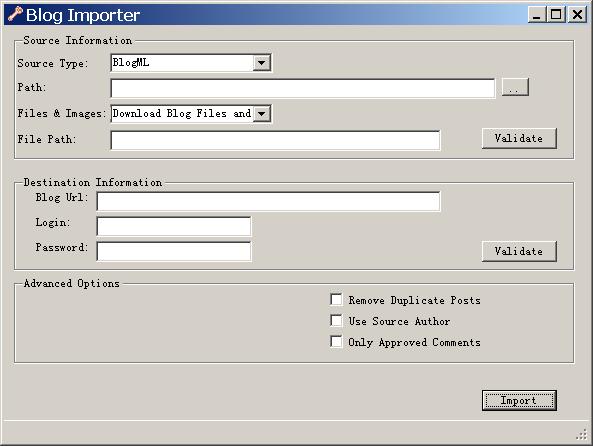
原来在导入时会向 http://dotnetblogengine.net/clickonce/blogimporter /blog.importer.application发一个请求,后面跟上相关参数信息,这是一个使用clickonce部署的客户端应用程序,打开以 后可以看到:

使用它我们可以完成将其它Blog系统中的Blog文章导入到BlogEngine.Net中来,同样,这些文件的格式都是标准的XML文件。

     在BlogEngine.Net的Web站点中我们可以看到一个api的目录,那里面有一些Blog导入所使用的WebService接口,这个客户端导入工具同样也是调用站点中的这些接口函数来完成导入的,注意

http://dotnetblogengine.net/clickonce/blogimporter/blog.importer.application

后面的参数url就是告诉导入工具WebService的所在站点地址,username就是导入的目标用户名。这个导入的WebService应该属于BlogEngine.Net自己定义的接口,并不是标准的接口,但是可以被标准调用(Soap),例如我们也可以自己写一个导入的程序调用这个接口来完成导入功能。

     对于这个WebService的实现比较简单,我不想多说了,但是希望大家注意两点比较有特色的地方:
1.在部分接口中使用了SoapHeader来完成用户信息的验证。例如:


Code

2.对于一些被导入的Blog中的图片和文件等的存储和处理。例如下载文件和链接的加入:

Code

     此外在api中还有一个TagMiniView.aspx,它的作用我想就是允许在其它站点中引用本站点的云标签信息。对于Blog的导出功能通过请求的URL可以看出,又是通过HttpHandler来处理生成BlogML文档的。

总结

1.一个开放的系统需要支持很多标准,包括通信标准,标准文档等,BlogEngine.Net在这方面做得很到位。
2.对于使用clickonce部署的客户端来导入Blog文章感觉很值得借鉴。

参考文章

1.基于XML-RPC的BloggerAPI学习

2.metaWeblog API 学习笔记

     一边写文章,一边阅读源代码,有些东西让我恍然大悟.

     上一篇:BlogEngine.Net架构与源代码分析系列part5:对象搜索——IPublishable与Search


     返回到目录

版权声明
作者:Thriving.country
出处:http://thriving-country.cnblogs.com/
本文版权归作者和博客园共同所有,欢迎转载,但未经作者同意必须保留此段声明,且在文章页面明显位置给出原文链接.

[C#]项目管理实践【三】每日构建【Daily Build Using CruiseControl.

mikel阅读(789)

在上一篇项目管理实践教程二、源代码控制【Source Control Using VisualSVN Server and TortoiseSVN】中我们已经讲解了如何使用TortoiseSVN和VisualSVN Server来做简单的版本控制,这一篇我们将会讲解使用CruiseControl.NET和MSBuild来搭建每日构建系统。

在第一篇项目管理实践教程一、工欲善其事,必先利其器【Basic Tools】 中我们已经安装了CruiseControl.NET 1.4,因为我们还要用到MSBuild,所以如果你的系统没有安装Visual Studio,那么你需要首先安装Visual Studio 2005/2008,我们在这里使用的是Visual Studio 2008,准备好这些了吗?OK,我们正式开始今天的课程! 

首先,我们要配置CruiseControl.NET【下面简写为CCNET】,配置完成后,我们每次提交源代码到SVN服务器后,CCNET就可 以自动从SVN服务器上迁出源代码,并调用MSBuild自动进行编译。我们以昨天的教程中创建的StartKit项目为实例,先看看下面的配置文件:

CCNET配置文件代码

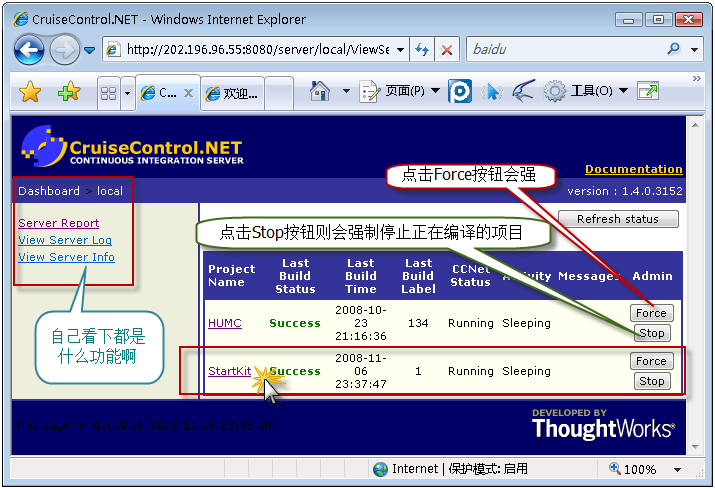
好了,我们已经对CCNET的配置文件有了大致的了解,接下来,你打开CCNET的安装路径,找到子目录server下的ccnet.config文件, 把上面的配置信息Copy到ccnet.config文件中,记得把配置文件中的一些路径修改为自己的实际路径啊,修改好后,保存。这时候,检查 Windows服务CruiseControl.NET Server是否启动,如果没有则启动它,启动该服务后,打开浏览在地址栏输入上面配置文件中的webUrl地址:http://202.196.96.55:8080/server/local/project/StartKit/ViewProjectReport.aspx 也可以直接输入http://202.196.96.55:8080/server/ ,这里是演示地址,要根据自己的实际情况修改为正确的地址,OK,看到类似下图的效果,好了,搞定!如果你遇到了什么麻烦,请在下面留言,我一定会及时回复!
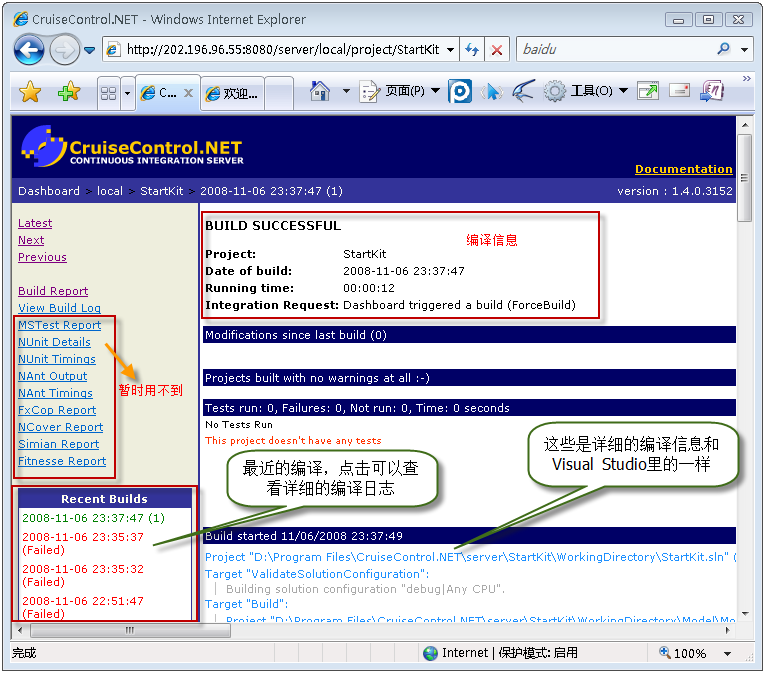
点击StartKit,转入下图所示的页面:
OK,到这里,我们提交更新到SVN服务器后,CCNET就会根据我们配置自动编译项目,而且我们也可以通过Web Dashboard来查看具体的编译信息了,提示如果配置了邮件发送,那么我们还可以通过邮件收到详细的编译信息,怎么样?够方便吧!
其实,CCNET的功能是相当强大的,上面只是最常用的配置,其他还有很多非常好的功能。你想知道吗?那你可以在这里查看CCNET官方文档 ,实际上,你安装CCNET后,文档也已经安装到你的电脑了,在CCNET的安装目录下的webdashboard的子目录doc中就是。
好了,我们今天的教程就到这里,本来我应该把如何使用CruiseControl.NET Tray来监视每次更新后的编译状态,但是今天真的太晚了,明天还要做项目,所以我明天补上,请大家见谅!
补充部分:
下面我简单讲一下,如何使用CruiseControl.NET Tray【以下简称CCTray】来监视每次提交后的编译状态。
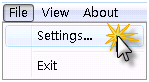
安装好打开CCTray后,运行CCTray程序,点击左上角的菜单File下的Settings…,如下图:

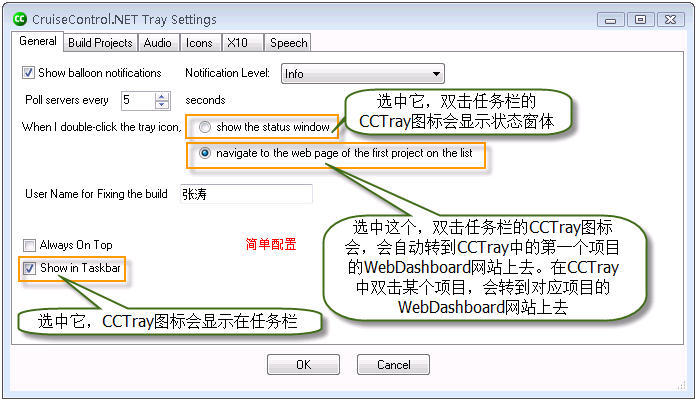
点击Settings…会弹出下面的窗体:

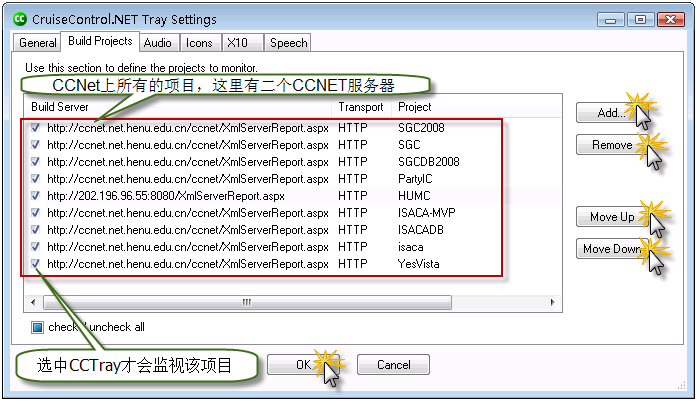
切换到Build Projects选项卡,如下图:

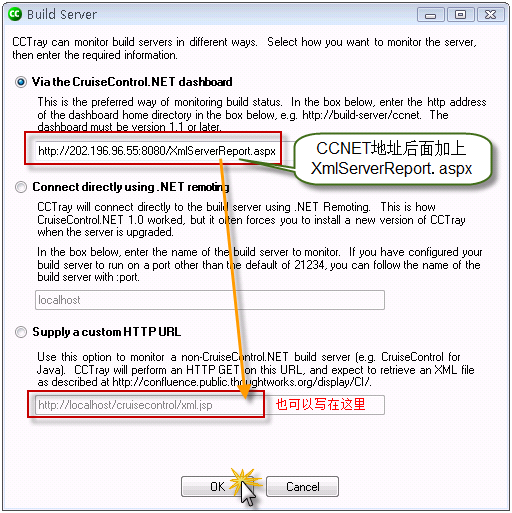
点击Add…按钮,添加我们的CCNET服务器,如下图:

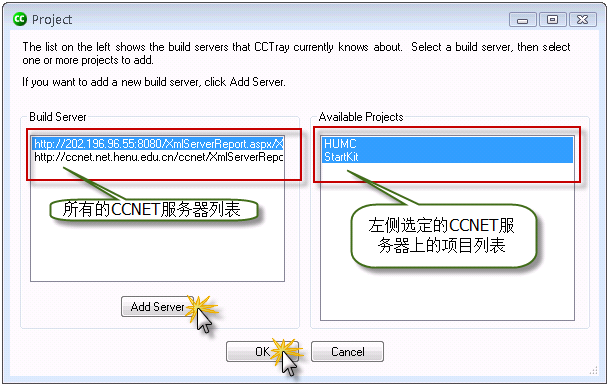
输入我们的CCNET服务器后,CCNET服务器上的项目就会在右侧显示出来,如下图:

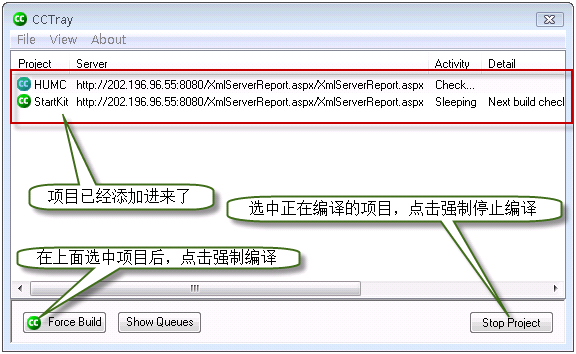
选中右侧的项目后,点击OK按钮,返回CCTray打开时的界面,我们的二个项目已经添加进来了,如下图:

我们在桌面的右下角的任务栏,可以看到如下图所示的图标:

绿色的那个标示就是CCTray的标示,绿色表示所有的项目都通过了编译,紫红色表示至少有一个项目没有通过编译,橘黄色表示有项目正在编译,橘红色表示有项目被强制编译,显示为灰色则说明和CCNET服务器失去了链接。
OK,大家可以使用CCTray实时监视提交更新后项目的编译状态了。
如果大家有什么问题,欢迎和我交流!


作者:ttzhangTechnology Life
出处:http://ttzhang.cnblogs.com/
本文版权归作者和博客园共有,欢迎转载,但未经作者同意必须保留此段声明,且在文章页面明显位置给出原文连接,否则保留追究法律责任的权利。

[C#] BlogEngine.Net架构与源代码分析系列part5:对象搜索——IPublisha

mikel阅读(840)

   从这篇文章开始我会引入一些领域上的知识或者给出一些参考文章来供大家阅 读,我们对这些领域上的知识没有必要深挖,只要大概了解一下就可以了,这对于我们分析BlogEngine.Net会有很大的帮助。在这篇文章中我主要向 大家介绍一下BlogEngine.Net的搜索部分的实现以及支持的相应标准等。

先用自己的话解释一下什么是开放搜索

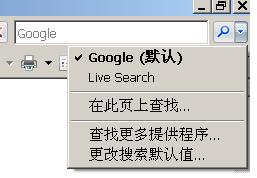
     开放搜索应该也是一种标准了,现在它越来越流行起来,记得我第一次见到这个东东是在codeproject中。大家一定注意到了IE7右上角的那个小工具栏了,

我们可以在那里选择一个搜索提供程序例 如:Google,当我们输入信息回车以后就会发现页面跳转到了Google的结果页面。那么这些提供程序信息是怎么获得的呢?IE又是怎么知道要去 Google的页面呢?原来是通过一个标准的XML文件,这个文件的具体格式可以参照一下codeproject的开放搜索文件http://www.codeproject.com/info/OpenSearch.xml,当把

<link rel="search" type="application/opensearchdescription+xml" title="CodeProject" href="http://www.codeproject.com/info/OpenSearch.xml"></link>

这种代码加入到一个Html的Head 中,在浏览器打开这个Html文当时就会发觉里面的开放搜索文件,然后在那个小工具栏中增加一个提供程序,当我们在工具栏中输入信息并回车以后就可以直接 跳转到相应的结果页面,可以看出这个XML文件充当着一种中间桥梁的作用。这种功能不仅需要浏览器的支持,同时也需要网站本身提供相应的支持,这就是开放 搜索。这个和IE7中的Rss源发现机制很类似。

那么BlogEngine.Net中对于开放搜索支持是如何实现的呢

     进入BlogEngine.Net的首页查看生成的Html源代码我们会看到

<link type="application/opensearchdescription+xml" rel="search" title="Name of the blog" href="http://hostname/opensearch.axd" />,

这里请求了 opensearch.axd,查看Web.config我们注意到opensearch.axd交给了 BlogEngine.Core.Web.HttpHandlers.OpenSearchHandler处理,这个XML是通过一个 HttpHandler来生成的。在Html源代码的Head中我们会发现很多*.axd的引用,实际上它们都是使用自定义的HttpHandler来处 理的,对于这些HttpHandler我会在后续有关文章中进行说明。从OpenSearchHandler生成的XML我们可以看出,执行搜索的Url 为(类似Google的处理方式)http://hostname/search.aspx?q={searchTerms},searchTerms就 是输入的部分,具体的搜索由页面search.aspx调用核心层内部逻辑来完成。

内部逻辑的主要部分IPublishable与Search的实现分析

     BlogEngine.Net 的搜索目标不是像Google那种页面抓取,也不是像我们一般的企业应用直接查询数据库数据,而是一种内存中对象的搜索。当对象完成填充以后数据就驻留在 内存中,所以BlogEngine.Net的搜索目标应该是对象实例。主要通过IPublishable与Search两个类完成。首先 IPublishable定义了可被搜索对象的类的共有特征,以便统一搜索模型,凡是实现了这个接口的类的对象都有机会被搜索到,例如 Comment,Page,Post。

Code

void OnServing(ServingEventArgs eventArgs);这个东西现在我也不是很确定是干嘛的?还没有看到使用到的相关代码,我猜好像可以做一些统计什么的,包括阅读量等,欢迎大家一起讨论。

     Search类的实现代码看起来很繁杂,但是脉络是很清晰的。它只有两个方法对外公开,分别为:

Code

其中Hits是直接根据内容进行查找,ApmlMatches是为支持Apml而提供的(下文做了进一步的解释)。在Search类的静态构造函数 中我们可以看到Search类监听了很多实现IPublishable接口的BusinessBase的事件以便来重新构造目录,这个目录也是在内存中已 经存在的,每当有新的文章等可以被搜索到的对象(实现IPublishable接口)被保存时,它就会被重新建立,以Post为例:

Code

这里又体现了BusinessBase提供的静态事件确实很灵活(请参照我的第二篇文章)。Hits方法的的主逻辑是执行BuildResultSet来构造结果集,BuildResultSet使用正则表达式来进行匹配,并按照一定的匹配度算法进行了结果排序:

Code

ApmlMatches的原理也差不多,这里就不再重复了。

     在Search类中,请大家在阅读源代码时注意一下对于一些字符的过滤处理是如何实现的,还有Search中对外公布的几个事件。 Entry和Result是为查询时数据的交换而定义的,而Result还实现了IComparable<Result>来对结果排序使用。 Search这部分代码给我的感觉就是结构很清晰,但是处理的逻辑很复杂。

那么客户端如何使用Search中的方法?

     对于Search方法的调用,一般有两种方式,一种形式如:

List<IPublishable> list = Search.Hits(term, includeComments);
term就是输入的关键词,includeComments为是否包含评论,list是已排序的搜索结果。另一种形式是:

list = Search.ApmlMatches(docs[key], 30);

这是根据一个Uri上的一个Apml文件来对查找结果进行输出,Apml也是一种标准文件,用来定义互联网上一些关键词的活跃程度(自己的话),在 BlogEngine.Net中实际上也支持这种Apml,同样也是通过HttpHandler实现的。对于客户端的使用大家可以具体参照一下Web项目 中Search.aspx文件中的CodeBehind,此外BlogEngine.Net在Web项目中的Wdiget中也有一个客户端查询,这个以后 会在讲解Wdiget时做更多的说明。

总结

1.BlogEngine.Net的搜索还是很经典的,支持开放搜索和Apml等标准。
2.IPublishable的定义很有必要而且处理得很巧妙,解决了搜索对象的统一性问题,以便统一处理。
3.Search类的内核实现比较好,结构很清晰。

领域知识文章参考

1.使用 RSS 和 Atom 实现新闻联合

2.浅述RDF,畅想一下FOAF应用

3.OPML 详解

     三人行,必有我师!

     上一篇:BlogEngine.Net架构与源代码分析系列part4:Blog全局设置——BlogSettings

版权声明
作者:Thriving.country
出处:http://thriving-country.cnblogs.com/
本文版权归作者和博客园共同所有,欢迎转载,但未经作者同意必须保留此段声明,且在文章页面明显位置给出原文链接.