

[转载]ASP.NET中使用V3版本的Google Maps API【译】

mikel阅读(1173)

[转载]ASP.NET中使用V3版本的Google Maps API【译】 – sxwgf – 博客园.

写在最前面

早 就听说过Google Maps API了,但一直没用过,今天在CodeProject上看到了这篇关于Google Maps API(V3版本)使用的文章,觉得很容易上手,就将他翻译下来了,相信对初学者会有大的帮助。译文允许转载,但请在页面明显处标明以下信息,且保留完整 原文链接地址和译文链接地址,谢谢合作!

英文原文:Google Maps API V3 for ASP.NET
译文出处:青藤园
译文作者:王国峰
译文链接:ASP.NET中使用Google Maps API V3【译】

简介

Google Maps为我们提供了一种非常灵活的方式来使用它的地图服务。我们可以在Web应用程序中通过调用Google Maps API来为我们的用户提供方位信息、地理位置信息以及其他类型的东西。尽管已经有很多文章介绍了Google Maps API的使用方法,但这次我要介绍的是最新V3版本的Google Maps API。在这篇文章中,我们将会看到一些使用Google Maps的常见技术。为了能更好的理解下面的示例代码,你需要了解JavaScriptC#的基本知识。

你的第一个Google Maps

在Google Maps API的早期版本中,我们需要将自己的web应用程序注册至Google,从而获取一个API Key。然而随着新版本的发布,Google Maps的注册机制已经被淘汰了,但是最近Google又提出了一些使用地图的限制,你可以通过下面的链接获取Google Maps API的使用方法和一些使用条款:http://code.google.com/apis/maps/documentation/javascript/usage.html#usage_limits 。现在我们就开始在自己的网站下创建一个Google Maps地图示例,下面的一行代码是用来连接Google Maps API服务的:

<script type="text/javascript" src="http://maps.googleapis.com/maps/api/js?sensor=false">
</script>

然后你可以用下面的代码来创建一个简单的地图:

function InitializeMap() 
{
    var latlng = new google.maps.LatLng(-34.397, 150.644);
    var myOptions = {
        zoom: 8,
        center: latlng,
        mapTypeId: google.maps.MapTypeId.ROADMAP
    };
    var map = new google.maps.Map(document.getElementById("map"), myOptions);
}
window.onload = InitializeMap;
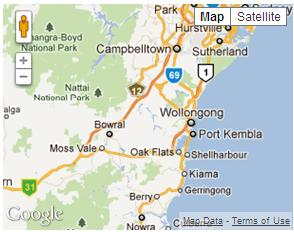
image

Google Maps 设置选项

在上面的例子中,我们使用了一个Map类,并设置了一个HTML ID作为参数。现在我们来更深入一点,一起来看看下面的地图选项:

function initialize() {
    var latlng = new google.maps.LatLng(-34.397, 150.644);
    var options =
    {
        zoom: 3,
        center: new google.maps.LatLng(37.09, -95.71),
        mapTypeId: google.maps.MapTypeId.ROADMAP,
        mapTypeControl: true,
        mapTypeControlOptions:
        {
            style: google.maps.MapTypeControlStyle.DROPDOWN_MENU,
            poistion: google.maps.ControlPosition.TOP_RIGHT,
            mapTypeIds: [google.maps.MapTypeId.ROADMAP, 
              google.maps.MapTypeId.TERRAIN, 
              google.maps.MapTypeId.HYBRID, 
              google.maps.MapTypeId.SATELLITE]
        },
        navigationControl: true,
        navigationControlOptions:
        {
            style: google.maps.NavigationControlStyle.ZOOM_PAN
        },
        scaleControl: true,
        disableDoubleClickZoom: true,
        draggable: false,
        streetViewControl: true,
        draggableCursor: 'move'
    };
    var map = new google.maps.Map(document.getElementById("map"), options);
}
window.onload = initialize;

上面的例子中,我们应用了地图的所有属性,你可以根据需要来选择使用它们。

image

Map类的属性说明如下表所示

属性
MapTypeControl:true/false mapTypeControlOptions

属性
style
1
2
3
DEFAULT
HORIZONTAL_BAR
DROPDOWN_MENU
position
mapTypeIds
navigationControl:true/false navigationControlOptions

属性
Position
style
scaleControl:true/false scaleControlOptions: 和navigationControl有一样的属性 (position, style) 方法也一样.
disableDoubleClickZoom: true/false
scrollwheel: true/false
draggable: true/false
streetViewControl: true/false

Map Maker(地图标记)

Maker类提供了这样一个选项,为用户指定的位置显示一个标记,在我们的应用中地图标记是十分常用的,下面的代码将告诉大家如何创建一个简单的地图标记:

var marker = new google.maps.Marker
(
    {
        position: new google.maps.LatLng(-34.397, 150.644),
        map: map,
        title: 'Click me'
    }
);

image

Info Window(信息窗口)

我们已经在地图上某个位置加了标记,也为标记添加onclick了事件,点击可以弹出一个窗口来显示该地点的详细信息。我们可以按照下面的代码来创建信息窗口:

var infowindow = new google.maps.InfoWindow({
    content: 'Location info:
    Country Name:
    LatLng:'
});
google.maps.event.addListener(marker, 'click', function () {
    // 打开窗口 
    infowindow.open(map, marker);
});

将它们结合起来的代码如下:

var map;
function initialize() {
    var latlng = new google.maps.LatLng(-34.397, 150.644);
    var myOptions = {
        zoom: 8,
        center: latlng,
        mapTypeId: google.maps.MapTypeId.ROADMAP
    };
    map = new google.maps.Map(document.getElementById("map"), myOptions);
    var marker = new google.maps.Marker
    (
        {
            position: new google.maps.LatLng(-34.397, 150.644),
            map: map,
            title: 'Click me'
        }
    );
    var infowindow = new google.maps.InfoWindow({
        content: 'Location info:
Country Name:
LatLng:'
    });
    google.maps.event.addListener(marker, 'click', function () {
        // Calling the open method of the infoWindow 
        infowindow.open(map, marker);
    });
}
window.onload = initialize;

利用上面的代码,我们将会在页面上创建一张地图,然后定位用户所在的区域,在这个区域加上标记,并且弹出一个显示位置信息的窗口。
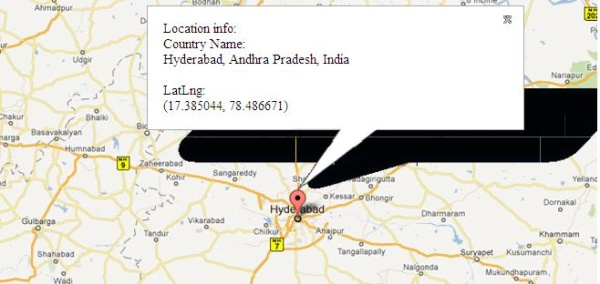
image

Multiple Makers(多标记)

有些时候,我们可以要在地图上处理多个标记,那么我们就可以用下面代码来实现:

function markicons() {
    InitializeMap();
    var ltlng = [];

    ltlng.push(new google.maps.LatLng(40.756, -73.986));
    ltlng.push(new google.maps.LatLng(37.775, -122.419));
    ltlng.push(new google.maps.LatLng(47.620, -122.347));
    ltlng.push(new google.maps.LatLng(-22.933, -43.184));

    for (var i = 0; i <= ltlng.length; i++) {
        marker = new google.maps.Marker({
            map: map,
            position: ltlng[i]
        });

        (function (i, marker) {

            google.maps.event.addListener(marker, 'click', function () {

                if (!infowindow) {
                    infowindow = new google.maps.InfoWindow();
                }

                infowindow.setContent("Message" + i);

                infowindow.open(map, marker);

            });

        })(i, marker);
    }
}

image

路线说明

一个最有用的特性之一是Google Maps API可以为任何指定的位置提供详细的路线说明,实现代码如下:

Code

image

Layers

Google Maps API为你提供了多层的选项,其中有一个是自行车层。通过自行车层,可以为一些特别的位置显示自行车路线。下面的代码是让你在地图上添加自行车层:

Code

Geocoding

到目前为止,我们已经学习创建Google地图的基本思想,同时也学习了如何显示位置相关的信息。下面我们来看看用户是如何来计算位置的,Geocoding可以计算出指定区域的经度和纬度,下面的代码就告诉你如何利用API计算某个位置的经度和纬度的:

geocoder.geocode({ 'address': address }, function (results, status) {
    if (status == google.maps.GeocoderStatus.OK) {
        map.setCenter(results[0].geometry.location);
        var marker = new google.maps.Marker({
            map: map,
            position: results[0].geometry.location
        });

    }
    else {
        alert("Geocode was not successful for the following reason: " + status);
    }
});

Geocoding C#

同样我们可以利用C#代码来计算位置:

public static Coordinate GetCoordinates(string region)
{
    using (var client = new WebClient())
    {

        string uri = "http://maps.google.com/maps/geo?q='" + region + 
          "'&output=csv&key=ABQIAAAAzr2EBOXUKnm_jVnk0OJI7xSosDVG8KKPE1" + 
          "-m51RBrvYughuyMxQ-i1QfUnH94QxWIa6N4U6MouMmBA";

        string[] geocodeInfo = client.DownloadString(uri).Split(',');

        return new Coordinate(Convert.ToDouble(geocodeInfo[2]), 
                   Convert.ToDouble(geocodeInfo[3]));
    }
}

public struct Coordinate
{
    private double lat;
    private double lng;

    public Coordinate(double latitude, double longitude)
    {
        lat = latitude;
        lng = longitude;

    }

    public double Latitude { get { return lat; } set { lat = value; } }
    public double Longitude { get { return lng; } set { lng = value; } }

}

Reverse Geocoding

顾名思义,这个是Geocoding的反操作,我们可以根据经度和纬度来找出该位置的名称。代码如下:

var map;
var geocoder;
function InitializeMap() {

    var latlng = new google.maps.LatLng(-34.397, 150.644);
    var myOptions =
    {
        zoom: 8,
        center: latlng,
        mapTypeId: google.maps.MapTypeId.ROADMAP,
        disableDefaultUI: true
    };
    map = new google.maps.Map(document.getElementById("map"), myOptions);
}

function FindLocaiton() {
    geocoder = new google.maps.Geocoder();
    InitializeMap();

    var address = document.getElementById("addressinput").value;
    geocoder.geocode({ 'address': address }, function (results, status) {
        if (status == google.maps.GeocoderStatus.OK) {
            map.setCenter(results[0].geometry.location);
            var marker = new google.maps.Marker({
                map: map,
                position: results[0].geometry.location
            });
            if (results[0].formatted_address) {
                region = results[0].formatted_address + '
';
            }
            var infowindow = new google.maps.InfoWindow({
                content: 'Location info:
Country Name:' + region + 
                '
LatLng:' + results[0].geometry.location + ''
            });
            google.maps.event.addListener(marker, 'click', function () {
                // Calling the open method of the infoWindow 
                infowindow.open(map, marker);
            });

        }
        else {
            alert("Geocode was not successful for the following reason: " + status);
        }
    });
}

Reverse Geocoding in C#

同样用C#也可以实现Reverse Geocoding操作:

static string baseUri = 
  "http://maps.googleapis.com/maps/api/geocode/xml?latlng={0},{1}&sensor=false";
string location = string.Empty;

public static void RetrieveFormatedAddress(string lat, string lng)
{
    string requestUri = string.Format(baseUri, lat, lng);

    using (WebClient wc = new WebClient())
    {
        string result = wc.DownloadString(requestUri);
        var xmlElm = XElement.Parse(result);
        var status = (from elm in xmlElm.Descendants() where 
            elm.Name == "status" select elm).FirstOrDefault();
        if (status.Value.ToLower() == "ok")
        {
            var res = (from elm in xmlElm.Descendants() where 
                elm.Name == "formatted_address" select elm).FirstOrDefault();
            requestUri = res.Value;
        }
    }
}

总结

在这篇文章,我尝试将V3版本的Google Maps API中的最基本和最常用的功能解说清楚。希望这篇文章能帮你顺利完成任务。然后,API中还有很多我没有讨论到的,我将尝试在今后的文章中来讨论。当然希望能得到大家的点评和反馈。

示例源码下载

[转载]asp.net高性能之路:无缝切换HttpRuntime.Cache与Memcached,附代码

mikel阅读(1153)

[转载]asp.net高性能之路:无缝切换HttpRuntime.Cache与Memcached,附代码 – Ray Wu – 博客园.

概述

之前网站一直使用ASP.NET自带的cache,也就是HttpRuntime.Cache。这个的优点是进程内cache,效率非常高,同时对于缓存的对象可以直接获得

引用,并进行修改,不需要再进行清空缓存。但是使用HttpRuntime.Cache,无法进行扩展,也无法使用web园等等。

方案

之前有看dudu写的关于northscale memcached的文章,觉得很不错,故进行了一下尝试。由于初次使用,出问题的时候要能随时切换回HttpRuntime.Cache,

故使用了策略模式,实现无缝切换缓存模式的功能。Memcached的封装类请在https://github.com/enyim/EnyimMemcached/downloads进行下载,我使用的是Northscale.Store.2.8

接口

View Code

using System;
using System.Collections.Generic;
using System.Web;


/// <summary>
/// 缓存策略接口
/// </summary>
public interface ICacheStrategy
{
    void AddObject(string objId, object o);

    void AddObjectWithTimeout(string objId, object o, int timeoutSec);

    void AddObjectWithFileChange(string objId, object o, string file);

    //void AddObjectWithDepend(string objId, object o, string[] dependKey);

    void RemoveObject(string objId);

    object RetrieveObject(string objId);

    int TimeOut { set; get; }
}

HttpRuntime.Cache实现类

View Code

using System;
using System.Collections.Generic;
using System.Web;
using System.Web.Caching;

/// <summary>
/// 默认的缓存策略,实现了缓存策略接口
/// </summary>
public class DefaultCacheStrategy : ICacheStrategy
{
    private static readonly DefaultCacheStrategy instance = new DefaultCacheStrategy();

    protected static volatile System.Web.Caching.Cache webCache = System.Web.HttpRuntime.Cache;

    protected int _timeOut = 1; //默认缓存一分钟,也可以单独设置对象的超时时间


    /// <summary>
    /// Initializes the <see cref="DefaultCacheStrategy"/> class.
    /// </summary>
    static DefaultCacheStrategy()
    {
        //lock (syncObj)
        //{
        // //System.Web.HttpContext context = System.Web.HttpContext.Current;
        // //if(context != null)
        // // webCache = context.Cache;
        // //else
        // webCache = System.Web.HttpRuntime.Cache;
        //} 
    }


    public int TimeOut
    {
        set { _timeOut = value > 0 ? value : 6000; }
        get { return _timeOut > 0 ? _timeOut : 6000; }
    }


    public static System.Web.Caching.Cache GetWebCacheObj
    {
        get { return webCache; }
    }

    public void AddObject(string objId, object o)
    {

        if (objId == null || objId.Length == 0 || o == null)
        {
            return;
        }

        CacheItemRemovedCallback callBack = new CacheItemRemovedCallback(onRemove);

        if (TimeOut == 6000)
        {
            webCache.Insert(objId, o, null, DateTime.MaxValue, TimeSpan.Zero, System.Web.Caching.CacheItemPriority.High, callBack);
        }
        else
        {
            webCache.Insert(objId, o, null, DateTime.Now.AddMinutes(TimeOut), System.Web.Caching.Cache.NoSlidingExpiration, System.Web.Caching.CacheItemPriority.High, callBack);
        }
    }


    public void AddObjectWithTimeout(string objId, object o, int timeoutSec)
    {
        if (objId == null || objId.Length == 0 || o == null || timeoutSec <= 0)
        {
            return;
        }

        CacheItemRemovedCallback callBack = new CacheItemRemovedCallback(onRemove);

        webCache.Insert(objId, o, null, System.DateTime.Now.AddSeconds(timeoutSec), System.Web.Caching.Cache.NoSlidingExpiration, System.Web.Caching.CacheItemPriority.High, callBack);
    }

    public void AddObjectWithFileChange(string objId, object o, string file)
    {
        if (objId == null || objId.Length == 0 || o == null)
        {
            return;
        }

        CacheItemRemovedCallback callBack = new CacheItemRemovedCallback(onRemove);

        CacheDependency dep = new CacheDependency(file);

        webCache.Insert(objId, o, dep, Cache.NoAbsoluteExpiration, TimeSpan.FromHours(1), System.Web.Caching.CacheItemPriority.High, callBack);
    }


    //public void AddObjectWithDepend(string objId, object o, string[] dependKey)
    //{
    //    if (objId == null || objId.Length == 0 || o == null)
    //    {
    //        return;
    //    }

    //    CacheItemRemovedCallback callBack = new CacheItemRemovedCallback(onRemove);

    //    CacheDependency dep = new CacheDependency(null, dependKey, DateTime.Now);

    //    webCache.Insert(objId, o, dep, System.DateTime.Now.AddMinutes(TimeOut), System.Web.Caching.Cache.NoSlidingExpiration, System.Web.Caching.CacheItemPriority.High, callBack);
    //}

    public void onRemove(string key, object val, CacheItemRemovedReason reason)
    {
        switch (reason)
        {
            case CacheItemRemovedReason.DependencyChanged:
                break;
            case CacheItemRemovedReason.Expired:
                {
                    //CacheItemRemovedCallback callBack = new CacheItemRemovedCallback(this.onRemove);

                    //webCache.Insert(key, val, null, System.DateTime.Now.AddMinutes(TimeOut),
                    // System.Web.Caching.Cache.NoSlidingExpiration,
                    // System.Web.Caching.CacheItemPriority.High,
                    // callBack);
                    break;
                }
            case CacheItemRemovedReason.Removed:
                {
                    break;
                }
            case CacheItemRemovedReason.Underused:
                {
                    break;
                }
            default: break;
        }

        //TODO: write log here
    }


    public void RemoveObject(string objId)
    {
        //objectTable.Remove(objId);
        if (objId == null || objId.Length == 0)
        {
            return;
        }
        webCache.Remove(objId);
    }


    public object RetrieveObject(string objId)
    {
        //return objectTable[objId];

        if (objId == null || objId.Length == 0)
        {
            return null;
        }

        return webCache.Get(objId);
    }
}

Memcached 实现类

View Code

using System;
using System.Collections.Generic;
using System.Web;
using NorthScale.Store;
using Enyim.Caching.Memcached;

/// <summary>
/// Summary description for EnyimMemcachedProvider
/// </summary>
public class EnyimMemcachedProvider
{
    
        private static NorthScaleClient client;

        static EnyimMemcachedProvider()
        {
            try
            {
                client = new NorthScaleClient();
            }
            catch (Exception ex)
            {
                log4net.LogManager.GetLogger("SojumpLog").Info("EnyimMemcachedProvider", ex);
            }
        }

        #region ICacheProvider Members

        public void Add(string key, object value)
        {
            if (client != null)
            {
                client.Store(StoreMode.Set, key, value);
            }
        }

        public void Add(string key, object value, int cacheSecond)
        {
            if (client != null)
            {
                client.Store(StoreMode.Set, key, value, new TimeSpan(0, 0, cacheSecond));
            }
        }

        public object GetData(string key)
        {
            if (client == null)
            {
                return null;
            }
            return client.Get(key);
        }

        public void Remove(string key)
        {
            if (client != null)
            {
                client.Remove(key);
            }
        }

        #endregion
    
}

策略类

View Code

using System;
using System.Collections.Generic;
using System.Web;
using System.Configuration;

/// <summary>
/// The caching manager
/// </summary>
public class CachingManager
{
    private static ICacheStrategy cs;
    private static volatile CachingManager instance = null;
    private static object lockHelper = new object();

    //private static System.Timers.Timer cacheConfigTimer = new System.Timers.Timer(15000);//Interval in ms


   static CachingManager()
    {
        string type = ConfigurationManager.AppSettings["CacheStrategy"];
        if (type == "2")
            cs = new MemCacheStrategy();
        else
            cs = new DefaultCacheStrategy();

        ////Set timer
        //cacheConfigTimer.AutoReset = true;
        //cacheConfigTimer.Enabled = true;
        //cacheConfigTimer.Elapsed += new System.Timers.ElapsedEventHandler(Timer_Elapsed);
        //cacheConfigTimer.Start();
    }


    private static void Timer_Elapsed(object sender, System.Timers.ElapsedEventArgs e)
    {
        //TODO:
    }


    public static CachingManager GetCachingService()
    {
        if (instance == null)
        {
            lock (lockHelper)
            {
                if (instance == null)
                {
                    instance = new CachingManager();
                }
            }
        }

        return instance;
    }


    public virtual void AddObject(string key, object o)
    {
        if (String.IsNullOrEmpty(key) || o == null) return;

        lock (lockHelper)
        {
            if (cs.TimeOut <= 0) return;

            cs.AddObject(key, o);
        }
    }


    public virtual void AddObject(string key, object o, int timeout)
    {
        if (String.IsNullOrEmpty(key) || o == null) return;

        lock (lockHelper)
        {
            if (cs.TimeOut <= 0) return;

            cs.AddObjectWithTimeout(key, o, timeout);
        }
    }

    public virtual void AddObject(string key, object o, string file)
    {
        if (String.IsNullOrEmpty(key) || o == null) return;

        lock (lockHelper)
        {
            if (cs.TimeOut <= 0) return;

            cs.AddObjectWithFileChange(key, o, file);
        }
    }

    public virtual object RetrieveObject(string objectId)
    {
        return cs.RetrieveObject(objectId);
    }


    public virtual void RemoveObject(string key)
    {
        lock (lockHelper)
        {
            cs.RemoveObject(key);
        }
    }


    public void LoadCacheStrategy(ICacheStrategy ics)
    {
        lock (lockHelper)
        {
            cs = ics;
        }
    }


    //public void LoadDefaultCacheStrategy()
    //{
    //    lock (lockHelper)
    //    {
    //        cs = new DefaultCacheStrategy();
    //    }
    //}
}

调用代码

string key =”test”

CachingManager cm = new CachingManager();

cm.AddObject(key,new Object(),60);//缓存对象60秒。

不足

Memcached无法使用CacheDependency,需要自己去进行处理。如你的缓存对象依赖于文件,则在文件修改时要直接清空缓存。

Memcached也无法清空某一类的缓存对象,有时因为数据库做了修改,你要清空key以activity_开头的一系列对象的话,是做不到的。

变通的方案是先将key加入到List或Dictionary中,如下代码:

View Code

public void ClearCacheByPattern(string pattern)
 {
     
     if(client!=null)
       return;
   
         object c = client.Get("globel_cacheitems");

         if (c==null)
           return;
         
         List<string> cacheitems = (List<string>) c;

             foreach (string cacheitem in cacheitems)

             {

                 if (cacheitem.StartsWith(pattern))

                 {

                     client.Remove(cacheitem);

                 }

             }
  }

补充:感谢园友YLH对批量删除缓存的回复:

Memcached为了高性能而设计,功能少了很多。 如果内存不吃紧的话,批量删除缓存项,可以采用设置key分区,为分区加上版本号来解决。

要批量删除一个分区的缓存,只需要升级一下缓存分区的版本号即可。目前我们在项目中就是采用这种方案。

这个方案是目前批量删除缓存项的比较完美的方案了,多谢YLH!
如有什么问题,请在下面回复,大家一起讨论。

[转载]ASP.NET MVC3 20个秘方-(9)在结果中筛选

mikel阅读(994)

[转载]【译】MVC3 20个秘方-(9)在结果中筛选 – 技术弟弟 – 博客园.

问题

当排序和分页都不够帮用户去找到他们想要的结果时,另外一种帮助用户找到他们想要的结果的方式是根据特殊的规则过滤。

解决方案

添加新的links 允许使用预先的条件去过滤并且使用LINQ类库去在数据中过滤。

讨论

为了添加过滤的链接,需要在Book/Index view 和BookController中做改变。

改变的View和前两个秘方差不多。需要添加HTML去允许用户去选择他们想如何过滤内容。三个连接将被添加:全部的,新发布的和即将到来的。新发布的将被定义为最近2周发布的。即将到来的就被定义为还没发布的。

下边是新的 Book/Index view。有三个link。第一个link包含当前的sortOrder,剩下的2个link包含了新的变量filter。像分页link一样。如果当前 的filter是你选中的话,把他显示成静态文本而不是link,其他的fitler设置为link的形式。确保用户更改排序规则时,filter也被维 护。我们的Index view 要更新成如下:

@Html.Partial("_Paging")
<table>
    <tr>
        <th>
            @Html.ActionLink("Title", "Index", new
       {
           sortOrder = ViewBag.TitleSortParam,
           filter = ViewBag.CurrentFilter
       })
        </th>
        <th>
            @Html.ActionLink("Isbn", "Index", new
       {
           sortOrder = ViewBag.IsbnSortParam,
           filter = ViewBag.CurrentFilter
       })
        </th>
        <th>
            Summary
        </th>
        <th>
            @Html.ActionLink("Author", "Index", new
       {
           sortOrder = ViewBag.AuthorSortParam,
           filter = ViewBag.CurrentFilter
       })
        </th>
        <th>
            Thumbnail
        </th>
        <th>
            @Html.ActionLink("Price", "Index", new
       {
           sortOrder = ViewBag.PriceSortParam,
           filter = ViewBag.CurrentFilter
       })
        </th>
        <th>
            @Html.ActionLink("Published", "Index", new
       {
           sortOrder = ViewBag.PublishedSortParam,
           filter = ViewBag.CurrentFilter
       })
        </th>
        <th>
        </th>
    </tr>
    @foreach (var item in Model)
    {
        <tr>
            <td>
                @Html.DisplayFor(modelItem => item.Title)
            </td>
            <td>
                @Html.DisplayFor(modelItem => item.Isbn)
            </td>
            <td>
                @Html.DisplayFor(modelItem => item.Summary)
            </td>
            <td>
                @Html.DisplayFor(modelItem => item.Author)
            </td>
            <td>
                @Html.DisplayFor(modelItem => item.Thumbnail)
            </td>
            <td>
                @Html.DisplayFor(modelItem => item.Price)
            </td>
            <td>
                @Html.DisplayFor(modelItem => item.Published)
            </td>
            <td>
                @Html.ActionLink("Edit","Edit", new { id = item.ID }) |
                @Html.ActionLink("Details","Details", new { id = item.ID }) |
                @Html.ActionLink("Delete","Delete", new { id = item.ID })
            </td>
        </tr>
    }
</table>
@Html.Partial("_Paging")

上一个秘方中创建的_Paging的Partial view也需要被更新。在下边的例子里,4个paging link 已经被更新成传递了当前的filter,page,和sortOrder。以下是_Paging更新后的代码:

<p>
    @if (Model.HasPreviousPage)
    {
        @Html.ActionLink("<< First", "Index", new
{
    page = 1,
    sortOrder = ViewBag.CurrentSortOrder,
    filter = ViewBag.CurrentFilter
})
        @Html.Raw("&nbsp;");
        @Html.ActionLink("< Prev", "Index", new
{
    page = Model.PageNumber - 1,
    sortOrder = ViewBag.CurrentSortOrder,
    filter = ViewBag.CurrentFilter
})
    }
    else
    {
        @:<< First
        @Html.Raw("&nbsp;");
        @:< Prev
    }
    &nbsp;&nbsp;
    @if (Model.HasNextPage)
    {
        @Html.ActionLink("Next >", "Index", new
{
    page = Model.PageNumber + 1,
    sortOrder = ViewBag.CurrentSortOrder,
    filter = ViewBag.CurrentFilter
})
        @Html.Raw("&nbsp;");
        @Html.ActionLink("Last >>", "Index", new
{
    page = Model.PageCount,
    sortOrder = ViewBag.CurrentSortOrder,
    filter = ViewBag.CurrentFilter
})
    }
    else
    {
        @:Next >
        @Html.Raw("&nbsp;")
        @:Last >>
    }
</p>

接下来我们要改变BooksController,在Index()Action 中更改代码。新接收一个filter变量。图书的列表将基于用户选择的filter选项被缩减。有2中方法实现filter。

  1. 再次使用动态Linq库 的where子句。
  2. 使用标准的Linq 和一个switch块去创建一个强类型的子句。

由于传统的filter link并不包含太多的条目,这个秘方,我们选择用第二种实现方法。这样做的好处是,我们不需要考虑SQL注入的问题,因为他是强类型的,并且不是动态的。

以下是BooksController部分代码:

using System;
using System.Collections.Generic;
using System.Data;
using System.Data.Entity;
using System.Linq;
using System.Linq.Dynamic;
using System.Web;
using System.Web.Mvc;
using MvcApplication.Models;
using MvcApplication.Utils;
using PagedList;
namespace MvcApplication.Controllers
{
    public class BooksController : Controller
    {
        private BookDBContext db = new BookDBContext();
        //
        // GET: /Books/
        public ViewResult Index(string sortOrder,string filter, int page = 1)
        {
            #region ViewBag Resources

            #endregion
            #region ViewBag Sort Params
            #endregion
            var books = from b in db.Books select b;
            #region Filter Switch
            switch (filter)
            {
                case "NewReleases":
                    var startDate = DateTime.Today.AddDays(-14);
                    books = books.Where(b => b.Published
                    <= DateTime.Today.Date
                    && b.Published >= startDate
                    );
                    break;
                case "ComingSoon":
                    books = books.Where(b => b.Published >
                    DateTime.Today.Date);
                    break;
                default:
                    // No filter needed
                    break;
            }
            ViewBag.CurrentFilter =
            String.IsNullOrEmpty(filter) ? "" : filter;
            #endregion
            books = books.OrderBy(sortOrder);
            const int maxRecords = 2;
            var currentPage = page <= 0 ? 1 : page;
            return View(books.ToPagedList(currentPage,maxRecords));
        }
    }
}

在上边的例子里,如果用户选择NewReleases 这个filter,这个搜索将返回今天或者14天之内出版的书。或者用户选择了Coming soon,搜索将返回即将出版的书。

[转载]ASP.NET MVC3 20个秘方-(10)根据关键字搜索

mikel阅读(1016)

[转载]【译】MVC3 20个秘方-(10)根据关键字搜索 – 技术弟弟 – 博客园.

当排序和分页和过滤都不够帮用户去找到他们想要的结果时,想一个最好的备选方式是让用户输入(关键字)他们想要什么。

解决方案

用HtmlHelper创建一个新的From和 文本输入框,并且借助LINQ根据用户输入的关键字在之前过滤过的结果里查找。

讨论

和前边的秘方很像,添加一个根据keyword 搜索的功能需要更新 Book/Index view 和 BookController。在View里添加一个新的from和textbox 让用户输入keyword。同时也要确保当用户改变排序规则、过滤、分页时,关键字保持。

下边的代码是对View的更新:

@model PagedList.IPagedList<MvcApplication.Models.Book>
<h2>@MvcApplication4.Resources.Resource1.BookIndexTitle</h2>
<p>
    @Html.ActionLink("Create New", "Create")
</p>
<p>
    Show:
    @if (ViewBag.CurrentFilter != "")
    {
        @Html.ActionLink("All", "Index", new
   {
       sortOrder = ViewBag.CurrentSortOrder,
       Keyword = ViewBag.CurrentKeyword
   })
    }
    else
    {
        @:All
                }
    &nbsp; | &nbsp;
    @if (ViewBag.CurrentFilter != "NewReleases")
    {
        @Html.ActionLink("New Releases", "Index", new
   {
       filter = "NewReleases",
       sortOrder = ViewBag.CurrentSortOrder,
       Keyword = ViewBag.CurrentKeyword
   })
    }
    else
    {
        @:New Releases
                }
    &nbsp; | &nbsp;
    @if (ViewBag.CurrentFilter != "ComingSoon")
    {
        @Html.ActionLink("Coming Soon", "Index", new
   {
       filter = "ComingSoon",
       sortOrder = ViewBag.CurrentSortOrder,
       Keyword = ViewBag.CurrentKeyword
   })
    }
    else
    {
        @:Coming Soon
                }
</p>
@using (Html.BeginForm())
{
    @:Search: @Html.TextBox("Keyword")<input type="submit" value="Search" />

}
@Html.Partial("_Paging")
<table>
    <tr>
        <th>
            @Html.ActionLink("Title", "Index", new
       {
           sortOrder = ViewBag.TitleSortParam,
           filter = ViewBag.CurrentFilter,
           Keyword = ViewBag.CurrentKeyword
       })
        </th>
        <th>
            @Html.ActionLink("Isbn", "Index", new
       {
           sortOrder = ViewBag.IsbnSortParam,
           filter = ViewBag.CurrentFilter,
           Keyword = ViewBag.CurrentKeyword
       })
        </th>
        <th>
            Summary
        </th>
        <th>
            @Html.ActionLink("Author", "Index", new
       {
           sortOrder = ViewBag.AuthorSortParam,
           filter = ViewBag.CurrentFilter,
           Keyword = ViewBag.CurrentKeyword
       })
        </th>
        <th>
            Thumbnail
        </th>
        <th>
            @Html.ActionLink("Price", "Index", new
       {
           sortOrder = ViewBag.PriceSortParam,
           filter = ViewBag.CurrentFilter,
           Keyword = ViewBag.CurrentKeyword
       })
        </th>
        <th>
            @Html.ActionLink("Published", "Index", new
{
    sortOrder = ViewBag.PublishedSortParam,
    filter = ViewBag.CurrentFilter,
    Keyword = ViewBag.CurrentKeyword
})
        </th>
        <th>
        </th>
    </tr>
    @foreach (var item in Model)
    {
        <tr>
            <td>
                @Html.DisplayFor(modelItem => item.Title)
            </td>
            <td>
                @Html.DisplayFor(modelItem => item.Isbn)
            </td>
            <td>
                @Html.DisplayFor(modelItem => item.Summary)
            </td>
            <td>
                @Html.DisplayFor(modelItem => item.Author)
            </td>
            <td>
                @Html.DisplayFor(modelItem => item.Thumbnail)
            </td>
            <td>
                @Html.DisplayFor(modelItem => item.Price)
            </td>
            <td>
                @Html.DisplayFor(modelItem => item.Published)
            </td>
            <td>
                @Html.ActionLink("Edit","Edit", new { id = item.ID }) |
                @Html.ActionLink("Details","Details", new { id = item.ID }) |
                @Html.ActionLink("Delete","Delete", new { id = item.ID })
            </td>
        </tr>
    }
</table>
@Html.Partial("_Paging")

最终,BookController 需要被更新,在下边的例子,Index() action 更新

using System;
using System.Collections.Generic;
using System.Data;
using System.Data.Entity;
using System.Linq;
using System.Linq.Dynamic;
using System.Web;
using System.Web.Mvc;
using MvcApplication.Models;
using MvcApplication.Utils;
using PagedList;
namespace MvcApplication.Controllers
{
    public class BooksController : Controller
    {
        private BookDBContext db = new BookDBContext();
        //
        // GET: /Books/
        public ViewResult Index(string sortOrder, string filter,string Keyword, int page = 1)
        {
            #region ViewBag Resources

            #endregion
            #region ViewBag Sort Params

            #endregion
            var books = from b in db.Books select b;
            #region Keyword Search
            if (!String.IsNullOrEmpty(Keyword))
            {
                books = books.Where(b =>
                b.Title.ToUpper().Contains(Keyword.ToUpper())
                || b.Author.ToUpper().Contains(
                Keyword.ToUpper()));
            }
            ViewBag.CurrentKeyword =
            String.IsNullOrEmpty(Keyword) ? "" : Keyword;
            #endregion
            #region Filter Switch

            #endregion
            int maxRecords = 1;
            int currentPage = page - 1;
            return View(books.ToPagedList(currentPage,
            maxRecords));
        }

    }
}

译者:上边代码是以书名和作者名为搜索条件的。你也可以自己扩展。比如根据ISBN:

books = books.Where(b =>
                b.Title.ToUpper().Contains(Keyword.ToUpper())
                || b.Author.ToUpper().Contains(
                Keyword.ToUpper()||b.ISBN.ToUpper().Contains(
                Keyword.ToUpper()));

当然这样做的话查询效率会有问题。我们可以在UI提供一个dropdownlist 让用户去选择根据什么条件去搜索关键字。

[转载]ASP.NET MVC3 20个秘方-(11)通过表单上传文件

mikel阅读(977)

[转载]【译】MVC3 20个秘方-(11)通过表单上传文件 – 技术弟弟 – 博客园.

问题

你希望允许用户在你的网站上传并保存文件。

解决方案

通过HttpPostedFileBase.实现上传文件和保存到磁盘。

讨论

在接下来的例子里,之前创建的去添加和更新图书的View将被更新成允许用户选择一个文件并且上传缩略图文件。作为开始,Book/Create  view 应该被更新,改变From的编码类型并且为缩略图字段替换掉脚手架 textbox。代码如下:

@model MvcApplication.Models.Book
@{
    ViewBag.Title = "Create";
}
<h2>
    Create</h2>
<script src="@Url.Content("~/Scripts/jquery.validate.min.js")"
type="text/javascript"></script>
<script src="
@Url.Content("~/Scripts/jquery.validate.unobtrusive.min.js")"
type="text/javascript"></script>
@using (Html.BeginForm("Create", "Books", FormMethod.Post,
new { enctype = "multipart/form-data" }))
{
    @Html.ValidationSummary(true)
    <fieldset>
        <legend>Book</legend>
        <div class="editor-label">
            @Html.LabelFor(model => model.Title)
        </div>
        <div class="editor-field">
            @Html.EditorFor(model => model.Title)
            @Html.ValidationMessageFor(model => model.Title)
        </div>
        <div class="editor-label">
            @Html.LabelFor(model => model.Isbn)
        </div>
        <div class="editor-field">
            @Html.EditorFor(model => model.Isbn)
            @Html.ValidationMessageFor(model => model.Isbn)
        </div>
        <div class="editor-label">
            @Html.LabelFor(model => model.Summary)
        </div>
        <div class="editor-field">
            @Html.EditorFor(model => model.Summary)
            @Html.ValidationMessageFor(model => model.Summary)
        </div>
        <div class="editor-label">
            @Html.LabelFor(model => model.Author)
        </div>
        <div class="editor-field">
            @Html.EditorFor(model => model.Author)
            @Html.ValidationMessageFor(model => model.Author)
        </div>
        <div class="editor-label">
            @Html.LabelFor(model => model.Thumbnail)
        </div>
        <div class="editor-field">
            <input type="file" name="file" />
            @Html.ValidationMessageFor(model => model.Thumbnail)
        </div>
        <div class="editor-label">
            @Html.LabelFor(model => model.Price)
        </div>
        <div class="editor-field">
            @Html.EditorFor(model => model.Price)
            @Html.ValidationMessageFor(model => model.Price)
        </div>
        <div class="editor-label">
            @Html.LabelFor(model => model.Published)
        </div>
        <div class="editor-field">
            @Html.EditorFor(model => model.Published)
            @Html.ValidationMessageFor(model => model.Published)
        </div>
        <p>
            <input type="submit" value="Create" />
        </p>
    </fieldset>
}
<div>
    @Html.ActionLink("Back to List", "Index")
</div>

Book/Edit view 也应该以相同的方式被更新,除了添加一个hidden字段(在旧的thumbnail那)。这将用于在BookController中上传新文件之前删除旧的文件。代码如下:

@model MvcApplication.Models.Book
@{
    ViewBag.Title = "Edit";
}
<h2>
    Edit</h2>
<script src="@Url.Content("~/Scripts/jquery.validate.min.js")"
type="text/javascript"></script>
<script src="
@Url.Content("~/Scripts/jquery.validate.unobtrusive.min.js")"
type="text/javascript"></script>
@using (Html.BeginForm("Edit", "Books", FormMethod.Post,
new { enctype = "multipart/form-data" }))
{
    @Html.ValidationSummary(true)
    <fieldset>
        <legend>Book</legend>
        @Html.HiddenFor(model => model.ID)
        <div class="editor-label">
            @Html.LabelFor(model => model.Title)
        </div>
        <div class="editor-field">
            @Html.EditorFor(model => model.Title)
            @Html.ValidationMessageFor(model => model.Title)
        </div>
        <div class="editor-label">
            @Html.LabelFor(model => model.Isbn)
        </div>
        <div class="editor-field">
            @Html.EditorFor(model => model.Isbn)
            @Html.ValidationMessageFor(model => model.Isbn)
        </div>
        <div class="editor-label">
            @Html.LabelFor(model => model.Summary)
        </div>
        <div class="editor-field">
            @Html.EditorFor(model => model.Summary)
            @Html.ValidationMessageFor(model => model.Summary)
        </div>
        <div class="editor-label">
            @Html.LabelFor(model => model.Author)
        </div>
        <div class="editor-field">
            @Html.EditorFor(model => model.Author)
            @Html.ValidationMessageFor(model => model.Author)
        </div>
        <div class="editor-label">
            @Html.LabelFor(model => model.Thumbnail)
        </div>
        <div class="editor-field">
            <input type="file" name="file" />
            @Html.HiddenFor(model => model.Thumbnail)
            @Html.ValidationMessageFor(model => model.Thumbnail)
        </div>
        <div class="editor-label">
            @Html.LabelFor(model => model.Price)
        </div>
        <div class="editor-field">
            @Html.EditorFor(model => model.Price)
            @Html.ValidationMessageFor(model => model.Price)
        </div>
        <div class="editor-label">
            @Html.LabelFor(model => model.Published)
        </div>
        <div class="editor-field">
            @Html.EditorFor(model => model.Published)
            @Html.ValidationMessageFor(model => model.Published)
        </div>
        <p>
            <input type="submit" value="Save" />
        </p>
    </fieldset>
}
<div>
    @Html.ActionLink("Back to List", "Index")
</div>

由于BooksController中Create和edit功能都是保存上传文件,为了避免重复代码,我们将创建一个 新的类。这个类将被创建在Utils文件夹中。Utils文件夹->右击并选择添加→类。这类命名为FileUpload.cs。这个新的类将负责 两个关键功能:保存文件,并删除该文件。在下面的例子中,FileUpload类接收一个HttpPostedFile相应的变量,并将它保存到Web服 务器上的特定点。另一个功能呢,相反,它接收到的文件的名称,并从Web服务器删除它。

译者:下边标红的代码是我加上去的。这样我们可以把图片和缩略图存到我们项目的文件夹下。否则他会存到:C:\Program Files\Common Files\Microsoft Shared\DevServer\10.0\目录下。

代码如下:

using System;
using System.Collections.Generic;
using System.Linq;
using System.Web;
using System.IO;
namespace MvcApplication.Utils
{
    public static class FileUpload
    {
        public static char DirSeparator = Path.DirectorySeparatorChar;
        public static string FilesPath = HttpContext.Current.Server.MapPath(string.Format("Content{0}Uploads{1}", DirSeparator, DirSeparator));
        public static string UploadFile(HttpPostedFileBase file)
        {
            // Check if we have a file
            if (null == file) return "";
            // Make sure the file has content
            if (!(file.ContentLength > 0)) return "";
            string fileName = file.FileName;
            string fileExt = Path.GetExtension(file.FileName);
            // Make sure we were able to determine a proper
            // extension
            if (null == fileExt) return "";
            // Check if the directory we are saving to exists
            if (!Directory.Exists(FilesPath))
            {
                // If it doesn't exist, create the directory
                Directory.CreateDirectory(FilesPath);
            }
            // Set our full path for saving
            string path = FilesPath + DirSeparator + fileName;
            // Save our file
            file.SaveAs(Path.GetFullPath(path));
            // Return the filename
            return fileName;
        }
        public static void DeleteFile(string fileName)
        {
            // Don't do anything if there is no name
            if (fileName.Length == 0) return;
            // Set our full path for deleting
            string path = FilesPath + DirSeparator + fileName;
            // Check if our file exists
            if (File.Exists(Path.GetFullPath(path)))
            {
                // Delete our file
                File.Delete(Path.GetFullPath(path));
            }
        }
    }
}

这里面的类和功能被定义为静态,以避免在BooksController中创建类的实例。在类的顶部,创建一个常数定义
文件将被保存在哪,这应该是需要去更新保存在您的网站上不同的位置。在UploadFile功能中,如果上传的文件目录已经不存在,它将使用System.IO.Directory类中的CreateDirectory函数去创建一个目录。在删除功能
中也有一个类似的检查改文件是否存在,存在的话使用File.Delete功能删除。如果检查不执行,将返回一个错误,“试图删除一个不存在的文件。”
最后BooksController需要更新。在下面的例子中,三个重要的变化:
1。更新Createaction去调用UploadFile功能。
2。更新Edit action,首先调用DeleteFile,然后调用UploadFile。
3。 更新Delete确认功能,在从数据库删除这本书之前调用DeleteFile

using System;
using System.Collections.Generic;
using System.Data;
using System.Data.Entity;
using System.Linq;
using System.Web;
using System.Web.Mvc;
using MvcApplication.Models;
using PagedList;
using MvcApplication.Utils;

namespace MvcApplication.Controllers
{ 
    public class BookController : Controller
    {
        private BookDBContext db = new BookDBContext();

        //
        // GET: /Book/

        public ViewResult Index(string filter,int page = 1)
        {
            var books = from b in db.Books select b;
            #region Filter Switch
            switch (filter)
            {
                case "NewReleases":
                    var startDate = DateTime.Today.AddDays(-14);
                    books = books.Where(b => b.Published
                    <= DateTime.Today.Date
                    && b.Published >= startDate
                    );
                    break;
                case "ComingSoon":
                    books = books.Where(b => b.Published >
                    DateTime.Today.Date);
                    break;
                default:
                    // No filter needed
                    break;
            }
            ViewBag.CurrentFilter =
            String.IsNullOrEmpty(filter) ? "" : filter;
            #endregion
            books = books.OrderBy(b=>b.Author);
            const int maxRecords = 2;
            var currentPage = page <= 0 ? 1 : page;
            return View(books.ToPagedList(currentPage,
                                          maxRecords));
        }

        //
        // GET: /Book/Details/5

        public ViewResult Details(int id)
        {
            Book book = db.Books.Find(id);
            return View(book);
        }

        //
        // GET: /Book/Create

        public ActionResult Create()
        {
            return View();
        } 

        //
        // POST: /Book/Create

        [HttpPost]
        public ActionResult Create(Book book,HttpPostedFileBase file)
        {
            if (ModelState.IsValid)
            {
                // Upload our file
                book.Thumbnail = FileUpload.UploadFile(file);
                db.Books.Add(book);
                db.SaveChanges();
                return RedirectToAction("Index");
            }
            return View(book);

        }
        
        //
        // GET: /Book/Edit/5
 
        public ActionResult Edit(int id)
        {
            Book book = db.Books.Find(id);
            return View(book);
        }

        //
        // POST: /Book/Edit/5

        [HttpPost]
        public ActionResult Edit(Book book, HttpPostedFileBase file)
        {
            if (ModelState.IsValid)
            {
                // Delete old file
                FileUpload.DeleteFile(book.Thumbnail);
                // Upload our file
                book.Thumbnail = FileUpload.UploadFile(file);
                db.Entry(book).State = EntityState.Modified;
                db.SaveChanges();
                return RedirectToAction("Index");
            }
            return View(book);
        }

        //
        // GET: /Book/Delete/5
 
        public ActionResult Delete(int id)
        {
            Book book = db.Books.Find(id);
            return View(book);
        }

        //
        // POST: /Book/Delete/5

        [HttpPost, ActionName("Delete")]
        public ActionResult DeleteConfirmed(int id)
        {
            Book book = db.Books.Find(id);
            // Delete old file
            FileUpload.DeleteFile(book.Thumbnail);
            db.Books.Remove(book);
            db.SaveChanges();
            return RedirectToAction("Index");
        }

        protected override void Dispose(bool disposing)
        {
            db.Dispose();
            base.Dispose(disposing);
        }
    }
}

另请参阅

HttpPostedFileBase

[转载]ASP.NET MVC3 20个秘方-(12)改变图片的大小生成缩略图

mikel阅读(1032)

[转载]【译】MVC3 20个秘方-(12)改变图片的大小生成缩略图 – 技术弟弟 – 博客园.

问题

你允许用户上传一个图片,但是传统的来说,这个图片一般是从一个camera输出的,这个图片太大。所以你想展现一个简单的图片或者缩略图。在你的网站允许用户在他看到完整图片之前先预览缩略图(译者:这是一个很好的用户体验)。

解决方案

使用以下几个类去更新现有的文件上传功能去调整图片:FileStream, Image, Bitmap,和Graphics 类去指定宽度和高度。

讨论

在下面的例子,以前创建的FileUpload类将得到更新和重组。创建一个新的功能,称为ResizeImage执行 调整图片大小。调整大小后的图像将被保存在以前的文件夹的子文件夹中,名为(thumbnail)缩略图。 DeleteFile函数也被更新,同时删除 缩略图和原始图像,并创建一个新的函数,并调用了两次删除功能
为了避免重复代码。下面是FileUpload类的代码:

译者:下边标红的代码是我加上去的。这样我们可以把图片和缩略图存到我们项目的文件夹下。否则他会存到:C:\Program Files\Common Files\Microsoft Shared\DevServer\10.0\目录下。

using System;
using System.Collections.Generic;
using System.Drawing;
using System.Drawing.Drawing2D;
using System.Linq;
using System.Web;
using System.IO;

namespace MvcApplication.Utils
{
    public static class FileUpload
    {
        public static char DirSeparator = Path.DirectorySeparatorChar;
        public static string FilesPath = HttpContext.Current.Server.MapPath(string.Format("Content{0}Uploads{1}", DirSeparator, DirSeparator));
        public static string UploadFile(HttpPostedFileBase file)
        {
            // Check if we have a file
            if (null == file) return "";
            // Make sure the file has content
            if (!(file.ContentLength > 0)) return "";
            string fileName = file.FileName;
            string fileExt = Path.GetExtension(file.FileName);
            // Make sure we were able to determine a proper
            // extension
            if (null == fileExt) return "";
            // Check if the directory we are saving to exists
            if (!Directory.Exists(FilesPath))
            {
                // If it doesn't exist, create the directory
                Directory.CreateDirectory(FilesPath);
            }
            // Set our full path for saving
            string path = FilesPath + DirSeparator + fileName;
            // Save our file
            file.SaveAs(Path.GetFullPath(path));
            // Save our thumbnail as well
            ResizeImage(file, 150, 100);
            // Return the filename
            return fileName;
        }
        public static void DeleteFile(string fileName)
        {
            // Don't do anything if there is no name
            if (fileName.Length == 0) return;
            // Set our full path for deleting
            string path = FilesPath + DirSeparator + fileName;
            string thumbPath = FilesPath + DirSeparator +
            "Thumbnails" + DirSeparator + fileName;
            RemoveFile(path);
            RemoveFile(thumbPath);
        }
        private static void RemoveFile(string path)
        {
            // Check if our file exists
            if (File.Exists(Path.GetFullPath(path)))
            {
                // Delete our file
                File.Delete(Path.GetFullPath(path));
            }
        }
        public static void ResizeImage(HttpPostedFileBase file, int width, int height)
        {

            string thumbnailDirectory =
            String.Format(@"{0}{1}{2}", FilesPath,
            DirSeparator, "Thumbnails");
            // Check if the directory we are saving to exists
            if (!Directory.Exists(thumbnailDirectory))
            {
                // If it doesn't exist, create the directory
                Directory.CreateDirectory(thumbnailDirectory);
            }
            // Final path we will save our thumbnail
            string imagePath =
            String.Format(@"{0}{1}{2}", thumbnailDirectory,
            DirSeparator, file.FileName);
            // Create a stream to save the file to when we're
            // done resizing
            FileStream stream = new FileStream(Path.GetFullPath(
            imagePath), FileMode.OpenOrCreate);
            // Convert our uploaded file to an image
            Image OrigImage = Image.FromStream(file.InputStream);
            // Create a new bitmap with the size of our
            // thumbnail
            Bitmap TempBitmap = new Bitmap(width, height);
            // Create a new image that contains quality
            // information
            Graphics NewImage = Graphics.FromImage(TempBitmap);
            NewImage.CompositingQuality =
            CompositingQuality.HighQuality;
            NewImage.SmoothingMode =
            SmoothingMode.HighQuality;
            NewImage.InterpolationMode =
            InterpolationMode.HighQualityBicubic;
            // Create a rectangle and draw the image
            Rectangle imageRectangle = new Rectangle(0, 0,
            width, height);
            NewImage.DrawImage(OrigImage, imageRectangle);
            // Save the final file
            TempBitmap.Save(stream, OrigImage.RawFormat);
            // Clean up the resources
            NewImage.Dispose();
            TempBitmap.Dispose();
            OrigImage.Dispose();
            stream.Close();
            stream.Dispose();
        }
    }
}

上边的例子做了很多事特别是在ResizeImage函数。

首先,如果缩略图​​目录不存在,它将被创建。接下来,一个新的FileStream会根据缩略图存放的完整路径被创建用于编辑。
原 上传的图像根据uploaded的InputStream被转换为Image类的对象。一个新的位图会被根据图图像的宽度和高度创建。接下来用这个位图去 创建一个新的Graphics对象。Graphics对象,NewImage,用于设置和定义质量,表面光滑,插补模式。如果没有这些设置,缩略图会不会 好看非常像素化和调整笨拙。

一旦都设置好了,一个新的矩形被创建并且原始图像被画到Graphics中。这是执行实际的调整大小。最后保存位图和所有创建的对象的处置,以释放资源。

另请参见

FileStream, Image, Bitmap, and Graphics

[原创]EasyUI的Datagrid根据分辨率自适应宽度和高度

mikel阅读(1873)

现在项目页面开发出来后,发现很多笔记本电脑中的分辨率低,造成原来固定了宽高的datagrid表格控件显示不全,导致用户体验很差的问题,今天终于得到解决

源代码如下:

<table id="grid" toolbar="#toolbar" style="width:200px;height:300px;"  url="/GoodsROM/ROMList" idField="id" treeField="Goods_Name">
 <thead>
 <tr>
 <th field="id" rowspan="2"width="0" hidden="true">id</th>
 <th field="_parentId" rowspan="2"width="0" hidden="true">id</th>
</tr>
</thread>
</table>
<div id="window" class="easyui-window" style="height:200px;width:300px;"></div>

修改后的代码:

<pre><table id="grid" toolbar="#toolbar" fit="true"   url="/GoodsROM/ROMList" idField="id" treeField="Goods_Name">
 <thead>
 <tr>
 <th field="id" rowspan="2"width="0" hidden="true">id</th>
 <th field="_parentId" rowspan="2"width="0" hidden="true">id</th>
</tr>
</thread>
</table>

<pre><div id=“window” style="height:200px;width:300px;"></div></pre>
</pre>

这样虽然解决了,datagrid的自适应问题但是,却发现出现了左下滚动条,说明还是有问题,于是继续将window的样式去掉,用js来制定它的宽和高,
代码如下:

<div id="window" class="easyui-window"></div>
<script>
$(function(){
$('#window').window({
width:300,
height:200
});
});
</script>

结果有些页面的确解决了问题,不再显示右下滚动条,但是有些页面还是存在滚动条,这是为什么呢,是因为datagrid的table和window的div没有分开在
不同的div中,导致页面加载时下方还是有一部分window的div也加载了,于是继续修改如下:

<pre><div style="width:100%;height:100%">
<table id="grid" toolbar="#toolbar" style="width:200px;height:300px;"  url="/GoodsROM/ROMList" idField="id" treeField="Goods_Name">
 <thead>
 <tr>
 <th field="id" rowspan="2"width="0" hidden="true">id</th>
 <th field="_parentId" rowspan="2"width="0" hidden="true">id</th>
</tr>
</thread>
</table>
</div>

<pre><div id="window"></div>

[转载]微软ASP.NET站点部署指南(8):部署Code-Only更新

mikel阅读(969)

[转载]微软ASP.NET站点部署指南(8):部署Code-Only更新 – 汤姆大叔 – 博客园.

1.  综述

初始化部署以后,你需要继续维护和更新你的站点。本章节将向你展示一个不包括数据库改变的部署升级流程。(下一章节将展示数据库改变的部署升级流程。)

提醒:如果根据本章节所做的操作出现错误信息或一些功能不正常的话,请务必check Troubleshooting页面

2.  修改代码

为你的程序做一个简单的修改,在Instructors 列表页添加一个功能,一般选择一个Instructor的时候能够显示该Instructors 的所有课程courses。

Instructors页面可以看到每个记录有个Select连接,点击之后除了行会变灰色,其它什么都没有做。

添加代码,当点击Select连接的时候显示该instructor的课程courses。

在Instructors.aspx页面,在ErrorMessageLabel label控件之后添加如下代码:

<h3>Courses Taught</h3>
<asp:ObjectDataSource ID="CoursesObjectDataSource" runat="server" TypeName="ContosoUniversity.BLL.SchoolBL"
    DataObjectTypeName="ContosoUniversity.DAL.Course" SelectMethod="GetCoursesByInstructor">
    <SelectParameters>
        <asp:ControlParameter ControlID="InstructorsGridView" Name="PersonID" PropertyName="SelectedDataKey.Value"
            Type="Int32"/>
    </SelectParameters>
</asp:ObjectDataSource>

<asp:GridView ID="CoursesGridView" runat="server" DataSourceID="CoursesObjectDataSource"
    AllowSorting="True" AutoGenerateColumns="False" SelectedRowStyle-BackColor="LightGray"
    DataKeyNames="CourseID">
    <EmptyDataTemplate>
        <p>No courses found.</p>
    </EmptyDataTemplate>
    <Columns>
        <asp:BoundField DataField="CourseID" HeaderText="ID" ReadOnly="True" SortExpression="CourseID"/>
        <asp:BoundField DataField="Title" HeaderText="Title" SortExpression="Title"/>
        <asp:TemplateField HeaderText="Department" SortExpression="DepartmentID">
            <ItemTemplate>
                <asp:Label ID="GridViewDepartmentLabel" runat="server" Text='<%# Eval("Department.Name") %>'></asp:Label>
            </ItemTemplate>
        </asp:TemplateField>
    </Columns>
</asp:GridView>

重新运行该页面,选择一个instructor,你将看到一个该instructor的所有课程courses列表。

3.  部署到测试环境

部署到测试环境,只需要简单的重复步骤one-click发布就行了。

Solution Configurations下拉菜单里选择Test build配置,在Publish profile下拉菜单里选择Test,然后点击Publish Web

如果你自定义了你的Visual Studio使这些工具栏的这些设置不能用的话,请选择配置管理器Configuration Manager里的Active solution configuration(从Build菜单里选择Configuration Manager),在Publish Web对话框里选择Test profile(Solution Explorer里右键 ContosoUniversity项目,选择Publish) ,点击Publish

点击Publish以后,Visual Studio会在Output窗口显示部署成功的信息。

现在可以通过http://localhost/ContosoUniversity/Instructors.aspx访问了,点击 一个Select连接验证修改是否生效。

之后,你需要做一些回归测试(测试新修改不会对其它的功能产生影响)。本章节你可以忽略这个步骤直接部署到生产环境。

4.  预防生产环境重新初始化数据库

在生产环境中第一次部署之后,已经有了真实用户数据,如果修改以后还使用以前的部署设置的话,那就会把数据库重新初始化,真实的用户数据将被清空。由于SQL Server Compact数据库是存放在App_Data文件夹下的文件,所以升级部署只需要防止App_Data不背重新部署就行了。

打开Project Properties窗口,点击Package/Publish Web选项卡。确保Configuration下拉菜单的选项是Active (Release)Release。选择Exclude files from the App_Data folder,然后保存关闭。

确保测试的配置也是一样的:修改ConfigurationTest然后选择Exclude files from the App_Data folder

5.  部署升级期间防止用户访问

你这次的修改是一个非常简单的修改,如果修改很多的话,那在部署结束之前用户还在访问的话,将会看到不可思议的错误结果。可以使用app_offline.htm文件来防止这种情况。当你在根目录上次名称为app_offline.htm 文件的时候,IIS将自动让该站点停运,并且显示该页面。所以,合理的部署步骤是,上传app_offline.htm,部署,部署结束以后删除app_offline.htm 文件。

Solution Explorer里右键解决方案(不是项目),选择New Solution Folder

文件夹命名为SolutionFiles,在里面创建一个名为app_offline.htm的页面,替换成如下内容:

<!DOCTYPE html PUBLIC "-//W3C//DTD XHTML 1.0 Transitional//EN" "http://www.w3.org/TR/xhtml1/DTD/xhtml1-transitional.dtd">
<html xmlns="http://www.w3.org/1999/xhtml">
<head>
    <title>Contoso University - Under Construction</title>
</head>
<body>
  <h1>Contoso University</h1>
  <h2>Under Construction</h2>
  <p>The Contoso University site is temporarily unavailable while we upgrade it. Please try again later.</p>
</body>
</html>

你可以用FTP上传app_offline.htm文件或者使用控制面板里的File Manager工具上传。本章节使用File Manager来演示。

打开控制面板选择File Manager,选择contosouniversity.com,然后选择wwwroot,点击Upload

Upload File对话框选择app_offline.htm文件,然后上传。

访问网站,这时候你看到首页显示的是app_offline.htm页面的内容了。

现在,可以安心地将程序部署到生产环境了。

(该教程不升级部署的时候,在Publish profile里应该选择Leave Extra files on destination (do not delete)选项,如果不选,会删除生产环境所有不需要的文件,所以部署之前,确保有一个app_offline.htm文件的备份,因为可能在你想删 除的时候Web Deploy已经将它删除了。)

6.  部署到生产环境

Solution Configurations下拉菜单,选择Release build配置,并且Publish profile里选择Production,然后点击Publish Web

Visual Studio将部署了修改后的程序,然后输入消息到Output窗口。

在验证是否是成功的部署之前,你需要先将app_offline.htm文件删除。

重新回到控制面板的File Manager程序选择contosouniversity.com->wwwroot,选择app_offline.htm然后点击Delete删除。

打开网站上的Instructors.aspx页面,选择一个记录上的Select连接,验证是否成功部署了修改内容。

至此,你已经成功部署了一个没有数据库改变的升级程序。下一章节展示给你的是如何部署一个数据库更新。

[转载]利用Attribute简化Unity框架IOC注入

mikel阅读(1072)

[转载]利用Attribute简化Unity框架IOC注入 – 破狼 – 博客园.

View Code

using System;
using System.Collections.Generic;
using System.Linq;
using System.Text;
using Green.Utils;
using Microsoft.Practices.Unity.InterceptionExtension;
using Microsoft.Practices.EnterpriseLibrary.Common.Configuration;

namespace ConsoleApplication1
{
class Program
{
static void Main(string[] args)
{

ELUnityUtility.Resolve<IClass2>().Show();
(typeof(IClass2).Resolve() as IClass2).Show();
Console.Read();
}
}

public interface IClass1
{
void Show();
}

[Green.Utils.ELPolicyinjection]
public class Class1 : IClass1
{

#region IClass1 成员
[TestCallHandler]
public void Show()
{
Console.WriteLine(this.GetType());
}

#endregion
}

[Green.Utils.UnityInjection(First, Name = class2, ConfigFile = App1.config)]
public interface IClass2
{
void Show();
}

[Green.Utils.ELPolicyinjection]
public class Class2 : ConsoleApplication1.IClass2
{
[Microsoft.Practices.Unity.Dependency(class1)]
public IClass1 Class1
{
get;
set;
}

[TestCallHandler]
public void Show()
{
Console.WriteLine(this.GetType());
Class1.Show();
}
}

[Microsoft.Practices.EnterpriseLibrary.Common.Configuration.ConfigurationElementType(typeof(CustomCallHandlerData))]
public class TestCallHandler : ICallHandler
{
#region ICallHandler 成员

public IMethodReturn Invoke(IMethodInvocation input, GetNextHandlerDelegate getNext)
{
if (input == nullthrow new ArgumentNullException(input);
if (getNext == nullthrow new ArgumentNullException(getNext);
Console.WriteLine(begin….);
var result = getNext()(input, getNext);
Console.WriteLine(end….);
return result;
}

public int Order
{
get;
set;
}

#endregion
}

[AttributeUsage(AttributeTargets.Method)]
public class TestCallHandlerAttribute : HandlerAttribute
{
public override ICallHandler CreateHandler(Microsoft.Practices.Unity.IUnityContainer container)
{
return new TestCallHandler();
}
}
}

欢迎大家指正,批评,交流是的大家都功能进步。代码下载

[原创]EasyUI的DataGrid合计汇总页脚使用教程

mikel阅读(3473)

最近做订单处理,需要汇总订单明细的数量和金额,所以涉及到使用EasyUI的Datagrid组件的页脚汇总功能,先看了一下官方教程,如下:

Tutorial » Displaying Summary Information in DataGrid’s Footer

In this tutorial, we will show you how to display the summary rows in the footer of datagrid.

To display footer row, you should set the showFooter property to true and then prepare the footer rows that is defined in datagrid data. Below is the sample data:

  1. {“total”:1,“rows”:[{“id”:1,“name”:“Chai”,“price”:18.00}],“footer”:[{“name”:“Total”,“price”:18.00}]}

Create DataGrid

  1. <table id=“tt” title=“DataGrid” class=“easyui-datagrid” style=“width:400px;height:250px”
  2. url=“data/datagrid17_data.json”
  3. fitColumns=“true” rownumbers=“true” showFooter=“true”>
  4. <thead>
  5. <tr>
  6. <th field=“name” width=“80”>Product Name</th>
  7. <th field=“price” width=“40” align=“right”>Unit Price</th>
  8. </tr>
  9. </thead>
  10. </table>

The footer rows are same as body rows, so you can display more than one summary information on footer.

Download the EasyUI example:

上面的教程不用多说,大家可以看一下,重点是再Json数据的格式问题上,需要加入footer的数组记住是数组,并且数组的列要和你datagrid中的列名一致,需要汇总的列有值,其他列可以不赋值
我的服务器端代码如下:
public Dictionary getOrderList(string ordercode)
{
Dictionary result=new Dictionary();
if (String.IsNullOrEmpty(ordercode))
{
result.Add("total",1);
result.Add("rows", new BuyOrderList());
result.Add("footer", new { Goods_Name = "合计", Buy_Number = 0, Order_Amount=0 });
return result;
}
else
{
List datas = new BusinessLogic().Select(new BuyOrderList() { Order_Code = ordercode });
result.Add("total", datas.Count);
result.Add("rows", datas);
List footer=new List();
footer.Add(new BuyOrderList(){Identifier=-2,Goods_Name="合计:",Buy_Number=datas.Sum(m =&gt; m.Buy_Number),Order_Amount=datas.Sum(m =&gt; m.Order_Amount)});
result.Add("footer",footer);
return result;
}
}