[转载]基于jQuery的可用于选项卡及幻灯的切换插件

mikel阅读(1016)

[转载]基于jQuery的可用于选项卡及幻灯的切换插件 – Mr.Think的博客@MrThink.net… – 博客园.

基于jQuery的可用于选项卡及幻灯的切换插件

最近公司项目页面中用到选项卡与幻灯比较多,特地写了个集选项卡、幻灯片与播放控制于一体的插件,同页面可多次使用。思路就不说了,记得以前写过一个自动切换的幻灯插件:http://mrthink.net/jq-plugin-ifadeslide/,思路有部分是类似的。当然,本文中插件源码中也有注释~ 插件核心代码:点此查看样例

$.fn.WIT_SetTab=function(iSet){
	/*
	 * @Mr.Think
	 * Nav: 导航钩子;
	 * Field:切换区域
	 * K:初始化索引;
	 * CurCls:高亮样式;
	 * Auto:是否自动切换;
	 * AutoTime:自动切换时间;
	 * OutTime:淡入时间;
	 * InTime:淡出时间;
	 * CrossTime:鼠标无意识划过时间
	 * Ajax:是否开启ajax
	 * AjaxFun:开启ajax后执行的函数
	 */
	iSet=$.extend({Nav:null,Field:null,K:0,CurCls:'cur',Auto:false,AutoTime:4000,OutTime:100,InTime:150,CrossTime:60},iSet||{});
	var acrossFun=null,hasCls=false,autoSlide=null;
	//切换函数
	function changeFun(n){
		iSet.Field.filter(':visible').fadeOut(iSet.OutTime, function(){
			iSet.Field.eq(n).fadeIn(iSet.InTime).siblings().hide();
		});
		iSet.Nav.eq(n).addClass(iSet.CurCls).siblings().removeClass(iSet.CurCls);
	}
	//初始高亮第一个
	changeFun(iSet.K);
	//鼠标事件
	iSet.Nav.hover(function(){
		iSet.K=iSet.Nav.index(this);
		if(iSet.Auto){
			clearInterval(autoSlide);
		}
		hasCls = $(this).hasClass(iSet.CurCls);
		//避免无意识划过时触发
		acrossFun=setTimeout(function(){
			//避免当前高亮时划入再次触发
			if(!hasCls){
				changeFun(iSet.K);
			}
		},iSet.CrossTime);
	},function(){
		clearTimeout(acrossFun);
		//ajax调用
		if(iSet.Ajax){
			iSet.AjaxFun();
		}
		if(iSet.Auto){
			//自动切换
			autoSlide = setInterval(function(){
	            iSet.K++;
	            changeFun(iSet.K);
	            if (iSet.K == iSet.Field.size()) {
	                changeFun(0);
					iSet.K=0;
	            }
	        }, iSet.AutoTime)
		}
	}).eq(0).trigger('mouseleave');
}

[转载]在Web程序中将doc,pdf,jpg等文档转化为swf之FlashPaper终极配置

mikel阅读(969)

[转载]在Web程序中将doc,pdf,jpg等文档转化为swf之FlashPaper终极配置 – 互联网软件@产业 – 博客园.

FlashPaper是将其他格式(如txt,doc,pdf,jpg,xls)的文档转化为swf文件的工具;

这是在web应用程序/网站中调用FlashPaper.exe转化文件的详细可重复配置。

在此之前从网上找了很多FlashPaper的配置,几乎都没有提出完整的可重复配置的方法。

该配置是在win server 2003,IIS6多次测试成功的,其他环境是否可行未知。

基本软件
1.    FlashPaper2.2程序目录
2.    安装Flash player  10.2.152.32 (activex和plugin两个安装程序)
3.    初始化:运行FlashPaper2.2程序目录中的“初始化.bat”
4.    如果转pdf须安装Adobe Reader 9.1或9.2
5.    如果转doc须安装Word 2007

配置方法
1.    检查“Print Spooler”进程开启;
2.    检查“Macromedia FlashPaper”打印机安装正确;
3.    通过本地用户和组管理,将Network service用户(须查找该用户)添加到administrators组中, 执行命令iisrset重启iis;
4.    Word必须是2007,2003需要在DCOM中设置权限,并且不一定能转换成功;

如果仍有问题可能需检查:
1.    转换文档读取和保存的文件夹的读写权限;
2.    打印机权限;
3.    Aspnet用户添加到读写权限;
4.    远程打开word等软件的权限;

关于模板
Flashpaper 安装目录下有个Interface文件夹,里边的DefaultViewer2.swf就是模板文件。可反编译DefaultViewer2.swf。生 成新的DefaultViewer.swf,替换原来的。比如去掉某个功能,去掉或替换logo等;

测试方法
1.    首先保证将文件直接拖到FlashPrinter.exe可以正确转化,此时可确定FlashPaper本身的配置已经正确;
2.    .txt,.doc,.pdf要分别测试,一个格式的能转换并不一定其他格式可以,与相应用到的应用程序是否安装及访问权限有关

[转载]改善ERP的用户体验,个性化用户界面(Jquery 提供源码)

mikel阅读(1205)

[转载]改善ERP的用户体验,个性化用户界面(Jquery 提供源码) – 小管 – 博客园.

这篇文章讲述的技术问题并不多,如果你是想了解技术实现,请直接跨过文章下载源码或者看demo

我大胆起这个名字,有点标题党。希望能对一部分人给予帮助。

创作背景:

互联网和企业内部管理系统发展的过程中,基于ajax技术构建的门户是2.0这一时代中最为成功的web应用程序。而igoogle、 pageflakes、dropthings以及后来的n多站点mybaidu、mymsn等等,同时他们把ajax的真正潜能挖掘出来。这些门户站点为 用户提供个性化的界面,使得他们仅仅通过一个站点就能获取整个互联网上自己关心的知识信息和娱乐资讯,同时也为企业信息内容整合带来了帮助。关于这个技术 实现有个标准叫UWA ,sohu继承了该标准好像叫做SWA,  我的理解就是一个框架,开发人员需要使用他们的接口,说到这里我不得不说下一个英雄人物:JQuery. 使得一切变的那么简单。如果这些还不能打动你,我举一个实际情况,不知道你是否遇到过。

比如进销存(大的说ERP)软件:

销售人员:开销售订单,(销售订单-》点击开单-》打开开单据的页面),因为销售订单下面可能还有退回单,不同层次技术的人,对这个菜单的划分也是不一样的。

销售人员还要负责收款,可能还需要开收款单。同样在左边的导航菜单中,找到收款单。

部门经理: 由于权限大了,看到的菜单会多些。为了审批一张单据,他和销售人员的工作量是一样的。

总经理:会看到什么?  权限最大,销售订单、采购单、出库入库单、收款单、付款单等等,可能还有对应退货单。还有大量的报表。

对于这种情况业务应该是差不多的,由于是不同的软件厂商,所以各个角色的操作可能不同。但是如果左边是菜单,右边展示单据信息的这种软件,给人的体验应该是相同的。

一个明显的缺点:

对于使用人员:第一次打开系统,进入眼前的并不是我想看到的内容,而且我想看到得内容 鬼知道在那里。
对于开发人员:划分菜单的权限,麻烦。至少我感觉到是。也许是我的水平太差了。第二需要给使用人员培训,那个报表在哪里,等等。
用户点击的次数增多。我见过的金蝶K3也是如此。

采用后的好处:

一目了然的界面。

很清晰的看到自己需要的数据、自己要做的事情。

方便拓展。(比如外部天气、新闻、地图等等)

为了实现这个技术:购买的书籍

《道不远人-深入解析 ASP.NET 2.0 控件开发》

ASP.NET 3.5 构建Web 2.0 门户站点》

《Asp.Net Ajax 与 Silverlight 实践手册》

这几本书籍的解释,请允许我发几句牢骚:)

道不远人-深入解析 Asp.Net 2.0 控件开发,是冲着书中提到WebPart买的。如果你想学习控件开发,这本书籍还是不错的,但是为了项目中使用webpart,介绍的还不够深入。 当时我找 WebPart的书籍,很少几乎没有。这本书中提到了webpart开发。其实webpart这东西,我认为微软做的并不好,供开发人员开发的东西太少。 而且任何操作都要提交到服务器。 我强烈建议你不使用webpart应用到项目中。
Asp.Net 3.5 构建Web 2.0 门户站点: 源于dropthings.com这个站点,是一个开源项目,微软的技术,拖拽的状态改变是使用的WF实现、还用到了Linq to SQL、AjaxToolkit。 很佩服的是这个站点的性能是不错的,书中介绍的很全面。
Asp.Net Ajax 与 Silverlight 实践手册:因为webpart放到了updatapanel里面,所以想了解Updatapanel的工作原理。

分享:

yixiu80.codeplex.com 正在完善,希望有兴趣的朋友关注。好了以后会在这篇文章中告诉大家。

广告时间:

看到快乐组织技术沙龙,我热血澎湃的。表示支持。哈哈!!!!!!

广告
正在准备一次北京的技术沙龙活动,目前正在筹备阶段,有兴趣的朋友可以报名,规格在20到50人之间。讨论内容范围待定。以交友为主,技术会友!QQ群:51825601(北京.NET之友技术沙龙)

备注:此群主要用于组织沙龙活动,仅限北京

欢迎各位朋友捧场!O(∩_∩)O哈哈~

配置:

需要修改的内容,此处省略1000个字。

数据库:/Files/winner2009/Widget_Bak.rar

源码: /Files/winner2009/Widget.rar

Demo: http://xiaoguan1985.36jhw.dnscnc.com/

不好意思,刚传错了一个文件,请大家重新下载源码。

[转载]Visual Studio使用小技巧2 – 使用任务列表(task list)

mikel阅读(867)

[转载]Visual Studio使用小技巧2 – 使用任务列表(task list) – 秋心的Blog – 博客园.

大家一定都很熟悉错误列表(error list),当我们写的语句有语法错误时,错误信息会列在错误列表(error list)中.双击某个错误,Visual Studio会自动帮我们定位到源代码中相应的地方。

任务列表(task list)是错误列表(error list)的孪生兄弟。我们可以通过View –> Task List 打开它。有两种类型的任务: 用户任务(user task)和注释(comment),在任务列表(task list)上部的下拉列表中可以选中查看哪种类型。

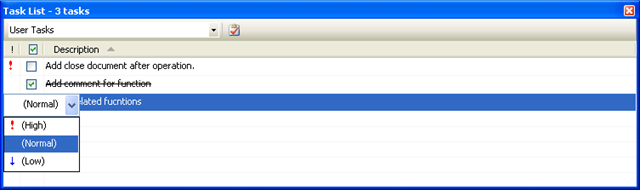
用户任务(user task): 任务列表上部有个Create User Task的按钮。点击它就可以创建新的用户任务。用户任务有优先级,是否完成,描述这3个属性(参考下图)。

image

警告: 用户任务保存在隐藏的solution文件(.suo)中,因此它很容易被破坏。

注释(comment): 我想我们都有过这种经历:写了些测试代码, 然后在注释中写上//todelete: ***。任务完成后全文搜索todelete,然后删除测试代码。

现在Visual Studio可以帮更容易的定位到某些以特殊标签开头的注释。例如 //TODO:

//TODO:  to remove the test code.

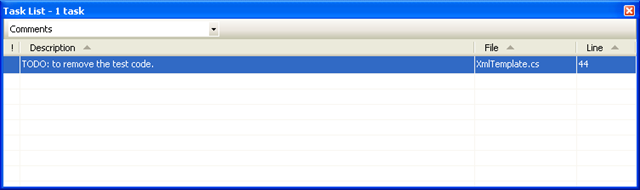
在任务列表中会显示成下面的样子

image

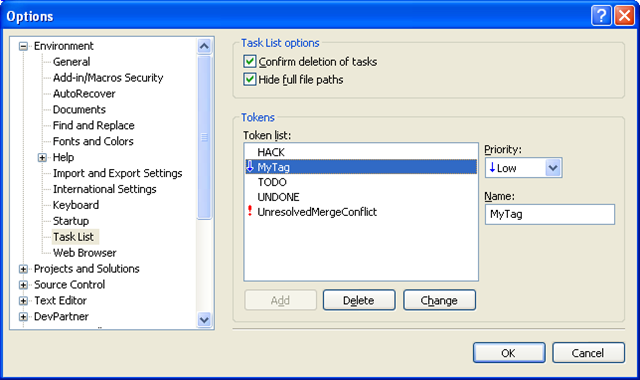
如果想在源代码中定位到注释的地方,简单的双击即可。默认有三个标签 HACK, TODO 和 UNDONE. 你可以加入你自己的标签。Tools –> Options, 找到Environment –> Task List,在这里你可以增加,修改和删除标签,下图中MyTag标签是新增加的。

image

[转载]Visual Studio使用小技巧2 – 使用任务列表(task list)

mikel阅读(915)

[转载]Visual Studio使用小技巧2 – 使用任务列表(task list) – 秋心的Blog – 博客园.

大家一定都很熟悉错误列表(error list),当我们写的语句有语法错误时,错误信息会列在错误列表(error list)中.双击某个错误,Visual Studio会自动帮我们定位到源代码中相应的地方。

任务列表(task list)是错误列表(error list)的孪生兄弟。我们可以通过View –> Task List 打开它。有两种类型的任务: 用户任务(user task)和注释(comment),在任务列表(task list)上部的下拉列表中可以选中查看哪种类型。

用户任务(user task): 任务列表上部有个Create User Task的按钮。点击它就可以创建新的用户任务。用户任务有优先级,是否完成,描述这3个属性(参考下图)。

image

警告: 用户任务保存在隐藏的solution文件(.suo)中,因此它很容易被破坏。

注释(comment): 我想我们都有过这种经历:写了些测试代码, 然后在注释中写上//todelete: ***。任务完成后全文搜索todelete,然后删除测试代码。

现在Visual Studio可以帮更容易的定位到某些以特殊标签开头的注释。例如 //TODO:

//TODO:  to remove the test code.

在任务列表中会显示成下面的样子

image

如果想在源代码中定位到注释的地方,简单的双击即可。默认有三个标签 HACK, TODO 和 UNDONE. 你可以加入你自己的标签。Tools –> Options, 找到Environment –> Task List,在这里你可以增加,修改和删除标签,下图中MyTag标签是新增加的。

image

[转载]C#实现窗口贴边自动隐藏、任务栏隐藏至托盘并添加双击和右键菜单

mikel阅读(1414)

[转载]C#实现窗口贴边自动隐藏、任务栏隐藏至托盘并添加双击和右键菜单 – madebychina – 博客园.

开发环境:Windows7系统,Visual Studio 2010专业版,.Net Framework 2.0。

一、Winform窗体贴边自动隐藏

新建Windows窗体应用程序,向Form1窗体中添加一个Timer控件,设定其Interval属性值为50,并为其添加Tick事件。代码为:

private void timer1_Tick(object sender, EventArgs e)

{

if (this.Bounds.Contains(Cursor.Position))

{

switch (this.StopAanhor)

{

case AnchorStyles.Top:

this.Location = new Point(this.Location.X, 0);

break;

case AnchorStyles.Left:

this.Location = new Point(0, this.Location.Y);

break;

case AnchorStyles.Right:

this.Location = new Point(Screen.PrimaryScreen.Bounds.Width - this.Width, this.Location.Y);

break;

case AnchorStyles.Bottom:

this.Location = new Point(this.Location.X, Screen.PrimaryScreen.Bounds.Height - this.Height);

break;

}

}

else

{

switch (this.StopAanhor)

{

case AnchorStyles.Top:

this.Location = new Point(this.Location.X, (this.Height - 4) * (-1));

break;

case AnchorStyles.Left:

this.Location = new Point((-1) * (this.Width - 4), this.Location.Y);

break;

case AnchorStyles.Right:

this.Location = new Point(Screen.PrimaryScreen.Bounds.Width - 4, this.Location.Y);

break;

case AnchorStyles.Bottom:

this.Location = new Point(this.Location.X, (Screen.PrimaryScreen.Bounds.Height - 4));

break;

}

}

}

添加如下变量和函数:

internal AnchorStyles StopAanhor = AnchorStyles.None;

private void mStopAnhor()

{

if (this.Top <= 0 && this.Left <= 0)

{

StopAanhor = AnchorStyles.None;

}

else if (this.Top <= 0)

{

StopAanhor = AnchorStyles.Top;

}

//else if (this.Left <= 0)             //{             //    StopAanhor = AnchorStyles.Left;             //}             else if (this.Left >= Screen.PrimaryScreen.Bounds.Width - this.Width)

{

StopAanhor = AnchorStyles.Right;

}

else if (this.Top >= Screen.PrimaryScreen.Bounds.Height - this.Height)

{

StopAanhor = AnchorStyles.Bottom;

}

else

{

StopAanhor = AnchorStyles.None;

}

}

为Form1窗体添加Load事件,代码为:

private void Form1_Load(object sender, EventArgs e)

{

this.TopMost = true;

this.timer1.Start();

}

为Form1窗体添加LocationChangeD事件,代码为:

private void Form1_LocationChanged(object sender, EventArgs e)

{

this.mStopAnhor();

}

至此,WinForm窗体的自动贴边隐藏效果完成,该效果可以实现窗体上下右四个方位的贴边隐藏。

(如果想实现窗体上下左右四个方位的贴边隐藏,请将上面的

//else if (this.Left <= 0)

//{

// StopAanhor = AnchorStyles.Left;

//}

注释去掉,但是这样做会影响之后的窗体还原效果)

二、托盘图标、自动隐藏任务栏图标、托盘图标双击事件、托盘图标右键菜单

继续向Form1窗体中添加一个NotifyIcon控件,并为其添加一个图标。

为NotifyIcon控件添加MouseDoubleClick事件,代码如下:

private void notifyIcon1_MouseDoubleClick(object sender, MouseEventArgs e)

{

this.Show();

this.WindowState = FormWindowState.Normal;

this.Activate();

}

(也可添加MouseClick事件,内部代码同上,但是会有我们不希望看到的效果,当你使用右键单击托盘图标想要弹出右键菜单时,也会触发该事件,C#好像并没有区分鼠标的左右键,不知道为什么)

再向Form1窗体添加一个ContentMenuStrip控件,并为其添加两个MenuItem子菜单项,Text分别为“还原”、“关闭”(可为每个子菜单项添加小图标,自便),为两个子菜单项添加Click事件,代码如下:

//还原

private void toolStripMenuItem1_Click(object sender, EventArgs e)

{

this.Show();

this.WindowState = FormWindowState.Normal;

this.Activate();

}

//关闭

private void toolStripMenuItem2_Click(object sender, EventArgs e)

{

timer1.Enabled = false;

this.notifyIcon1.Visible = false;

this.Close();

this.Dispose();

Application.Exit();

}

为Form1窗体添加SizeChanged事件,代码如下:

private void Form1_SizeChanged(object sender, EventArgs e)

{

if (this.WindowState == FormWindowState.Minimized)

{

this.Hide();

}

}

最后向Form1的Load事件中添加如下代码:

this.notifyIcon1.Visible = true;

this.ShowInTaskbar = false;

this.notifyIcon1.ContextMenuStrip = contextMenuStrip1;

到此题目所列效果均已实现,但是当窗口处于贴边隐藏状态时,我们双击托盘图标,或者右键托盘菜单还原窗口时,窗口并没有从隐藏状态变为显示状态,与我们的使用习惯不太一致。这是我们可以在NotifyIcon的MouseDoubleClick事件和右键还原菜单项的Click事件中添加如下代码:

this.timer1.Interval = 2000;

switch (this.StopAanhor)

{

case AnchorStyles.Top:

this.Location = new Point(this.Location.X, 0);

break;

case AnchorStyles.Left:

this.Location = new Point(0, this.Location.Y);

break;

case AnchorStyles.Right:

this.Location = new Point(Screen.PrimaryScreen.Bounds.Width - this.Width, this.Location.Y);

break;

case AnchorStyles.Bottom:

this.Location = new Point(this.Location.X, Screen.PrimaryScreen.Bounds.Height - this.Height);

break;

}

并且在Timer空间的Tick事件中添加下面一句代码:

this.timer1.Interval = 50;

此种方法定有不妥之处,但限于水平,只能委屈于此了。

现附Form1.cs的完整代码如下:

using System;

using System.Collections.Generic;

using System.ComponentModel;

using System.Data;

using System.Drawing;

using System.Text;

using System.Windows.Forms;

namespace WindowsFormsApplication2

{

public partial class Form1 : Form

{

public Form1()

{

InitializeComponent();

}

private void Form1_Load(object sender, EventArgs e)

{

this.TopMost = true;

this.timer1.Start();

this.notifyIcon1.Visible = true;

this.ShowInTaskbar = false;

this.notifyIcon1.ContextMenuStrip = contextMenuStrip1;

}

private void Form1_LocationChanged(object sender, EventArgs e)

{

this.mStopAnhor();

}

private void timer1_Tick(object sender, EventArgs e)

{

this.timer1.Interval = 50;

if (this.Bounds.Contains(Cursor.Position))

{

switch (this.StopAanhor)

{

case AnchorStyles.Top:

this.Location = new Point(this.Location.X, 0);

break;

case AnchorStyles.Left:

this.Location = new Point(0, this.Location.Y);

break;

case AnchorStyles.Right:

this.Location = new Point(Screen.PrimaryScreen.Bounds.Width - this.Width, this.Location.Y);

break;

case AnchorStyles.Bottom:

this.Location = new Point(this.Location.X, Screen.PrimaryScreen.Bounds.Height - this.Height);

break;

}

}

else

{

switch (this.StopAanhor)

{

case AnchorStyles.Top:

this.Location = new Point(this.Location.X, (this.Height - 4) * (-1));

break;

case AnchorStyles.Left:

this.Location = new Point((-1) * (this.Width - 4), this.Location.Y);

break;

case AnchorStyles.Right:

this.Location = new Point(Screen.PrimaryScreen.Bounds.Width - 4, this.Location.Y);

break;

case AnchorStyles.Bottom:

this.Location = new Point(this.Location.X, (Screen.PrimaryScreen.Bounds.Height - 4));

break;

}

}

}

internal AnchorStyles StopAanhor = AnchorStyles.None;

private void mStopAnhor()

{

if (this.Top &lt;= 0 &amp;&amp; this.Left &lt;= 0)

{

StopAanhor = AnchorStyles.None;

}

else if (this.Top &lt;= 0)

{

StopAanhor = AnchorStyles.Top;

}

//else if (this.Left &lt;= 0) //{ // StopAanhor = AnchorStyles.Left; //} else if (this.Left &gt;= Screen.PrimaryScreen.Bounds.Width - this.Width)

{

StopAanhor = AnchorStyles.Right;

}

else if (this.Top &gt;= Screen.PrimaryScreen.Bounds.Height - this.Height)

{

StopAanhor = AnchorStyles.Bottom;

}

else

{

StopAanhor = AnchorStyles.None;

}

}

private void notifyIcon1_MouseDoubleClick(object sender, MouseEventArgs e)

{

this.Show();

this.WindowState = FormWindowState.Normal;

this.Activate();

this.timer1.Interval = 2000;

switch (this.StopAanhor)

{

case AnchorStyles.Top:

this.Location = new Point(this.Location.X, 0);

break;

case AnchorStyles.Left:

this.Location = new Point(0, this.Location.Y);

break;

case AnchorStyles.Right:

this.Location = new Point(Screen.PrimaryScreen.Bounds.Width - this.Width, this.Location.Y);

break;

case AnchorStyles.Bottom:

this.Location = new Point(this.Location.X, Screen.PrimaryScreen.Bounds.Height - this.Height);

break;

}

}

//还原-

private void toolStripMenuItem1_Click(object sender, EventArgs e)

{

this.Show();

this.WindowState = FormWindowState.Normal;

this.Activate();

this.timer1.Interval = 2000;

switch (this.StopAanhor)

{

case AnchorStyles.Top:

this.Location = new Point(this.Location.X, 0);

break;

case AnchorStyles.Left:

this.Location = new Point(0, this.Location.Y);

break;

case AnchorStyles.Right:

this.Location = new Point(Screen.PrimaryScreen.Bounds.Width - this.Width, this.Location.Y);

break;

case AnchorStyles.Bottom:

this.Location = new Point(this.Location.X, Screen.PrimaryScreen.Bounds.Height - this.Height);

break;

}

}

//关闭

private void toolStripMenuItem2_Click(object sender, EventArgs e)

{

timer1.Enabled = false;

this.notifyIcon1.Visible = false;

this.Close();

this.Dispose();

Application.Exit();

}

private void Form1_SizeChanged(object sender, EventArgs e)

{

if (this.WindowState == FormWindowState.Minimized)

{

this.Hide();

}

}

}

}

另附Form1.Designer.cs代码供参考:

namespace WindowsFormsApplication2

{

partial class Form1

{

///

///必需的设计器变量。

///

private System.ComponentModel.IContainer components = null;

///

///清理所有正在使用的资源。

///

///
<span> </span>如果应释放托管资源,为 true;否则为 false。

protected override void Dispose(bool disposing)

{

if (disposing &amp;&amp; (components != null))

{

components.Dispose();

}

base.Dispose(disposing);

}

#region Windows 窗ä¡ã体¬?设¦¨¨计?器¡Â生¦¨²成¨¦的Ì?代䨲码?

///

///设计器支持所需的方法 - 不要

///使用代码编辑器修改此方法的内容。

///

private void InitializeComponent()

{

this.components = new System.ComponentModel.Container();

System.ComponentModel.ComponentResourceManager resources = new System.ComponentModel.ComponentResourceManager(typeof(Form1));

this.timer1 = new System.Windows.Forms.Timer(this.components);

this.notifyIcon1 = new System.Windows.Forms.NotifyIcon(this.components);

this.contextMenuStrip1 = new System.Windows.Forms.ContextMenuStrip(this.components);

this.toolStripMenuItem1 = new System.Windows.Forms.ToolStripMenuItem();

this.toolStripMenuItem2 = new System.Windows.Forms.ToolStripMenuItem();

this.contextMenuStrip1.SuspendLayout();

this.SuspendLayout();

//

// timer1

//

this.timer1.Tick += new System.EventHandler(this.timer1_Tick);

//

// notifyIcon1

//

this.notifyIcon1.Icon = ((System.Drawing.Icon)(resources.GetObject("notifyIcon1.Icon")));

this.notifyIcon1.Text = "notifyIcon1";

this.notifyIcon1.Visible = true;

this.notifyIcon1.MouseDoubleClick += new System.Windows.Forms.MouseEventHandler(this.notifyIcon1_MouseDoubleClick);

//

// contextMenuStrip1

//

this.contextMenuStrip1.Items.AddRange(new System.Windows.Forms.ToolStripItem[] {

this.toolStripMenuItem1,

this.toolStripMenuItem2});

this.contextMenuStrip1.Name = "contextMenuStrip1";

this.contextMenuStrip1.Size = new System.Drawing.Size(101, 48);

//

// toolStripMenuItem1

//

this.toolStripMenuItem1.Name = "toolStripMenuItem1";

this.toolStripMenuItem1.Size = new System.Drawing.Size(100, 22);

this.toolStripMenuItem1.Text = "还原";

this.toolStripMenuItem1.Click += new System.EventHandler(this.toolStripMenuItem1_Click);

//

// toolStripMenuItem2

//

this.toolStripMenuItem2.Name = "toolStripMenuItem2";

this.toolStripMenuItem2.Size = new System.Drawing.Size(100, 22);

this.toolStripMenuItem2.Text = "关闭";

this.toolStripMenuItem2.Click += new System.EventHandler(this.toolStripMenuItem2_Click);

//

// Form1

//

this.AutoScaleDimensions = new System.Drawing.SizeF(6F, 12F);

this.AutoScaleMode = System.Windows.Forms.AutoScaleMode.Font;

this.ClientSize = new System.Drawing.Size(284, 262);

this.Name = "Form1";

this.Text = "Form1";

this.Load += new System.EventHandler(this.Form1_Load);

this.LocationChanged += new System.EventHandler(this.Form1_LocationChanged);

this.SizeChanged += new System.EventHandler(this.Form1_SizeChanged);

this.contextMenuStrip1.ResumeLayout(false);

this.ResumeLayout(false);

}

#endregion

private System.Windows.Forms.Timer timer1;

private System.Windows.Forms.NotifyIcon notifyIcon1;

private System.Windows.Forms.ContextMenuStrip contextMenuStrip1;

private System.Windows.Forms.ToolStripMenuItem toolStripMenuItem1;

private System.Windows.Forms.ToolStripMenuItem toolStripMenuItem2;

}

}

项目的环境视图如下:

[转载](原创)JAVA读取硬件信息(MAC地址,CPU号,硬盘卷标,CPU型号及CPU使用率等信息)

mikel阅读(1259)

[转载](原创)JAVA读取硬件信息(MAC地址,CPU号,硬盘卷标,CPU型号及CPU使用率等信息) – MyPm项目管理平台 – 博客园.

在发布新版的MYPM时,加密要用到相关硬件信息,于是写了下面的测试类

运行main 打印信息如下图

如果读取所有MAC地址,在下面代码打印MAC地址处for循环既可

需要引用的包sigar-1.6.3.jar

及相关动态库 测试时我加载了sigar自带所有动态库

详见main方法内

package cn.com.mypm.common.util;

import java.io.BufferedReader;
import java.io.File;
import java.io.FileWriter;
import java.io.InputStreamReader;

import org.hyperic.sigar.CpuPerc;
import org.hyperic.sigar.Sigar;
import org.hyperic.sigar.SigarException;
import org.hyperic.sigar.SigarLoader;
import org.hyperic.sigar.cmd.Shell;
import org.hyperic.sigar.cmd.SigarCommandBase;

public class CpuInfo extends SigarCommandBase {

public boolean displayTimes = true;

public CpuInfo(Shell shell) {
super(shell);
}

public CpuInfo() {
super();
}

public String getUsageShort() {
return "Display cpu information";
}

private void output(CpuPerc cpu) {
println("User Time....." + CpuPerc.format(cpu.getUser()));
println("Sys Time......" + CpuPerc.format(cpu.getSys()));
println("Idle Time....." + CpuPerc.format(cpu.getIdle()));
println("Wait Time....." + CpuPerc.format(cpu.getWait()));
println("Nice Time....." + CpuPerc.format(cpu.getNice()));
println("Combined......" + CpuPerc.format(cpu.getCombined()));
println("Irq Time......" + CpuPerc.format(cpu.getIrq()));
if (SigarLoader.IS_LINUX) {
println("SoftIrq Time.." + CpuPerc.format(cpu.getSoftIrq()));
println("Stolen Time...." + CpuPerc.format(cpu.getStolen()));
}
println("");
}

public void output(String[] args) throws SigarException {
org.hyperic.sigar.CpuInfo[] infos = this.sigar.getCpuInfoList();

CpuPerc[] cpus = this.sigar.getCpuPercList();

org.hyperic.sigar.CpuInfo info = infos[0];
long cacheSize = info.getCacheSize();
println("Vendor........." + info.getVendor());
println("Model.........." + info.getModel());
println("Mhz............" + info.getMhz());
println("Total CPUs....." + info.getTotalCores());
if ((info.getTotalCores() != info.getTotalSockets()) || (info.getCoresPerSocket() &gt; info.getTotalCores())) {
println("Physical CPUs.." + info.getTotalSockets());
println("Cores per CPU.." + info.getCoresPerSocket());
}
if (cacheSize != Sigar.FIELD_NOTIMPL) {
println("Cache size...." + cacheSize);
}
println("");
if (!this.displayTimes) {
return;
}
for (int i = 0; i &lt; cpus.length; i++) {             println("CPU " + i + ".........");             output(cpus[i]);         }         println("Totals........");         output(this.sigar.getCpuPerc());         StringBuffer sb=new StringBuffer("cpu号="+getCPUSerial()+"\n");                 String[] interfaces = sigar.getNetInterfaceList();         if(interfaces!=null || interfaces.length&gt;0)
sb.append("第一个网卡号="+sigar.getNetInterfaceConfig(interfaces[0]).getHwaddr());

org.hyperic.sigar.FileSystem[] filesystems = sigar.getFileSystemList();
if(filesystems!=null || filesystems.length&gt;0)
sb.append("\n"+"硬盘第一个分区的卷标="+getHDSerial(filesystems[0].getDevName()));

System.out.println(sb.toString());
}

public static void main(String[] args) throws Exception {
//先加载siga动太库 在不同的平台只要加载特定的动态库,这里我就全加载不区分了
//在IDE环境中,可以不加载动态库 设置natinve lib patch location 既可
File nativeDir = new File("E:\\mypm10_new\\mypmdoc\\WebRoot\\WEB-INF\\native");
File[] libs = nativeDir.listFiles();
for (int i = 0; i &lt; libs.length; i++) {
if (libs[i].isFile())
try {
System.load(new File(nativeDir, libs[i].getName()).getPath());
} catch (Throwable t) {

}
}
new CpuInfo().processCommand(args);
}

/**
*
* 返回CPU的闲置率
*
*/
public static double getCpuIdle() {
Sigar sigar = null;
try {
sigar = new Sigar();
return sigar.getCpuPerc().getIdle();
} catch (Throwable t) {
t.printStackTrace();
} finally {
if (sigar != null)
sigar.close();
}
return 0;
}

/**
*
* @param drive 硬盘驱动器分区 如C,D
* @return 该分区的卷标
*/
public static String getHDSerial(String drive) {
String result = "";
try {
File file = File.createTempFile("tmp", ".vbs");
file.deleteOnExit();
FileWriter fw = new java.io.FileWriter(file);

String vbs = "Set objFSO = CreateObject(\"Scripting.FileSystemObject\")\n"
+ "Set colDrives = objFSO.Drives\n" + "Set objDrive = colDrives.item(\"" + drive + "\")\n"
+ "Wscript.Echo objDrive.SerialNumber";
fw.write(vbs);
fw.close();
Process p = Runtime.getRuntime().exec("cscript //NoLogo " + file.getPath());
BufferedReader input = new BufferedReader(new InputStreamReader(p.getInputStream()));
String line;
while ((line = input.readLine()) != null) {
result += line;
}
input.close();
file.delete();
} catch (Exception e) {

}
if (result.trim().length() &lt; 1 || result == null) {
result = "无磁盘ID被读取";

}

return result.trim();
}

/**
* 获取CPU号,多CPU时,只取第一个
* @return
*/
public static String getCPUSerial() {
String result = "";
try {
File file = File.createTempFile("tmp", ".vbs");
file.deleteOnExit();
FileWriter fw = new java.io.FileWriter(file);

String vbs = "On Error Resume Next \r\n\r\n" + "strComputer = \".\"  \r\n"
+ "Set objWMIService = GetObject(\"winmgmts:\" _ \r\n"
+ "    &amp; \"{impersonationLevel=impersonate}!\\\\\" &amp; strComputer &amp; \"\\root\\cimv2\") \r\n"
+ "Set colItems = objWMIService.ExecQuery(\"Select * from Win32_Processor\")  \r\n "
+ "For Each objItem in colItems\r\n " + "    Wscript.Echo objItem.ProcessorId  \r\n "
+ "    exit for  ' do the first cpu only! \r\n" + "Next                    ";

fw.write(vbs);
fw.close();
Process p = Runtime.getRuntime().exec("cscript //NoLogo " + file.getPath());
BufferedReader input = new BufferedReader(new InputStreamReader(p.getInputStream()));
String line;
while ((line = input.readLine()) != null) {
result += line;
}
input.close();
file.delete();
} catch (Exception e) {
e.fillInStackTrace();
}
if (result.trim().length() &lt; 1 || result == null) {
result = "无CPU_ID被读取";
}
return result.trim();
}
}

[转载]一句代码实现批量数据绑定[上篇]

mikel阅读(963)

[转载]一句代码实现批量数据绑定[上篇] – – 博客园.

对于一个以数据处理为主的应用中的UI层,我们往往需要编写相当多的代码去实现数据绑 定。如果界面上的控件和作为数据源的实体类型之间存储某种约定的映射关系,我们就可以实现批量的数据绑定。为了验证这种想法,我写了一个小小的组件。这个 小玩意仅仅是我花了两个小时写的,其中还有很多问题没有解决,比如对于空值的处理,特殊控件属性值的HTML编码问题,以及频繁反射的性能问题,仅仅演示 一种解决思路而已。本篇着重介绍如何通过这个组件来解决我们在进行数据绑定过程中的常见问题,下篇会介绍它的设计。[源代码从这里下载]

目录:
一、基于控件ID/实体属性名映射的数据绑定
二、一句代码实现批量数据绑定
三、修正绑定数据的显示格式
四、过滤不需要绑定的属性
五、多个控件对应同一个实体属性

一、基于控件ID/实体属性名映射的数据绑定

我的这个组件暂时命名为DataBinder好了(注意和System.Web.UI.DataBinder区分),我们用它来将一个实体对象绑定给指定的容器控件中的所有子控件。下面是DataBinder的定义,两个BindData方法实现具体的绑定操作。

   1: public class DataBinder
   2: {
   3:     public event EventHandler<DataBindingEventArgs> DataItemBinding;
   4:     public event EventHandler<DataBindingEventArgs> DataItemBound;
   5:
   6:     public static IEnumerable<BindingMapping> BuildBindingMappings(Type entityType, Control container, string suffix = "");
   7:
   8:     public void BindData(object entity, Control container, string suffix = "");
   9:     public void BindData( object entity,IEnumerable<BindingMapping> bindingMappings);
  10: }

本文开头所说,自动批量的数据绑定依赖于控件和作为数据源实体类型的映射关系。在这里,我直接采用控件ID和实体属性名之间的映射。也就是说,在对于界面上控件进行命名的时候,应该根据对应的实体类型属性名进行规范命名。

另一方面,作为数据源的对象来说,它的所有属性并不都是为数据绑定而涉及。为了让DataBinder能够自动筛选用于绑定的属性,我在相应的属性 上应用了一个自定义特性:DataPropertyAttribute。比如,下面的Customer对象会在后续的演示中用到,它的每一个数据属性都应 用了这样一个DataPropertyAttribute特性。

   1: public class Customer
   2: {
   3:     [DataProperty]
   4:     public string ID { get; set; }
   5:     [DataProperty]
   6:     public string FirstName { get; set; }
   7:     [DataProperty]
   8:     public string LastName { get; set; }
   9:     [DataProperty]
  10:     public string Gender { get; set; }
  11:     [DataProperty]
  12:     public int? Age { get; set; }
  13:     [DataProperty]
  14:     public DateTime? BirthDay { get; set; }
  15:     [DataProperty]
  16:     public bool? IsVip { get; set; }
  17: }

二、一句代码实现批量数据绑定

现在我们就来演示如何通过我们定义的DataBinder实现“一句代码的数据批量绑定”,而作为数据源就是我们上面定义的Customer对象。 我们先来设计我们的页面,下面是主体部分的HTML,这是一个表格。需要注意的是:所有需要绑定到Customer对象的空间都和对应的属性具有相同的 ID。

   1: <table>
   2:  <tr>
   3:      <td style="width:20%;text-align:right">ID:</td>
   4:      <td><asp:Label ID="ID" runat="server"></asp:Label></td>
   5:  </tr>
   6:   <tr>
   7:      <td style="width:20%;text-align:right">First Name:</td>
   8:      <td><asp:TextBox ID="FirstName" runat="server"></asp:TextBox></td>
   9:  </tr>
  10:   <tr>
  11:      <td style="width:20%;text-align:right">Last Name:</td>
  12:      <td><asp:TextBox ID="LastName" runat="server"></asp:TextBox></td>
  13:  </tr>
  14:   <tr>
  15:      <td style="width:20%;text-align:right">Gender:</td>
  16:      <td>
  17:          <asp:RadioButtonList ID="Gender" runat="server" RepeatDirection="Horizontal">
  18:              <asp:ListItem Text="Male"   Value = "Male" />
  19:              <asp:ListItem Text="Female" Value = "Female" />
  20:          </asp:RadioButtonList>
  21:      </td>
  22:  </tr>
  23:  <tr>
  24:      <td style="width:20%;text-align:right">Age:</td>
  25:      <td><asp:TextBox ID="Age" runat="server"></asp:TextBox></td>
  26:  </tr>
  27:   <tr>
  28:      <td style="width:20%;text-align:right">Birthday:</td>
  29:      <td><asp:TextBox ID="Birthday" runat="server" Width="313px"></asp:TextBox></td>
  30:  </tr>
  31:   <tr>
  32:      <td style="width:20%;text-align:right">Is VIP:</td>
  33:      <td><asp:CheckBox ID="IsVip" runat="server"></asp:CheckBox></td>
  34:  </tr>
  35:  <tr>
  36:      <td colspan="2" align="center">
  37:          <asp:Button ID="ButtonBind" runat="server" Text="Bind" onclick="ButtonBind_Click" />
  38:      </td>
  39:  </tr>
  40: </table>

为了编成方便,将DataBinder对象作为Page类型的一个属性,该属性在构造函数中初始化。

   1: public partial class Default : System.Web.UI.Page
   2: {
   3:     public Artech.DataBinding.DataBinder DataBinder { get; private set; }
   4:     public Default()
   5:     {
   6:         this.DataBinder = new Artech.DataBinding.DataBinder();
   7:     }
   8: }

然后我将数据绑定操作实现的Bind按照的Click事件中,对应所有的代码如下所示——真正的用于数据绑定的代码只有一句。

   1: protected void ButtonBind_Click(object sender, EventArgs e)
   2: {
   3:     var customer = new Customer
   4:     {
   5:         ID          = Guid.NewGuid().ToString(),
   6:         FirstName   = "Zhang",
   7:         LastName    = "San",
   8:         Age         = 30,
   9:         Gender      = "Male",
  10:         BirthDay    = new DateTime(1981, 1, 1),
  11:         IsVip       = true
  12:     };
  13:     this.DataBinder.BindData(customer, this);
  14: }

在浏览器中打开该Web页面,点击Bind按钮,你会发现绑定的数据已经正确显示在了对应的控件中:

image

三、修正绑定数据的显示格式

虽然通过DataBinder实现了对多个控件的批量绑定,但是并不完美。一个显著的问题是:作为生日的字段不仅仅显示了日期,还显示了时间。我们如何让日期按照我们要求的格式进行显示呢?DataBinder为了提供了三种选择。

如果你注意看DataBinder定义了,你会发现它定义了两个事件:DataItemBinding和DataItemBound(命名有待商 榷),它们分别在对某个控件进行绑定之前和之后触发。我们的第一种方案就是注册DataItemBinding时间,为Birthday指定一个格式化字 符串。假设我们需要的格式是“月-日-年”,那么我们指定的格式化字符串:MM-dd-yyyy。事件注册我方在了Page的构造函数中:

   1: public Default()
   2: {
   3:     this.DataBinder = new Artech.DataBinding.DataBinder();
   4:     this.DataBinder.DataItemBinding += (sender, args) =>
   5:         {
   6:             if (args.BindingMapping.Control == this.Birthday)
   7:             {
   8:                 args.BindingMapping.FormatString = "MM-dd-yyyy";
   9:             }
  10:         };
  11: }

运行程序,你会发现作为生日的字段已经按照我们希望的格式显示出来:

image

上面介绍了通过注册DataItemBinding事件在绑定前指定格式化字符串的解决方案,你也可以通过注册DataItemBound事件在绑定后修正显示的日期格式,相应的代码如下:

   1: public Default()
   2: {
   3:     this.DataBinder = new Artech.DataBinding.DataBinder();
   4:     this.DataBinder.DataItemBound += (sender, args) =>
   5:         {
   6:             if (args.BindingMapping.Control == this.Birthday && null != args.DataValue)
   7:             {
   8:                 this.Birthday.Text = ((DateTime)Convert.ChangeType(args.DataValue, typeof(DateTime))).
   9:                     ToString("MM-dd-yyyy");
  10:             }
  11:         };
  12: }

DataBinder定义了两个BindData重载,我们使用的是通过指定数据源和容器控件的方式,而另一个重载的参数为 IEnumerable<BindingMapping>类型。而BindingMapping是我们自定义的类型,用于表示控件和实体属性 之间的运行时映射关系。而这样一个BindingMapping集合,可以通过DataBinder的静态方法BuildBindingMappings 来创建。BindingMapping具有一个FormatString表示格式化字符串(实际上面我们指定的格式化字符串就是为这个属性指定的)。那 么,我们也可以通过下面的代码来进行数据绑定:

   1: protected void ButtonBind_Click(object sender, EventArgs e)
   2: {
   3:     var customer = new Customer
   4:     {
   5:         ID          = Guid.NewGuid().ToString(),
   6:         FirstName   = "Zhang",
   7:         LastName    = "San",
   8:         Age         = 30,
   9:         Gender      = "Male",
  10:         BirthDay    = new DateTime(1981, 1, 1),
  11:         IsVip       = true
  12:     };
  13:     var bindingMappings = Artech.DataBinding.DataBinder.BuildBindingMappings(typeof(Customer), this);
  14:     bindingMappings.Where(mapping => mapping.Control == this.Birthday).First().FormatString = "MM-dd-yyyy";
  15:     this.DataBinder.BindData(customer, bindingMappings);
  16: }

四、过滤不需要绑定的属性

在默认的情况下,第一个BindData方法(指定容器控件)会遍历实体的所有属性,将其绑定到对应的控件上。可能在有的时候,对于某些特殊的属性,我们不需要进行绑定。比如,某个控件的ID虽然符合实体属性的映射,但是它们表示的其实根本不是相同性质的数据。

为了解决在这个问题,在BindingMapping类型中定义了一个布尔类型的AutomaticBind属性。如果你在绑定前将该属性设置成 False,那么基于该BindingMapping的数据绑定将被忽略。如果你调用BindData(object entity, Control container, string suffix = “”)这个重载,你可以通过注册DataItemBinding事件将相应BindingMapping的AutomaticBind属性设置成 False。如果你调用BindData( object entity,IEnumerable<BindingMapping> bindingMappings)这个重载,你只需要在调用之间将相应BindingMapping的AutomaticBind属性设置成False。

我们将我们的程序还原成最初的状态,现在通过注册BindingMapping事件将基于Birthday的BindingMapping的AutomaticBind属性设置成False:

   1: public Default()
   2: {
   3:     this.DataBinder = new Artech.DataBinding.DataBinder();
   4:     this.DataBinder.DataItemBinding += (sender, args) =>
   5:         {
   6:             if (args.BindingMapping.Control == this.Birthday)
   7:             {
   8:                 args.BindingMapping.AutomaticBind = false;
   9:             }
  10:         };
  11: }

程序执行后,Birthday对应的TextBox将不会被绑定:

image

五、多个控件对应同一个实体属性

在上面的例子中,我们的控件的ID和对应的实体属性是相同的。但是在很多情况下,相同的页面上有不止一个控件映射到实体的同一个属性上。而控件ID 的唯一性决定了我们不能为它们起相同的ID。在这种情况下,我们采用“基于后缀”的映射。也就是为,在为控件进行命名的时候,通过“实体属性名+后缀”形 式来指定。

如果你仔细看了DataBinder的定义,不论是实例方法BindData(接受Control类型参数的),还是静态方法 BuildBindingMappings,都具有一个缺省参数suffix,这就是为这种情况设计的。在默认的情况下,这个参数的值为空字符串,所以我 们需要控件和实体属性具有相同的名称。如果控件是基于“实体属性名+后缀”来命名的,就需要显式指定这个参数了。为了演示这种情况,我们将例子中的所有需 要绑定的空间ID加上一个“_Xyz”字符作为后缀。

   1: <table>
   2:  <tr>
   3:      <td style="width:20%;text-align:right">ID:</td>
   4:      <td><asp:Label ID="ID_Xyz" runat="server"></asp:Label></td>
   5:  </tr>
   6:   <tr>
   7:      <td style="width:20%;text-align:right">First Name:</td>
   8:      <td><asp:TextBox ID="FirstName_Xyz" runat="server"></asp:TextBox></td>
   9:  </tr>
  10:   <tr>
  11:      <td style="width:20%;text-align:right">Last Name:</td>
  12:      <td><asp:TextBox ID="LastName_Xyz" runat="server"></asp:TextBox></td>
  13:  </tr>
  14:   <tr>
  15:      <td style="width:20%;text-align:right">Gender:</td>
  16:      <td>
  17:          <asp:RadioButtonList ID="Gender_Xyz" runat="server" RepeatDirection="Horizontal">
  18:              <asp:ListItem Text="Male"   Value = "Male" />
  19:              <asp:ListItem Text="Female" Value = "Female" />
  20:          </asp:RadioButtonList>
  21:      </td>
  22:  </tr>
  23:  <tr>
  24:      <td style="width:20%;text-align:right">Age:</td>
  25:      <td><asp:TextBox ID="Age_Xyz" runat="server"></asp:TextBox></td>
  26:  </tr>
  27:   <tr>
  28:      <td style="width:20%;text-align:right">Birthday:</td>
  29:      <td><asp:TextBox ID="Birthday_Xyz" runat="server" Width="313px"></asp:TextBox></td>
  30:  </tr>
  31:   <tr>
  32:      <td style="width:20%;text-align:right">Is VIP:</td>
  33:      <td><asp:CheckBox ID="IsVip_Xyz" runat="server"></asp:CheckBox></td>
  34:  </tr>
  35:  <tr>
  36:      <td colspan="2" align="center">
  37:          <asp:Button ID="ButtonBind" runat="server" Text="Bind" onclick="ButtonBind_Click" />
  38:      </td>
  39:  </tr>
  40: </table>

如果采用指定容器控件进行直接绑定的话,就可以这样编程:

   1: protected void ButtonBind_Click(object sender, EventArgs e)
   2: {
   3:     var customer = new Customer
   4:     {
   5:         ID          = Guid.NewGuid().ToString(),
   6:         FirstName   = "Zhang",
   7:         LastName    = "San",
   8:         Age         = 30,
   9:         Gender      = "Male",
  10:         BirthDay    = new DateTime(1981, 1, 1),
  11:         IsVip       = true
  12:     };
  13:     this.DataBinder.BindData(customer, this, "_Xyz");
  14: }

如果通过预先创建的BindingMapping集合进行数据绑定,那么代码将是这样:

   1: protected void ButtonBind_Click(object sender, EventArgs e)
   2: {
   3:     var customer = new Customer
   4:     {
   5:         ID          = Guid.NewGuid().ToString(),
   6:         FirstName   = "Zhang",
   7:         LastName    = "San",
   8:         Age         = 30,
   9:         Gender      = "Male",
  10:         BirthDay    = new DateTime(1981, 1, 1),
  11:         IsVip       = true
  12:     };
  13:
  14:     var bindingMappings = Artech.DataBinding.DataBinder.BuildBindingMappings(typeof(Customer), this, "_Xyz");
  15:     this.DataBinder.BindData(customer, bindingMappings);
  16: }

[转载]三种属性操作性能比较:PropertyInfo + Expression Tree + Delegate.CreateDelegate

mikel阅读(837)

[转载]三种属性操作性能比较:PropertyInfo + Expression Tree + Delegate.CreateDelegate – – 博客园.

在《上篇》 中,我比较了三种属性操作的性能:直接操作,单纯通过PropertyInfo反射和IL Emit。本篇继续讨论这个话题,我们再引入另外两种额外的属性操作方式:Expression Tree(这和IL Emit基本一致)和通过Delegate的静态方法CreateDelegate创建相应的委托进行属性的赋值和取值。[源代码从这里下载]

目录
一、定义测试相关的接口、类型和委托
二、通过Expression Tree的方式创建用于属性操作的委托
三、编写属性赋值操作测试方法
四、编写属性取值操作测试方法
五、执行测试程序,查看测试结果
六、如果在Expression Tree中避免类型转换呢?

一、定义测试相关的接口、类型和委托

我首先定义了一个Bar类型和IFoo接口,该接口中仅仅包含一个类型和名称为Bar的可读写属性。Foo1、Foo2和Foo3均实现接口IFoo,这些接口和类型定义如下:

   1: public class Bar{ }
   2: public interface IFoo
   3: {
   4:     Bar Bar { get; set; }
   5: }
   6: public class Foo1 : IFoo
   7: {
   8:     public Bar Bar { get; set; }
   9: }
  10: public class Foo2 : IFoo
  11: {
  12:     public Bar Bar { get; set; }
  13: }
  14: public class Foo3 : IFoo
  15: {
  16:     public Bar Bar { get; set; }
  17: }

然后定义如下两个委托:GetPropertyValue和SetPropertyValue。如它们的名称所表示的那些,它们分别表示属性取值和赋值操作:

   1: public delegate Bar GetPropertyValue();
   2: public delegate void SetPropertyValue(Bar bar);

二、通过Expression Tree的方式创建用于属性操作的委托

接下来我们编写Expression Tree的方式完成属性赋值和取值的操作,它们实现在如下两个静态方法中:CreateGetPropertyValueFunc和 CreateSetPropertyValueAction。下面是CreateGetPropertyValueFunc的定义,它返回的是一个 Func<object.object>委托:

   1: public static Func<object, object> CreateGetPropertyValueFunc()
   2: {
   3:     var property            = typeof(IFoo).GetProperty("Bar");
   4:     var target              = Expression.Parameter(typeof(object));
   5:     var castTarget          = Expression.Convert(target, typeof(IFoo));
   6:     var getPropertyValue    = Expression.Property(castTarget, property);
   7:     var castPropertyvalue   = Expression.Convert(getPropertyValue, typeof(object));
   8:     return Expression.Lambda<Func<object, object>>(castPropertyvalue , target).Compile();
   9: }

下面是CreateSetPropertyValueAction方法,返回一个Action<object.object>委托:

   1: public static Action<object, object> CreateSetPropertyValueAction()
   2: {
   3:     var property            = typeof(IFoo).GetProperty("Bar");
   4:     var target              = Expression.Parameter(typeof(object));
   5:     var propertyValue       = Expression.Parameter(typeof(object));
   6:     var castTarget          = Expression.Convert(target, typeof(IFoo));
   7:     var castPropertyValue   = Expression.Convert(propertyValue, property.PropertyType);
   8:     var setPropertyValue    = Expression.Call(castTarget, property.GetSetMethod(), castPropertyValue);
   9:     return Expression.Lambda<Action<object, object>>(setPropertyValue, target, propertyValue).Compile();
  10: }

三、编写属性赋值操作测试方法

接下来我们编写程序测试三种不同的属性赋值操作分别具有怎样的性能,所有的测试代码定义在如下TestSetPropertyValue静态方法 中。该方法参数表示进行属性赋值操作迭代的次数,每次迭代分别对Foo1、Foo2和Foo3三个对象的Bar属性进行赋值。最后打印出三种赋值操作分别 的耗时,时间单位为毫秒。

   1: public static void TestSetPropertyValue(int times)
   2: {
   3:     var foo1            = new Foo1();
   4:     var foo2            = new Foo2();
   5:     var foo3            = new Foo3();
   6:     var bar             = new Bar();
   7:     var property        = typeof(IFoo).GetProperty("Bar");
   8:     var setAction       = CreateSetPropertyValueAction();
   9:     var setDelegate1    = CreateSetPropertyValueDelegate(foo1);
  10:     var setDelegate2    = CreateSetPropertyValueDelegate(foo2);
  11:     var setDelegate3    = CreateSetPropertyValueDelegate(foo3);
  12:
  13:     var stopwatch = new Stopwatch();
  14:     stopwatch.Start();
  15:     for (int i = 0; i < times; i++)
  16:     {
  17:         property.SetValue(foo1, bar,null);
  18:         property.SetValue(foo2, bar, null);
  19:         property.SetValue(foo3, bar, null);
  20:     }
  21:     var duration1 = stopwatch.ElapsedMilliseconds;
  22:
  23:     stopwatch.Restart();
  24:     for (int i = 0; i < times; i++)
  25:     {
  26:         setAction(foo1, bar);
  27:         setAction(foo2, bar);
  28:         setAction(foo3, bar);
  29:     }
  30:     var duration2 = stopwatch.ElapsedMilliseconds;
  31:
  32:     stopwatch.Restart();
  33:     for (int i = 0; i < times; i++)
  34:     {
  35:         setDelegate1(bar);
  36:         setDelegate2(bar);
  37:         setDelegate3(bar);
  38:     }
  39:     var duration3 = stopwatch.ElapsedMilliseconds;
  40:     Console.WriteLine("{0, -15}{1,-15}{2,-15}{3,-15}", times, duration1, duration2, duration3);
  41: }

四、编写属性取值操作测试方法

属性取值操作的测试方法TestGetPropertyValue与TestSetPropertyValue结构一样。先实例化三个IFoo对象 (类型分别分Foo1、Foo2和Foo3),并初始化了它们的Bar属性。然后按照三种不同的方式获取该属性值,并打印出它们各自的耗时。

   1: public static void TestGetPropertyValue(int times)
   2: {
   3:     var foo1            = new Foo1 { Bar = new Bar() };
   4:     var foo2            = new Foo2 { Bar = new Bar() };
   5:     var foo3            = new Foo3 { Bar = new Bar() };
   6:
   7:     var property        = typeof(IFoo).GetProperty("Bar");
   8:     var getFunc         = CreateGetPropertyValueFunc();
   9:     var getDelegate1    = CreateGetPropertyValueDelegate(foo1);
  10:     var getDelegate2    = CreateGetPropertyValueDelegate(foo2);
  11:     var getDelegate3    = CreateGetPropertyValueDelegate(foo3);
  12:
  13:     var stopwatch = new Stopwatch();
  14:     stopwatch.Start();
  15:     for (int i = 0; i < times; i++)
  16:     {
  17:         var bar1 = property.GetValue(foo1, null);
  18:         var bar2 = property.GetValue(foo2, null);
  19:         var bar3 = property.GetValue(foo3, null);
  20:     }
  21:     var duration1 = stopwatch.ElapsedMilliseconds;
  22:
  23:     stopwatch.Restart();
  24:     for (int i = 0; i < times; i++)
  25:     {
  26:         var bar1 = getFunc(foo1);
  27:         var bar2 = getFunc(foo2);
  28:         var bar3 = getFunc(foo3);
  29:     }
  30:     var duration2 = stopwatch.ElapsedMilliseconds;
  31:
  32:     stopwatch.Restart();
  33:     for (int i = 0; i < times; i++)
  34:     {
  35:         var bar1 = getDelegate1();
  36:         var bar2 = getDelegate2();
  37:         var bar3 = getDelegate3();
  38:     }
  39:     var duration3 = stopwatch.ElapsedMilliseconds;
  40:
  41:     Console.WriteLine("{0, -15}{1,-15}{2,-15}{3,-15}", times, duration1, duration2, duration3);
  42: }

五、执行测试程序,查看测试结果

我们直接通过一个Console应用来测试,在Main()方法中编写了如下的测试程序。先三次调用TestSetPropertyValue方法 测试属性赋值操作,传入表示迭代次数的参数分别为10000(一万)、100000(十万)和1000000(一百万)。然后按照相同的方式调用 TestGetPropertyValue测试属性取值操作。

   1: static void Main()
   2: {
   3:     Console.WriteLine("{0, -15}{1,-15}{2,-15}{3,-15}", "Times", "Reflection", "Expression", "Delegate");
   4:     TestSetPropertyValue(10000);
   5:     TestSetPropertyValue(100000);
   6:     TestSetPropertyValue(1000000);
   7:
   8:     Console.WriteLine();
   9:
  10:     TestGetPropertyValue(10000);
  11:     TestGetPropertyValue(100000);
  12:     TestGetPropertyValue(1000000);
  13: }

从下面的输出结果来看,不论是属性的赋值还是取值,单纯通过PropertyInfo的方式所耗用的时间都比其它两种形式要长的多。至于其它两种 (Expression Tree和通过Delegate.CreateDelegate创建委托)来说,后者又比前者有明显的优势。

   1: Times          Reflection     Expression     Delegate
   2: 10000          109            2              0
   3: 100000         992            21             3
   4: 1000000        9872           210            37
   5:
   6: 10000          80             2              0
   7: 100000         800            23             2
   8: 1000000        8007           239            28

六、如果在Expression Tree中避免类型转换呢?

当我们调用Delegate的静态方法CreateDelegate是,需要指定具体的委托类型。对于属性的操作来说,属性类型需要与指定的委托类 型相匹配,所以这就避免了类型转化这个步骤。但是对于Expression Tree的属性操作来说,由于返回的类型是Func<object,object>和 Action<object,object>,需要对目标对象和属性值进行两次类型转换。如果将类型转换这个步骤从Expression Tree中移掉,两者的性能是否一致呢?

我们不妨来试试看。现在我们修改CreateGetPropertyValueFunc和 CreateSetPropertyValueAction这两个静态方法,让它们直接返回Func<IFoo,Bar>和 Action<IFoo, Bar>,并去掉Expression.Convert语句。两个方法现在的定义如下:

   1: public static Func<IFoo, Bar> CreateGetPropertyValueFunc()
   2: {
   3:     var property            = typeof(IFoo).GetProperty("Bar");
   4:     var target              = Expression.Parameter(typeof(IFoo));
   5:     var getPropertyValue    = Expression.Property(target, property);
   6:     return Expression.Lambda<Func<IFoo, Bar>>(getPropertyValue, target).Compile();
   7: }
   8: public static Action<IFoo, Bar> CreateSetPropertyValueAction()
   9: {
  10:     var property            = typeof(IFoo).GetProperty("Bar");
  11:     var target              = Expression.Parameter(typeof(IFoo));
  12:     var propertyValue       = Expression.Parameter(typeof(Bar));
  13:     var setPropertyValue    = Expression.Call(target, property.GetSetMethod(), propertyValue);
  14:     return Expression.Lambda<Action<IFoo, Bar>>(setPropertyValue, target, propertyValue).Compile();
  15: }

在这种情况下,再次运行我们的测试程序,你会得到如下的输出结果。从中我们不难看出,通过上面的修改,Expression Tree形式的操作在性能上得到了一定的提升,但是和第三种依然有一定的差距。至于为何,我还没有时间深究,希望了解内情的读者能够不吝赐教。

   1: Times          Reflection     Expression     Delegate
   2: 10000          107            1              0
   3: 100000         982            15             3
   4: 1000000        9802           157            37
   5:
   6: 10000          79             1              0
   7: 100000         789            18             2
   8: 1000000        7901           178            28

[转载]分享30个优秀的Photoshop网页设计教程

mikel阅读(1183)

[转载]分享30个优秀的Photoshop网页设计教程 – 梦想天空 – 博客园.

Photoshop 是 Adobe 公司旗下最为出名的图像处理软件之一,集图像扫描、编辑修改、图像制作、广告创意,图像输入与输出于一体的图形图像处理软件。今天,本文与大家分享30个 非常有用的 Photoshop 网页设计教程。其实,网页设计并没有你想的那么难,相信看完这些教程,你也可以设计出漂亮的网页。

Create a Clean and Colourful Web Layout

在本教程,你将学习如何使用Photoshop设计出一个多彩的企业网站

Design Studio Layout

在本教程中,您将学习如何设计一个设计工作室的网站布局。

Photographer layout – Portfolio layout

了解如何创建一个摄影师作品的网页布局。

Professional Photoshop Web Layout Tutorial

学习如何创建一个非常有趣的互动的网页布局。

Sleek – Web Layout Tutorial

在本教程中,作者将告诉你如何在短时间内内创建一个专业的网页局。

Learn How To Create A Web Gallery Style Layout

在本教程中,作者将告诉你如何创建一个画廊样式的网页布局

Corporate Business Layout

在本教程中,您将学习如何制作一个清洁,简单的水彩设计工作室的博客布局网页。

Create A Professional Magazine Web Layout

在本教程中,您将学习如何建立一个设计工作室的作品集的网站布局。

Watercolored design studio blog layout

在本教程中,您将学习如何制作一个清洁,简单的水彩设计工作室的博客布局。

Create a web 2.0 layout in photoshop

在本教程中,您将学习如何创建一个非常奇特的Web 2.0风格的网站布局。

Create a Nature Inspired Painted Background

一个很好的教程,告诉您如何创建一个独特的网页布局。

How to create a worn paper layout

在本教程中,您将学习如何创建一个碎纸纹理风格的网页。

Clean Business Layout Tutorial

一个很好的教程,学习创建创造一个清洁的业务布局网页。

Create A White notebook style for web site design

在本教程中,您将学习如何创建一个很酷的网站。

Urban layout perfect for Web Design Company

笔者将向您展示如何创建一个城市布局。

Create A Professional Magazine Web Layout

这是一个教程向您展示如何创建一个杂志的网络布局。

Create a Magic Night Themed Web Design

在本教程中,你将学习设计一个神秘之夜概念的网页设计。

Design studio layout – WordPress layout

在本教程中,作者将告诉你如何创建一个简单的作品集网页布局。

Design Studio Layout 2

在本教程中,作者将告诉你如何建立一个圆滑的设计工作室的布局。

Interior Design Layout

在本教程中,笔者将向您展示如何创建一个室内设计布局。

Funky Web Design Layout

了解如何设计一个丰富多彩的时髦的网站。

Design Agency Layout

这个布局设计教程将教你和一些非常有用的技巧。

Chopper layout

在本教程中,您将学习如何创建一个摩托车网站的基本布局。

Design a Clean Web Layout with the 960 Grid

在本教程中,我们将使用 960网格系统 设计一个清爽的网站布局。

Corporate WordPress Style Layout

学习创建一个黑色风格的,干净的博客式布局。

Nature Portfolio Layout

跟着这个教程在Photoshop中创建一个自然风格的网页布局。

Create a webdesign company layout in Photoshop

在这篇文章中,您将学习如何建立一个现代化的网页设计公司的企业网页。

Create a Clean and Effective Product Layout

本教程将告诉你如何在Photoshop中创建一个清爽的产品介绍网页。

How To Build a Stylish Portfolio Web Design Concept

本教程包括多个系列,告诉你如何在Photoshop中利用各种效果和图层样式设计一个作品集网页

Web 2.0 Blog Layout

在本教程中,您将学习如何创建一个精美的web2.0博客布局的网页设计。

Clean and Green Design Layout

在本教程中,您将学习如何创建一个简单干净的网页布局。

(编译来源:梦想天空 原文来自:30 Superb Photoshop Web Layout Tutorials