
[转载]ASP.NET MVC3-Razor-WebMail轻松发邮件

mikel阅读(1221)

[转载]MVC3-Razor-WebMail轻松发邮件 – 撞破南墙 – 博客园.

目录

1 配置邮件发送的参数

2 发送邮件

3 效果

1 配置邮件发送的参数

WebMail所有的公开的属性

WebMail.SmtpServer = smtp.gmail.com;
//获取或设置要用于发送电子邮件的 SMTP 中继邮件服务器的名称。
WebMail.SmtpPort = 25;//发送端口
WebMail.EnableSsl = true;
//是否启用 SSL —–GMAIL 需要 而其他的QQ,和126都不需要。
// 根据具体情况而定
WebMail.UserName = facingwaller;//账号名
WebMail.From = facingwaller@gmail.com;//邮箱名
WebMail.Password = ***;//密码
WebMail.SmtpUseDefaultCredentials = true;//是否使用默认配置
WebMail.SmtpUseDefaultCredentials = true;
//如果你之前已经配置够一

后,你可以直接发送而不需要再次配置。

2发送邮件

WebMail.Send(to: “568264099@qq.com”,//目标邮箱
subject: customerName,//主题名
body: customerRequest//内容    以上是必须的
,cc: “抄送”
,filesToAttach: filesPaths //要添加的附件可以是多个
, isBodyHtml: true,//是否是html
additionalHeaders://这个不清楚

new string[] { “additionalHeaders1”, “additionalHeaders2” }
);

下面是一些参数配置的解析:

邮件头或部分

Property

附件

Attachments

密件抄送 (BCC)

Bcc

抄送 (CC)

CC

内容类型

BodyEncoding

自定义标头的编码

HeadersEncoding

邮件正文

Body

优先级别

Priority

收件人

To

Reply-To

ReplyToList

发件人

From

主题

Subject

部分是.NET 4.0 完整的使用。想要更多的控制权可以自己使用下面的类。

SmtpClient 类用于将电子邮件发送到 SMTP 服务器以便传递。下表中显示的类用于构造可以使用 SmtpClient 发送的电子邮件。

说明

Attachment

表示文件附件。此类允许您将文件、流或文本附加到电子邮件中。

MailAddress

表示发件人和收件人的电子邮件地址。

MailMessage

表示电子邮件。

3效果

QQ发送到 GMAIL

11

GMAIL邮箱里

12

GMAIL 发送到 QQ 并启用了 重复

13

4完整代码:

public ActionResult Send() {

var customerName = Request[customerName];
var customerRequest
= Request[customerRequest];

var files = new string[Request.Files.Count];
for (int i = 0; i < Request.Files.Count; i++) {
files[i]
= Request.Files[0].FileName;
}

SendEmail(customerName, customerRequest, files);
SendEmailUseDefault(customerName + –Default, customerRequest + -default, files);
return View(index);
}

private void SendEmail(string customerName, string customerRequest, string[] filesPaths = null) {

WebMail.SmtpServer = smtp.gmail.com;//获取或设置要用于发送电子邮件的 SMTP 中继邮件服务器的名称。
WebMail.SmtpPort = 25;//发送端口
WebMail.EnableSsl = true;//是否启用 SSL GMAIL 需要 而其他都不需要 具体看你在邮箱中的配置
WebMail.UserName = facingwaller;//账号名
WebMail.From = facingwaller@gmail.com;//邮箱名
WebMail.Password = ***;//密码
WebMail.SmtpUseDefaultCredentials = true;//是否使用默认配置

// try {
// Send email
WebMail.Send(to: 568264099@qq.com,
subject: customerName,
body: customerRequest

//,cc: “抄送”
// ,filesToAttach: filesPaths
// , isBodyHtml: true,
//additionalHeaders:new string[] { “additionalHeaders1”, “additionalHeaders2” }
);
//} catch (Exception e) {

// Response.Write(e.ToString());
//}
}
private void SendEmailUseDefault(string customerName, string customerRequest, string[] filesPaths) {
WebMail.SmtpUseDefaultCredentials
= true;// Send email
WebMail.Send(to: 568264099@qq.com,
subject: customerName,
body: customerRequest);
}

CSHTML中

@{

View.Title = “Index”;
Layout = “~/Views/Shared/_Layout.cshtml”;
}
<h2>
BUG提交系统
</h2>
<form method=”post” action=”/Email/send” enctype=”multipart/form-data”>
<div>
您的 尊姓大名
<input type=”text” name=”customerName” />
</div>
<div>
您遇到的问题
<br />
<textarea name=”customerRequest” cols=”45″ rows=”4″></textarea>
</div>
<div>
请给出证据:
<br />
<input size=”60″ type=”file” name=”fileAttachment1″ />
<input size=”60″ type=”file” name=”fileAttachment2″ />
</div>
<div>
<input type=”submit” value=”告诉我” />
</div>
</form>

源码下载

http://files.cnblogs.com/facingwaller/learn2UseRazor4.rar

参考资源

ASP.NET MVC 3 Beta初体验之实用的WebMail

[转载]winform打包发布安装包详解..

mikel阅读(892)

[转载]winform打包发布安装包详解.. – IT鸟.NET记录 – 博客园.

使用VS 自带的打包工具,制作winform安装项目

开发环境:VS 2008 Access

操作系统:Windows XP

开发语言:C#

项目名称:**管理系统

步骤:

第一步:打开开发环境VS2008,新建项目,选择其他项目类型,再选择”安装项目”,输入名称及选择安装路径;

第二步:进入文件系统选项卡,选择应用程序文件夹,在中间的空白区域右键选择”添加文件”,添加项目文件(exe,dll);

第三步:添加项目所需文件;这里有两个文件夹需要注意(DataBase和Report),因为DataBase是存储项目数据库,而Report则是存储项目所需的报表文件.rpt,因此呢,在应用程序夹中也需要建同名的文件夹,并且添加所需的文件。效果:

第四步:为了在开始程序菜单中和桌面应用程序中看到安装程序,这里我们就需要为项目创建快捷方式。右键选择可执行文件 (PersonFinance.exe),创建快捷方式,进行重命名”**公司**管理系统”,将该快捷方式拖放到 ‘用户的”程序”菜单’ 中。重复该步骤将新建的快捷方式添加到 “用户桌面” 文件夹中

最好在用户菜单中建立一个文件夹,存放安装程序

第五步:设置系统必备,右键选择安装项目,进入属性页中,单击”系统必备”按钮,进入系统必备对话框;勾选”创建用于安装系统必备组件的安装程序”,在安装系统必备组件列表中,选择

1)、Windows Installer 3.1(必选)

2)、.NET Framework 3.5 (可选)参考最后说明

3)、Crystal Report Basic for Visual Studio2008(x86,x64) (可选) 项目中用到了水晶报表就需要勾选此项

重要一点:勾选”从与我的应用程序相同的位置下载系统必备组件(D)”,其实意思就是说你勾选后,生成安装项目时,在你安装项目的路径下,会有你在系统必备组件列表中勾选的组件.(系统自动完成,这一点还不错,不需要你自己去下载组件)

到这里安装包制作差不多完成了一大半 接着来

第六步:卸载程序,因为安装包做好之后不能只有安装程序,还要有卸载程序

首先呢,在”C:\WINDOWS\system32″路径下,找到msiexec.exe 添加到应用程序文件夹中,创建快捷方式,并命名”卸载管理系统”或”Uninstall”

其次呢,选择安装项目的ProductCode

右键选择卸载程序的快捷方式,进入属性,在Arguments选项中 输入/x 及ProductCode; 例如:/x {6931BD71-5C5E-4DA1-A861-14C7D1A78B97}

将卸载程序同时存放到用户的开始菜单的文件夹中(在第四步中新建)

第七步:更改安装程序属性,右键选择安装项目属性,可以设置项目作者及名称,其他属性信息可以根据实际情况进行设置.

第八步:生成安装项目

生成时,会出现些警告:应将“msiexec.exe”排除,原因是其源文件“C:\WINDOWS\system32\msiexec.exe”受到“Windows 系统文件保护”。

两个或多个对象具有相同的目标位置(“[targetdir]\model.dll”)
解决方案:

第一种:都不处理

第二种:第一类警告,可以编写卸载程序

第二种警告:删除相同的文件

安装项目制作完毕.

安装及运行:

直接运行steup.msi 或是setup.exe 会出现

在桌面和开始菜单中也会有相应的安装程序、卸载程序

说明及小结:

1、.net framework 框架是可选的,不一定说你采用的是VS2008开发就必须要使用.net framework 3.5,只要你在程序中没有使用到.net framework 3.5 的特性比如(LINQ),那么你选择框架时,是可以选择2.0的,为什么?因为2.0只有20多MB,而3.5则有200多MB。

更改方式:在安装项目下面有个检测到的依赖项文件,双击里面的Microsoft .net framework,进入了启动条件选择卡,右键选择.net frmaework 在Version中选择你所需的.net framework框架

2、文章中涉及到的名称大家可以根据实际所需进行设置。

3、欢迎拍砖。

[转载]Office文档模型深入Excel文档模型与开发实战(1)

mikel阅读(1199)

[转载]Office文档模型深入—Excel文档模型与开发实战(1) – 莫言_技术Blog – 博客园.

总序

之前的一个项目要求对学生的Office文件进行自动批改,通过检查题干要求的完成情况来评分。在网上没有找到这方面比较系统的资料,而且有些有的网友提供的方法还存在一些问题,希望我的

整理能够抛砖引玉,帮助大家熟悉Office的文档模型。  本系列主要调用微软提供的主互程序操作集(名字比较拗口,其实也就是各种接口和类,主要区别以VBA)来实现Office文档的自动化操作,对这些了解的越多越感到类库的给力,用MSDN上的话说,是可以完成想象到的任何任务。

虽然名字叫深入,但作者毕竟水平有限,不足的地方还请大家尽情拍砖头哈。 而且本文只是努力在浩繁的类中提纲挈领,想要充分了解还是得去慢慢研读MSDN。编译环境VS2010,语言C#,测试office版本2003,2007,2010,还有些必不可少的是操作需要的dll,这个网上到处都是,我也会附在之后的Demo里。

按目前的计划会在近阶段推出Excel,Word,Powerpoint,OutLook 四个大专题。

Excel文档模型与开发实战

说明:本专题首先介绍excel中最主要的四个类模型,Application,WorkBook,WorkSheet,Range,然后介绍一些拓展的类,如Chart,PivotTable,并理清他们之间的关系,给出开发时的代码实例。

一.命名空间解惑

为了避免大家对命名空间和调用的类库产生迷惑,首先需要提到的是微软针对每个程序提供的命名空间都有两种,例如Microsoft.Office.Interop.Excel和Microsoft.Office.Tools.Excel。其中Microsoft.Office.Tools.Excel是对Microsoft.Office.Interop.Excel的拓展,它包含了以下几个内容:

1.Workbook、Worksheet 和 ChartSheet 宿主项。 (Microsoft.Office.Interop.Excel内容)

2.宿主控件,包括 Chart、ListObject、NamedRange 和 XmlMappedRange。有关更多信息,请参见宿主项和宿主控件概述。
3.提供 Excel 解决方案中的智能标记功能的类型,包括 Action 和 SmartTag。

4.不同的帮助器类型,如事件参数和委托。

上面提到的名词后面的系列会慢慢讲到,我们本篇的内容以第1条为主,即介绍Microsoft.Office.Interop.Excel中的内容。

二.档模型

与其他的应用程序不同,Excel中的数据是高度结构化的,因此其中的类的层次也显得更为有序,Excel中提供的类有上百个,在其中最重要的类有 Application,WorkBook,WorkSheet,Range。他们提供了对Excel的基本操作,其对应Excel中模型如下:

Application:

顾名思义,Application是代表整个应用程序的类,它主要包括这个Excel实例中用户的数据,用户的选项。

WorkBook:

WorkBook代表了一个工作薄。包含工作薄的属性和方法。

WorkSheet:

WorkSheet不仅代表了一个WorkSheet,也可以代表一个图表。(而像图中的图表是不会显示在WorkSheets集合中的,这里面的原因后面解释)

Range:

Range是使用频度最高的对象,它代表了Excel中任意选定的单元格范围。他可以代表一行,一列,多个连续或者不连续的单元格,这些单元格甚至可以分布在不同的WorkSheet中。

以上几个类是理解Excel操作集的基础,这些对稍有Excel使用经验的人来说很好理解。接下来对这几个类的功能做具体的分析:

Plus.下面提到的部分方法名方法,属性名是自己翻译的,可能和标准的有些出入,详情可查询MSDN:

http://msdn.microsoft.com/zh-cn/library/ms262200(v=Office.11).aspx

三.Application类详解

Application类提供的成员主要包括以下几类:

1.在Excel中控制状态和显示的成员:

这里提供的是应用程序级的操作,控制Excel的状态和显示。

属性名 返回类型 说明
Cursor XlMousePointer 获取或设置鼠标外观
EditDirectlyInCell Bool 直接就地获取或设置编辑单元格的能力
FixedDecimal Bool 是否使用FixedDecimalPlaces 确定小数位数
Interactive Bool 确定或设置用户是否与Excel交互
MoveAfterReturn Bool 回车键后是否移植下一格
MoveAfterReturnDirection xlDirection 回车键后的移动方向
ScreenUpdating Bool 是否在调用后自动刷新屏幕
SheetsInNewWorkbook Long 获取或设置 Excel 自动放置在新的工作簿中的工作表的数目。
StandardFont String 获取或设置 Excel 中默认字体的名称
StandardFontSize Long 获取或设置 Excel 中默认字体的大小;
DisplayAlerts Bool 设置警告信息的默认值
DisplayFormulaBar Bool 是否显示标准公示栏以编辑单元格
DisplayFullScreen Bool 是否以全屏模式运行

补充 ·其中比较重要的有ScreenUpdating,通常设置为false以避免频繁刷新带来的性能问题,不过这个属性不会自动设置回true,官方推荐如下格式:
try
{
ThisApplication.ScreenUpdating
= false;
// Do your work that updates the screen.
}

finally
{
ThisApplication.ScreenUpdating
= true;
}

·StandardFont属性 和StandardFontSize属性重启后生效

2.返回对象的成员

所有的成员都可以在Application里调用到,这里的成员比较简单,不做过多解释。

属性名 返回类型 说明

ActiveCell

范围

返回对活动窗口(顶部的窗口)中当前活动单元格的引用。

ActiveChart

图表

返回对当前活动的图表的引用。

ActiveSheet

对象

返回对活动工作簿中的活动工作表的引用。

ActiveWindow

窗口

返回对活动窗口(顶部的窗口)的引用;如果没有活动窗口,则不返回任何结果。

Charts

工作表

返回 Sheet 对象(Chart 和 Worksheet 对象的父对象)的集合,这些对象包含对活动工作簿中的每个图表的引用。

Selection

对象

返回应用程序中选中的对象。

Sheets

工作表

返回 Sheet 对象的集合,这些对象包含对活动工作簿中每个工作表的引用。

Workbooks

工作簿

返回 Workbook 对象的集合,这些对象包含对所有打开的工作簿的引用。

3.执行操作的成员

最常用的操作有重新计算和检查拼写

1 //重新计算打开的单元格
2 ThisWorkbook.Calculate();
3 //重新计算制定区域
4 ThisApplication.get_Range(A1, B12).Calculate();
5 //一个检查是否拼写正确的函数
6 private void TestSpelling()
7 {
8 Excel.Range rng = ThisApplication.
9 get_Range(CheckSpelling, Type.Missing);
10
11 rng.get_Offset(0, 2).Value2 =
12 (ThisApplication.CheckSpelling(
13 rng.get_Offset(0, 1).Value2.ToString(),
14 Type.Missing, Type.Missing)
15 ? Spelled correctly
16 : Spelled incorrectly);
17 }
18

特别需要提到的是关闭,API提供有Quit,但是由于是COM组件,无法完整清除内存,下面是网友提供的完全退出的代码:

1 //完全释放Excel

2 public void CloseExcel(Excel.Application myExcel, Excel.Workbook myWorkBook)
3 {
4 if (myExcel != null)
5 {
6 int generation = 0;
7 myExcel.UserControl = false;
8
9 //如果您将   DisplayAlerts   属性设置为   False,则系统不会提示您保存任何未保存的数据。
10 //_xlApp.DisplayAlerts   =   false;
11
12 if (myWorkBook != null)
13 {
14 //如果将   Workbook   的   Saved   属性设置为   True,则不管您有没有进行更改,Excel   都不会提示保存它
15 //_xlWorkbook.Saved   =   true;
16 try
17 {
18 ////经过实验,这两句写不写都不会影响进程驻留。
19 ////如果注释掉的话,即使用户手动从界面上关闭了本程序的Excel,也不会影响
20 //_xlWorkbook.Close(oMissing,oMissing,oMissing);
21 //_xlWorkbook   =   null;
22
23 }
24 catch
25 {
26 //用户手动从界面上关闭了本程序的Excel窗口
27 }
28 }
29
30 //即使用户手动从界面上关闭了,但是Excel.Exe进程仍然存在,用_xlApp.Quit()退出也不会出错,用垃圾回收彻底清除
31 myExcel.Quit();
32
33 //System.Runtime.InteropServices.Marshal.ReleaseComObject((object)_xlApp);
34
35 generation = System.GC.GetGeneration(myExcel);
36 myExcel = null;
37
38 //虽然用了_xlApp.Quit(),但由于是COM,并不能清除驻留在内存在的进程,每实例一次Excel则Excell进程多一个。
39 //因此用垃圾回收,建议不要用进程的KILL()方法,否则可能会错杀无辜啊:)。
40 System.GC.Collect(generation);
41 }
42 }

4.处理文件操作的成员

这里提供的是允许Excel上下文内的文件系统的交互

1

2 //DefaultFilePath 属性:获取或加载Excel用于保存和加载文件的路径
3 ThisApplication.get_Range(DefaultFilePath, Type.Missing).
4 Value2 = ThisApplication.DefaultFilePath;
5
6 //FileDialog 属性:获取FileDialog对象以实现打开文件,保存文件,选择文件名等操作
7 //FileDialog 属性需要您通过传递给它一个 msoFileDialogType 枚举值来选择对话框的特定使用
8 //FileDialog 的show方法以显示对话框,返回-1:点击OK 0:点击取消,Execute方法以实际打开文件,SelectedItems返回选择的文件名
9 g = ThisApplication.get_FileDialog(
10 Office.MsoFileDialogType.msoFileDialogOpen);
11 dlg.Filters.Clear();
12 dlg.Filters.Add(Excel Files, *.xls;*.xlw, Type.Missing);
13 dlg.Filters.Add(All Files, *.*, Type.Missing);
14 if(dlg.Show() != 0)
15 dlg.Execute();
16
17 dlg = ThisApplication.get_FileDialog(
18 Office.MsoFileDialogType.msoFileDialogFolderPicker);
19 if (dlg.Show() != 0)
20 {
21 ThisApplication.get_Range(FolderPickerResults, Type.Missing).
22 Value2 = dlg.SelectedItems.Item(1);
23 }

5.其他

1)Application可以返回WorkBooks,WorkSheets集合,这些内容与后面的内容有重复,暂时先跳过去。

2)WorkSheetFuntion类里的属性就非常有用了,这里面储存着Excel中众多的函数,大概如下:

  • 数学函数,例如 AcosAcoshAsinAsinhCoshDegreesLnLogMedianMaxMinModeRadians 等等。

  • 域函数,允许您对范围执行运算,例如 DAverageDCountDCountADGetDMaxDMinDProductDSum 等等。

  • 逻辑函数,例如 IsErrIsErrorIsLogicalIsNAIsNonTextIsNumberIsText

  • 统计函数,例如 BetaDistBinomDistChiTestChiInvLogNormDistNegBinomDistPearsonSumProductSumSqTDistTTest,VarVarP 等等。

    3)Windows集合里的Window类提供了对Excel窗体内的操作

    代码


    //Arrangr(): 设置窗体集合的显示方式,接受一个XlArrangeStyle枚举以控制显示风格
    ThisApplication.Windows.Arrange(
    Excel.XlArrangeStyle.xlArrangeStyleTiled,
    Type.Missing, Type.Missing, Type.Missing);

    //NewWindow():创建一个新窗口
    ThisWorkbook.NewWindow();

    //控制Windows对象的外观和现实:颜色,标题,窗口特性,滚动行为
    wnd = ThisApplication.Windows[3];
    wnd.GridlineColor
    = ColorTranslator.ToOle(Color.Red);
    wnd.Caption
    = A New Window;
    wnd.DisplayHeadings
    = false;
    wnd.DisplayFormulas
    = false;
    wnd.DisplayWorkbookTabs
    = false;
    wnd.SplitColumn
    = 1;

    4) Names集合里的Name属性提供了对命名范围(Range范围)的管理

    1
    2 //新增一个命名范围
    3 Excel.Name nm;
    4 nm = ThisApplication.Names.Add(
    5 NewName, @”=’Other Application Members’!$A$6,
    6 Type.Missing, Type.Missing, Type.Missing,
    7 Type.Missing, Type.Missing, Type.Missing,
    8 Type.Missing, Type.Missing, Type.Missing);
    9 //在代码中引用该命名范围
    10 ThisApplication.get_Range(
    11 NewName, Type.Missing).Value2 = Hello, World!;
    12
    13 //命名范围中的常用属性:Name:命名范围的名称,RefersTo:命名范围的名称,Value:解析为范围的内容的命名范围的引用
    14 Excel.Range rng = ThisApplication.get_Range(Names, Type.Missing);
    15 for ( int i = 0 ; i <= ThisApplication.Names.Count 1; i++)
    16 {
    17 nm = ThisApplication.Names.Item(i + 1,
    18 Type.Missing, Type.Missing);
    19 rng.get_Offset(i, 0).Value2 = nm.Name;
    20 // Without the leading “‘”, these references
    21 // get evaluated, rather than displayed directly.
    22 rng.get_Offset(i, 1).Value2 = + nm.RefersTo.ToString();
    23 rng.get_Offset(i, 2).Value2 = + nm.RefersToR1C1.ToString();
    24 rng.get_Offset(i, 3).Value2 = nm.Value;
    25 }

    5)Application中的事件

    C#中 控件事件都有清晰的格式,Office中的事件参数就杂乱无章了。事件主要包括WorkSheet的事件,Workbook的事件和Windows的事件,好在事件的名字简单易懂,不再做过多介绍,可以直接查询MSDN

[转载]Asp.net在IIS上运行不了的解决方案

mikel阅读(1040)

[转载]Asp.net在IIS上运行不了的解决方案 – 勤劳的渔网工作者 – 博客园.

如果ASP.NET在IIS上运行不了,就试下下面两种方法应该可以你的问题:
1、.NET 安装的顺序应该是先装IIS,再装VS.NET,如果次序反了,或者IIS重装了,就需要使用aspnet_regiis.exe -i来重新安装IIS Mapping(主要用于aspx, asmx等文              件的Extention的匹配)。在C:\WINDOWS\Microsoft.NET\Framework \v1.0.3705目录下,运行下面的命令:aspnet_regiis.exe -i。
2、重设ASP.NET的密码,然后在下面的目录 中找到Machine.config文件:%Systemroot%\Microsoft.NET\Framework\v1.0.3705 \CONFIG(Systemroot是你的安            装目录),在标识中添加/修改:userName和password3。如果还不行,重装IIS,然后再按照方法1进行操作。如果你的机器是域控制器,大 致讲一下操作的步骤:
1、在Administrative Tools->Active Directory Users and Computers中建立一个名为ASPUSER的用户,将该用户添加到用户组中(默认情况下已在

User  Group 中)
2、在Administrative Tools->Local Security Settings->Local Policy->UserRight Assignment中,双击右栏的Log on as a batch job项,在弹出的窗口中点击

Add,选择或输入刚才建立的ASPUSER帐号,确定。
3、确保ASPUSER帐号有相应文件、目录的访问权限4。在下面的目录中找到Machine.config文件:%Systemroot%\Microsoft.NET\Framework\v1.0.3705

\CONFIG (Systemroot是你的安装目录),在标识中添加/修改:
userName=”DomainName\ASPUSER” password=”ASPUSERpassword” 其中ASPUSERpassword是刚刚建立的ASPUSER的密码,DomainName是你的

域名。
注意修改完成之后需要把机器重启一下。

[转载]SQLServer2008:助您轻松编写T-SQL存储过程(原创)

mikel阅读(1079)

[转载]SQLServer2008:助您轻松编写T-SQL存储过程(原创) – RyanDing – 博客园.

本文主要介绍 SQLServerExpress2008不用第三方工具调试T-SQL语句,经过本文的介绍,用SQLServer2008 Manage studio 编写、调试T-SQL存储过程都将是一件轻松、快乐的事情。

一、回顾早期的SQLSERVER版本:


早在SQL2000时代,查询分析器的功能还很简陋,远不如VS那么强大。到SQL2005时代,代码高亮、SQL优化等功能逐渐加强,但是依然无法调试SQL语句。好一点的第三方的SQL语法编辑器似乎也不够完美,这样导致一些人抱怨存储过程不便于维护,开发的时候能不用则不用。

二、SQLSERVER2008Express 智能提示加强:


该功能是SQL2008在SQL2005之后的升级版,我们可以很方便的调用智能提示,和 VS一致:使用快捷键ctrl + J 即可。

截图如下:

该功能是否与VS一样了呢? 毕竟他们都是微软的产品。

三、调试T-SQL语句:


1.Debug普通T-SQL语句:

SQL代码如下:

1 use northwind 2  go 3 4  declare @i int ,@j int,@k int 5  set @i = 1; 6  set @j = 2; 7  set @k=@i + @j 8 select @i; 9 go

非常简单的定义了 三个int 型变量:i、j、k并且对这些变量进行简单的逻辑运算,在Management Studio 中只要轻松的按F11键,即可调试以上代码块。

截图如下:

接着点击F11逐语句Debug 或者F10逐过程调试代码。

截图如下:

这个dubug的场面您是否觉得已经和VS相差无几了呢?

四、支持复杂存储过程嵌套debug:


您可能会疑问,在一个庞大的系统中,如果数据库逻辑绝大部分都是存储过程实现的情况下,会出现存储过程嵌套存储过程或者嵌套存储函数这样的代码。

SQL2008是否支持调试功能呢?答案是肯定的。

首先定义一个简单的存储过程(本文使用NorthWind数据库)代码如下:

1 CREATE procedure sp_getOrders 2 @orderID int = null 3  as 4  if (@orderID is null ) 5 begin 6 print 'null' 7 end 8 else 9 begin 10 print 'correct' 11 end 12 select * from Orders where OrderID = @orderID 13  go

该存储过程在以下批处理内被调用,代码如下:

1 declare @i int ,@j int,@k int 2  set @i = 1; 3  set @j = 2; 4  select @k=@i + @j 5  exec sp_getOrders 10248 6  select @i; 7  go   

F11对以上代码进行SQL Debug。

截图如下:

当断点经过exec sp_getOrders 10248 这段代码时,点击F11进入sp_getOrders存储过程进行逐语句debug。

截图如下:

这样可以在嵌套的存储过程或函数内进行debug了,此刻不得不承认: 升级后的SQL2008越来越强大。您还恐惧使用或者调试存储过程么?

五、小结:


附上SQLSERVERExpress2008官方下载地址,该版本依然不支持Agent,如果想自动备份数据库请阅我的这篇文章

[转载]前端人员开发工具(dreamweaver,aptana)代码颜色配色指南

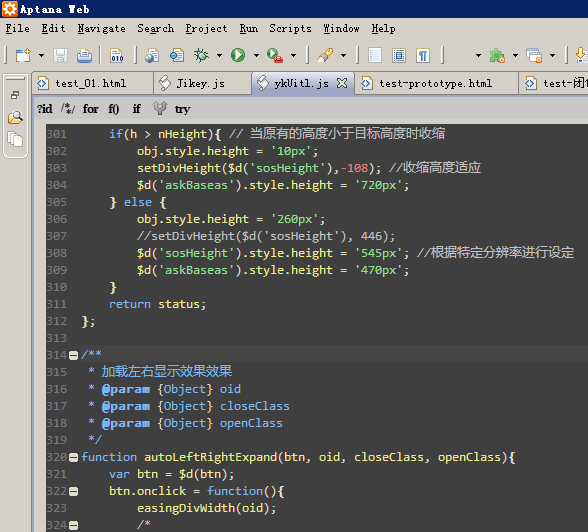
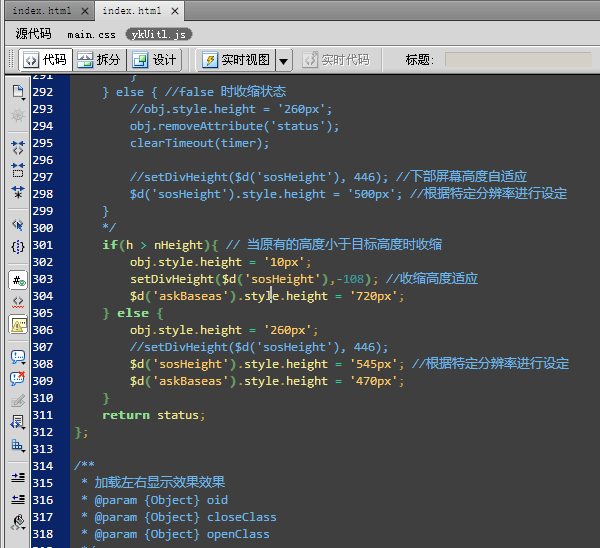
mikel阅读(1090)

[转载]前端人员开发工具(dreamweaver,aptana)代码颜色配色指南 – 豪情 – 博客园.

两个编辑下的颜色搭配。

我用的是YaHei Consolas 字体,

dw cs4 下需要在以下路径下Colors.xml文件把以下代码断覆盖:

C:\Documents and Settings\Administrator\Application Data\Adobe\Dreamweaver CS4\zh_CN\Configuration\CodeColoring(xp)
C:\Users\Ly\AppData\Roaming\Adobe\Dreamweaver CS5\en_US\Configuration\CodeColoring(win 7)

colors 文件下载

Administrator: 用户名。

也可以覆盖以下代码:

dw theme

<codeColors>
<colorGroup>
<syntaxColor id=”CodeColor_HTMLEntity” bold=”true” />
<syntaxColor id=”CodeColor_JavaScriptNative” text=”#009999″ />
<syntaxColor id=”CodeColor_JavaScriptNumber” text=”#FF0000″ />
<syntaxColor id=”CodeColor_JavascriptClient” text=”#990099″ />
<syntaxColor id=”CodeColor_JavascriptSpryKeywords” text=”#FF6208″ />
<syntaxColor id=”CodeColor_JavascriptSpryClasses” text=”#FF6208″ />
<syntaxColor id=”CodeColor_TemplateText” text=”#999999″ />
<syntaxColor id=”CodeColor_TemplateCommentText” text=”#006600″ />
<syntaxColor id=”CodeColor_TemplateCommentAttr” text=”#006600″ />
<syntaxColor id=”CodeColor_CFCommentText” text=”#000000″ bgcolor=”#FFFF99″ />
<syntaxColor id=”CodeColor_JavaJSP” text=”#009999″ />
<syntaxColor id=”CodeColor_JavaImplicit” text=”#999900″ />
<syntaxColor id=”CodeColor_JavaOther” text=”#990099″ />
<syntaxColor id=”CodeColor_JSPPageOperator” text=”#000000″ />
<syntaxColor id=”CodeColor_JSPTaglibOperator” text=”#000000″ />
<syntaxColor id=”CodeColor_JSPIncludeOperator” text=”#000000″ />
<syntaxColor id=”CodeColor_PHPScriptBlock” text=”#FF0000″ bold=”true” />
<syntaxColor id=”CodeColor_PHPScriptComment” text=”#FF9900″ />
<syntaxColor id=”CodeColor_PHPScriptConstant” text=”#552200″ />
<syntaxColor id=”CodeColor_PHPScriptString” text=”#CC0000″ />
<syntaxColor id=”CodeColor_PHPScriptFunctionsKeywords” text=”#0000FF” />
<syntaxColor id=”CodeColor_PHPScriptReserved” text=”#006600″ />
<syntaxColor id=”CodeColor_PHPScriptTypes” text=”#009999″ />
<syntaxColor id=”CodeColor_PHPScriptVariables” text=”#0066FF” />
<syntaxColor id=”CodeColor_ASPIncludeAttributes” text=”#990099″ />
<syntaxColor id=”CodeColor_ASPDirOperator” text=”#000000″ />
<syntaxColor id=”CodeColor_LibraryText” bgcolor=”#FFFFCC” />
<syntaxColor id=”CodeColor_DateText” bgcolor=”#FFFFCC” />
<syntaxColor id=”CodeColor_ASPJSNative” text=”#009999″ />
<syntaxColor id=”CodeColor_ASPJSKeywords” text=”#990099″ />
<syntaxColor id=”CodeColor_ASPNetCSharpKeywords” text=”#990099″ />
<syntaxColor id=”CodeColor_VBSNative” text=”#990099″ />
<syntaxColor id=”CodeColor_VBSConstants” text=”#009999″ />
<syntaxColor id=”CodeColor_VBNetNative” text=”#990099″ />
<syntaxColor id=”CodeColor_VBNetConstants” text=”#009999″ />
<tagColor id=”CodeColor_HTMLAnchor” text=”#006600″ />
<tagColor id=”CodeColor_HTMLForm” text=”#FF9900″ />
<tagColor id=”CodeColor_HTMLImage” text=”#990099″ />
<tagColor id=”CodeColor_HTMLObject” text=”#990000″ />
<tagColor id=”CodeColor_HTMLScript” text=”#990000″ />
<tagColor id=”CodeColor_HTMLStyle” text=”#990099″ />
<tagColor id=”CodeColor_HTMLTable” text=”#009999″ />
<syntaxColor id=”CodeColor_SpryAttributes” text=”#FF6208″ />
<syntaxColor id=”CodeColor_Spry_Tag_Normal” bgcolor=”#F8D0AF” />
<syntaxColor id=”CodeColor_Spry_Tag_Hover” bgcolor=”#FF9B58″ />
<syntaxColor id=”CodeColor_Spry_Tag_Selected” bgcolor=”#FF6D0C” />
<syntaxColor id=”CodeColor_HTMLComment” text=”#999999″ />
<syntaxColor id=”CodeColor_HTMLString” text=”#0000FF” />
<syntaxColor id=”CodeColor_HTMLNumber” text=”#0000FF” />
<syntaxColor id=”CodeColor_JavascriptFunction” text=”#000000″ bold=”true” />
<syntaxColor id=”CodeColor_JavascriptBracket” text=”#000099″ bold=”true” />
<syntaxColor id=”CodeColor_JavascriptReserved” text=”#000099″ bold=”true” />
<syntaxColor id=”CodeColor_JavascriptString” text=”#0000FF” />
<syntaxColor id=”CodeColor_JavascriptComment” text=”#999999″ />
<syntaxColor id=”CodeColor_CSSSelector” text=”#FF00FF” />
<syntaxColor id=”CodeColor_CSSProperty” text=”#000099″ />
<syntaxColor id=”CodeColor_CSSValue” text=”#0000FF” />
<syntaxColor id=”CodeColor_CSSImport” text=”#009999″ bold=”true” />
<syntaxColor id=”CodeColor_CSSMedia” text=”#990000″ bold=”true” />
<syntaxColor id=”CodeColor_CssKeywordImportant” text=”#FF0000″ bold=”true” />
<tagColor id=”DWTagLibrary_cfc” text=”#990033″ />
<tagColor id=”DWTagLibrary_cfml” text=”#990033″ />
<syntaxColor id=”CodeColor_ASPDirTagKeywords” text=”#990033″ />
<tagColor id=”DWTagLibrary_aspnetmmtags” text=”#990033″ />
<tagColor id=”DWTagLibrary_aspnettemplates” text=”#990033″ />
<tagColor id=”DWTagLibrary_aspnet” text=”#990033″ />
<tagColor id=”CodeColor_CFScriptTag” text=”#990033″ />
<syntaxColor id=”CodeColor_ASPDirString” text=”#0000FF” />
<syntaxColor id=”CodeColor_ActionscriptProperty” text=”#000084″ />
<syntaxColor id=”CodeColor_ActionscriptNative” text=”#000084″ />
<syntaxColor id=”CodeColor_ActionscriptNumber” text=”#000000″ />
<syntaxColor id=”CodeColor_ActionscriptFunction” text=”#000084″ />
<syntaxColor id=”CodeColor_ActionscriptBracket” text=”#000000″ />
<syntaxColor id=”CodeColor_ActionscriptOperator” text=”#000000″ />
<syntaxColor id=”CodeColor_ActionscriptReserved” text=”#000084″ />
<syntaxColor id=”CodeColor_ActionscriptString” text=”#0000FF” />
<syntaxColor id=”CodeColor_ActionscriptComment” text=”#848284″ />
<syntaxColor id=”CodeColor_ActionscriptRemoting” text=”#000084″ />
<syntaxColor id=”CodeColor_ASCommBracket” text=”#000099″ bold=”true” />
<syntaxColor id=”CodeColor_ASCommComment” text=”#999999″ />
<syntaxColor id=”CodeColor_ASCommFunction” text=”#000000″ bold=”true” />
<syntaxColor id=”CodeColor_ASCommNative” text=”#009999″ />
<syntaxColor id=”CodeColor_ASCommNumber” text=”#FF0000″ />
<syntaxColor id=”CodeColor_ASCommReserved” text=”#000099″ />
<syntaxColor id=”CodeColor_ASCommString” text=”#0000FF” />
<syntaxColor id=”CodeColor_ASRemoteBracket” text=”#000099″ bold=”true” />
<syntaxColor id=”CodeColor_ASRemoteComment” text=”#999999″ />
<syntaxColor id=”CodeColor_ASRemoteFunction” text=”#000000″ bold=”true” />
<syntaxColor id=”CodeColor_ASRemoteNative” text=”#009999″ />
<syntaxColor id=”CodeColor_ASRemoteNumber” text=”#FF0000″ />
<syntaxColor id=”CodeColor_ASRemoteReserved” text=”#000099″ />
<syntaxColor id=”CodeColor_ASRemoteString” text=”#0000FF” />
</colorGroup>
<colorGroup doctypes=”CSS”>
<syntaxColor id=”CodeColor_CSSImport” text=”#666″ bold=”true” />
<syntaxColor id=”CodeColor_CSSMedia” text=”#900″ bold=”true” />
<syntaxColor id=”CodeColor_CssKeywordImportant” text=”#F00″ bold=”true” />
<syntaxColor id=”CodeColor_CSSSelector” text=”#7CB7F1″ />
<syntaxColor id=”CodeColor_CSSValue” text=”#F0EB8E” />
<syntaxColor id=”CodeColor_CSSProperty” text=”#8FE28F” />
<syntaxColor id=”CodeColor_CSSComment” text=”#CCC” />
<syntaxColor id=”CodeColor_CSSString” text=”#FF0″ />
</colorGroup>
<colorGroup doctypes=”HTML”>
<syntaxColor id=”CodeColor_AspIncludeDirDefaultText” text=”#000″ />
<syntaxColor id=”CodeColor_ASPIncludeAttributes” text=”#909″ />
<syntaxColor id=”CodeColor_ASPIncludeString” text=”#060″ />
<tagColor id=”CodeColor_CFScriptTag” text=”#903″ />
<syntaxColor id=”CodeColor_CSSImport” text=”#666″ bold=”true” />
<syntaxColor id=”CodeColor_CSSMedia” text=”#CC0″ />
<syntaxColor id=”CodeColor_CssKeywordImportant” text=”#FF0″ />
<syntaxColor id=”CodeColor_CSSSelector” text=”#8fe28f” />
<syntaxColor id=”CodeColor_CSSValue” text=”#B44781″ />
<syntaxColor id=”CodeColor_CSSProperty” text=”#7E9F74″ />
<syntaxColor id=”CodeColor_CSSComment” text=”#BBB” />
<syntaxColor id=”CodeColor_CSSString” text=”#DB0057″ />
<tagColor id=”CodeColor_HTMLAnchor” text=”#6DB7F1″ />
<tagColor id=”CodeColor_HTMLForm” text=”#F90″ />
<tagColor id=”CodeColor_HTMLImage” text=”#B44781″ />
<tagColor id=”CodeColor_HTMLObject” text=”#900″ />
<tagColor id=”CodeColor_HTMLScript” text=”#FF0″ />
<tagColor id=”CodeColor_HTMLStyle” text=”#FF0″ />
<tagColor id=”CodeColor_HTMLTable” text=”#62B773″ />
<tagColor id=”DWTagLibrary_html” text=”#8fe27b” />
<syntaxColor id=”CodeColor_HTMLTag” text=”#BBB” />
<syntaxColor id=”CodeColor_HTMLNumber” text=”#FFF” />
<syntaxColor id=”CodeColor_HTMLEntity” text=”#666″ bold=”true” />
<syntaxColor id=”CodeColor_HTMLText” text=”#C3D3D7″ />
<syntaxColor id=”CodeColor_HTMLString” text=”#f0eb8e” />
<syntaxColor id=”CodeColor_HTMLComment” text=”#BBB” />
<syntaxColor id=”CodeColor_JavascriptRegexp” text=”#060″ />
<syntaxColor id=”CodeColor_JavascriptReserved” text=”#CC0″ bold=”true” />
<syntaxColor id=”CodeColor_JavascriptNative” text=”#099″ />
<syntaxColor id=”CodeColor_JavascriptIdentifier” text=”#9C0″ />
<syntaxColor id=”CodeColor_JavascriptFunction” text=”#FFF” bold=”true” />
<syntaxColor id=”CodeColor_JavascriptClient” text=”#9C0″ />
<syntaxColor id=”CodeColor_JavascriptBracket” text=”#FFF” bold=”true” />
<syntaxColor id=”CodeColor_JavaScriptDefaultText” text=”#FFF” />
<syntaxColor id=”CodeColor_JavascriptNumber” text=”#B44781″ />
<syntaxColor id=”CodeColor_JavascriptOperator” text=”#CC0″ />
<syntaxColor id=”CodeColor_JavascriptComment” text=”#BBB” />
<syntaxColor id=”CodeColor_JavascriptString” text=”#68A2B0″ />
<tagColor id=”DWTagLibrary_templates” text=”#009″ />
<syntaxColor id=”CodeColor_LibraryText” text=”#000″ bgcolor=”#FFC” />
<syntaxColor id=”CodeColor_DateText” text=”#000″ bgcolor=”#FFC” />
<syntaxColor id=”CodeColor_TemplateText” text=”#999″ />
<syntaxColor id=”CodeColor_TemplateCommentText” text=”#060″ />
<syntaxColor id=”CodeColor_TemplateCommentAttr” text=”#060″ />
</colorGroup>
</codeColors>

覆盖后还要在 ctrl + U -> 代码颜色 -> html 默认背景色改为:#3f3f3f,如果不合自己心意也可以在配色方案中进行更改。

(配色方案在下方预览窗口中直接点击寻找代码更改颜色) 。

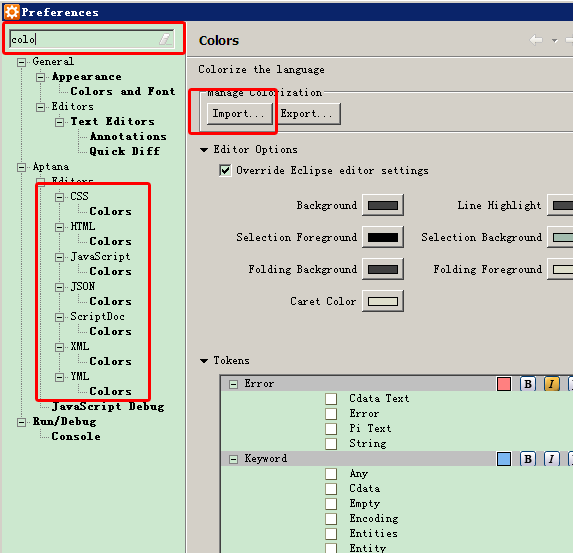
aptana 2.0下需要在html,css,js配置选项中导入以下文件。

安装颜色配置文件js,csshtml:

比如安装HTML配置文件:
打开  窗口->首选项->Aptana->HTML->Colors
选择里面 Import…

aptana主题文件下载:

aptana-theme

[转载]ASP.NET MVC3-RAZOR尝鲜之漂亮的chart图表

mikel阅读(1182)

[转载]MVC3-RAZOR尝鲜之漂亮的chart图表 – 撞破南墙 – 博客园.

目录

1 创建一个Chart

2 添加标题

3 添加数据源

3.1 反复调用AddSeries可以添加多个

3.2 重复绑定 3.3 使用xml作为数据源

4 数据绑定

5 添加图注

6 保存数据

7 图表与缓存

8 保存到文件

9 其他


1创建一个Chart

public Chart(

int width,宽度

int height,高度

string theme = null,主题由System.Web.Helpers.ChartTheme 静态类提供

string themePath = null 主题地址 xml格式

);

2添加标题

public Chart AddTitle(

string text = null, 添加标题

string name = null

//设置唯一标示 System.Web.UI.DataVisualization.Charting.Title object.

);

3添加数据源

public Chart AddSeries(string name = null,

string chartType = “Column”,

//System.Web.UI.DataVisualization.Charting.SeriesChartType 下的枚举值

string chartArea = null,

//获取或设置用于绘制数据系列的 ChartArea 对象(如果有)的名称。

string axisLabel = null, 获取或设置系列的轴标签文本。

string legend = null, 获取或设置与 Legend 对象关联的系列的名称。

int markerStep = 1, //获取或设置用于决定数据点标记的显示频率的值。

IEnumerable xValue = null, x轴的数据源

string xField = null, x轴的数据绑定的字段。

IEnumerable yValues = null,     Y轴的数据源

string yFields = null   Y轴的数据绑定的字段。

);

16

3.1反复调用AddSeries可以添加多个

3.2重复绑定

如果同时指定 yValues 和yFields ,会同时显示

同时指定 xValues 和xFields ,xFields优先。

15

3.3使用xml作为数据源

@using System.Data; @{var dataSet = new DataSet(); dataSet.ReadXmlSchema(Server.MapPath("/App_Data/data.xsd")); dataSet.ReadXml(Server.MapPath("/App_Data/data.xml")); var dataView = new DataView(dataSet.Tables[0]); new Chart(width: 400, height: 300 , theme: ChartTheme.Vanilla ) .AddSeries("Default", chartType: "Pie", xValue: dataView, xField: "Name", yValues: dataView, yFields: "Sales") .Write(); }

14

4数据绑定

public Chart DataBindTable(IEnumerable dataSource, 数据源

string xField = null ,x轴字段

);

5添加图注

.AddLegend(title:"添加图注")

6保存数据

string xmlPath = "savedchart.xml"; chart.SaveXml(xmlPath);

7图表与缓存

1保存图表到缓存

public string SaveToCache(string key = null,

int minutesToCache = 20,缓存时间,分钟为单位

bool slidingExpiration = true 是否平滑显示

);

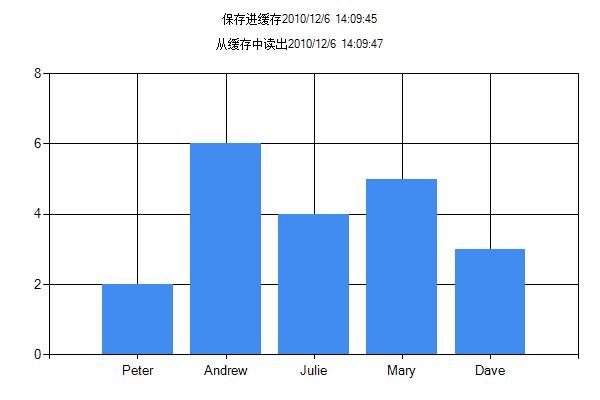
2从缓存中读出

Chart.GetFromCache( string key = null ); @{ //保存到缓存 var mychart = Chart.GetFromCache("mychartkey"); if (mychart != null) { mychart.AddTitle("从缓存中读出"+DateTime.Now); mychart.Write(); } else { mychart = new Chart(width: 600, height: 400) .AddTitle("保存进缓存"+DateTime.Now) .AddSeries( name: "Employee", xValue: new[] { "Peter", "Andrew", "Julie", "Mary", "Dave" }, yValues: new[] { "2", "6", "4", "5", "3" }) .Write() ; mychart.SaveToCache(key: "mychartkey", minutesToCache: 11, slidingExpiration: false); } }

13

8保存到文件

@{//保存到文件 var mychart = new Chart(width: 400, height: 300) .AddTitle("保存到文件再从文件中读取") .AddSeries( name: "Employee", xValue: new[] { "Peter", "Andrew", "Julie", "Mary", "Dave" }, yValues: new[] { "2", "6", "4", "5", "3" }); var path = "~/Content/Image/mychart.jpg"; var imgpath = Server.MapPath(path); mychart.Save(path: imgpath, format: "jpeg"); } <img src="@Href(path)" />

17

9其他

1 更多图表的样式

成员名称

说明

Point

点图类型。

FastPoint

快速点图类型。

Bubble

气泡图类型。

Line

折线图类型。

Spline

样条图类型。

StepLine

阶梯线图类型。

FastLine

快速扫描线图类型。

Bar

条形图类型。

StackedBar

堆积条形图类型。

StackedBar100

百分比堆积条形图类型。

Column

柱形图类型。

StackedColumn

堆积柱形图类型。

StackedColumn100

百分比堆积柱形图类型。

Area

面积图类型。

SplineArea

样条面积图类型。

StackedArea

堆积面积图类型。

StackedArea100

百分比堆积面积图类型。

Pie

饼图类型。

Doughnut

圆环图类型。

Stock

股价图类型。

Candlestick

K 线图类型。

Range

范围图类型。

SplineRange

样条范围图类型。

RangeBar

范围条形图类型。

RangeColumn

范围柱形图类型。

Radar

雷达图类型。

Polar

极坐标图类型。

ErrorBar

误差条形图类型。

BoxPlot

盒须图类型。

Renko

砖形图类型。

ThreeLineBreak

新三值图类型。

Kagi

卡吉图类型。

PointAndFigure

点数图类型。

Funnel

漏斗图类型。

Pyramid

棱锥图类型。

http://msdn.microsoft.com/zh-cn/library/system.web.ui.datavisualization.charting.seriescharttype.aspx

2参考

Series 成员

http://msdn.microsoft.com/zh-cn/library/system.web.ui.datavisualization.charting.series_members.aspx

3源码下载

http://files.cnblogs.com/facingwaller/learn2UseRazor3.rar

之前的是

http://files.cnblogs.com/facingwaller/learn2UseRazor1-2.rar

4尚未完成的问题

themePath的使用。

2 各种图表的具体使用,有些能兼容。

3 来自同学的提醒,似乎还不能精确控制。 在到处的xml中似乎可以比较精确的控制,

但是由于时间问题,不做深入探究。欢迎大家交流。

[转载]构建Android自动编译持续集成系统

mikel阅读(1065)

[转载]构建Android自动编译持续集成系统 – game-over – 博客园.

因为我们专业,所以我们用Auto Build,所以我们用CI系统。

代码管理使用SVN,自动编译使用Ant,而持续集成使用Hudson,操作系统使用Ubuntu10.04。

1. 安装

1.1 安装JDK

sudo apt-get install sun-java6-jdk

1.2 安装Ant

sudo apt-get install ant-optional

1.3 安装Hudson

sudo apt-get upgrade
wget -O /tmp/key http://hudson-ci.org/debian/hudson-ci.org.key
sudo apt-key add /tmp/key
wget -O /tmp/hudson.deb http://hudson-ci.org/latest/debian/hudson.deb
sudo dpkg –install /tmp/hudson.deb

1.4 安装Android SDK

http://androidappdocs.appspot.com/sdk/index.html

2. Project配置

2.1 build.xml

http://androidappdocs.appspot.com/guide/developing/other-ide.html

按照官方的做法,使用自动生成的build文件就可以了。

<?xml version="1.0" encoding="UTF-8"?> <project name="test-android"> <!-- The local.properties file is created and updated by the 'android' tool. It contains the path to the SDK. It should *NOT* be checked in in Version Control Systems. --> <property file="local.properties" /> <!-- The build.properties file can be created by you and is never touched by the 'android' tool. This is the place to change some of the default property values used by the Ant rules. Here are some properties you may want to change/update: application.package the name of your application package as defined in the manifest. Used by the 'uninstall' rule. source.dir the name of the source directory. Default is 'src'. out.dir the name of the output directory. Default is 'bin'. Properties related to the SDK location or the project target should be updated using the 'android' tool with the 'update' action. This file is an integral part of the build system for your application and should be checked in in Version Control Systems. --> <property file="build.properties" /> <!-- The default.properties file is created and updated by the 'android' tool, as well as ADT. This file is an integral part of the build system for your application and should be checked in in Version Control Systems. --> <property file="default.properties" /> <!-- Custom Android task to deal with the project target, and import the proper rules. This requires ant 1.6.0 or above. --> <path id="android.antlibs"> <pathelement path="${sdk.dir}/tools/lib/anttasks.jar" /> <pathelement path="${sdk.dir}/tools/lib/sdklib.jar" /> <pathelement path="${sdk.dir}/tools/lib/androidprefs.jar" /> <pathelement path="${sdk.dir}/tools/lib/apkbuilder.jar" /> <pathelement path="${sdk.dir}/tools/lib/jarutils.jar" /> </path> <taskdef name="setup" classname="com.android.ant.SetupTask" classpathref="android.antlibs" /> <!-- Execute the Android Setup task that will setup some properties specific to the target, and import the build rules files. The rules file is imported from <SDK>/platforms/<target_platform>/templates/android_rules.xml To customize some build steps for your project: - copy the content of the main node <project> from android_rules.xml - paste it in this build.xml below the <setup /> task. - disable the import by changing the setup task below to <setup import="false" /> This will ensure that the properties are setup correctly but that your customized build steps are used. --> <setup /> </project>

2.2 local.properties

这个配置文件定义了Android SDK的位置
sdk.dir=${tool.android.sdk}

2.3 build.properties

这个文件里面定义了App的Package,以及生成App签名必须用的一些配置。

application.package=test.Android
key.store=../test-Android.keystore
key.alias=test-android
key.store.password=password
key.alias.password=password

3. Hudson配置

3.1 System Configuration

系统配置很简单,只需要配置JDK、Ant的位置就可以了。

比较有用的还有一项:E-mail Notification,如果你需要在build失败发送邮件的话,那么需要配置这一项。

3.2 Job Configuration

3.2.1 Source Code Management

1. 选择Subversion,并且设置好SVN的地址以及用户名、密码

2. 把Use update和Revert勾选上

3.2.2 Build Triggers

1. 勾选上Build Periodically,然后设置自动Build的时机,这里语法跟cron的语法是一样的。

例如:0 2 * * 1-6

2. 勾选上Poll SCM,设置每隔多长时间检测SVN的变更。

例如:0,15,30,45 9-23 * * 1-5

3.2.3 Build

Step1:删除上次编译的文件

rm –f test-android.keystore
rm –f –R ./test-android/gen
rm –f –R ./test-android/bin

Step2:生成Keystore

http://androidappdocs.appspot.com/guide/publishing/app-signing.html

例如:keytool -genkey -v -alias test-android -keyalg RSA -keysize 2048 -dname ‘CN=xxx, OU=xxx, O=xxx, L=xxx, ST=xxx, C=xx’ -validity 10000 -keypass password -storepass password -keystore ‘test-android.keystore’

Step3:Invoke Ant

设置Targets:release –Dsdk.dir=$your-sdk-dir

例如:release –Dsdk.dir=/home/build/android-sdk-linux

3.2.3 Post-build Actions

1. 勾选上Archive the artifacts,设置Files to archive:test-android/bin/test-android-release.apk

2. 勾选上E-mail Notification,可以设置发送邮件的对象和时机

经过以上步骤的设置,大功告成了。

专业就是这么简单!!!

[转载]sql-isnull方法的使用

mikel阅读(1326)

[转载]sql-isnull方法的使用 – 神舟龙 – 博客园.

程序开发过程中,程序员用到最多的估计就是数据库了,几乎在任何一个地方都会和数据库打交道,数据库的增加,删除,更新,查询,都必须用到SQL语句或者是存储过程,归根结底还是试用SQL数据库,但是在敲写相关SQL语句时,我们经常会遇到一些空的字符串或者是字段,这就给我们对数据库造成一定的麻烦,系统经常会提示“某值null不能转换”“插入的值不能为空”等等诸如此类的提示,isnull函数会帮助你搞定这些小菜。

Isnull 函数主要作用是将为空的值替换为指定值,如果不为空返回检查类型的返回值,isnull的语法:

Isnull check_expression , replacement_value

参数check_expression ,是待检查是否为空的表达式,参数replacement_value是带替换的指定值,如果参数check_expression为空则参数replacement_value进行填充,如果check_expression不为空,则返回表达式相应的返回值类型,需要注意到是参数check_expression和参数replacement_value的类型需要保持一致,否则要进行相应的转换,下面通过实例说话,

例一:

select isnull(studentid,100) from student_info

解释:这个实例的意思就是查出student_info表中字段为studentid的值,如果字段studentid值为空就在字段studentid中添加100,或者你可以动态的向这个空字段添加值。

private int GetNewBillID()

{

string sql =“select isnull(max(FBillId),0) from Vs_ICChange”;

int id = Convert.ToInt32(sh.QueryValue(sql));

if (id == 0)

{

return 1000;

}

else

{

return id + 1;

}

}

这个私有方法就是查询表Vs_ICChangeFBillId字段,如果FBillId字段为空就换值为0,通过执行语句得到数值id,在对id数据进行判断,如果id=0,直接返回id=1000,如果id已经有数值的话,直接在原来的基础上加一,再将返回的id数值之间插入到相关FBillId字段即可,比如:

Insert into Vs_ICChangeFBillId values(‘”+id+”’);

这样就可以在没有数值的字段让字段值实现人工自增,从而程序就不会报错。

例二:

use test1

insert into a(name,score)

select name,isnull(score,100) from b

解释:从表b中查出相关数据,然后插入到表a,如果表b中的score字段为空,则放入数值100,并插入到a表中。